Managing Subjects
Subjects are the conditions a purchaser must satisfy before a deal can become firm, such as financing, a home inspection, or the review of a disclosure statement. The Subjects section of the Unit Overview lets your team record each condition individually, keep it up to date, and clearly see what a deal is still waiting on. This guide walks you through everything you can do with subjects, including the two ways to add them and how they are resolved.
How We Got Here
A deal has been written on a unit and the contract carries one or more conditions that must be cleared before it can proceed to firm. Previously, these conditions were tracked informally outside of Pluto, which made it hard to know exactly what remained outstanding. Now each condition lives on the unit as its own subject, with a description, a removal date, and a status, so your team always has a single, reliable view of what is left to complete.
Where to Find Subjects
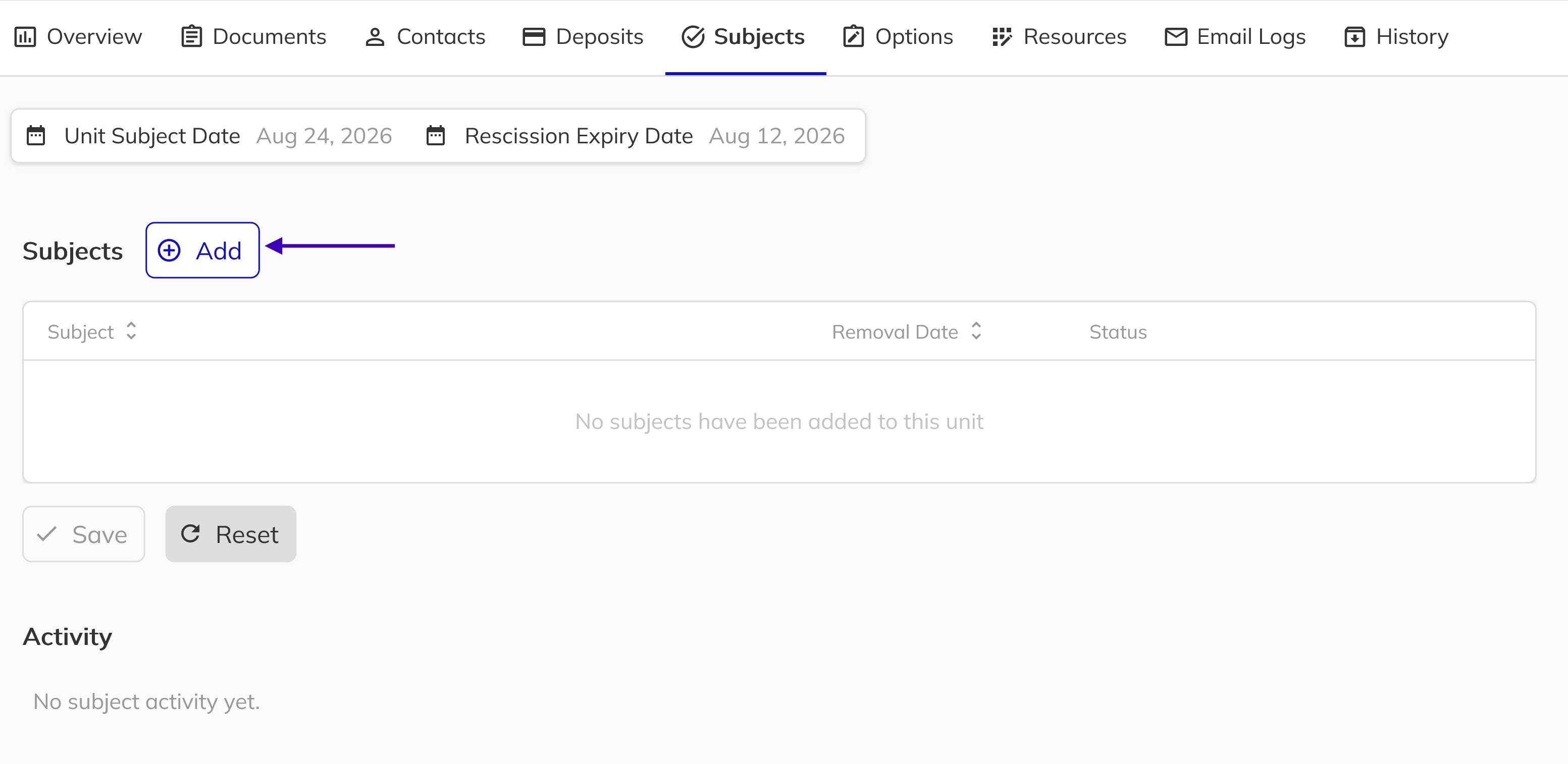
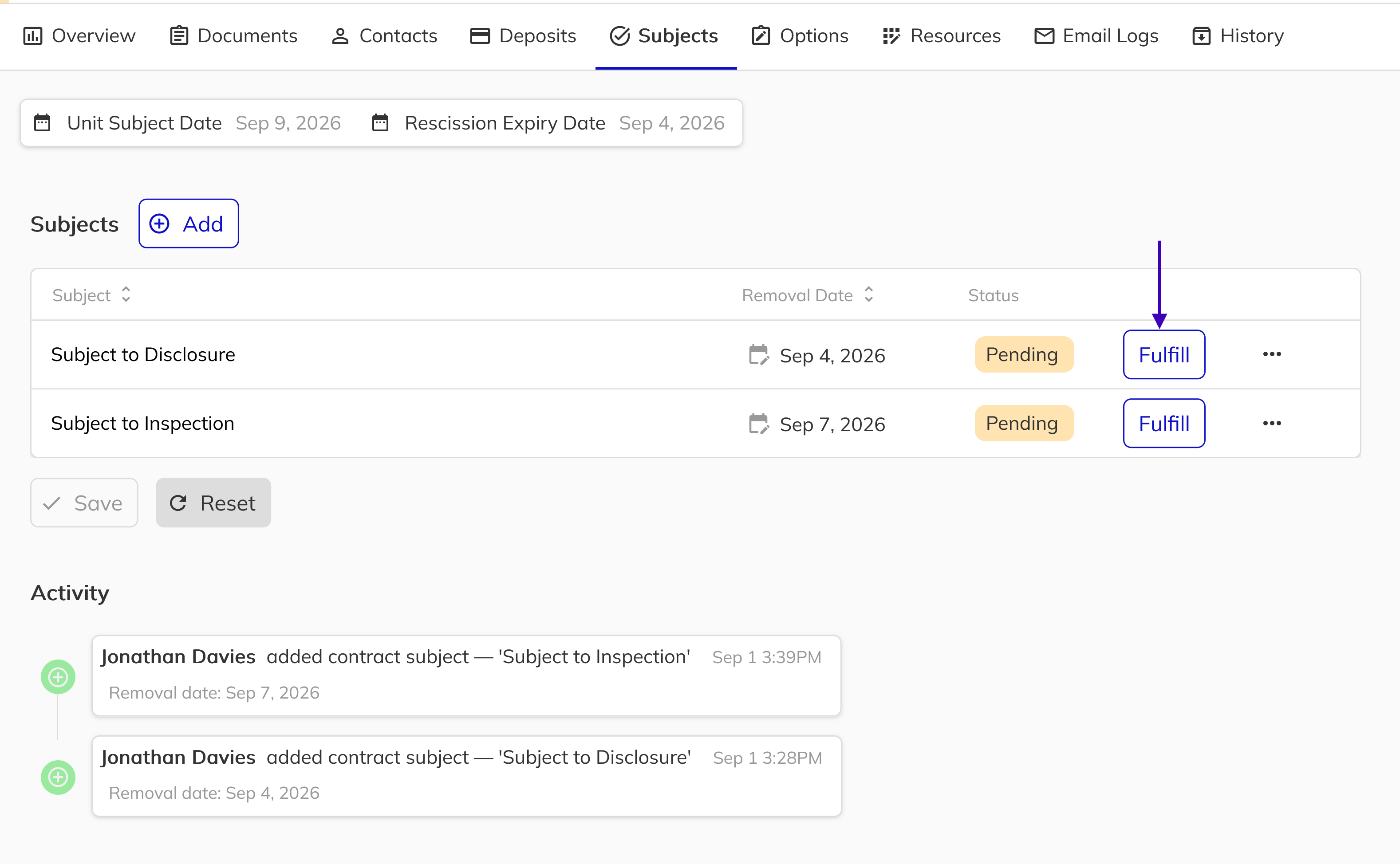
Every unit with a deal has a Subjects tab in the Unit Overview. At the top of the tab you will see the unit's overall Subject Date and Rescission Expiry Date for context, followed by the list of subjects on the deal. If any subject is still pending after its removal date has passed, a warning banner appears so nothing slips past its deadline.

Understanding Subject Statuses
Each subject carries one of three statuses, shown as a colour-coded pill:
- Pending — the condition has not yet been resolved and is still outstanding on the deal.
- Fulfilled — the condition has been met and satisfied by the purchaser.
- Waived — the condition has been removed as a requirement, with an optional reason recorded.
A deal cannot go firm while subjects remain pending. Every subject must be either fulfilled or waived before the deal can continue to the firm stage. This ensures nothing is overlooked before the contract becomes binding.
The Two Ways to Add a Subject
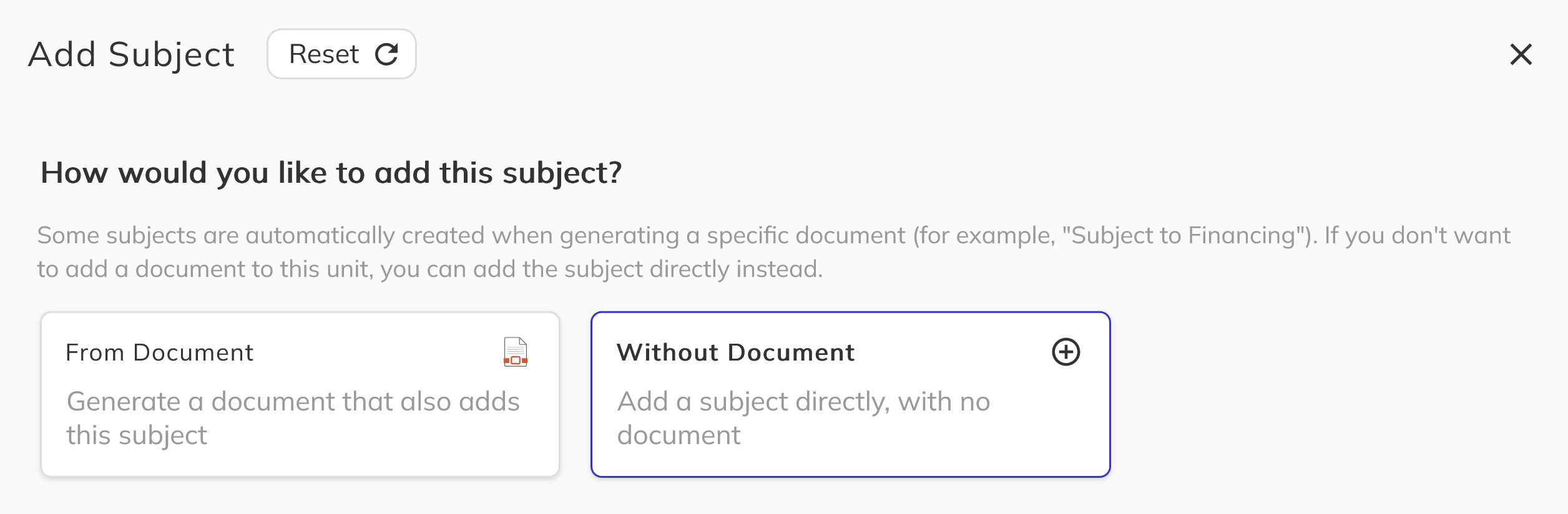
Subjects can be added in two ways, and you choose which flow to use at the start of the Add workflow:
- With a document — generate a subject addendum from a configured template. This creates the supporting document and the subject together in a single step.
- Without a document — add the subject manually when no document is required, for example when you simply need to track a condition already captured elsewhere in the contract.
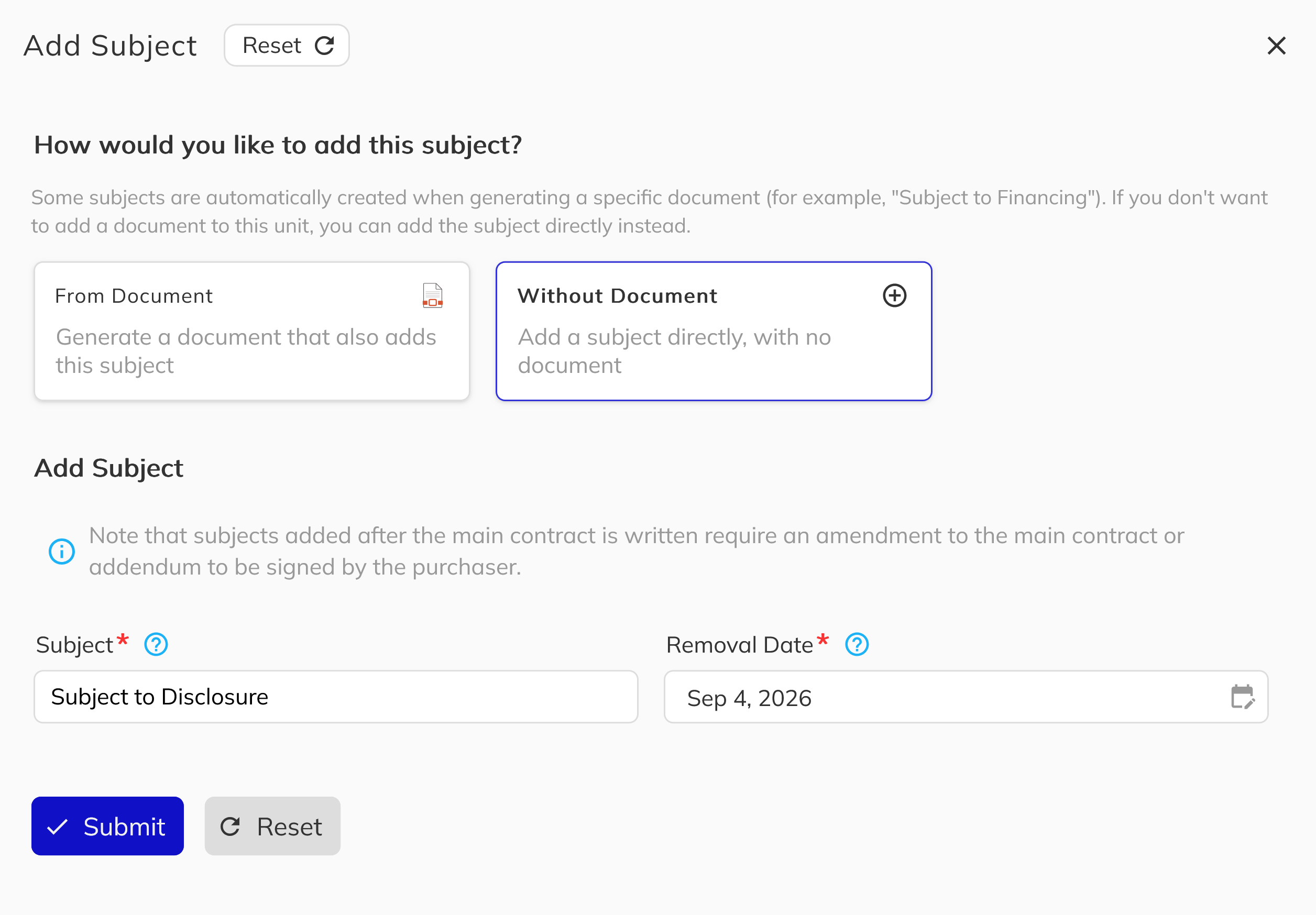
Subjects added after the main contract has been written may require an amendment to the main contract or an addendum to be signed by the purchaser. The workflow will remind you of this as you go.
Adding a Subject Without a Document
Use this flow when you only need to record a condition and no separate document has to be generated.
1. Open the Add Workflow
On the Subjects tab, click the Add button to open the guided side panel.
2. Choose the Manual Option
When asked how you would like to add the subject, select the option to add a subject directly without a document.
3. Enter the Subject Details
Provide a short Subject name that clearly identifies the condition, such as "Subject to Financing", and set the Removal Date by which it must be fulfilled or waived. Both fields are required before you can save.
4. Save the Subject
Submit the workflow to add the subject to the deal. It will appear in the subjects list with a Pending status, ready to be fulfilled or waived later.
Adding a Subject With a Document
Use this flow when the condition needs a supporting document, such as a subject addendum that the purchaser will sign.
1. Open the Add Workflow
On the Subjects tab, click the Add button to open the guided side panel.
2. Choose the Document Option
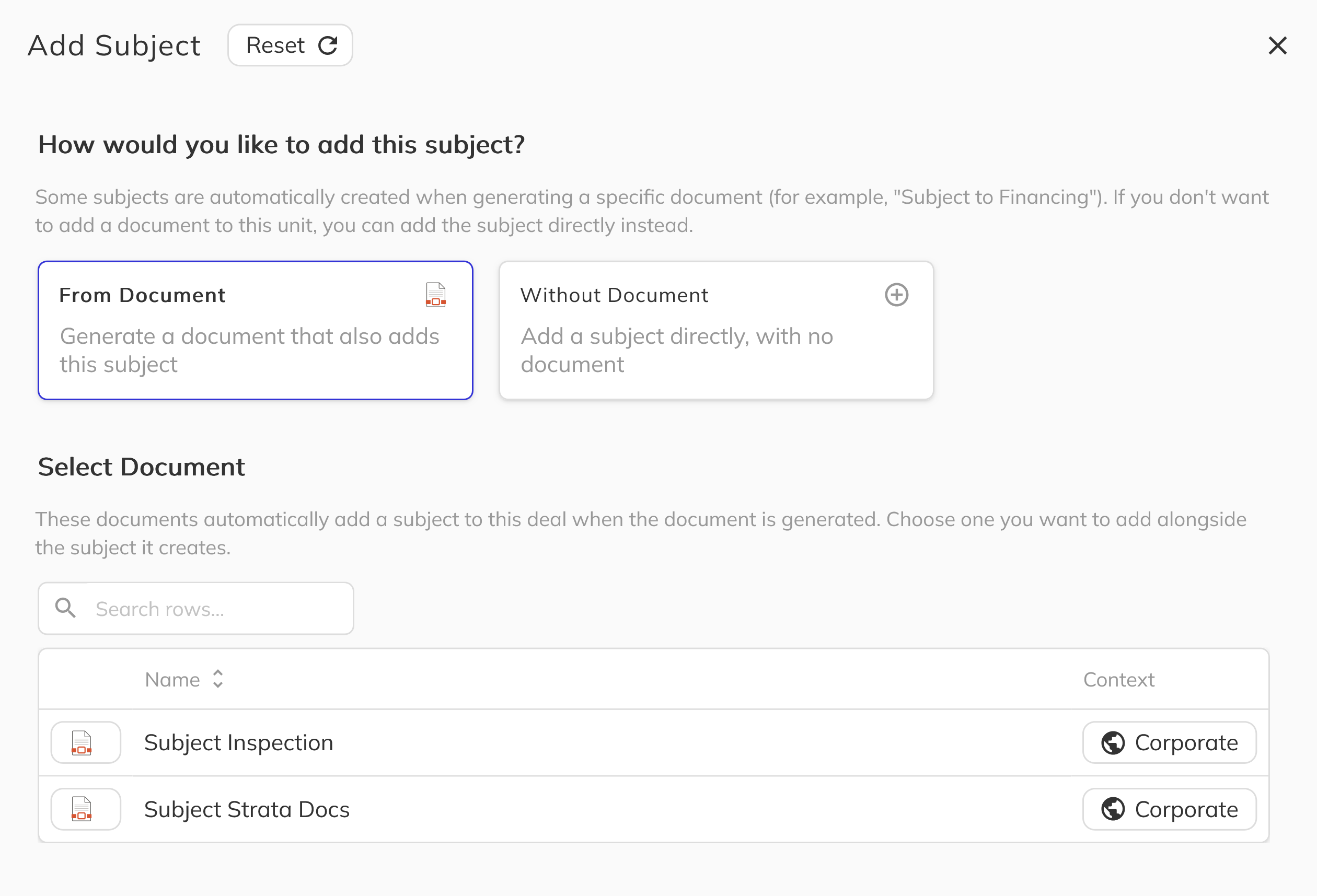
Select the option to add the subject by generating a document. The workflow will present the subject templates configured for the project.
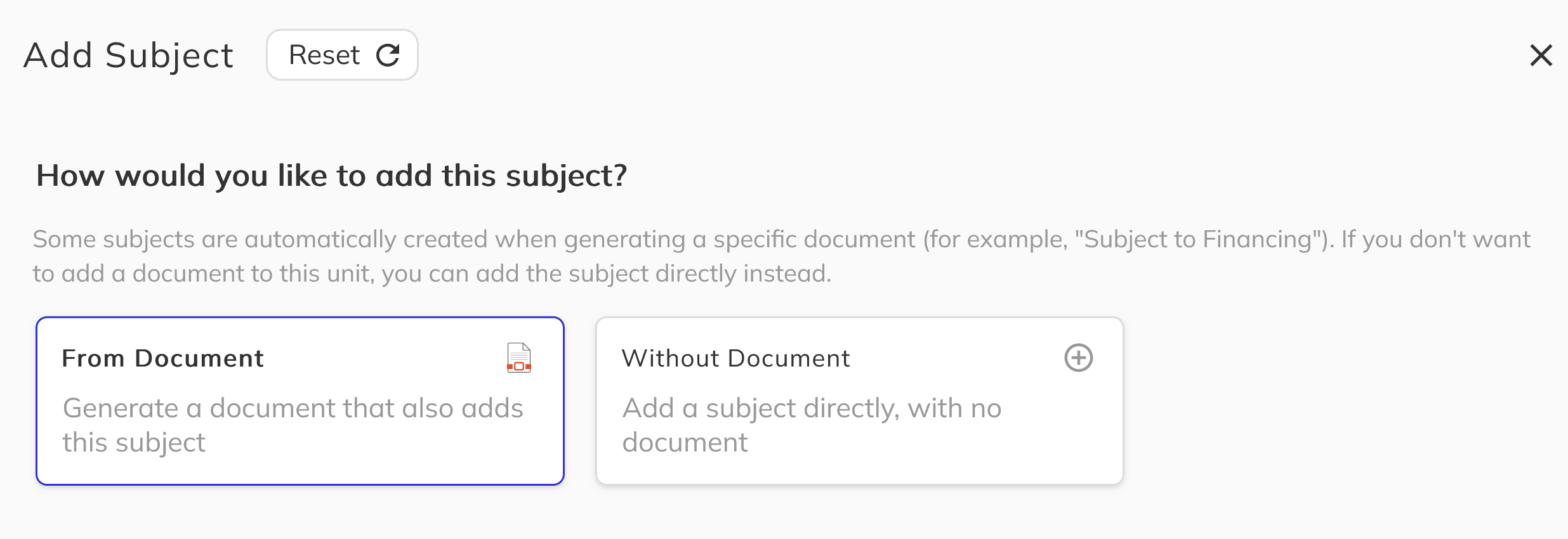
3. Select a Subject Template
Choose the subject template you want to generate. Each template is already configured with the subject name it will create, so your team can identify the condition being added at a glance.
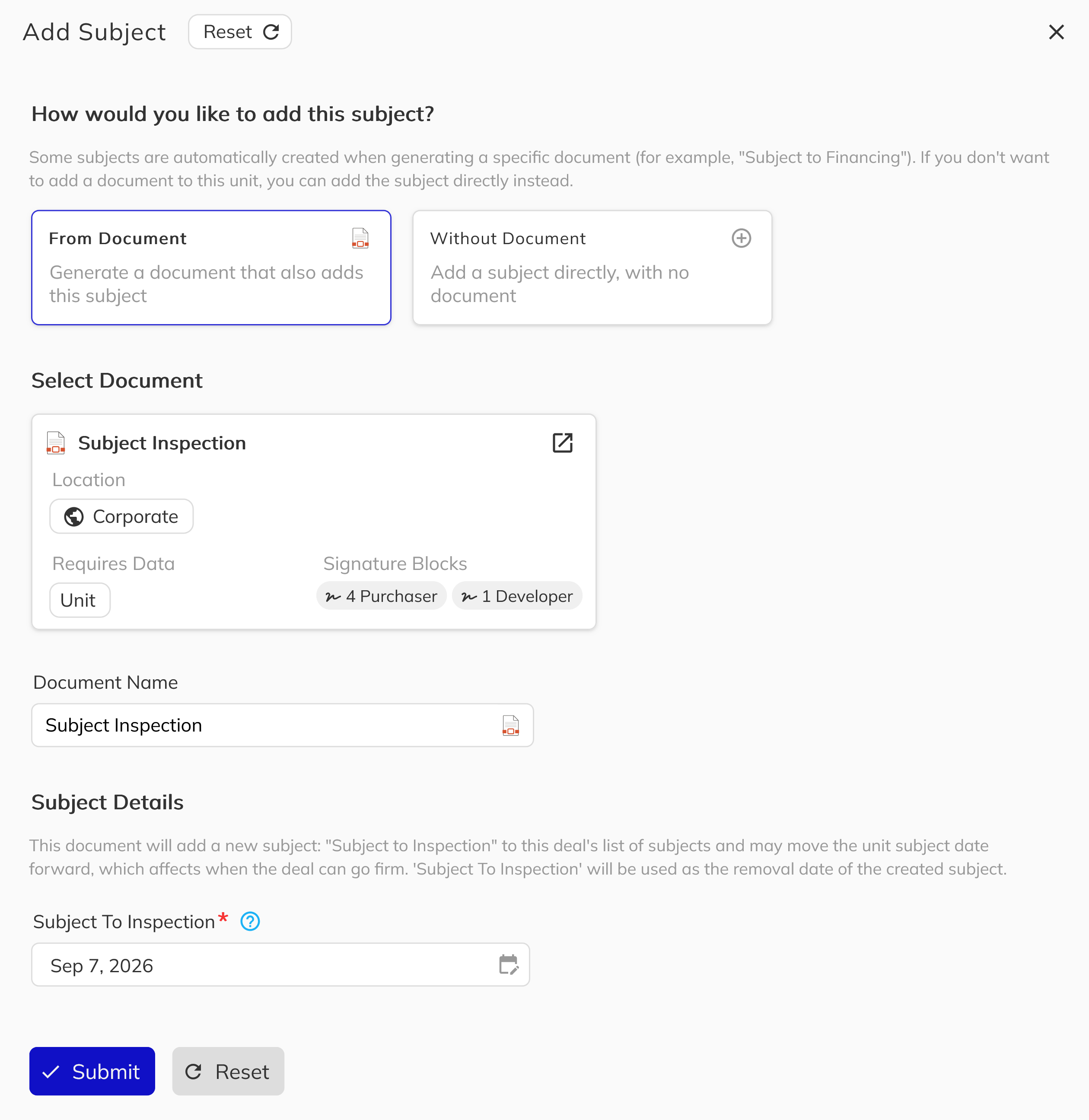
4. Complete the Prompt Fields
Fill in the document's prompt fields, including the Removal Date that will be used for the created subject. Use the Fill on PDF feature for a visual reference of where each field appears on the document.
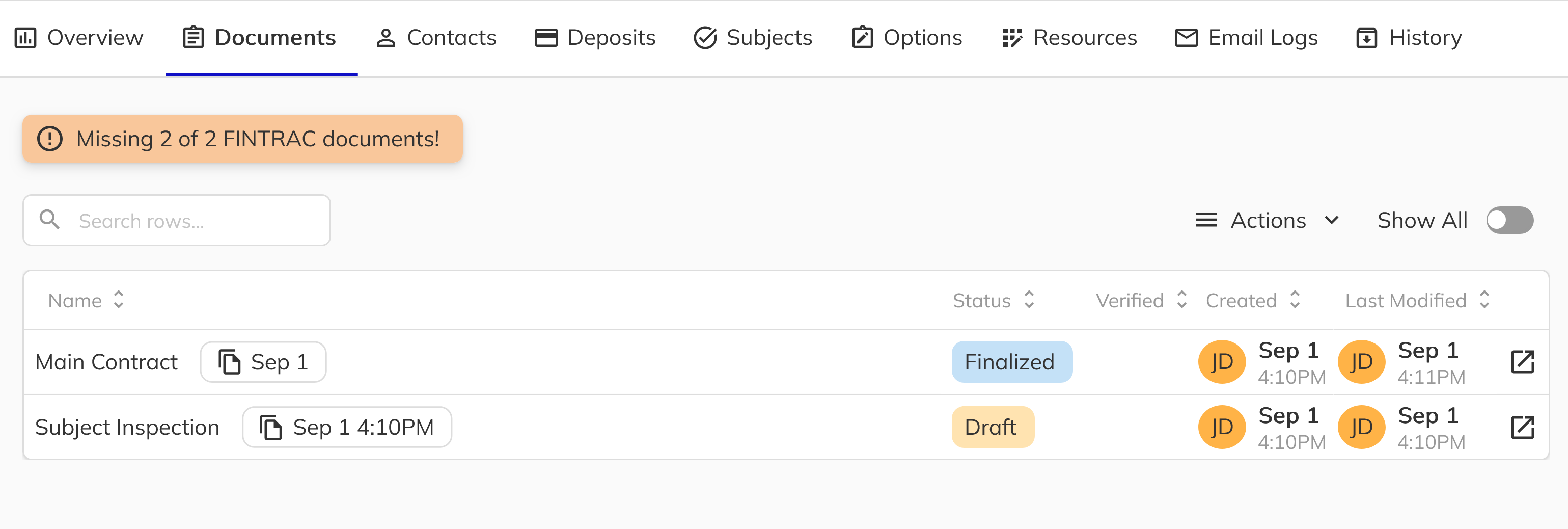
5. Generate the Subject and Document
Submit the workflow. Pluto creates the subject on the deal and generates the supporting document at the same time. The subject document is created in the Draft status (the initial generated state), which means it still needs to be shared and signed to complete the condition through the normal signing workflow.
Resolving a Subject
A subject stays Pending until it is either fulfilled or waived. Both actions are available from the subjects list.
1. Fulfill a Subject
When a condition has been satisfied, click Fulfill on that subject to mark it complete in a single step. Its status pill updates to Fulfilled.
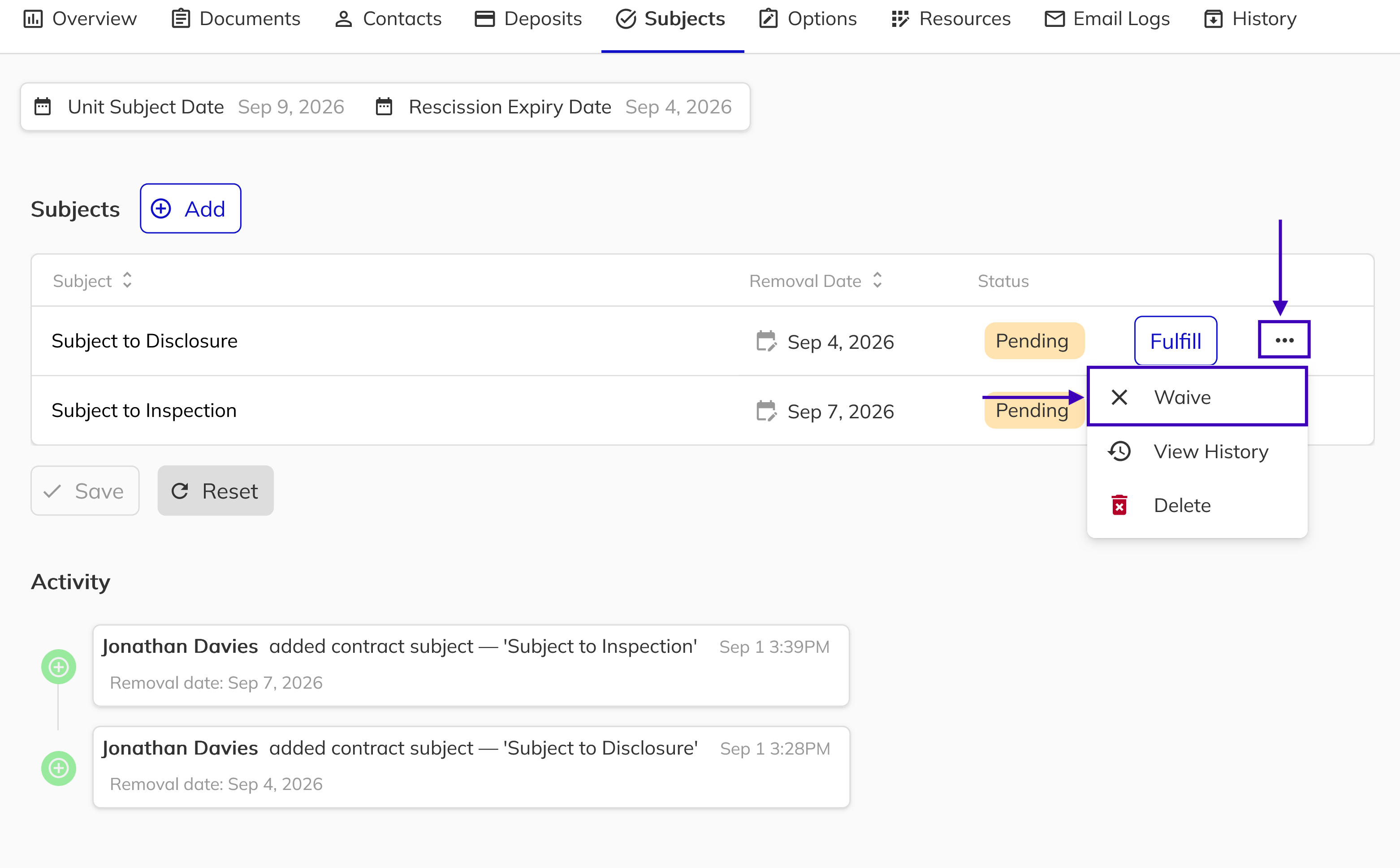
2. Waive a Subject
If a condition is no longer required, choose Waive from the subject's actions. You can optionally record a reason, which is stored against the deal for reference.
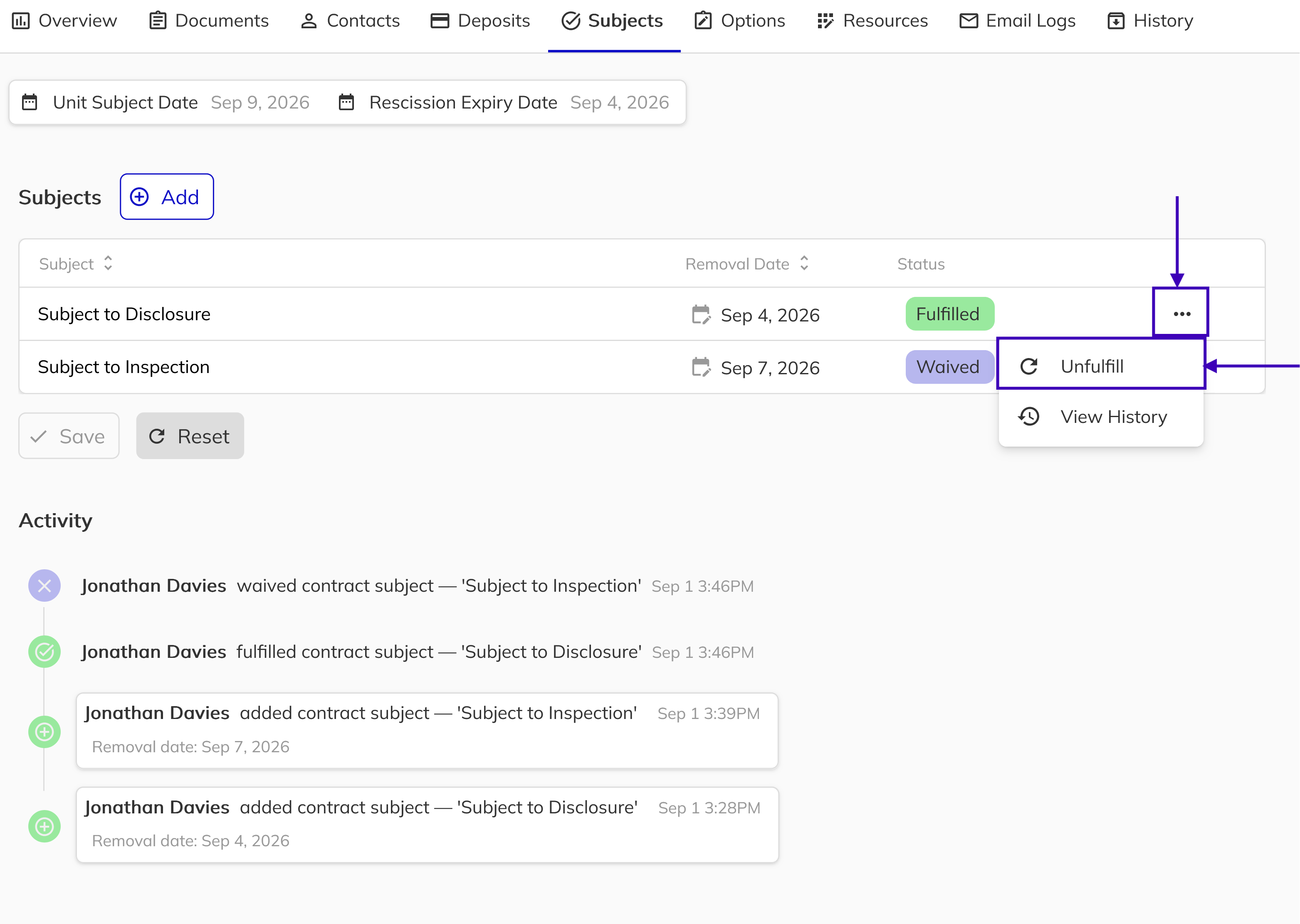
3. Reopen if Needed
A fulfilled or waived subject can be returned to Pending if circumstances change, so your records always reflect the true state of the deal..
Subjects and Going Firm
A deal in the Subject status moves to Firm once its conditions have been satisfied. Pluto runs an automatic daily check that advances a deal from Subject to Firm after the unit's subject date has passed, and, if the project requires it, once a deposit has been received.
Make sure each subject is either fulfilled or waived once its condition is met. A single pending subject will hold the deal in the Subject status and prevent both the automatic schedule and a manual Go Firm from completing.
This automatic transition will only run when every subject on the deal has been resolved. If any subject is still pending, the deal will not move to firm automatically, even after the subject date has passed. The same rule applies when a staff member uses the Go Firm action manually, which will be blocked until all subjects are fulfilled or waived.
Editing and Removing Subjects
Subject descriptions and removal dates can be edited directly in the subjects list while the deal is still active. Pending subjects can be deleted by the staff member who created them or by an administrator. Once a deal reaches Firm or Closed, subjects are locked from further changes.
If a subject's removal date falls after the unit's current subject date, Pluto will ask you to confirm and can move the unit's subject date forward to match. This affects when the deal can go firm, so review the prompt carefully before continuing.
Tracking Subject History
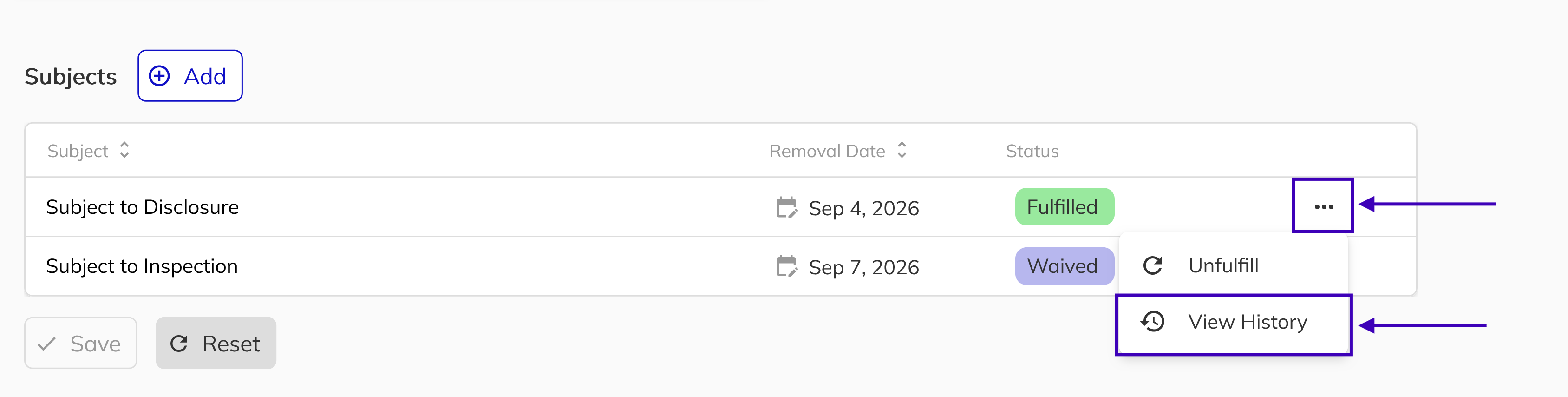
Every subject records who added it, who fulfilled or waived it, when the change happened, and any reason provided. An activity timeline on the Subjects tab shows all changes for the deal, and each individual subject has its own history view for a detailed audit trail.
Congratulations! You now know how to manage subjects from the Unit Overview. You can add conditions with or without a supporting document, track their status, resolve them by fulfilling or waiving, and follow a complete history of every change. By keeping subjects up to date, your team always has a clear, reliable picture of what each deal still needs before it can proceed to firm.