Adding Your Developer Signature
This guide walks you through how to save your signature and initials to your Sales App account. Once saved, your signature and initials are stored on your account and used whenever you sign documents as a developer with Sign or Sign All.
How We Got Here
Before you can sign any document as a developer, the Sales App needs a saved signature and initials on your account. If either one is missing, clicking Sign All shows a Missing Signature message, and the Developer option will not appear in the Setup Signing Session workflow. You may also see an orange reminder in your account panel asking you to add your personal signatures.
Signature management is available to staff with the Sign Contract as Developer or Standard Workflow permission. Signing as a developer specifically requires the Sign Contract as Developer permission. Contact your administrator if you do not see these options.
Saving Your Signature and Initials
1. Open Your Account Panel
Click the person icon in the top-right corner of the Sales App header. Hovering over the icon shows your full name. The User Account Details panel will open.

2. Open the Signature Manager
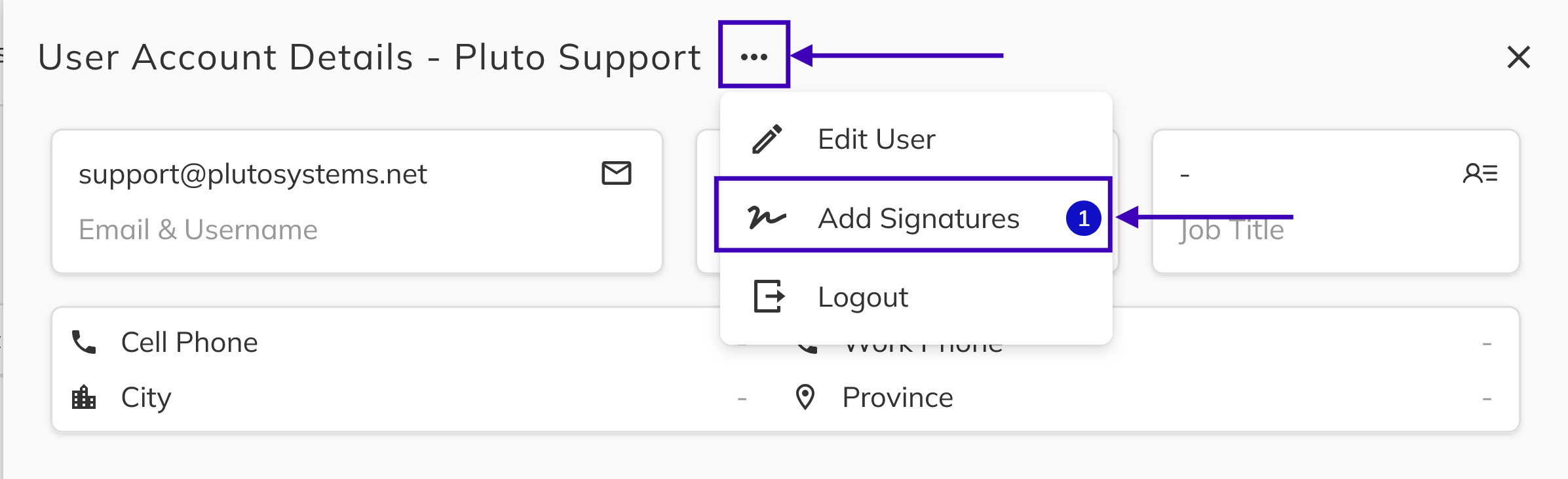
In the User Account Details panel, click the ... (three-dot) menu and select Add Signatures. You can also click the orange reminder that reads "Please add your personal signatures to this account to facilitate signing". The Manage Personal Signature & Initials dialog will open.
3. Create Your Signature
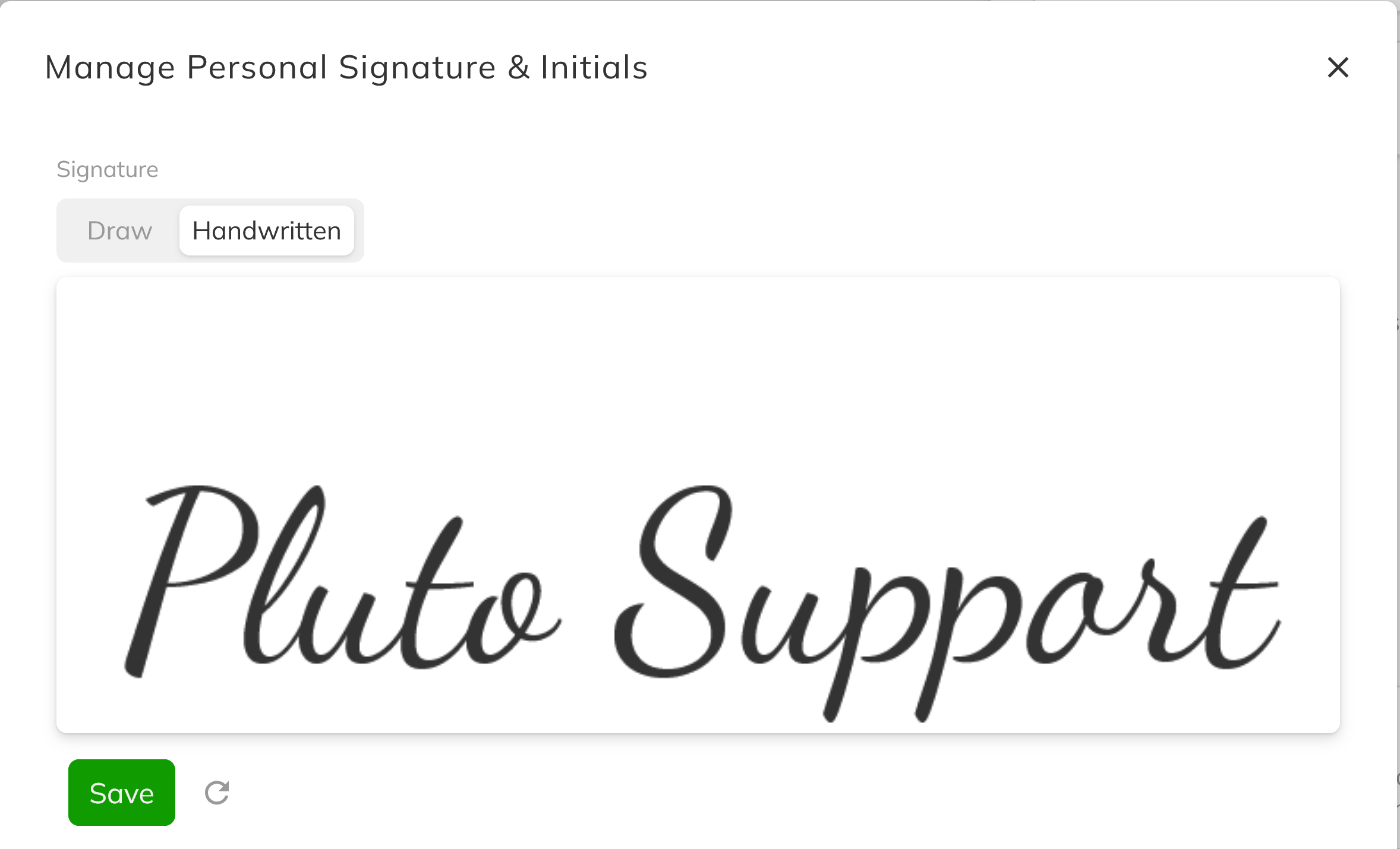
In the Signature section, choose how you want to create your signature:
- Draw — Use your mouse, trackpad, or touchscreen to draw your signature on the pad. Click the reset (circular arrow) icon to clear the pad and start over.
- Handwritten — Automatically generates a script-style signature from the full name on your account.
When you are happy with your signature, click Save in the Signature section.
4. Create Your Initials
In the Initials section, choose Draw or Handwritten the same way you did for your signature. The Handwritten option uses the first letter of each word in your account name. Click Save in the Initials section to store your initials.
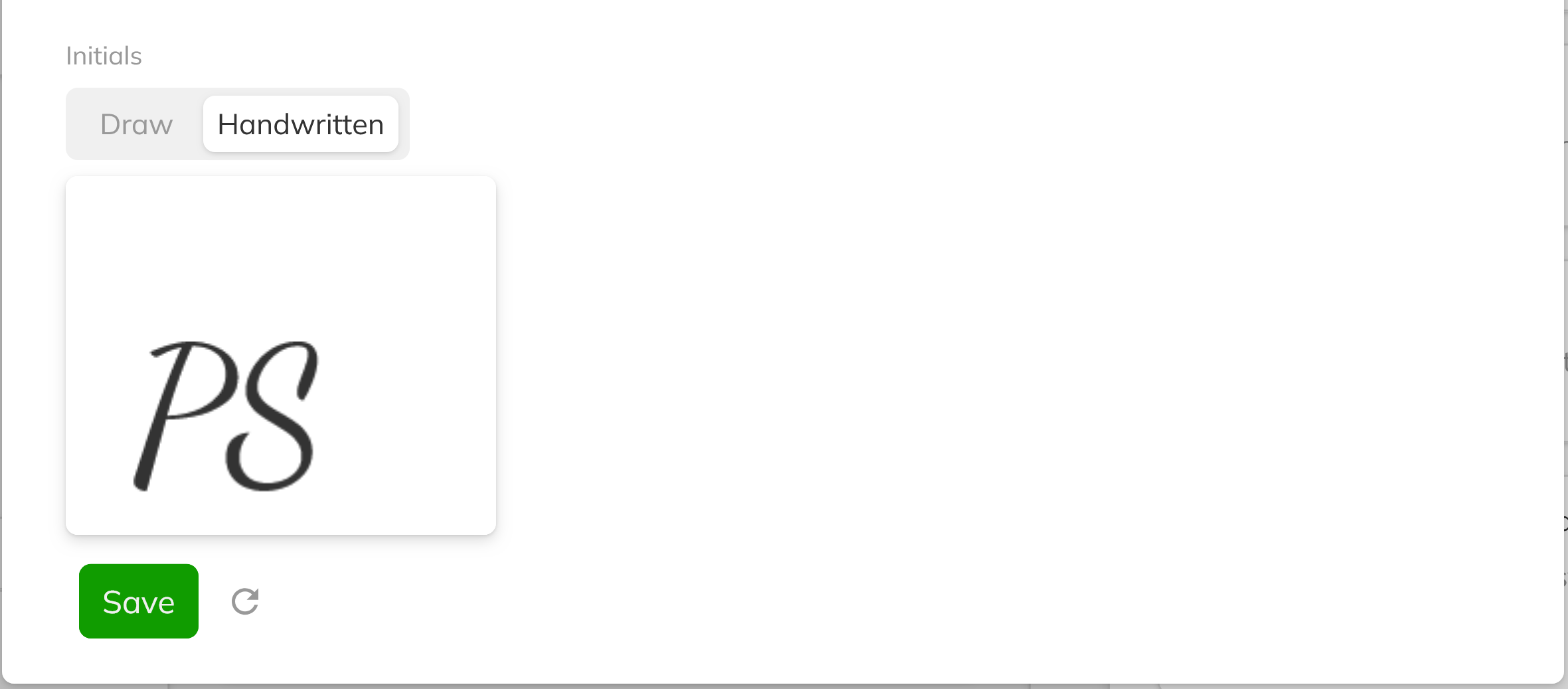
The signature and initials each have their own Save button. Make sure you save both. You must have a saved signature and initials before you can sign as a developer.
5. Close the Dialog
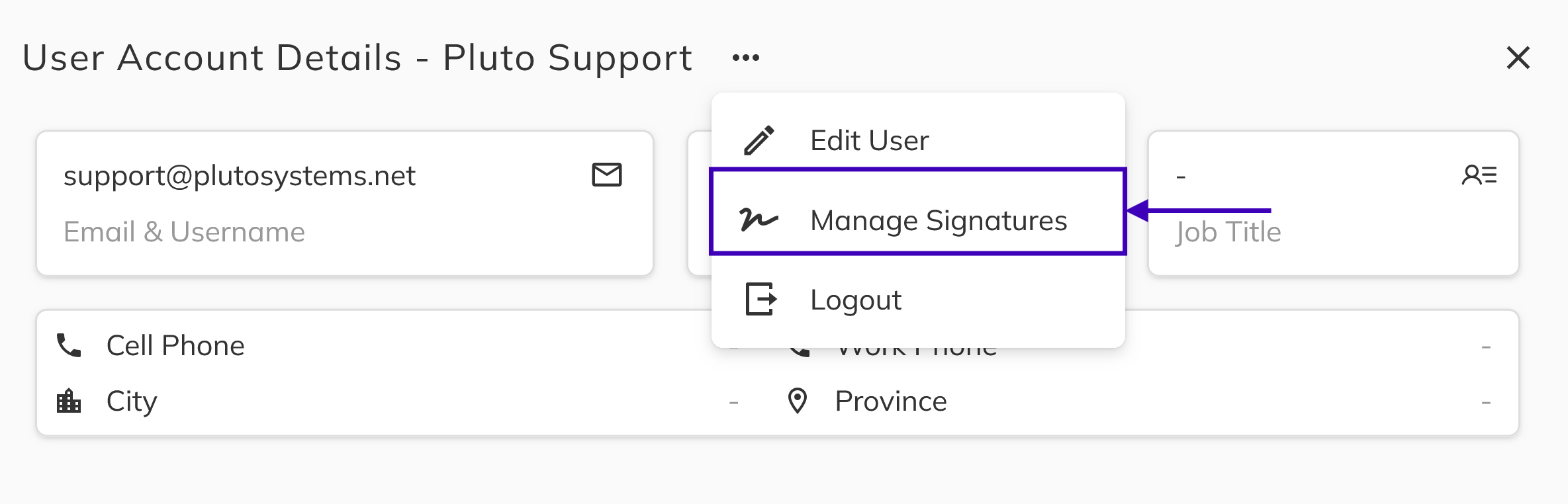
A confirmation message appears after each save. Click the X in the top-right corner of the dialog to close it. The menu option in your account panel will now read Manage Signatures.
Updating Your Signature
To change your saved signature or initials, open your account panel, click the ... menu, and select Manage Signatures. Create a new signature or set of initials and click Save to replace the existing one.
On the mobile version of the Sales App, open the menu in the header and select Edit Signatures to open the same signature dialog.
Congratulations! You have saved your signature and initials to your Sales App account. You are now ready to sign documents as a developer using Sign or Sign All.