Conveyance Reports
The Conveyance Report provides a comprehensive summary of deal information for conveyance lawyers. Pluto Systems offers two ways to generate this report: a single-unit PDF download from any unit view, and a bulk Excel (CSV) export from the Admin panel for multiple units at once. This guide walks you through both methods.
How We Got Here
During the sales lifecycle, conveyance lawyers need detailed deal data — purchaser information, pricing breakdowns, deposit schedules, lawyer contacts, and closing dates. Rather than compiling this manually, Pluto Systems generates conveyance reports directly from the deal data already in the system. A PDF template is maintained as a system template to produce individual reports, while the bulk export assembles data from multiple units into a spreadsheet for batch processing.
Generating a Single-Unit PDF Conveyance Report
Use this method when you need a conveyance report for one specific unit. The PDF is generated from a system template and populated with the deal's current data.
1. Navigate to the Unit View
Open the Sales App and navigate to the unit you want to generate a conveyance report for. You can find the unit through your dashboard, the unit manager, or by searching for the unit number.
2. Open the Actions menu
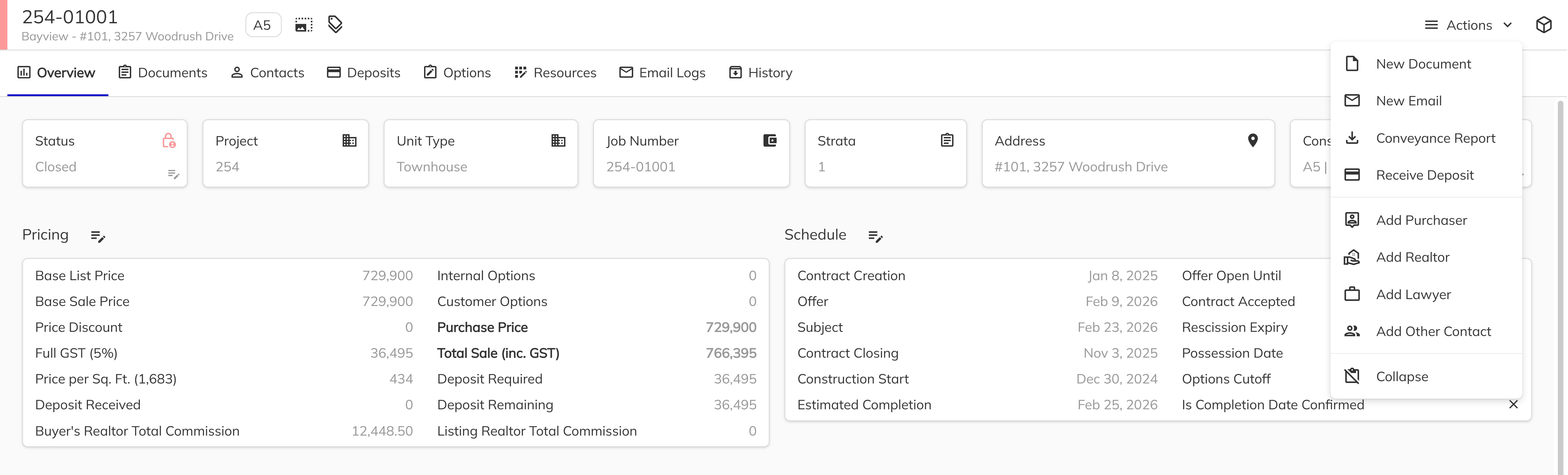
In the Unit View, locate and left click the Actions button in the top-right area of the page. This will open a dropdown menu with all available actions for the unit.
3. Click "Conveyance Report"
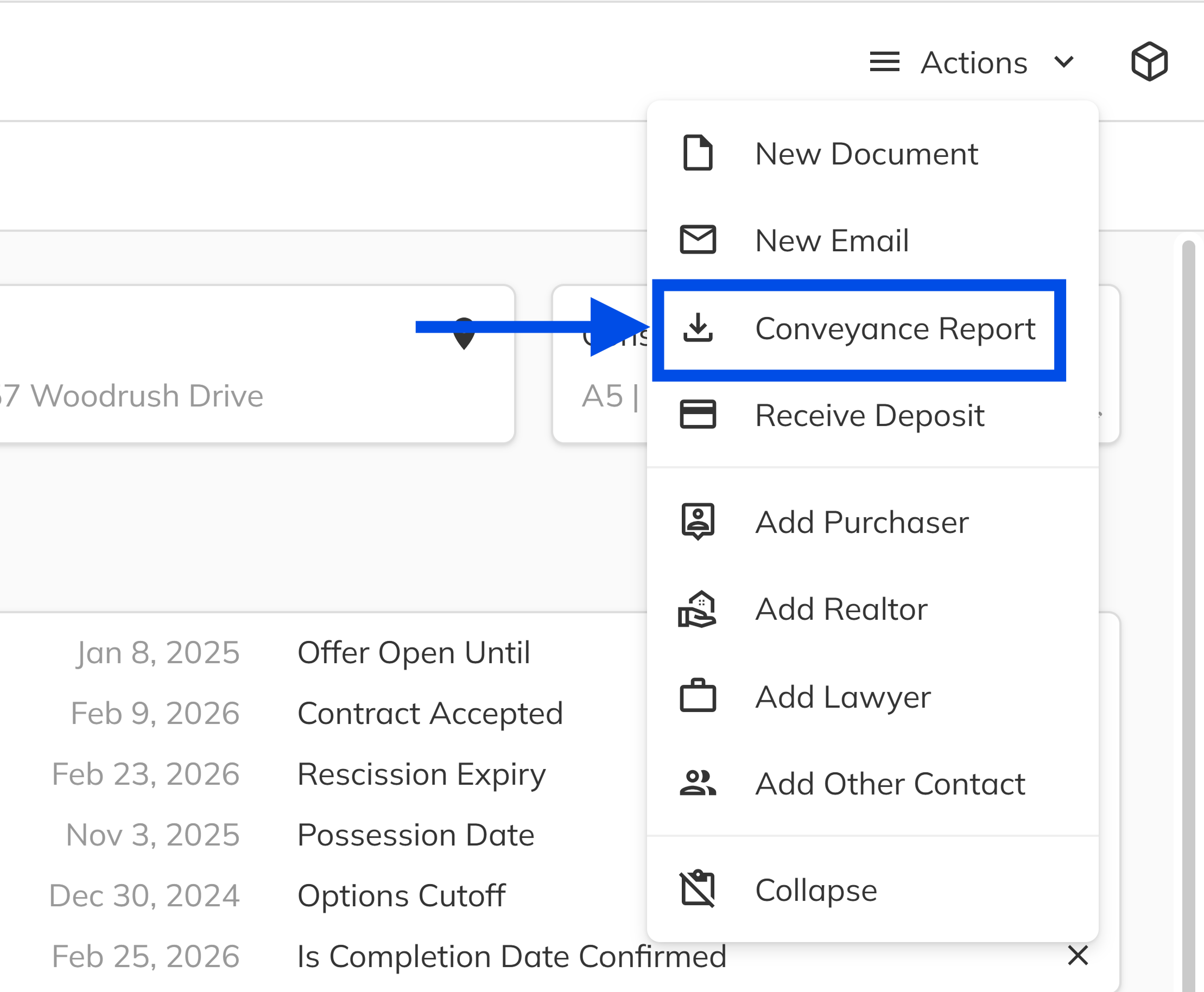
Left click Conveyance Report from the actions dropdown. The system will generate the PDF using the current deal data and automatically download it to your computer as a PDF file named after the unit number (e.g., 1234 - Conveyance Report.pdf).
4. Open and review the downloaded PDF
Locate the downloaded file in your browser's download bar or your downloads folder. Open the PDF to review the conveyance report, which includes purchaser details, pricing, deposit schedule, lawyer contacts, and closing dates.
Congratulation You have successfully generated a single-unit PDF conveyance report. You can now share this document with your conveyance lawyer.
Generating a Bulk Excel Conveyance Report
Use this method when you need to export conveyance data for multiple units at once. This produces a CSV file that can be opened in Excel, containing detailed deal data across all selected units.
1. Navigate to the Admin panel
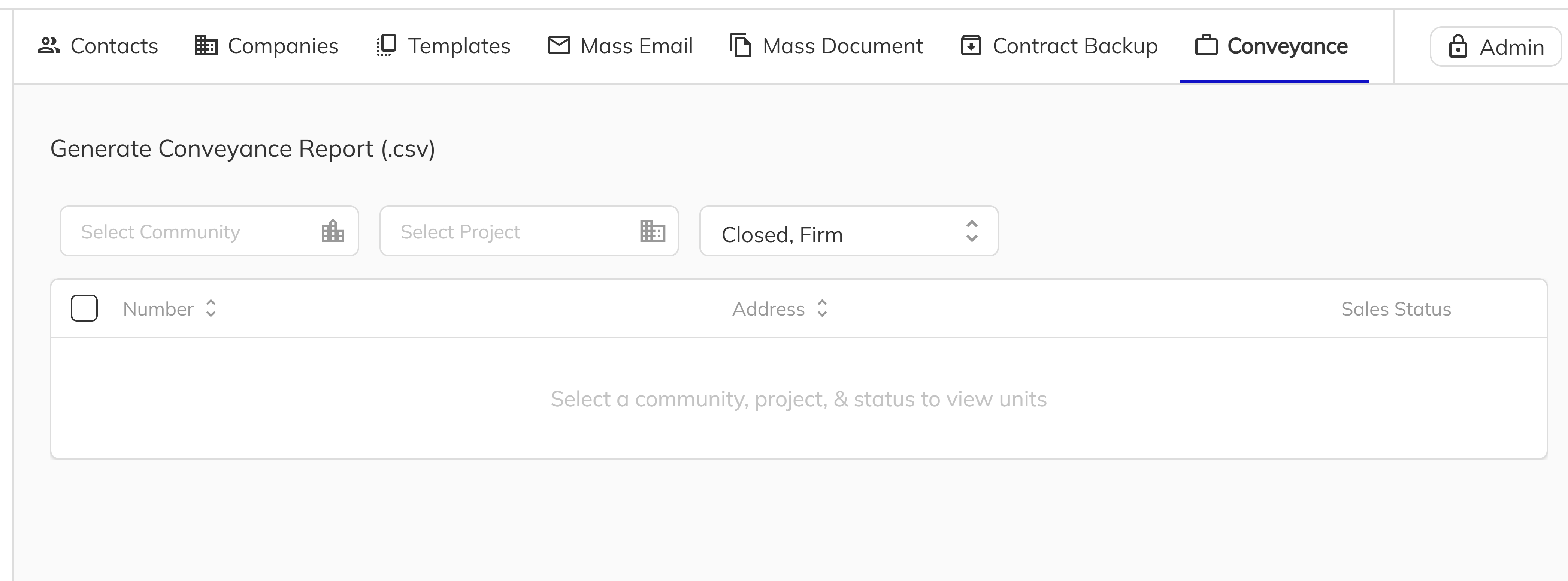
From the Sales App, left click the Admin tab in the main navigation. Then select the Conveyance tab to open the bulk conveyance report page.
2. Select a Community and Project
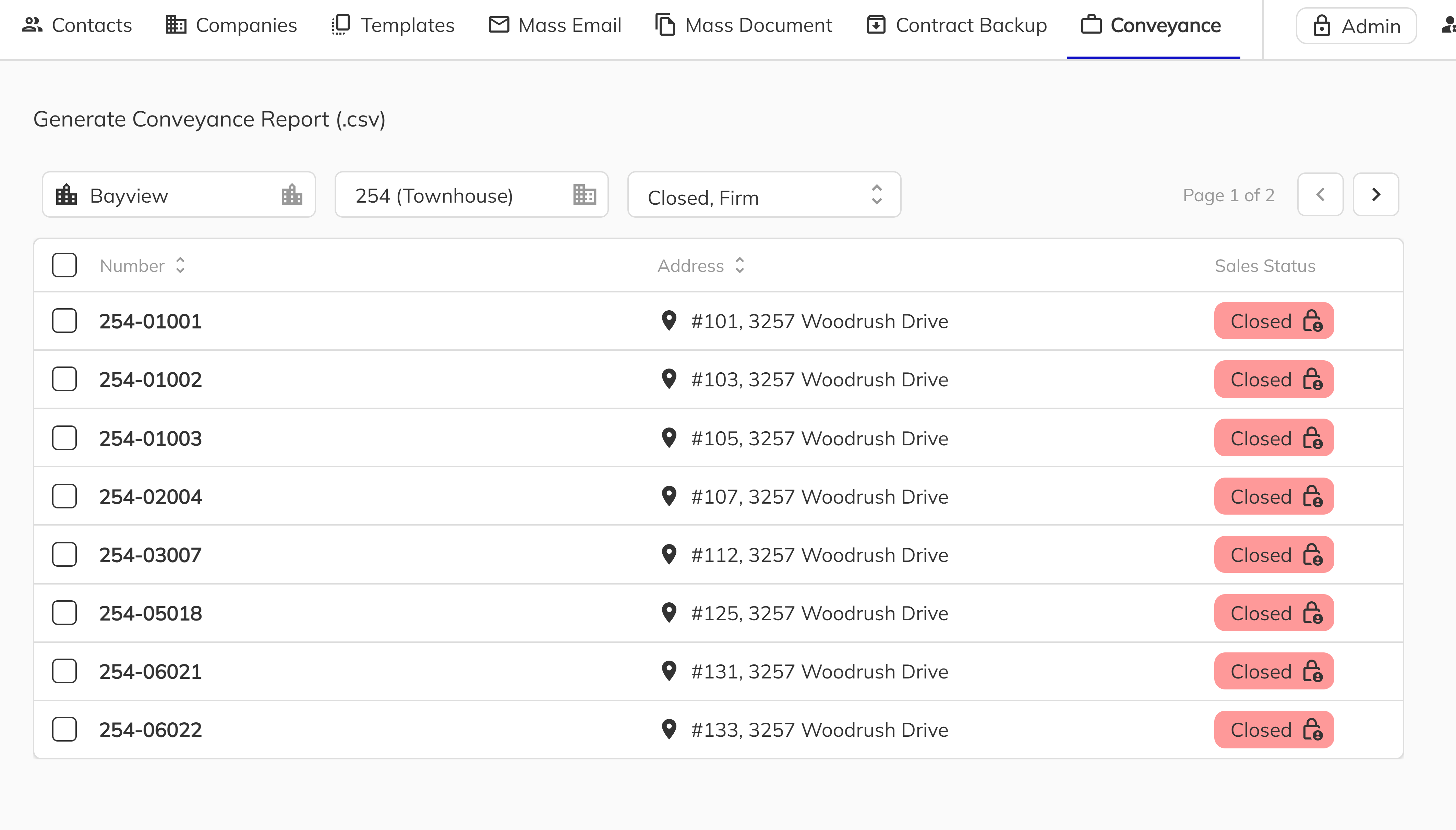
Use the Community dropdown to select the community, then use the Project dropdown to choose the specific project you want to generate the report for. The unit grid will populate with units from the selected project.
3. Filter units by status
Use the status filter to narrow down the units displayed in the grid. By default, the filter is set to show Firm and Closed units. You can adjust this filter to include or exclude other statuses as needed.
4. Select the units to include
Review the unit grid and select the units you want to include in the report. You can select individual units by clicking their checkboxes, or use the select-all checkbox in the grid header to select all visible units.
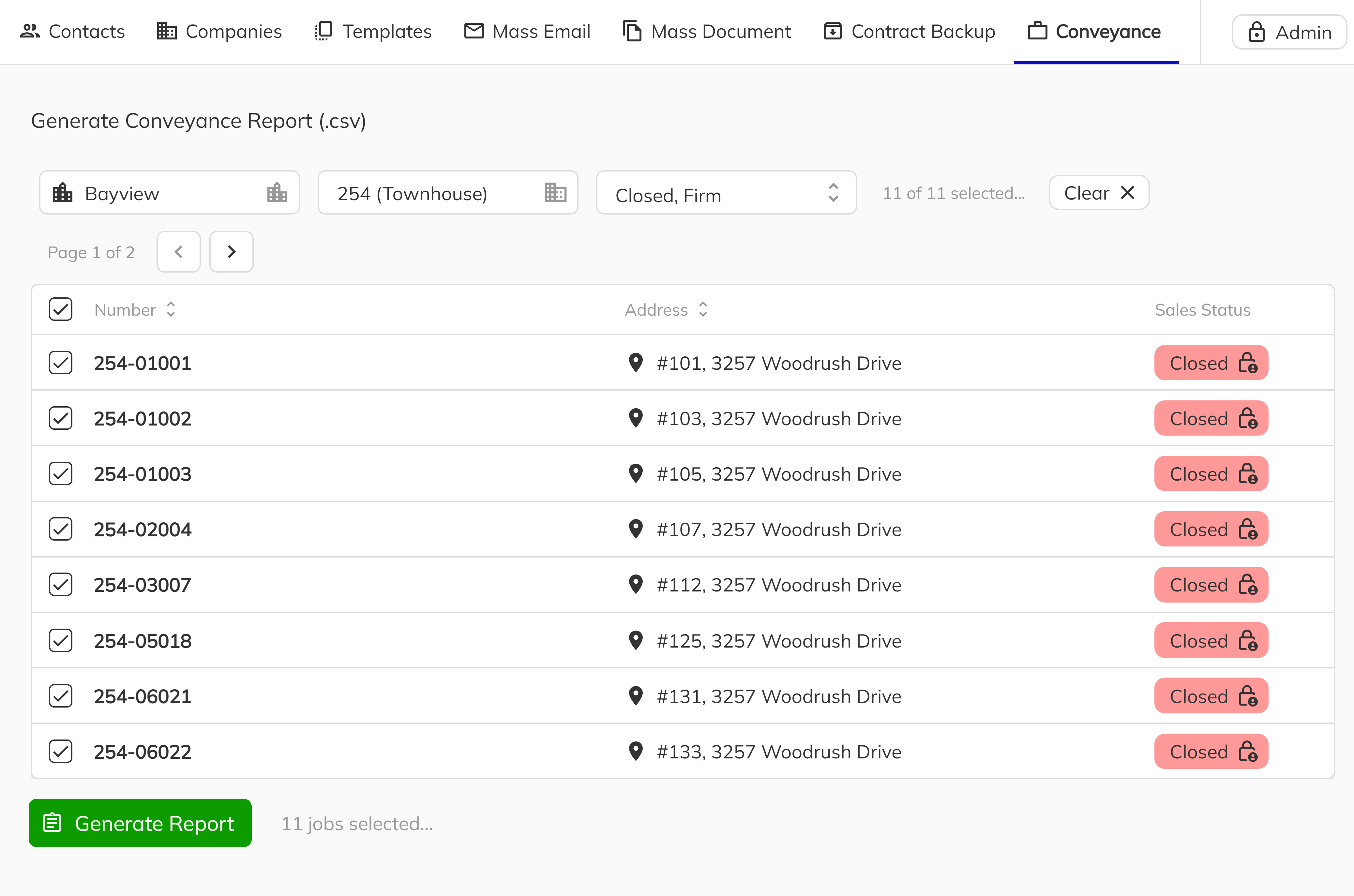
5. Generate the report
Left click the Generate Report button. The system will compile the data for all selected units and download a CSV file to your computer. This file contains comprehensive deal data including purchaser information, pricing, deposits, lawyer contacts, realtor details, and more.
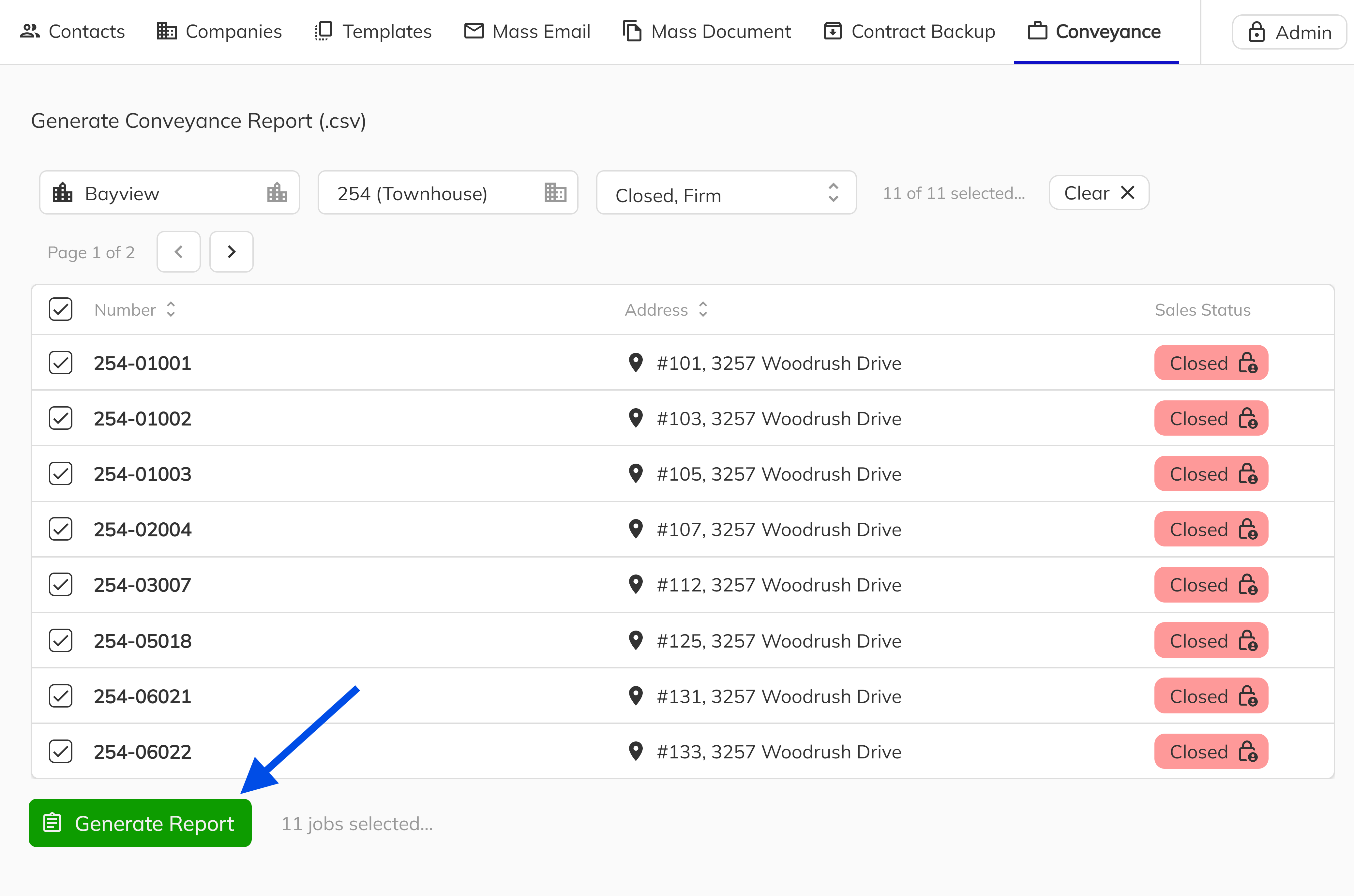
6. Open the CSV in Excel
Locate the downloaded CSV file and open it in Microsoft Excel or your preferred spreadsheet application. Each row represents a unit, and the columns include all deal details organized with clear headers.
Congratulations! You have successfully generated a bulk conveyance report for multiple units. This spreadsheet can be shared directly with your conveyance lawyers or used for internal tracking and review.