Developer Signing
This guide walks you through how to sign documents as a developer directly from the Sales App dashboard. You will locate pending documents in the Developer Signing in Progress panel, open the document, and apply your signature using Sign All.
How We Got Here
Before a document lands in your dashboard, a sales representative has created the contract or addendum and progressed it to the Developer Signing status. At this point the document appears on your dashboard, waiting for your signature.
You will also need a saved signature and initials on your account. If you have not set these up yet, follow the Adding Your Developer Signature guide first.
Signing a Document from the Dashboard
1. Open the Dashboard
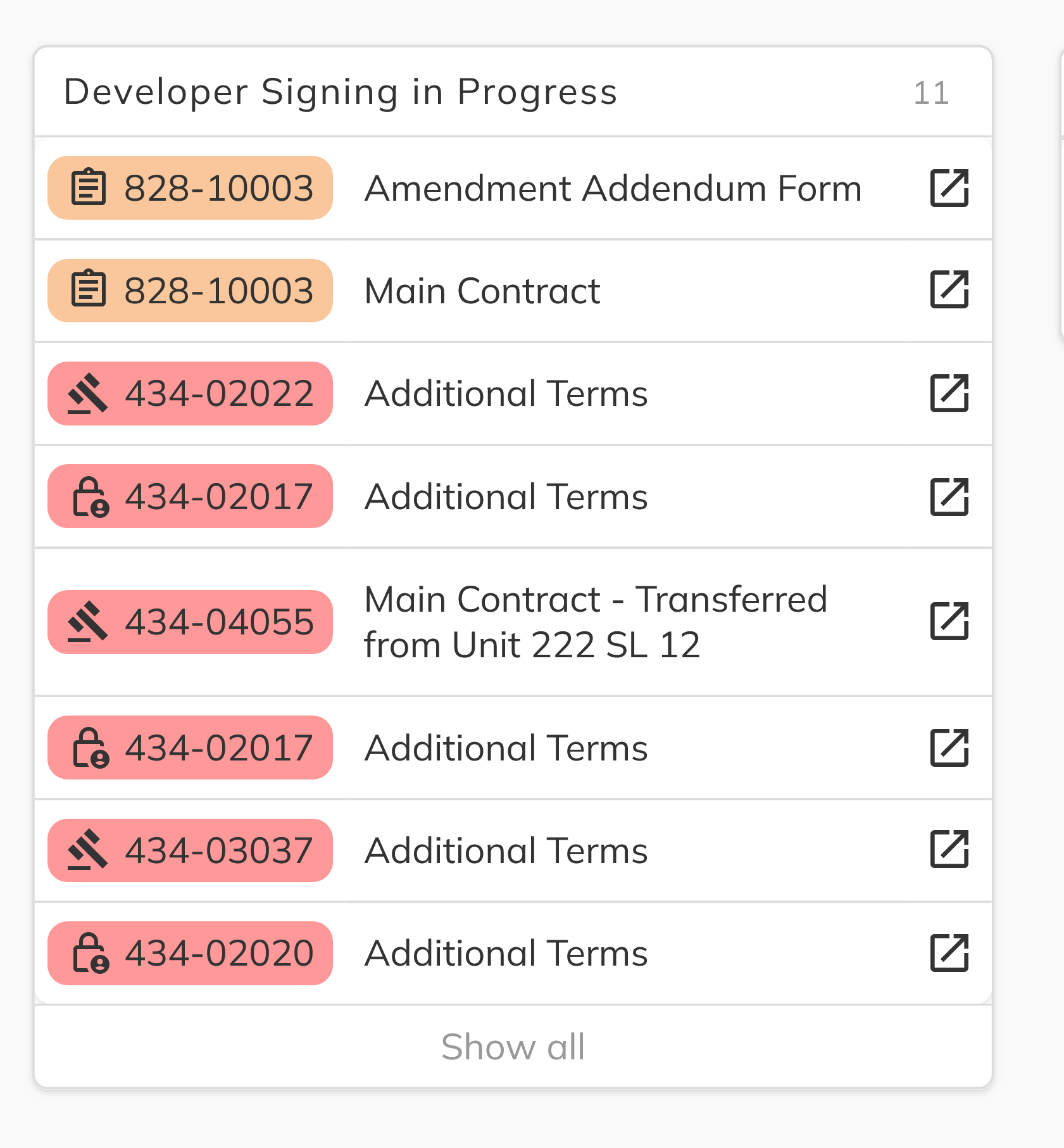
After logging into the Sales App, the dashboard loads as your home screen. Look for the Developer Signing in Progress panel — it lists every document currently awaiting a developer signature. Each row shows the unit, the document name, and an open icon.
2. Open the Document
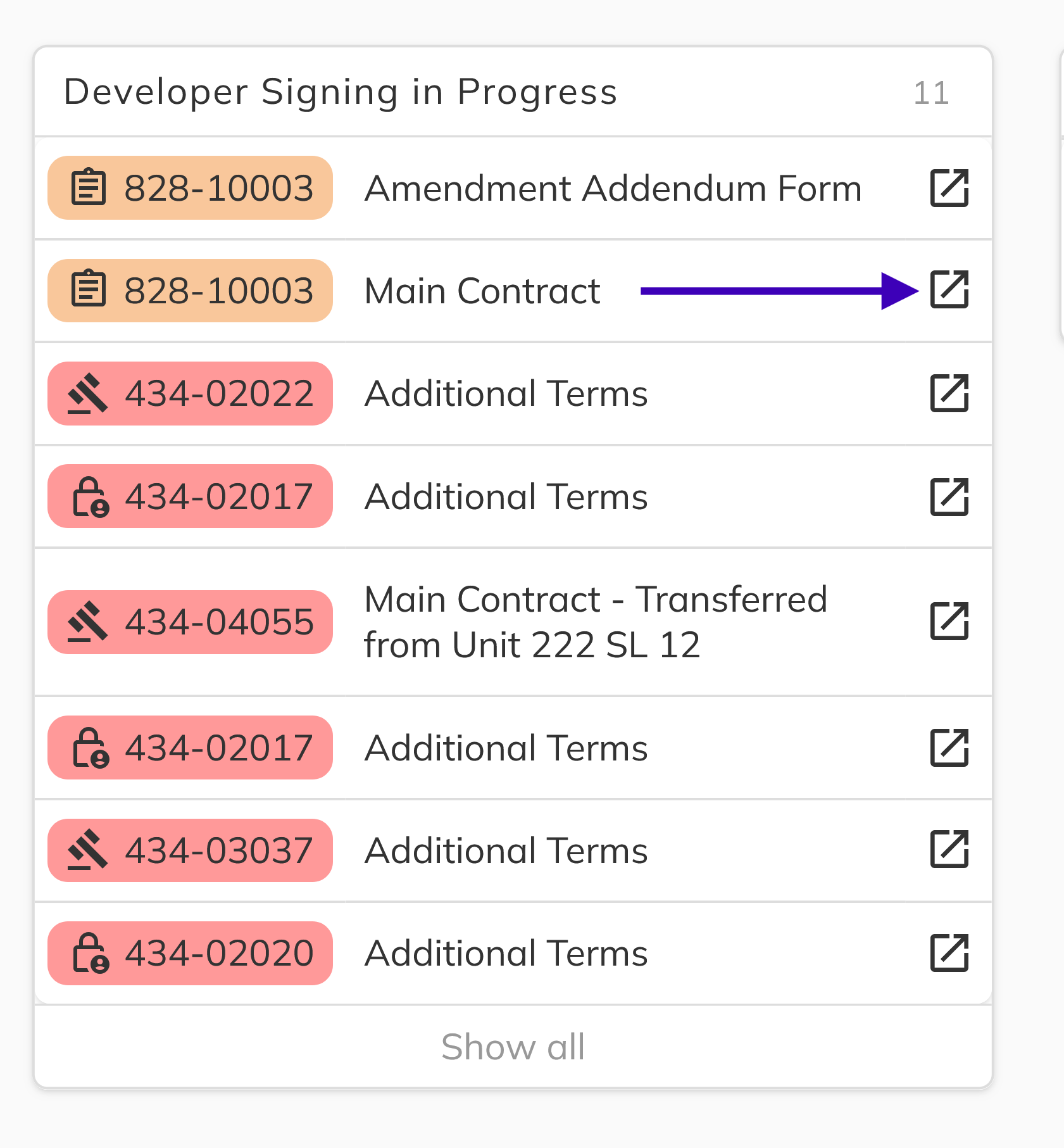
Click the open icon on the row of the document you want to sign. A side panel will appear showing the document name, its current status pill, and a preview of the document content.
3. Enter Edit & Sign Mode
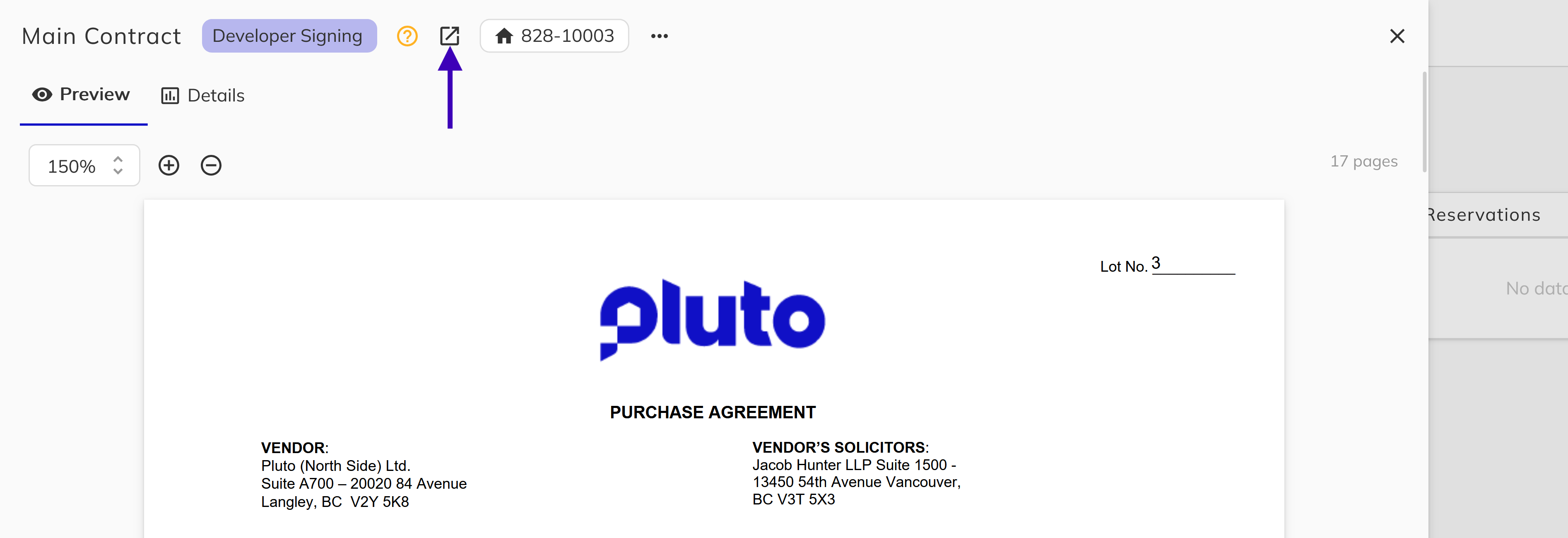
In the side panel header, click the Edit & Sign button (open-in-new icon) to open the document in the full PDF editor.
4. Sign the Document
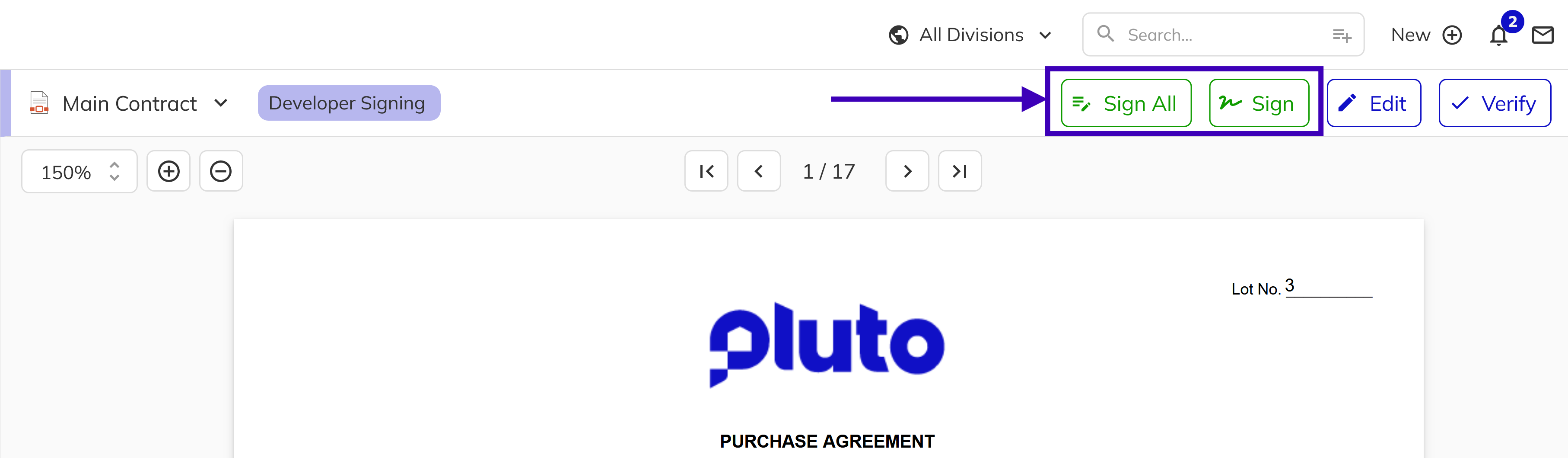
The PDF editor action bar gives you two options for signing:
- Sign All — Automatically applies your saved signature and initials to every developer signature block in the document at once. This is the quickest way to sign when you are ready to complete all blocks.
- Sign — Opens the Setup Signing Session workflow, allowing you to sign blocks one at a time. Use this when you want to review each signature block individually before applying your signature.
You must have a saved signature and initials on your account before signing. If they are missing, a Missing Signature message will ask you to add them in your account panel first. See Adding Your Developer Signature for instructions.
If you have multiple documents to sign for the same unit, you can switch between them directly in the PDF editor without returning to the dashboard. Click the document name dropdown in the top-left of the editor header to see all available documents for the unit, then select the one you want to open next.

5. Confirm Completion
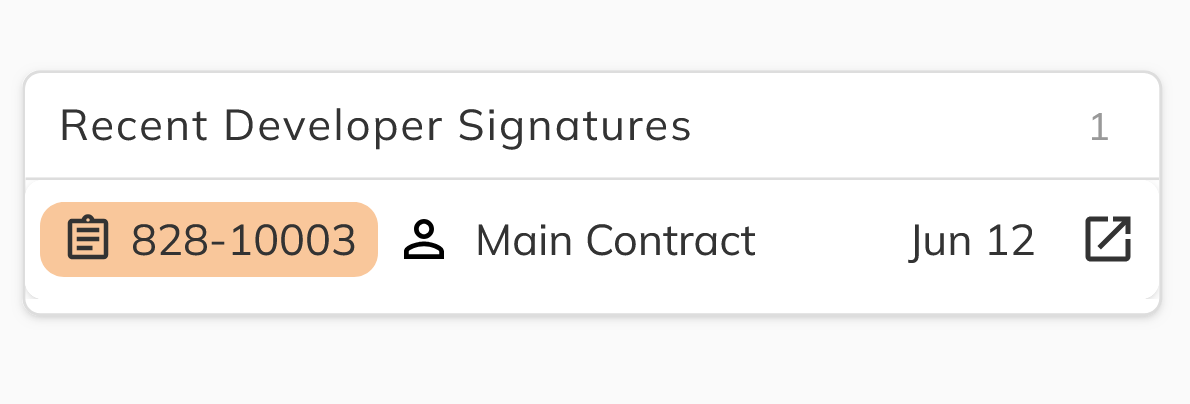
Once all developer blocks are signed, the document status updates automatically. You can close the PDF editor and return to the dashboard — the document will no longer appear in the Developer Signing in Progress panel and will move to Recent Developer Signatures.
Congratulations! You have successfully signed a document as a developer. The document is now ready for the next step in the workflow.