Managing Deposits
Deposits are a critical part of real estate transactions, serving as earnest money that demonstrates the purchaser's commitment to the sale. The Pluto Sales App provides a comprehensive system for creating, tracking, and receiving deposits throughout the lifecycle of a deal.
In this guide, we will cover:
- Understanding deposits in the Sales App
- Creating deposits during the New Deal process
- Adding deposits to existing units
- Receiving and processing deposits
- Generating deposit slips for the Client Portal
How We Got Here
A deal has been created or is in progress, and you need to manage deposit requirements. Deposits may be established during the initial New Deal process or added later as additional deposits become due. Once a deposit is created, you'll need to track when it's received and process the payment details.
Understanding Deposits
What is a Sales Deposit?
A sales deposit represents money owed or received from a purchaser as part of a real estate transaction. Each deposit tracks:
- Amount — The dollar value of the deposit
- Due Date — When the deposit is expected
- Status — Whether the deposit is pending, received, or overdue
- Payment Details — How and when payment was made (once received)
Deposit Lifecycle
Deposits follow a simple lifecycle:
- Created — Deposit is added with an amount and due date
- Pending — Awaiting payment from the purchaser
- Received — Payment has been processed and recorded
Creating Deposits During New Deal
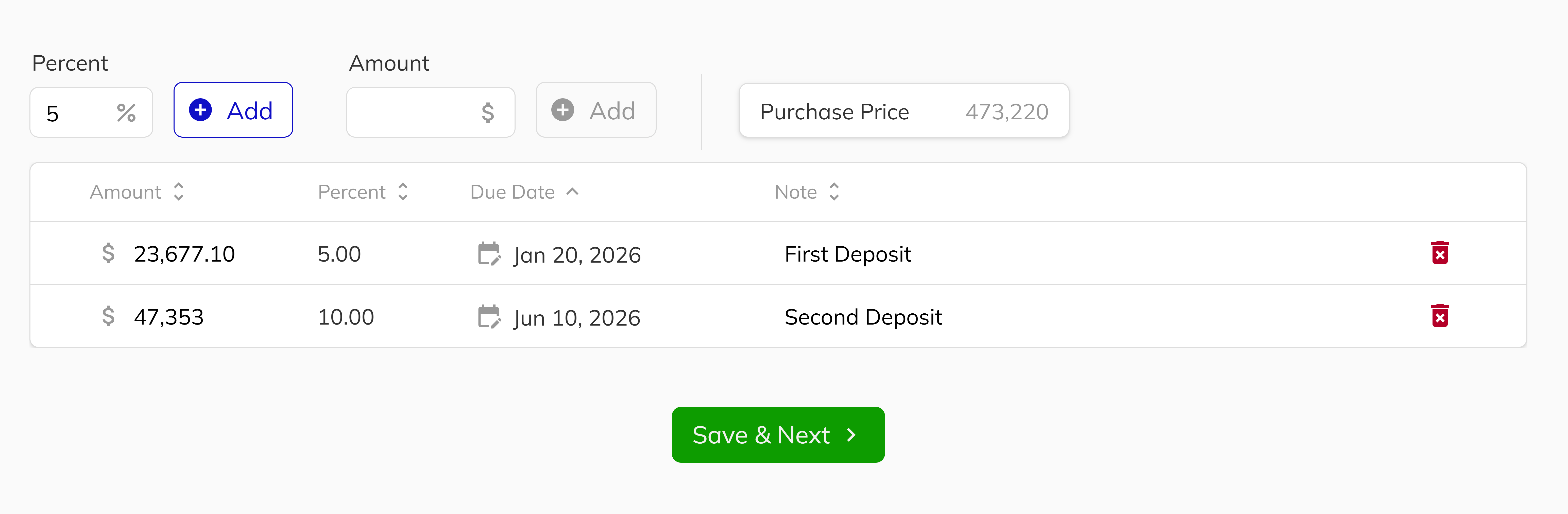
When creating a new deal, the Deposits step allows you to establish the initial deposit schedule before the contract is finalized. This section covers deposit configuration as part of the New Deal workflow.
For detailed step-by-step instructions on configuring deposits during the New Deal process, including adding amounts as percentages or fixed totals, setting due dates, and adding notes, see Step 12: Configure Deposits in the New Deal Process guide.
Adding Deposits to Existing Units
After a deal is submitted, you can add additional deposits through the Unit View.
1. Access the Unit View
Navigate to the unit by:
- Clicking on the unit from your dashboard
- Using the Unit Manager to locate and select the unit
- Searching for the unit by number or address in global search
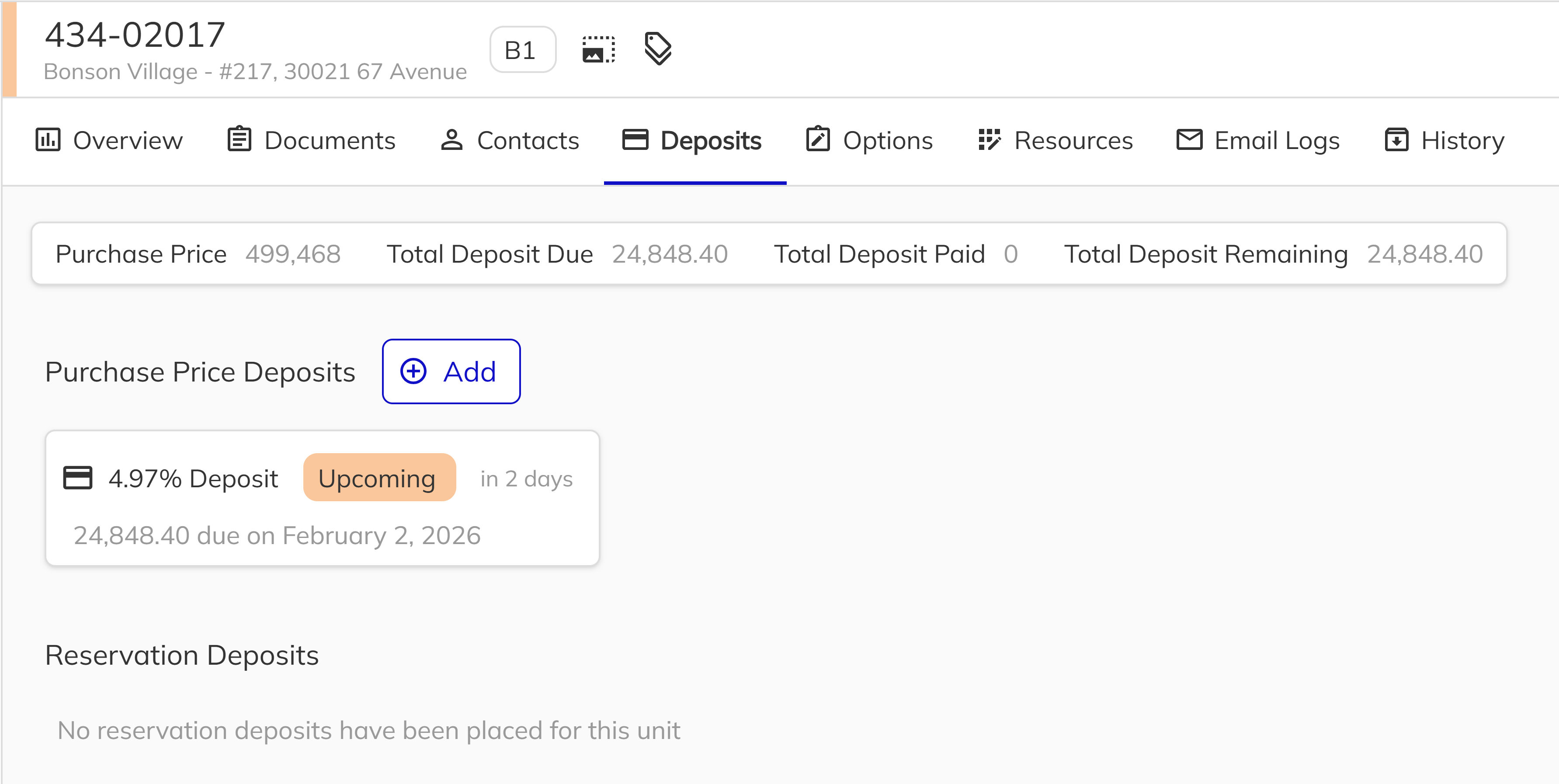
2. Open the Deposits Tab
In the Unit View, click on the Deposits tab to see the current deposit status and history.
3. Add a New Deposit
Click the Add button to open the Add Deposit dialog.
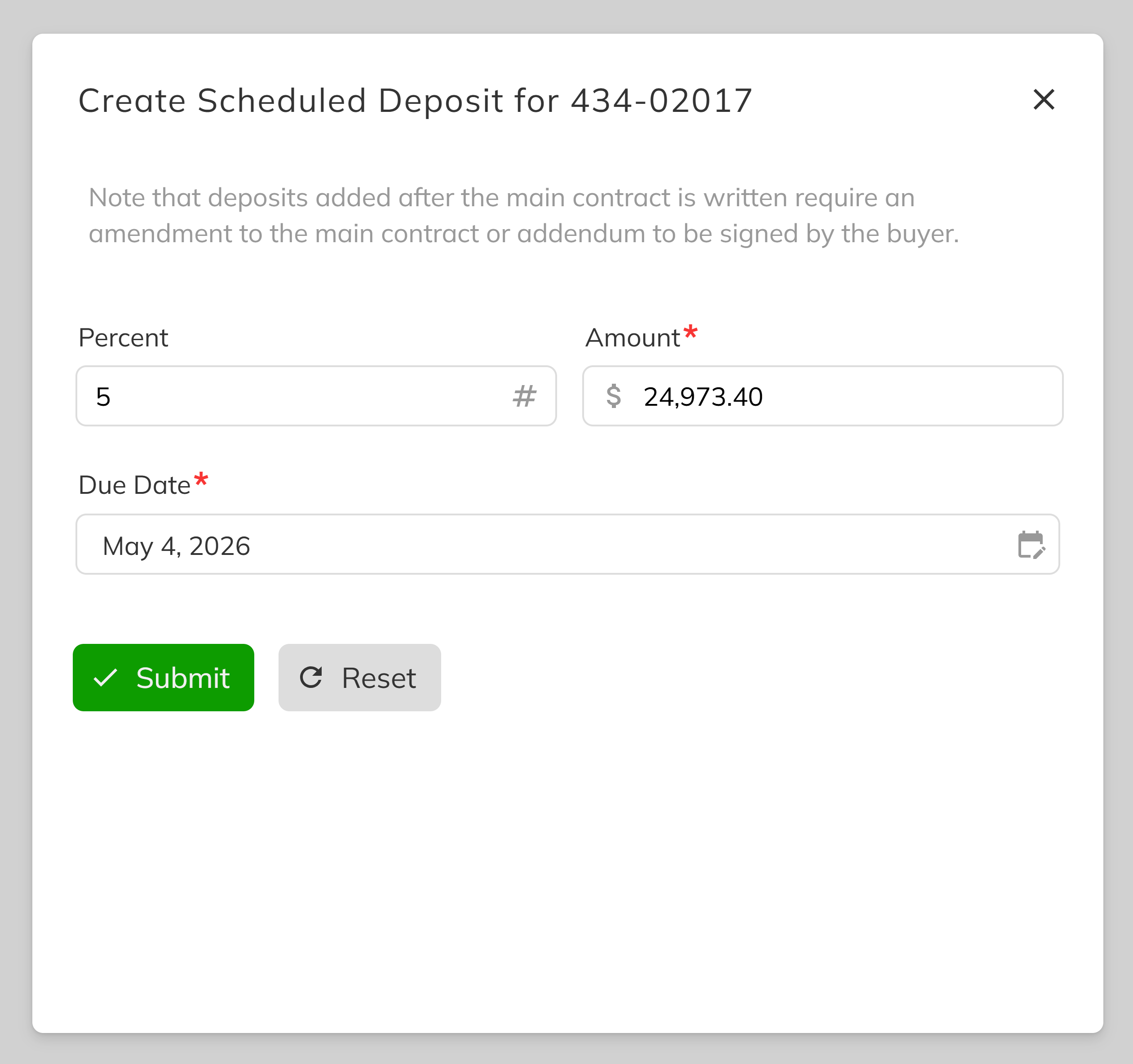
4. Enter Deposit Details
| Field | Description |
|---|---|
| Amount | Enter as percentage or fixed dollar amount |
| Due Date | When payment is expected |
| Notes | Optional additional information |
5. Save the Deposit
Click Submit to create the deposit. It will appear in the deposits list with a pending status.
Receiving and Processing Deposits
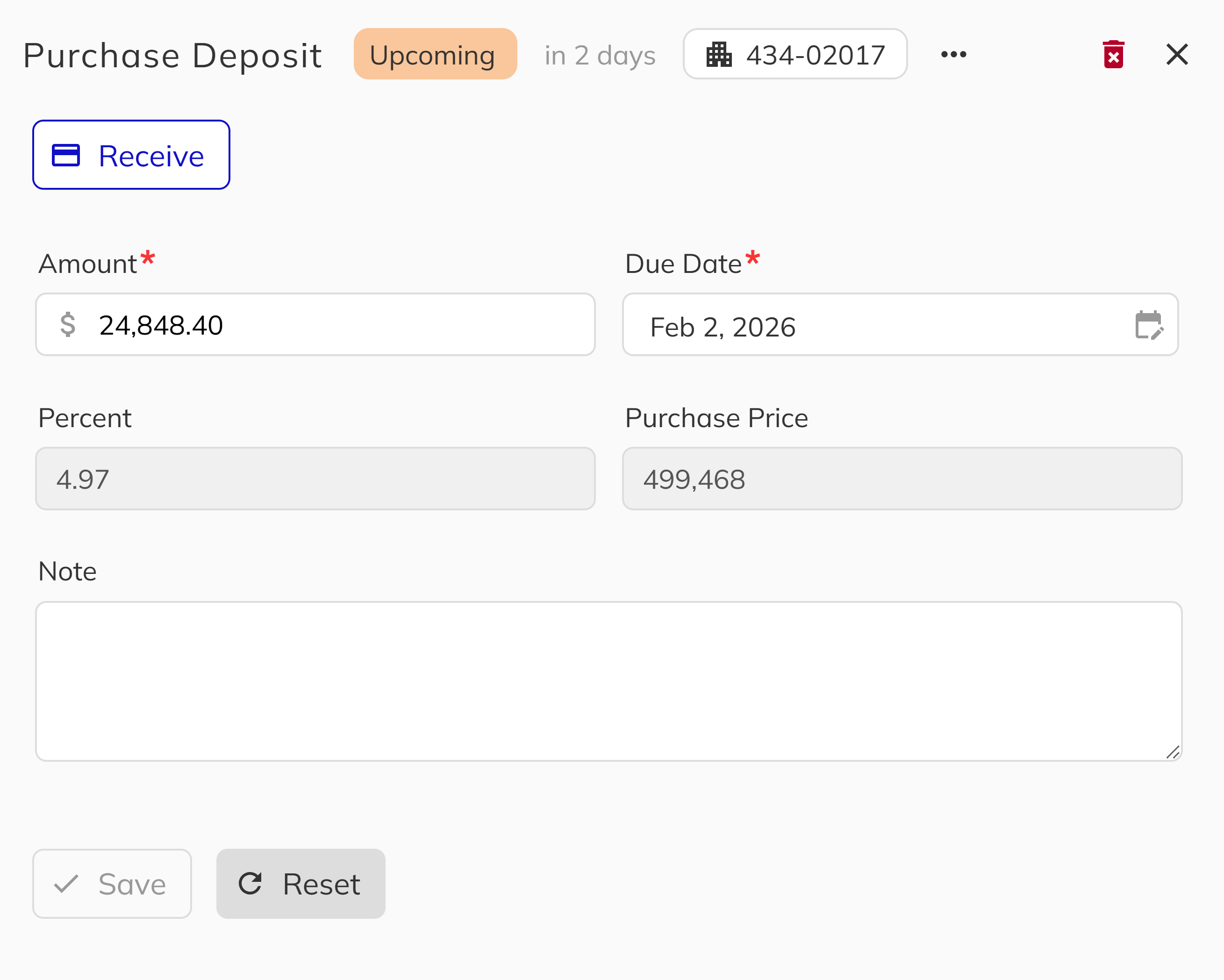
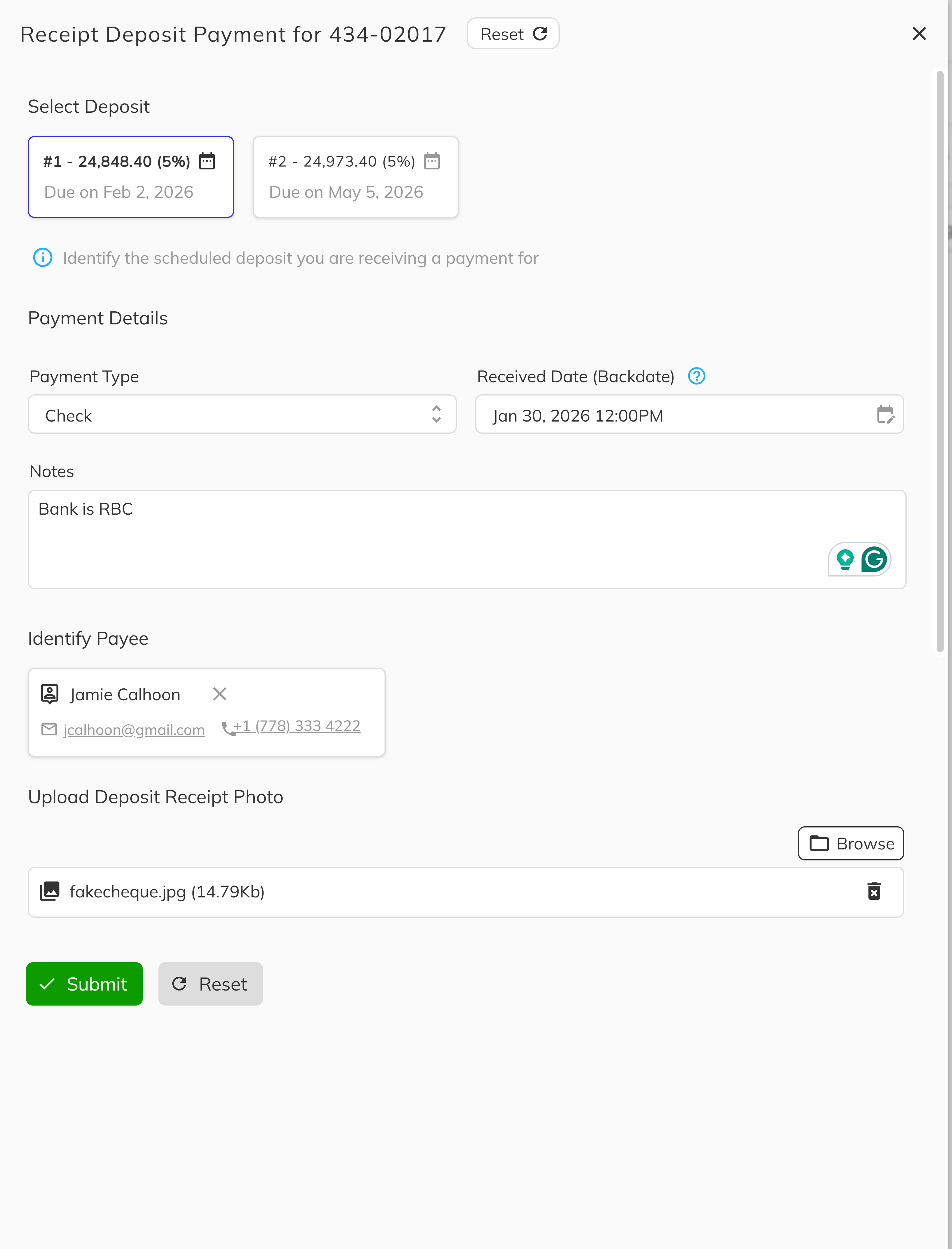
When a purchaser makes a deposit payment, you need to record the receipt in the system. The Receive Deposit workflow captures all necessary payment details.
1. Click the Deposit to Receive
In the Unit View Deposits tab, locate the pending deposit you want to mark as received. Click on the deposit card to open the deposit panel, then click Receive.
2. Select Payment Type
Choose how the payment was made:
| Payment Type | When to Use |
|---|---|
| Check | Personal or certified checks |
| Wire Transfer | Bank wire transfers |
| Credit Card | Credit card payments |
| Cash | Cash payments (verify company policy) |
3. Set Received Date
The received date defaults to today's date. If you need to backdate the receipt (for example, if recording a payment received earlier), adjust the date accordingly.
When backdating a deposit receipt, ensure the date accurately reflects when payment was actually received. This date appears on official records and reports.
4. Add Notes (Optional)
Include any relevant details about the payment:
- Check number or reference number
- Special circumstances
- Communication with the purchaser
5. Select the Payee
Identify who made the payment:
- Existing Contact — Select from the purchasers or realtor linked to the deal
6. Upload Receipt Image (Optional)
You can attach an image of the receipt, check, or payment confirmation for your records.
7. Complete the Receipt
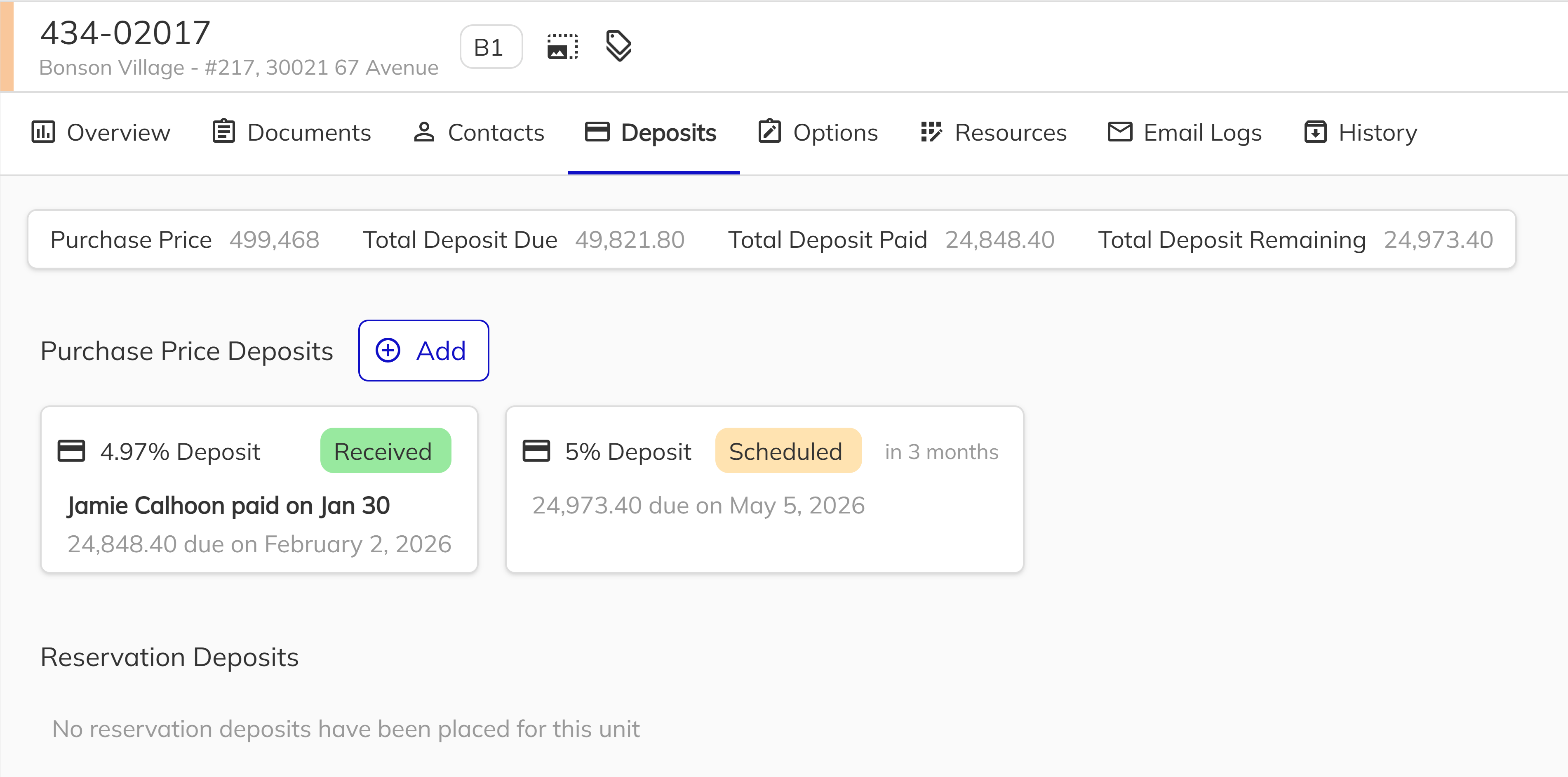
Click Submit to record the deposit as received. The deposit card will update to show:
- Received status
- Payment date
- Payment type
- Who made the payment (Payee)
- Who recorded the receipt (Received By)
Generating Deposit Slips
A deposit slip is a formal document that summarizes the deposits for a unit. You can generate this document and make it available to purchasers through the Client Portal or downloadable in the sales app.
1. Navigate to Unit Deposits
Open the Unit View and go to the Deposits tab and click the deposits that you would like to generate the Deposit Slip for.
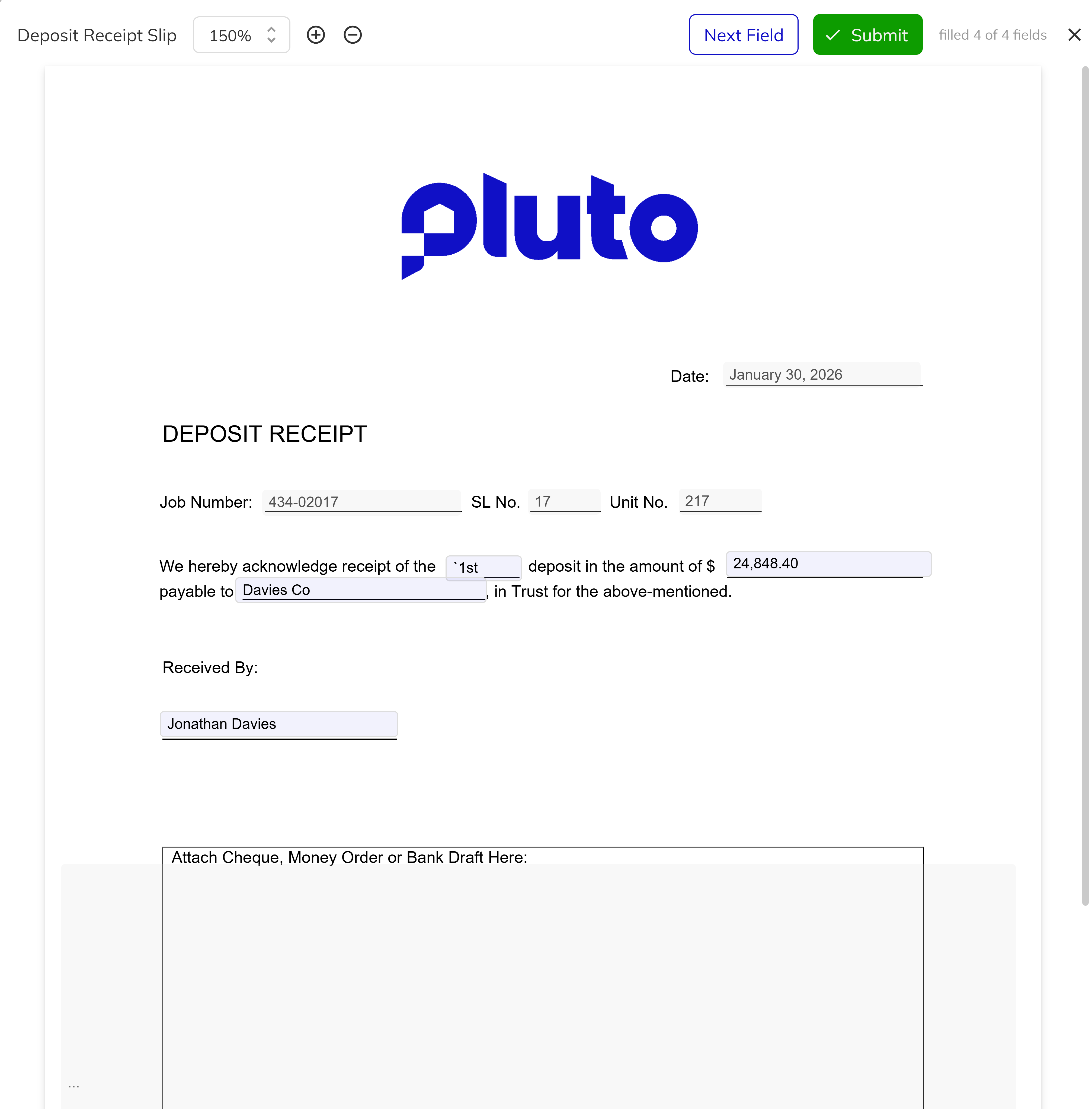
2. Generate the Deposit Slip
Open the 3 dots beside the unit number and click the Generate Deposit Slip action. The system will create a formatted document using the system document you have uploaded. After making modifications with the prompt fields, click submit.
3. Share with Client Portal
Once generated, the deposit slip becomes in the sent document status and is now a document attached to the unit. You can:
- Share this document directly with purchasers via the Client Portal
- Email as an attachment to relevant parties
- Download for offline use
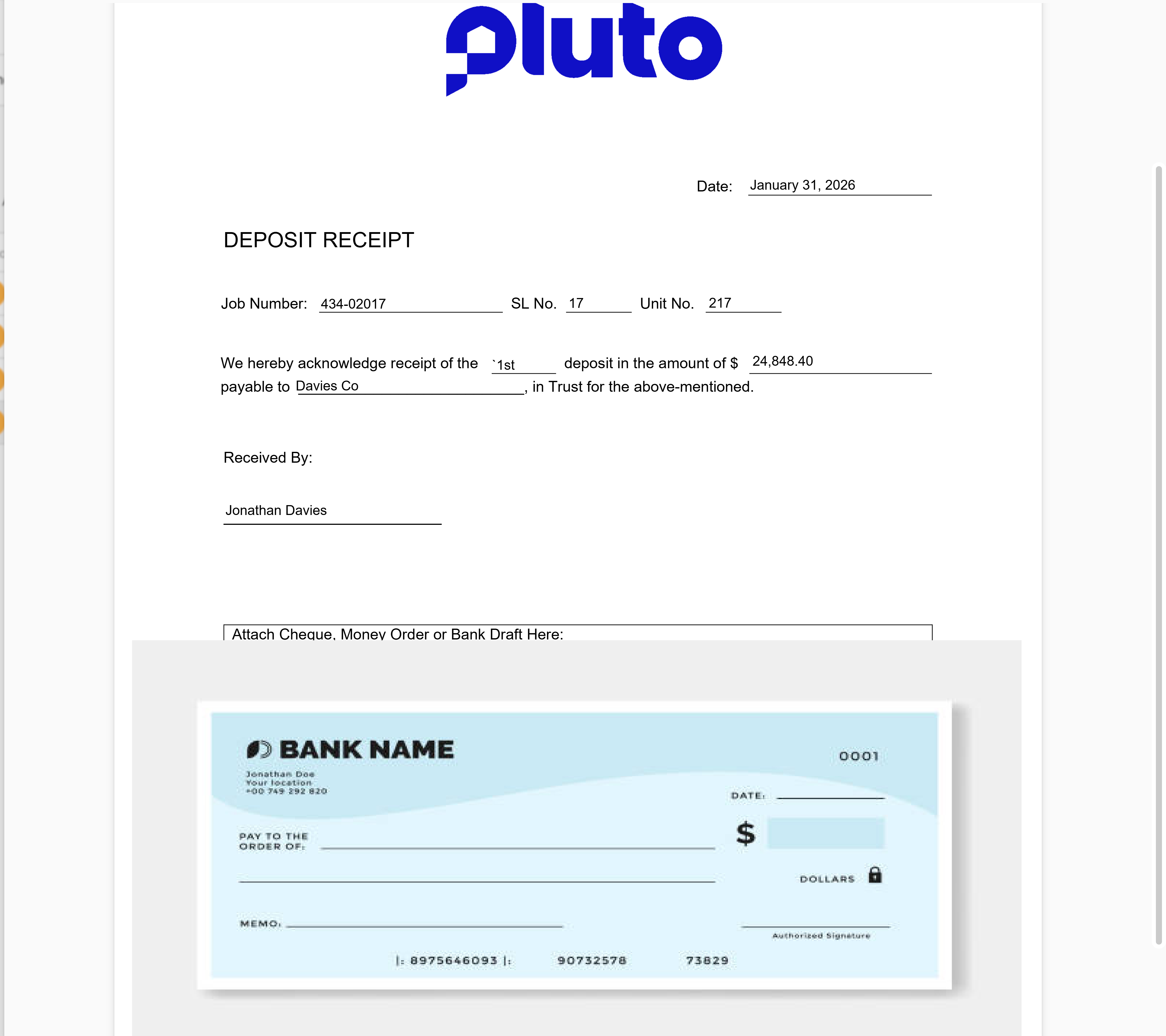
When a deposit slip is shared to the Client Portal, purchasers can view and download it by logging into their portal account and navigating to the Documents section for their unit.
Viewing Deposits on the Dashboard
The Sales App dashboard includes an Upcoming Deposits card that displays deposits due within your selected time window. This helps you:
- Track which deposits are coming due
- Follow up with purchasers before due dates
- Identify overdue deposits requiring attention
The dashboard filters apply to the deposits view, allowing you to focus on specific communities, projects, or time periods.
Deposit Reports
Deposits are tracked across the platform and can be included in reports:
- Deposits Report — Tracks deposits received and owed across units
- Calendar View — See deposit due dates alongside other scheduled items
Common Questions
| Question | Answer |
|---|---|
| Can I edit a deposit after it's created? | Yes, you can modify the amount, due date, and notes for pending deposits. |
| Can I delete a deposit? | Yes, pending deposits can be deleted. Received deposits should generally not be deleted for audit purposes. |
| What if a deposit is returned or refunded? | Contact your administrator for guidance on handling returned deposits, as this may require special processing. |
| Can I receive a partial deposit? | Create separate deposit records for partial payments to maintain accurate tracking. |
Congratulations! You've learned how to manage deposits in the Pluto Sales App! From creating deposits during the New Deal process to receiving payments and generating deposit slips, you now have the tools to track purchaser payments throughout the lifecycle of a deal. By understanding how to add deposits to existing units, record payment details accurately, and share deposit slips through the Client Portal, you can ensure smooth transactions and provide purchasers with clear records of their payments toward their new home.
Related Topics:
- New Deal Process — Creating deals with initial deposits
- Sales FAQs — Common questions about the sales process