Price Adjustments
The Pluto Sales App gives you flexible ways to update unit list prices — whether you need to adjust a single unit or reprice an entire phase at once. This guide covers all three approaches: the Unit Manager pricing tool for visual bulk adjustments, inline editing in the Workbench grid, and the Unit View side panel for individual unit pricing.
In this guide, we will cover:
- Permissions required to change prices
- Mass price adjustments using the Unit Manager
- Inline price editing in the Workbench
- Single unit price adjustments in the Unit View
- Price change history and audit trail
How We Got Here
Your project has units with established list prices, and market conditions, phase releases, or other business decisions require you to update them. The method you use depends on how many units need to change and how precise the adjustment needs to be.
Permissions
Changing a unit's list price requires the SalesChangeJobPrice permission. Without it, pricing fields are read-only and the mass pricing tools are hidden.
The following default roles include this permission:
| Role | Has Permission |
|---|---|
| Pluto Admin | Yes |
| Admin | Yes |
| Sales Manager | Yes |
| Senior Management | No |
| Salesperson | No |
| Construction Admin | No |
If the Update Pricing button or editable price fields aren't visible, your account likely doesn't have the SalesChangeJobPrice permission. Contact your Admin to have it granted. See the Creating & Managing Staff guide for details.
Mass Price Adjustment — Unit Manager
The Unit Manager provides a dedicated pricing dialog that lets you adjust list prices for all eligible units in a single operation. Only units with a status of Available or Unreleased are included — units that are Subject, Firm, Executed, or Closed are skipped automatically.
1. Open the Unit Manager and launch the pricing tool
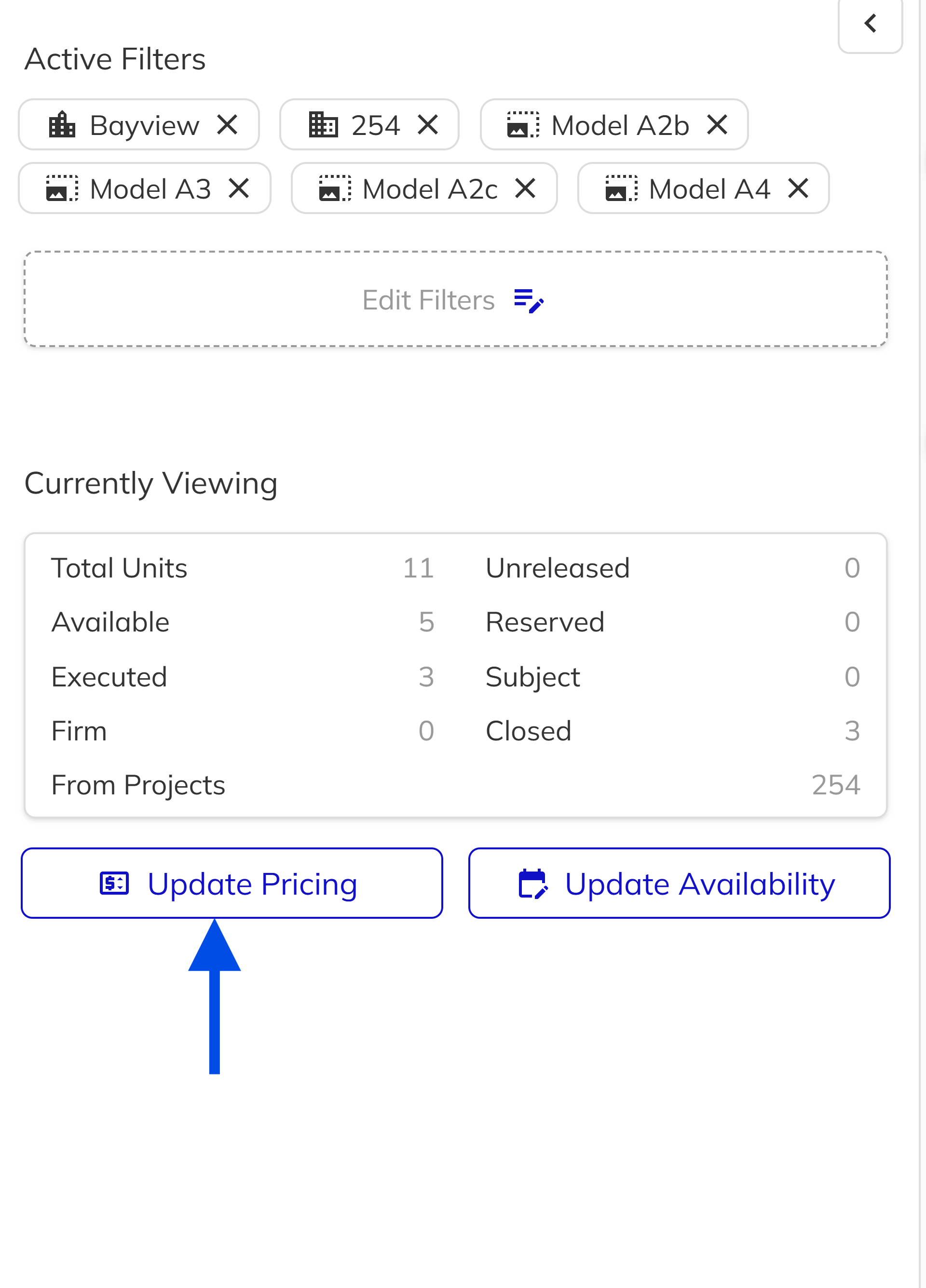
Navigate to Unit Manager from the sidebar. Click the Update Pricing button in the sidebar panel to open the pricing dialog.
2. Choose your adjustment method
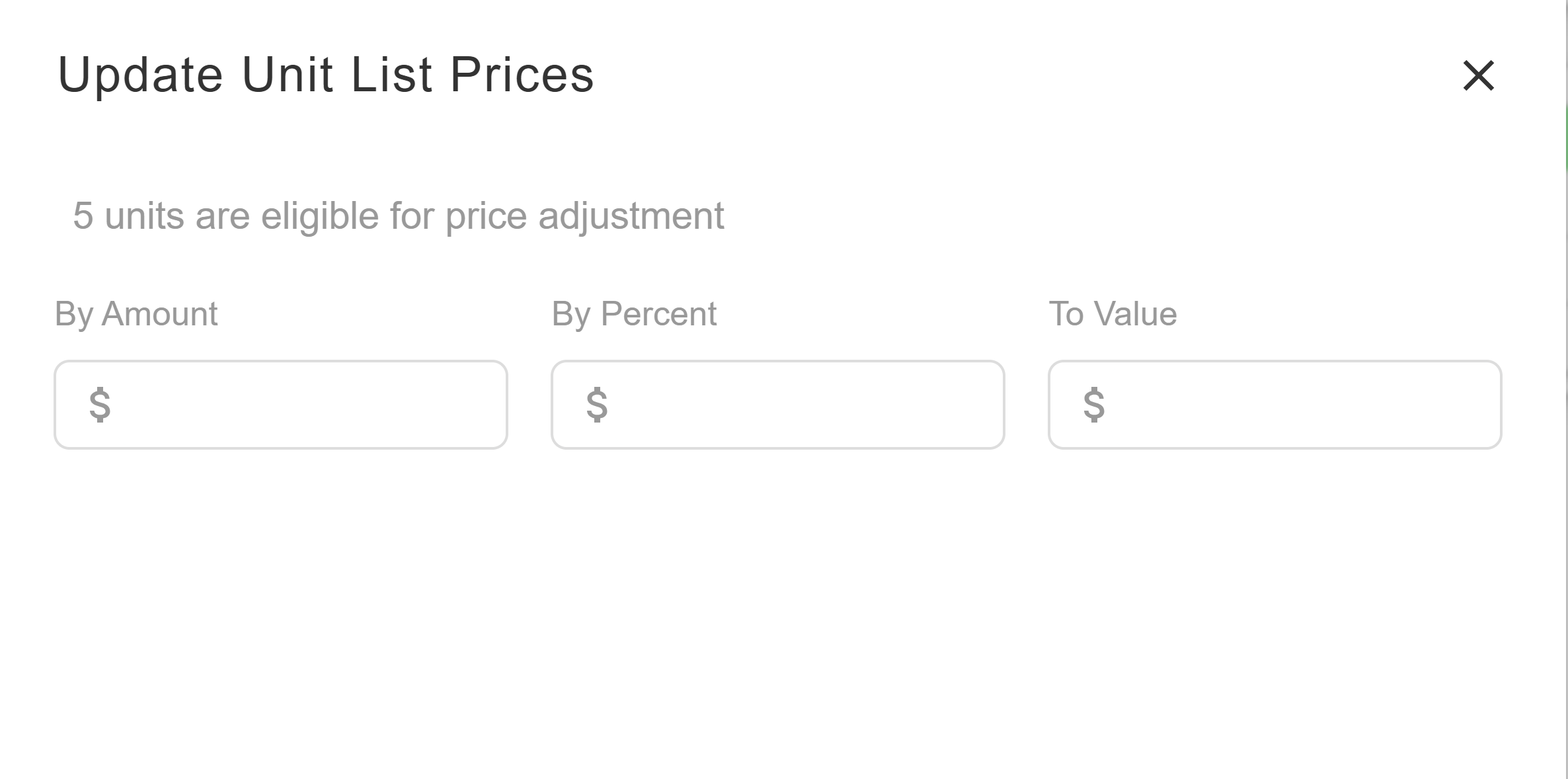
The pricing dialog offers three ways to adjust prices. Select one:
- By Amount — Adds a fixed dollar amount to each unit's current list price.
- By Percent — Increases or decreases each unit's list price by a percentage.
- To Value — Sets every eligible unit to the same fixed price.
Enter your desired value in the input field.
3. Preview the changes
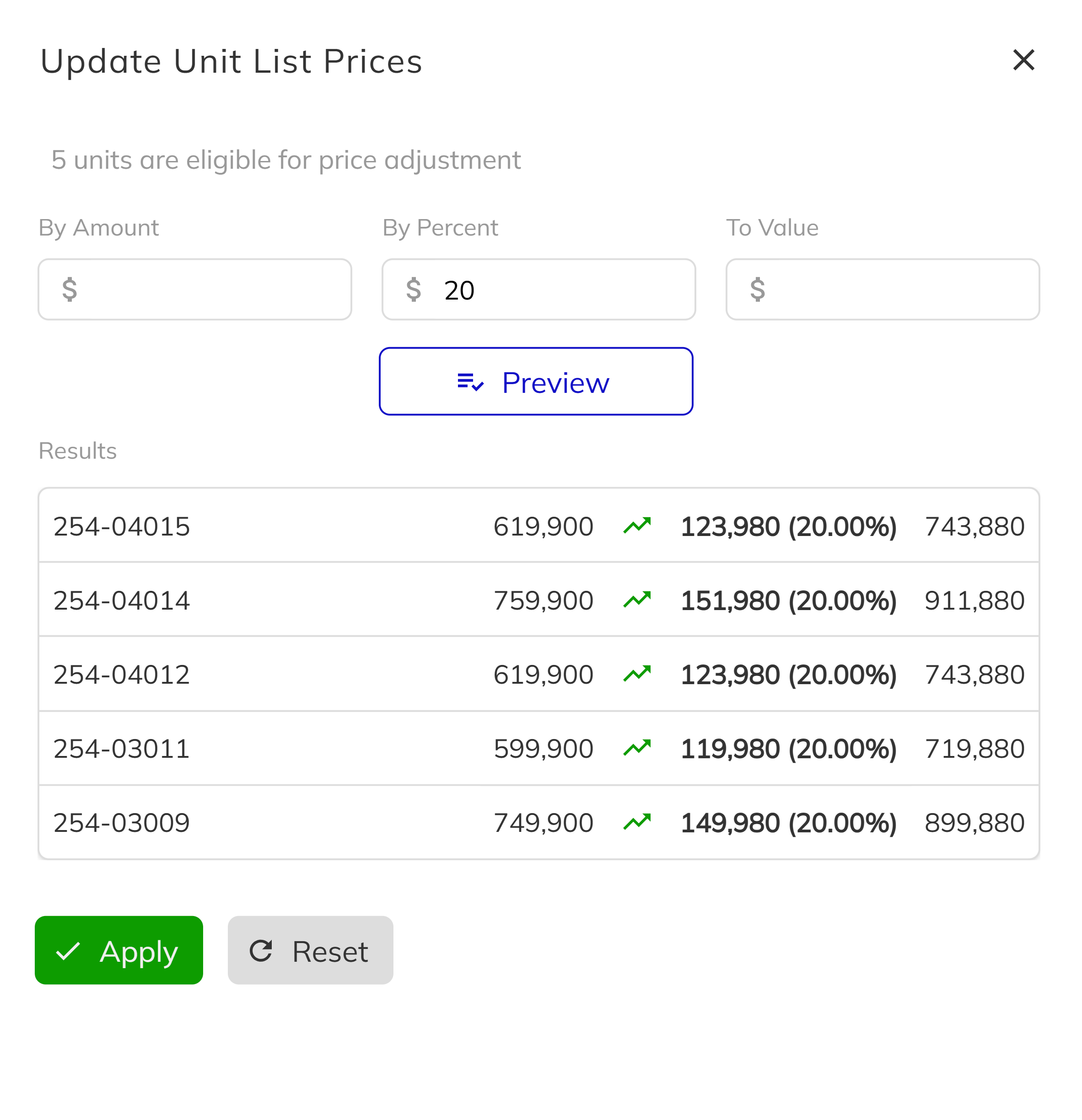
Click Preview to see a results grid before anything is saved. The preview shows each unit's number, original price, direction of change (increase or decrease), the dollar and percentage difference, and the resulting new price.
4. Apply the price changes
Review the preview and click Apply. A confirmation dialog will ask: "Are you sure you want to commit the selected price changes to X unit(s)?" Confirm to save all changes at once.
If you need to start over, click Reset to clear the previewed changes and return to the adjustment input.
Mass Price Adjustment — Workbench Grid
The Workbench provides an alternative way to update prices in bulk using its inline-editable data grid. This is available across Multi-Family, Apartment, and Single-Family unit pages.
1. Navigate to the Workbench units page
Open Workbench and select your project. Navigate to the units page for your project type (Multi-Family, Apartment, or Single-Family).
2. Edit prices directly in the grid
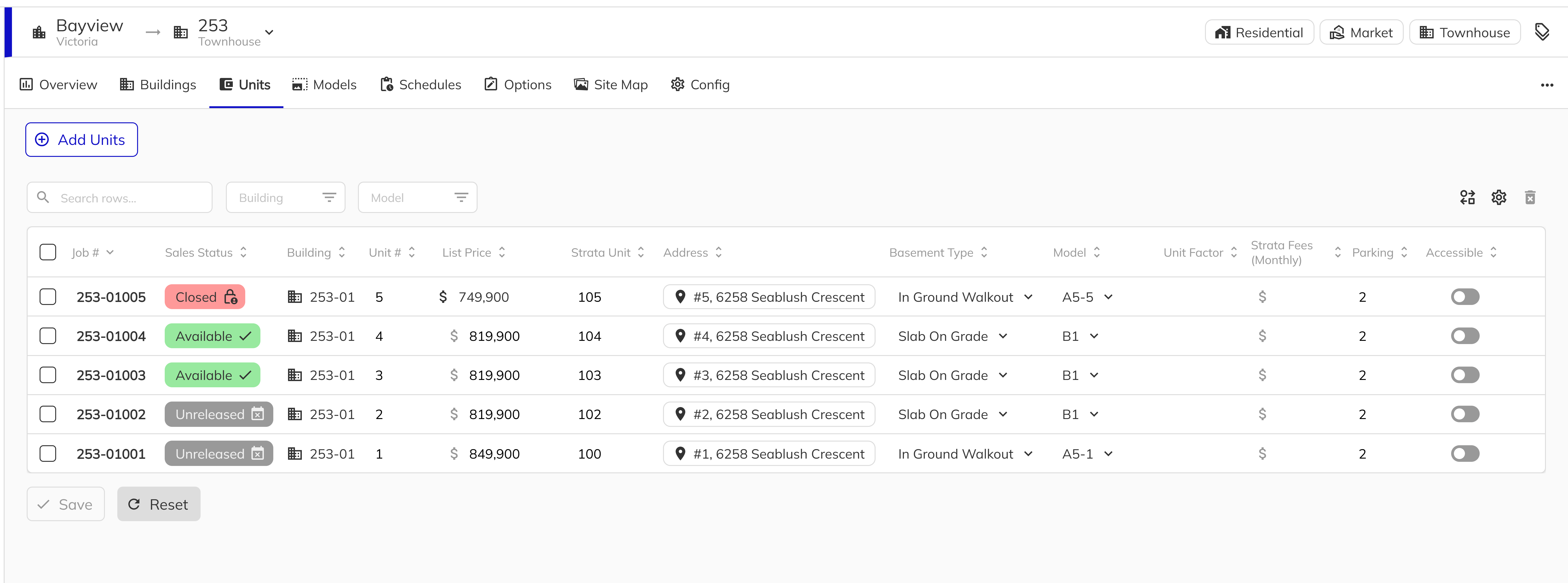
Locate the Base List Price column. Click into any cell to edit the price for that unit. The column supports mass edit — select multiple rows and apply a value to update them all at once.
Units with a status of Executed, Subject, Firm, or Closed have their price column locked to read-only. Only Available and Unreleased units can be edited.
3. Save the changes
Click Save to commit your edits. Price changes are automatically routed through the dedicated pricing update workflow, ensuring proper validation and audit logging.
Single Unit Price Adjustment — Unit View
For targeted changes to a single unit, use the Unit View's sales data side panel. This provides full visibility into how the list price flows through to the total sale, including GST calculations.
1. Open the unit and launch the price adjustment panel
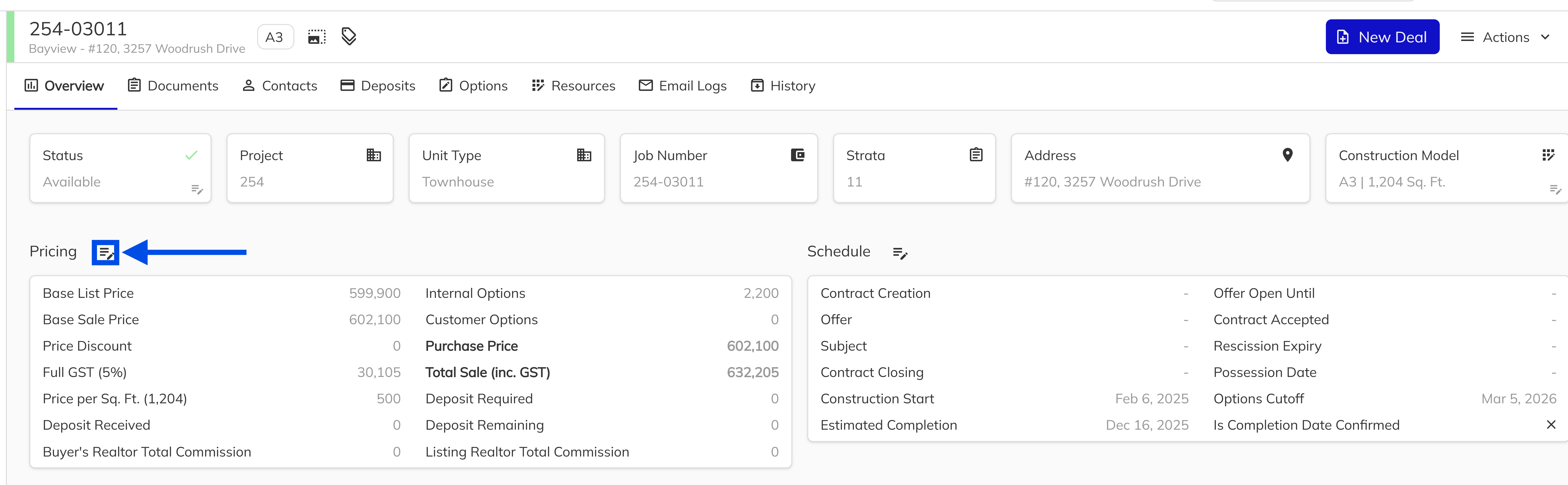
Navigate to the unit in the Unit View. Click the Edit icon next to the Pricing header to open the sales data side panel and view the detailed pricing breakdown for the unit.
2. Edit the list price
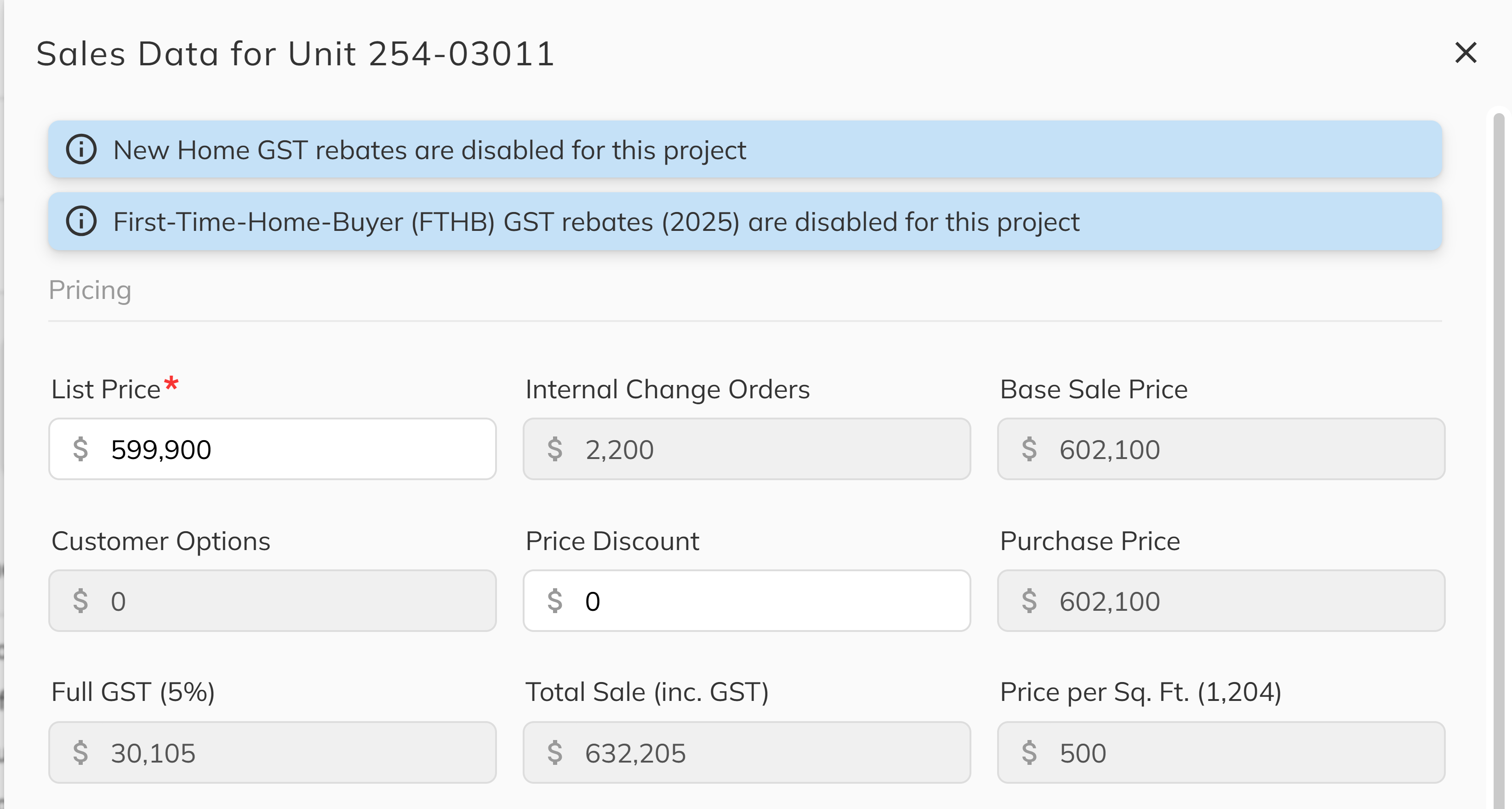
In the sales data panel, the List Price field is editable. Update the value and the calculated fields (Base Sale Price, Purchase Price, GST, and Total Sale) will recalculate automatically.
You can also adjust the Price Discount field to apply a discount to the unit's purchase price.
3. Toggle to Edit Total Price mode (optional)
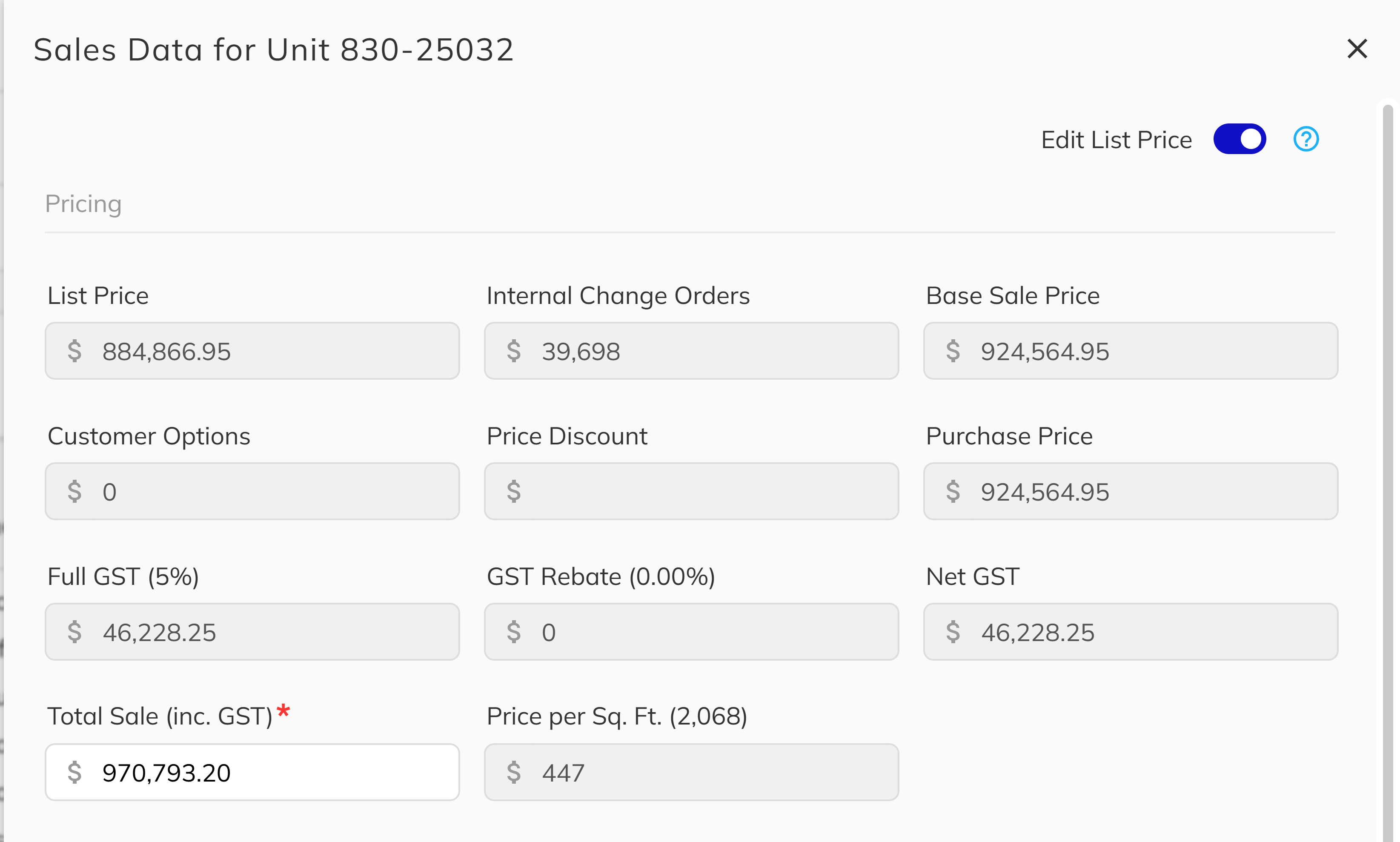
If your project has GST New Home Rebate enabled, a toggle switch lets you switch between Edit List Price and Edit Total Price modes:
- Edit List Price — You set the list price and the total sale is calculated forward.
- Edit Total Price — You set the total sale (including GST) and the list price is back-calculated using the applicable GST rebate formula.
The Edit Total Price toggle only appears when the project's GST New Home Rebate setting is enabled and no deal is currently in progress on the unit.
4. Save the updated pricing
Click Save to apply the new price. The change is recorded in the unit's price change history.
If the unit has a deal with a status of Firm or Closed, all pricing fields are locked to read-only. The price cannot be changed until the deal status allows it.
Price Change History
Every list price change is tracked with an audit trail. You can view the full history of price changes for any unit in the Unit View History tab.
Each entry records:
- Who made the change (staff member)
- When the change was made (date and time)
- Previous price and new price
- Direction of the change (increase or decrease)
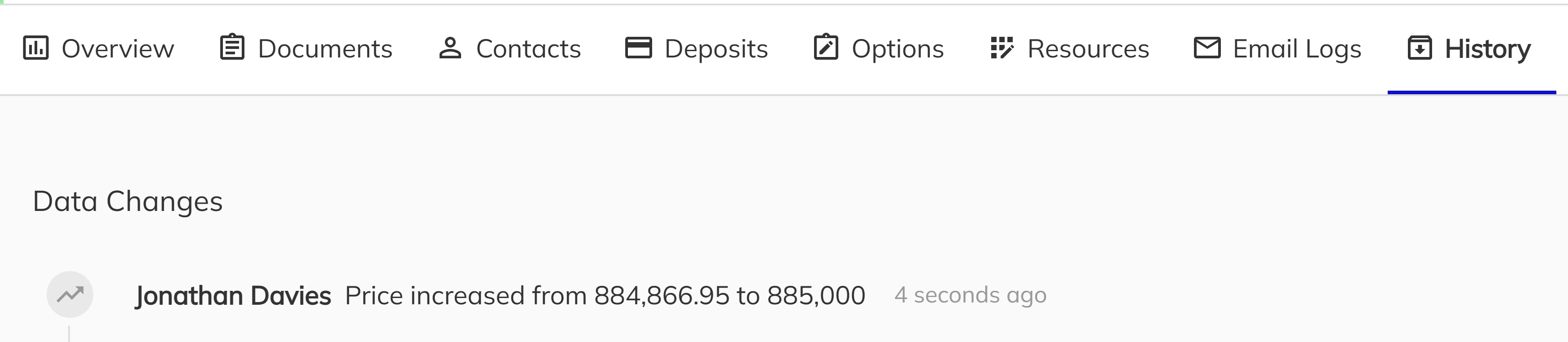
Price changes made through any method — Unit Manager, Workbench, or Unit View — all appear in the same history timeline, giving you a complete record of every pricing decision.
Congratulations! You've successfully updated unit list prices using the Unit Manager, Workbench grid, or Unit View. All changes are logged and visible in the unit's history timeline.