Sellers Disclosure of Expected Remuneration
The Expected Remuneration feature in Pluto's Sales App implements the BCFSA-required Disclosure to Sellers of Expected Remuneration form. When enabled for a project, the developer's representative must acknowledge this disclosure before signing a main contract, ensuring sellers are informed of all brokerage commissions related to their transaction.
How We Got Here
In British Columbia, real estate legislation (enforced by the BCFSA) requires that sellers be given a written disclosure of all expected remuneration that will be paid to any real estate licensee as a result of the transaction. This applies even when the developer is also the seller. To streamline compliance, Pluto automates the generation, acknowledgement, and filing of this form as part of the contract signing workflow, eliminating manual paperwork and creating a clear, time-stamped audit trail.
Enabling the Feature
Before the remuneration workflow appears in the Sales App, it must be configured at the project level.
Setup spans two applications: remuneration settings are configured per project in the Workbench, while the PDF template is uploaded through the Sales App admin section.
Enable Remuneration in Project Settings
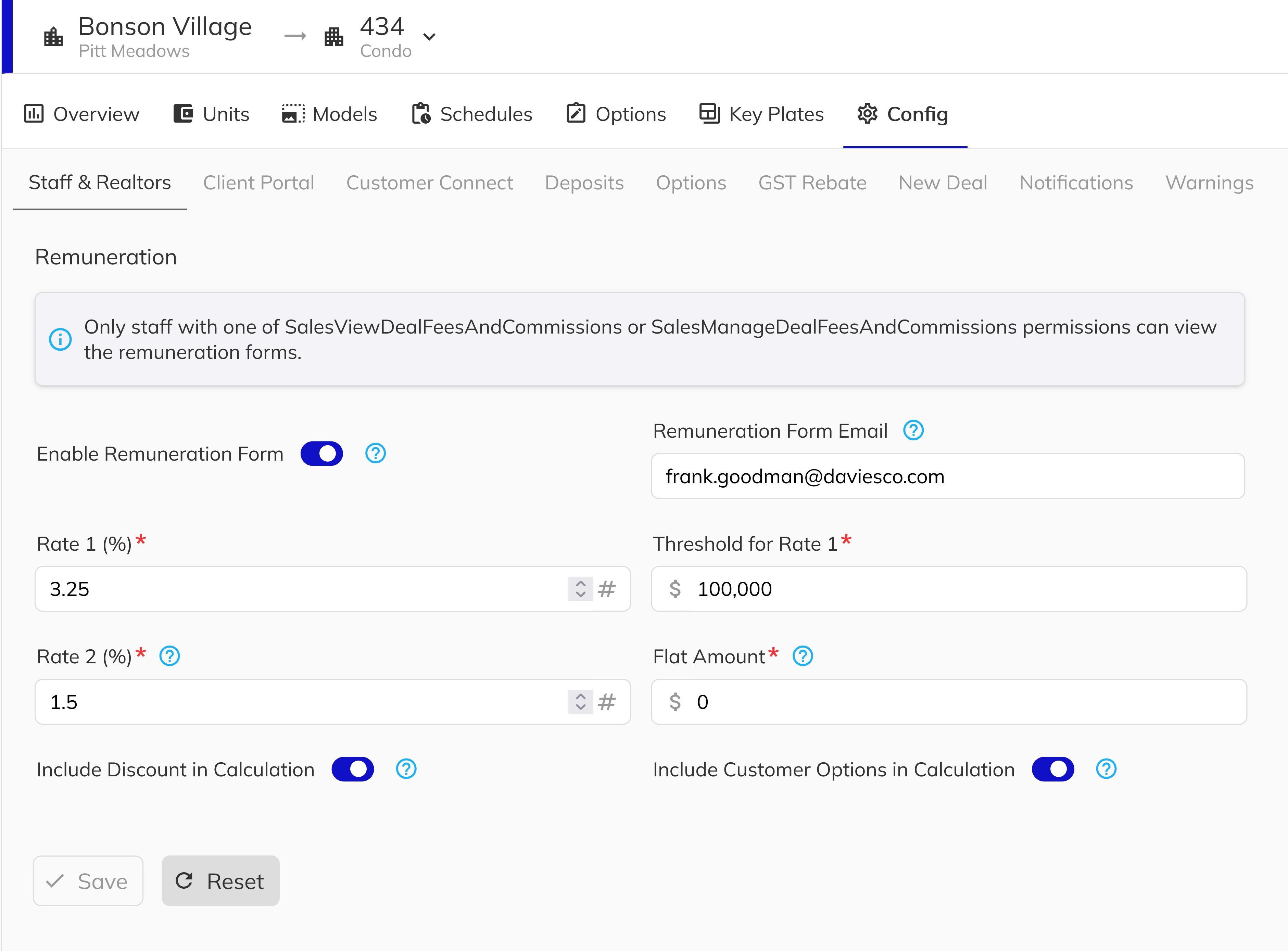
Navigate to the Workbench, open your project, and go to the Staff & Realtors section of Project Configuration. Toggle on Remuneration Form Enabled. While you're here, also fill in:
- Remuneration Commission Rates & Threshold — the tiered rate structure used to calculate the seller's brokerage amount on the form (Rate 1 up to a threshold, Rate 2 above it), plus an optional flat amount added on top.
- Include Discount / Include Customer Options — whether price discounts or approved customer sales options are factored into the commission base price.
- Remuneration Form Email — the email address that will receive a copy of every acknowledged form.
Upload the Remuneration PDF Template
The system generates the disclosure form by merging live deal data into a pre-uploaded PDF template. In the Sales App, upload the template to the Sellers Expected Remuneration system template slot in the template manager. You can scope it to the corporate or project level. The PDF must contain named form fields following the placeholder-offer{n}_offerDate, placeholder-offer{n}_PurchasePrice, placeholder-offer{n}_disclosureDate,placeholder-offer{n}_BrokerageTotalAmount, placeholder-offer{n}_SellersBrokerageAmount and placeholder-offer{n}_BuyersBrokerageAmount *.
How the Acknowledgement Works
Once the feature is enabled and a template is in place, the workflow is automatically triggered during contract signing.
Triggering the Remuneration Dialog
When a staff member with the Sign Contract as Developer permission begins a signing session on the Main Contract, Pluto checks whether a remuneration acknowledgement is required. This check evaluates three conditions against the most recently recorded log:
- Has the purchase price changed?
- Has the seller's brokerage amount changed?
- Has the buyer's brokerage amount changed?
If any value differs from the last acknowledged log — or if no log exists yet — the remuneration dialog appears before the signing session proceeds.
Reviewing the Form
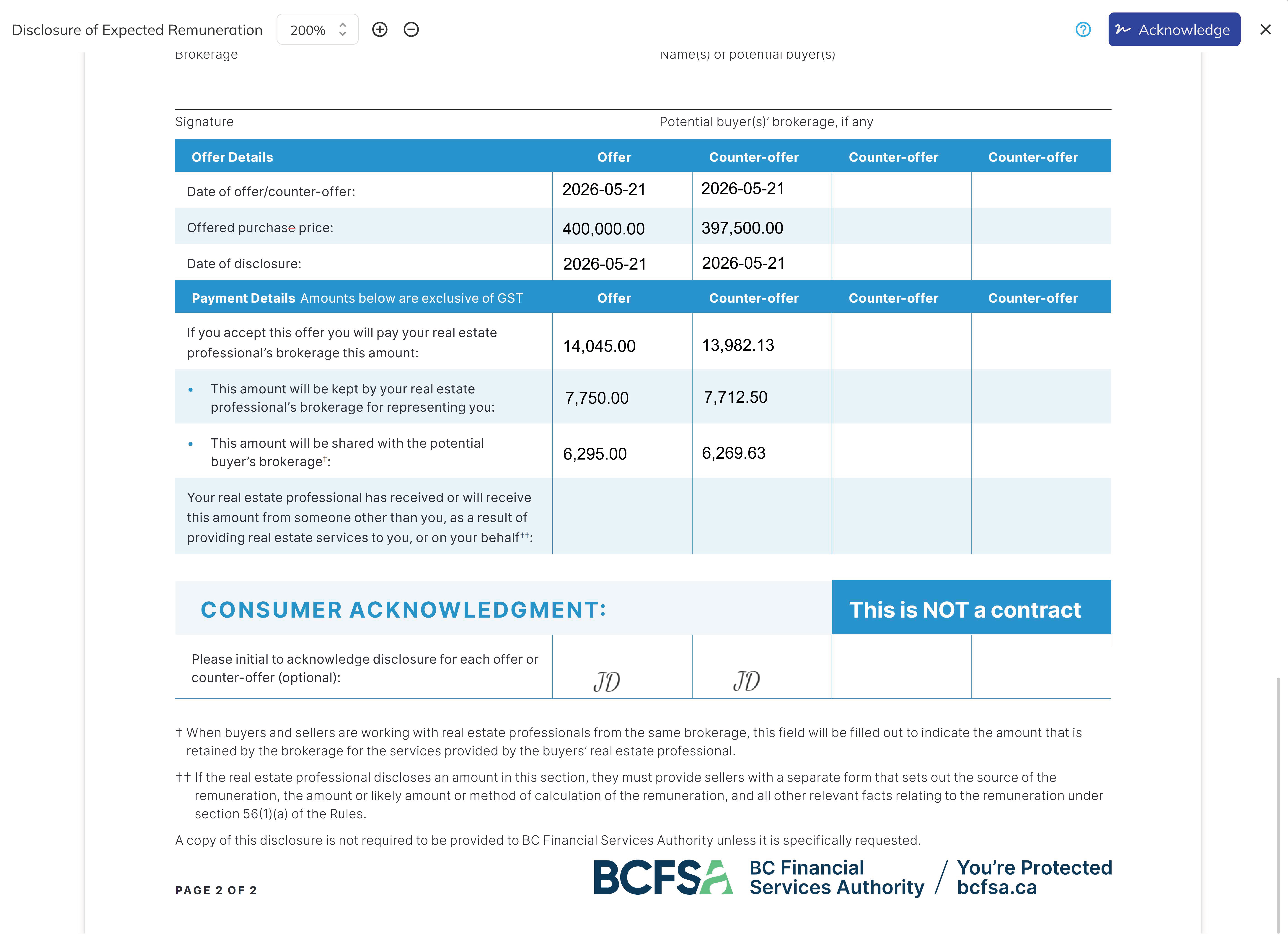
The dialog presents a live-generated preview of the disclosure form, populated with the unit's current deal data:
| Field | Source |
|---|---|
| Offer Date | The date of when the contract was signed by the Purchaser |
| Purchase Price | Base sale price + internal sales options − price discount + customer sales options |
| Seller's Brokerage | Tiered rate applied to the commission base price, plus any flat amount |
| Buyer's Brokerage | Tiered rate from the buying realtor's commission settings, plus any bonuses |
| Total Brokerage | Seller's brokerage + buyer's brokerage |
If prior acknowledgements exist for the same unit (e.g. after a counter-offer), previous offer columns are pre-filled from the historical logs, and the current offer populates the next available column.
Acknowledging the Form
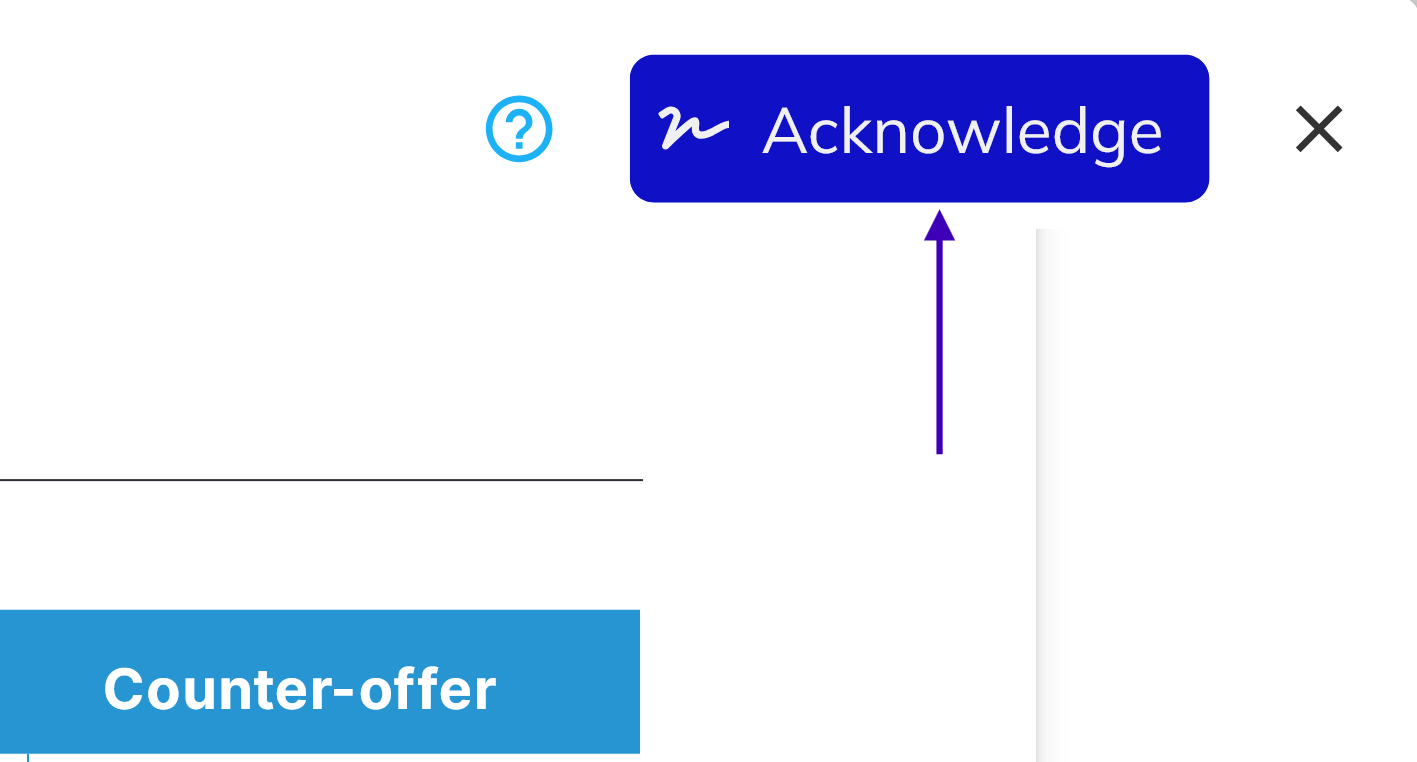
Click Acknowledge to record the disclosure. Pluto will:
- Stamp the developer member's initials into the appropriate column's initials field in the PDF.
- Flatten and upload the completed PDF to the unit's file record.
- Create an audit log entry capturing the purchase price, brokerage amounts, acknowledging developer member, and timestamp.
- Email the acknowledged PDF to the address configured in Project Settings.
After acknowledgement, the signing session proceeds normally.
Counter-Offers and When the Form Re-Appears
The form is designed to track every materially different offer — not just the first one. The system will require a new acknowledgement whenever the purchase price or brokerage amounts change compared to the last log. Common scenarios that trigger a re-acknowledgement:
- A price adjustment is applied to the unit (discount added, removed, or changed).
- An approved customer sales option is added or revised after the initial signing.
- A buying realtor override commission is updated.
- The deal was collapsed and re-opened at a different price.
Each acknowledgement creates a new entry in the log and adds a new column to the PDF, building a full counter-offer history on the form.
Viewing Acknowledgement History
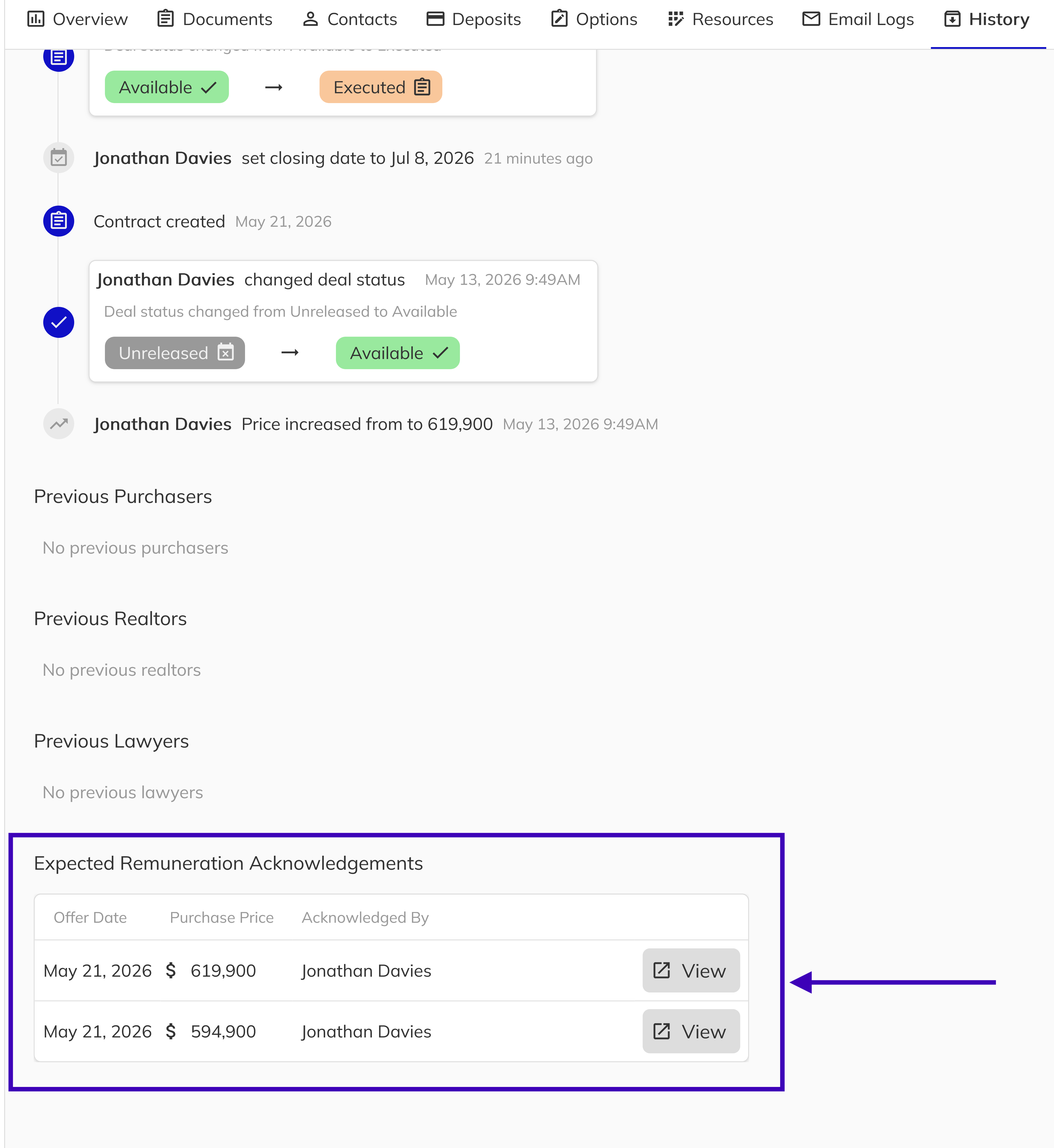
Staff with the View Deal Fees & Commissions or Manage Deal Fees & Commissions permission can see all past acknowledgements in the History tab of the unit view, under the Expected Remuneration Acknowledgements section.
Each row in the grid shows:
- Offer Date — the date the form was acknowledged
- Purchase Price — the purchase price recorded at acknowledgement
- Acknowledged By — the staff member who completed the acknowledgement
- View — opens the stored flattened PDF for that acknowledgement
Congratulations — you now understand Pluto's full Expected Remuneration workflow. From project configuration through counter-offer tracking, you can confidently enable the feature, guide staff through the acknowledgement process, and verify the audit trail in the unit's history tab.