Unit Schedules
Unit Schedules attach key construction and sales dates to individual units in your project. Each schedule entry pairs a milestone type with a date range, giving your team visibility into when construction begins, when it wraps up, and when purchasers can no longer request options. These dates propagate throughout the platform — from dashboard alerts and document merge fields to business rules that automatically lock down options after a cutoff.
In this guide, we will cover:
- What each schedule milestone type means.
- How to manage schedules through the Workbench.
- Bulk editing schedules with CSV import/export.
- How milestones affect options, deal collapses, the dashboard, and document merging.
How We Got Here
Your project has units created and linked to unit models. Sales are in progress and your construction team needs to communicate timelines — when each unit starts building, when it's expected to finish, and the deadline for purchasers to finalize their options selections. Unit Schedules are the mechanism that ties these dates to units and enforces the business rules around them.
Understanding Schedule Milestone Types
Every schedule entry has a milestone that describes what the date represents. There are three milestone types in the system:
| Milestone | Description | Typical Use |
|---|---|---|
| Construction Start | The date construction begins on this unit. | Displayed as the unit's "Start Date" across the platform, available as a merge field in documents. |
| Construction Finish | The estimated completion date for the unit. | Displayed as "Estimated Completion" in unit views. Surfaced on the Dashboard as upcoming completions. Available as a merge field in documents. |
| Options Cutoff | The last date a purchaser can add or modify standard options on this unit. | Enforces a hard deadline — after this date, new standard options are blocked. Affects deal collapse behaviour and displays warnings in the Sales App. |
Each milestone record has a title, a start date, and an optional end date. The start date is the primary date used throughout the platform. A single unit can have one schedule entry per milestone type.
Managing Schedules in the Workbench
The Workbench provides a dedicated page for managing unit schedules across an entire project at once.
Getting to the Schedules Page
- Open the Workbench from the main navigation.
- Select the Community of the project you want to manage.
- Select the Project you want to manage.
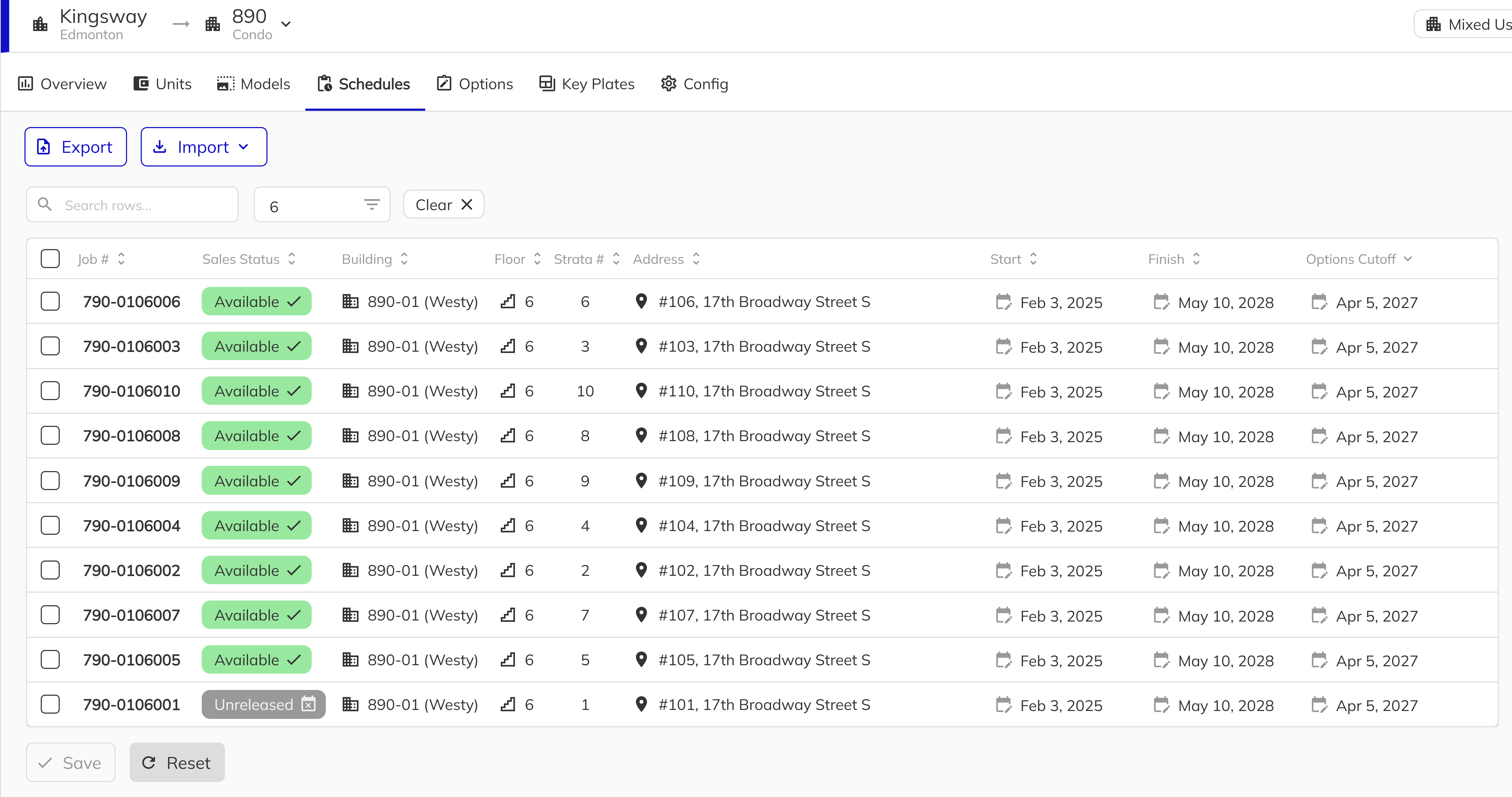
- Click the Unit Schedules tab in the project section.
Setting Milestone Dates
The schedules page displays an editable data grid with one row per unit. Each row has columns for the three milestone dates: Construction Start, Construction Finish, and Options Cutoff.
- Locate the unit you want to update in the grid.
- Click the date cell for the milestone you want to set.
- Select or type the desired date.
- Click Save to persist your changes.
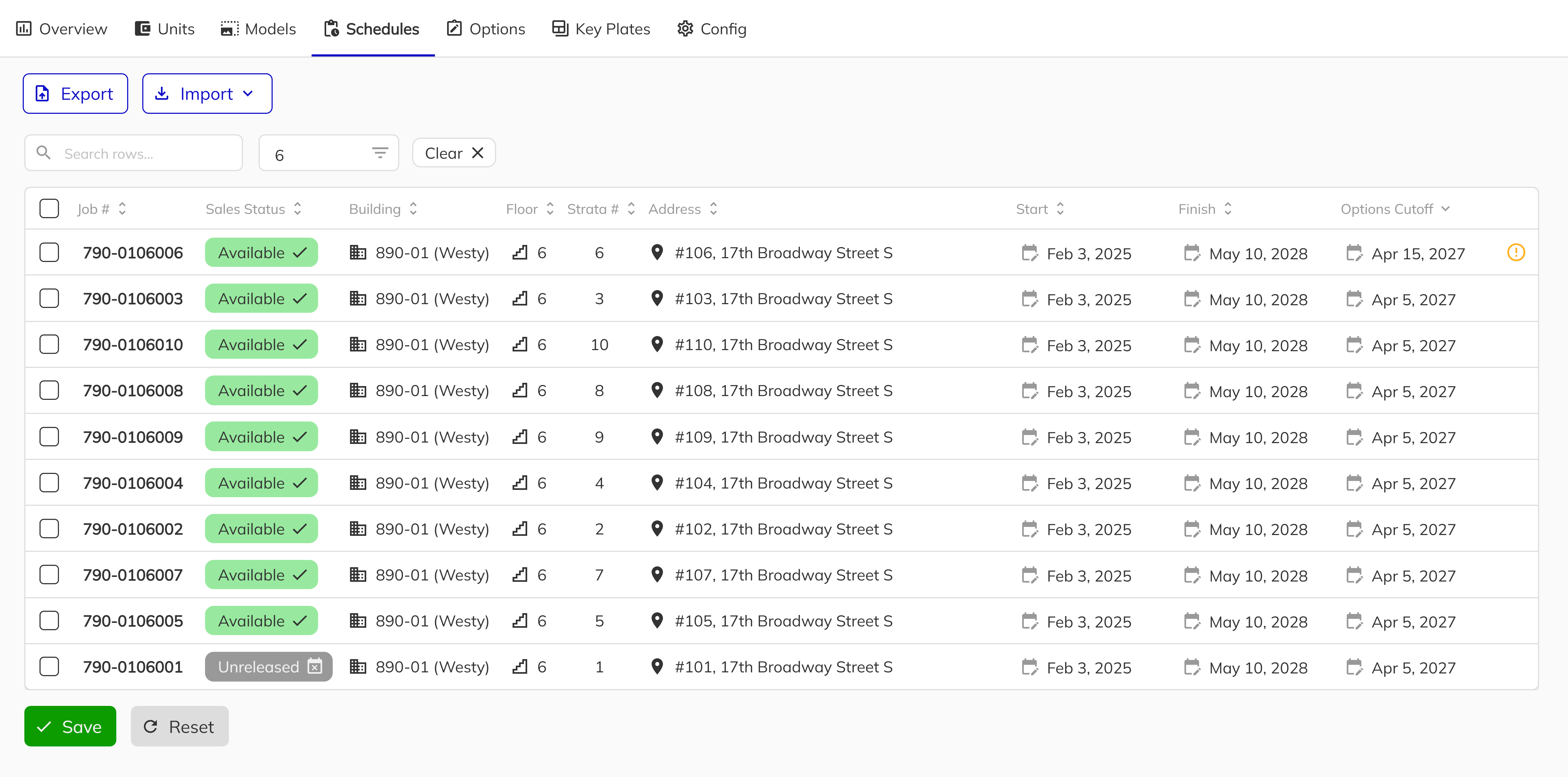
You can edit multiple units before saving — the system will bulk-update all changed rows in a single operation.
Bulk Editing with CSV Import and Export
For projects with many units, manually setting dates one by one can be tedious. The schedules page supports CSV export and CSV import to let you manage dates in a spreadsheet and upload them back.
Exporting Schedules
- On the Unit Schedules page, click the Export button.
- A CSV file downloads containing every unit in the project with its current milestone dates.
- Open the file in your preferred spreadsheet application.
Importing Schedules
- Update the dates in your exported CSV file (or prepare a new one following the same column format).
- On the Unit Schedules page, click the Import button.
- Select your updated CSV file.
- Review the preview showing which dates will be created, updated, or removed.
- Click Save to apply the changes.
To remove a milestone date for a unit, leave both the start and end date cells blank for that milestone in the CSV. The system will delete the schedule entry when you import.
How Milestones Affect the System
Schedule milestones are not just informational — they drive business logic, UI behaviour, and document content across multiple areas of the platform.
Options Cutoff Enforcement
The Options Cutoff milestone is the most impactful. When this date passes for a unit:
- Standard options are blocked. The system prevents new standard (external) options from being added to the unit. Attempting to create one will result in an error.
- Internal options may also be blocked. By default, internal options are also blocked after cutoff. However, this can be overridden per-project by enabling the Allow Internal Options After Cutoff setting in the project configuration.
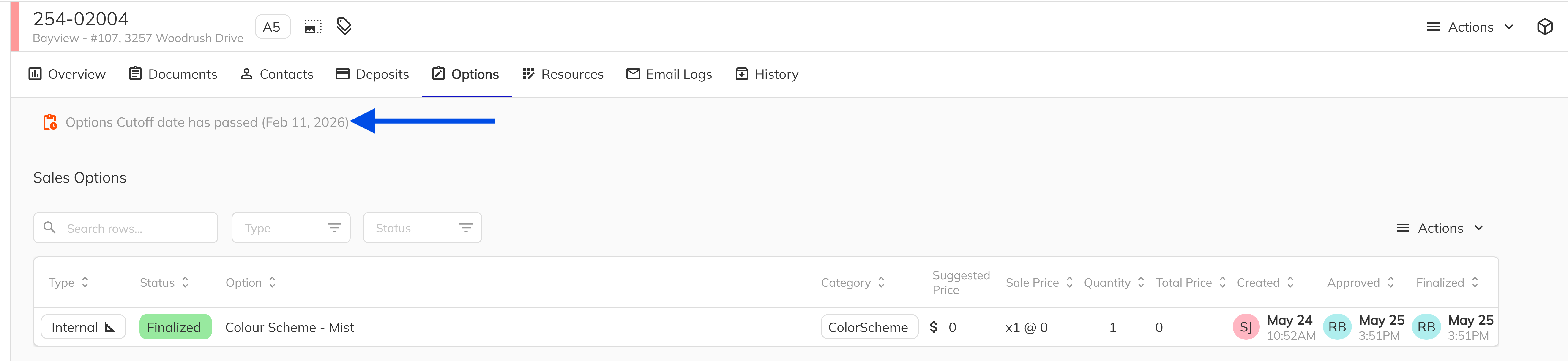
- The Sales App shows a warning. On the unit's Options page, a countdown banner displays how many days remain until cutoff. Once the date passes, the banner changes to an alert indicating the cutoff has passed.
Deal Collapse Behaviour
When a deal is collapsed (the purchaser backs out), the Options Cutoff date determines what happens to the unit's options:
| Scenario | What Happens |
|---|---|
| Before cutoff | Standard non-finalized options are removed from the unit. Associated parking and storage assignments are unlinked. The unit is cleaned up for resale. |
| After cutoff | All options remain attached to the unit. Since the cutoff has passed, the options are considered part of the unit's permanent configuration. |
This distinction ensures that construction-relevant options are not accidentally removed once the builder has committed to them.
Dashboard Visibility
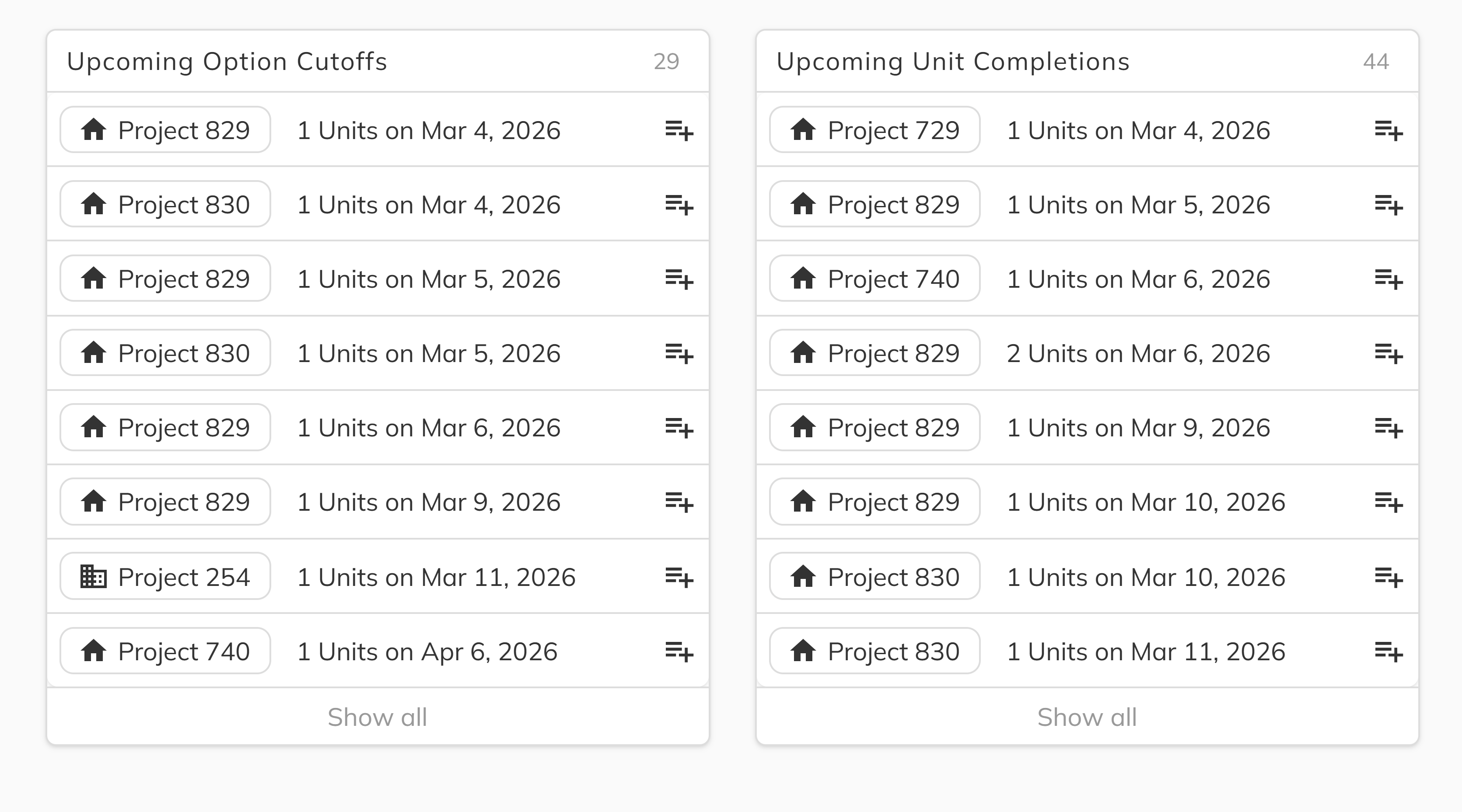
Milestones surface on the Sales App Dashboard in two dedicated cards:
- Upcoming Options Cutoffs — Shows units approaching their cutoff date, grouped by project. Helps your team proactively finalize options before the deadline.
- Upcoming Completions — Shows units approaching their construction finish date, grouped by project. Useful for coordinating closing activities.
Unit Overview Display
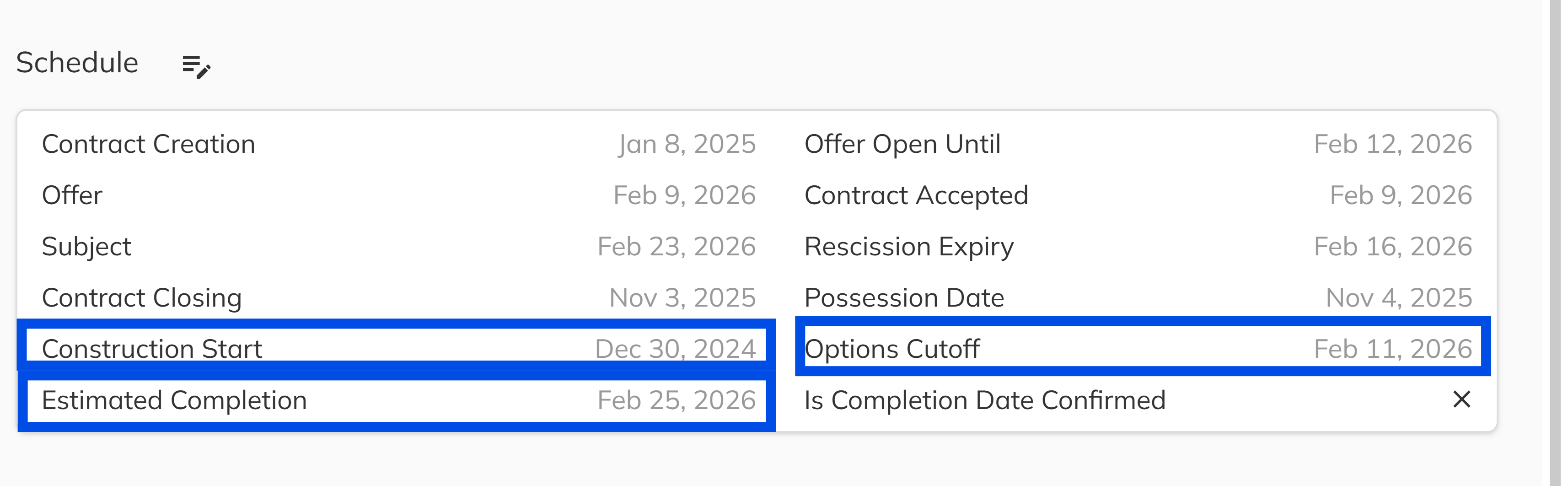
Schedule dates are prominently displayed on each unit's overview page in the Sales App:
- Construction Start appears under the Schedule section.
- Options Cutoff appears under the Schedule section.
- Estimated Completion (Construction Finish) appears under the Schedule section.
These fields are read-only in the Unit view — schedules are managed exclusively from the Workbench.
Document Merge Fields
The Construction Start and Construction Finish dates are available as document merge fields, allowing them to be automatically inserted into contracts, addendums, and other generated documents:
| Merge Field | Description |
|---|---|
job-startDate | The Construction Start date for the unit. |
job-finishDate | The Construction Finish date for the unit. |
These fields pull their values directly from the schedule milestone records. If no schedule is set for a milestone, the merge field will be blank.
Event Tracking
When a milestone date is set or changed, the system records an event for audit purposes:
| Milestone Changed | Event Raised |
|---|---|
| Construction Start | Unit Start Date Changed |
| Construction Finish | Unit Finish Date Changed |
| Options Cutoff | Unit Cutoff Date Changed |
Congratulations! you now know how to manage Unit Schedules across your projects! By setting Construction Start, Construction Finish, and Options Cutoff dates for your units, you give your team clear visibility into project timelines while the platform automatically enforces options deadlines and keeps dashboards, documents, and unit views up to date. Head to the Workbench, select your project, and start setting your milestone dates to keep your sales and construction teams aligned.