Options Client Portal View
Purchasers can view their selected options through the Client Portal, providing transparency into their home's customizations. This guide explains what purchasers see and how to configure the display settings.
In this guide, we will cover:
- What purchasers see in the Client Portal
- Configuration settings for the options display
- Information displayed for each option
How We Got Here
A purchaser has selected options for their home, and Sales Options have been created and approved. Now the purchaser wants to review what they've selected. The Client Portal provides a secure, convenient way for purchasers to view their options without needing to contact sales staff.
What Purchasers See
1. Options Grid in Client Portal
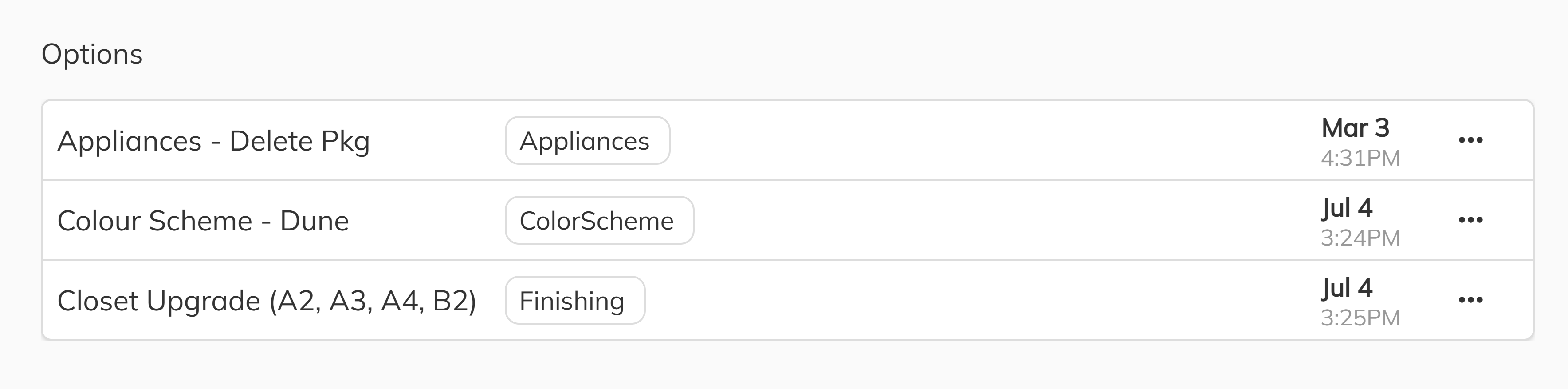
When purchasers log into the Client Portal and navigate to their unit, they can access an Options section showing all approved Sales Options on their home.
The options grid provides a visual overview of all selected upgrades and extras, organized for easy scanning.
Information Displayed
The options view displays:
- Option names — Clear identification of each upgrade
- Descriptions — Details about what's included
- Categories — Organized grouping (Electrical, Plumbing, etc.)
- Cover photos — Where available, images help illustrate the option
Configuration Settings
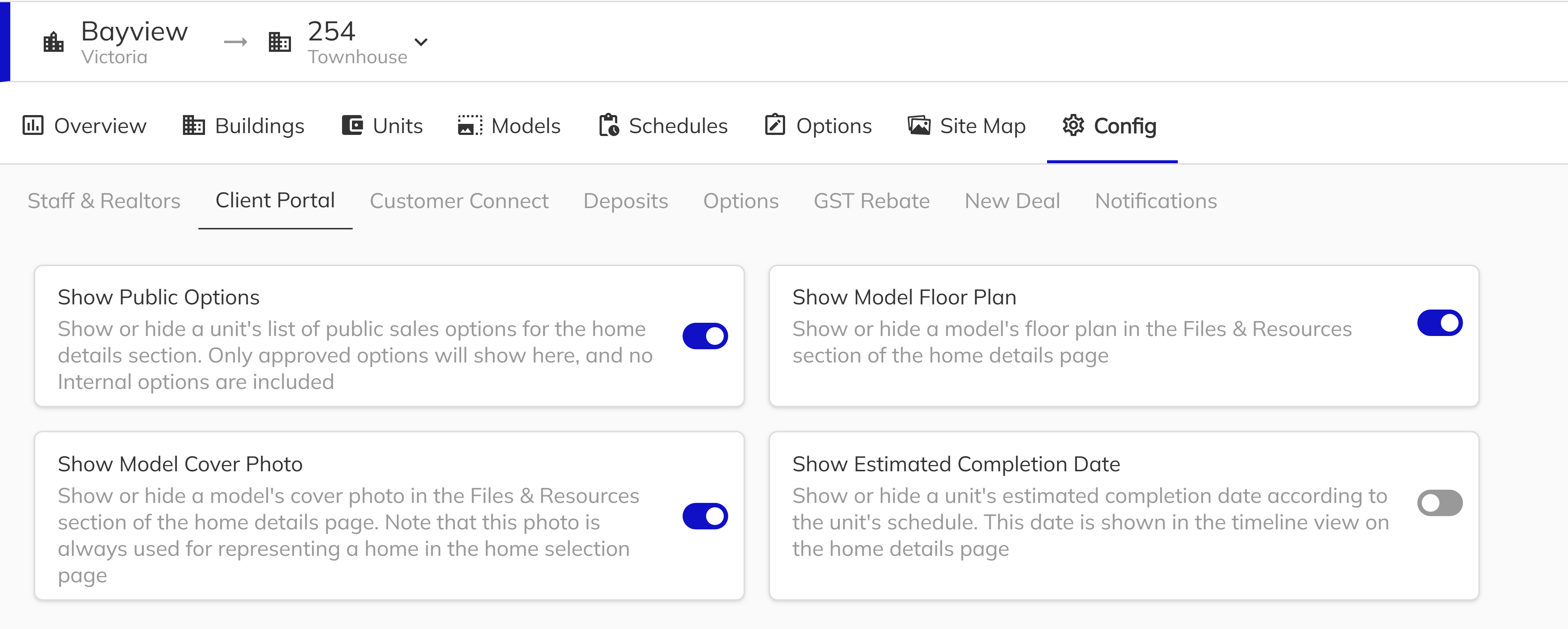
The display of options in the Client Portal is controlled by project configuration settings in the Workbench. These settings let you customize what information purchasers can see.
Configuration for Client Portal Display
| Setting | Effect | Default |
|---|---|---|
| Show Options | Enables/disables the options section entirely | Enabled |
Accessing Configuration Settings
- Open the Workbench
- Select the community and project
- Navigate to Project Configuration
- Find the Client Portal section
- Adjust the options display settings
These settings are project-specific. Different projects can have different visibility configurations based on your business needs.
Common Purchaser Questions
Sales staff may receive questions from purchasers about what they see in the Client Portal:
| Question | Answer |
|---|---|
| "Why don't I see my option?" | It may be pending approval, or Show Pending may be disabled. Check the Sales Option status in the Sales App. |
| "Can I add more options here?" | Currently, options must be added through your sales representative. |
Congratulations you've successfully learned about the Client Portal options view! You now understand:
- What information purchasers see about their options
- How to configure display settings
This knowledge helps you set appropriate expectations with purchasers and configure the Client Portal to match your business preferences.