Inspection Walkthrough on iOS: Start, Inspect, Post, and Close
The Pluto Systems iOS app lets field staff do a full construction inspection from a phone or iPad. You can start or schedule an inspection, walk through each property location, mark line items as passed or failed, and attach photos and notes. You can also send work orders to vendors, post the results to your team, and close the inspection once every failure is dealt with.
In this guide, we will cover:
- Opening the Inspections dashboard
- Starting a new inspection or scheduling one for later
- Moving through locations during the walkthrough
- Setting item statuses and adding notes, photos, and assignments
- Adding custom locations, instances, and items
- Sending work orders for failed items
- Posting and closing the inspection
How We Got Here
Before anyone can walk a site, an administrator sets up the inspection structure in Workbench. That means defining Property Locations, creating Inspection Templates, and assigning Vendors to the project. If your team uses its own names for inspection types, an admin may also have set up Inspection Type Overrides. The iOS app shows those custom names too. With this setup done, inspectors can open the app on site and work from a consistent checklist.
Changes are saved to Pluto as you make them, so you need an internet connection during the walkthrough. The app doesn't store inspections for offline use.
Understanding Inspection and Item Statuses
Inspection statuses
Each inspection moves through four statuses in order:
| Status | Meaning | Next Action |
|---|---|---|
| Unstarted | The inspection has been created or scheduled, but nobody has started it yet | Start Inspection |
| In Progress | The walkthrough is underway | Post Inspection |
| Submitted | The first results are finalized and your team has been notified | Close Inspection |
| Closed | All outstanding failures are resolved or deferred | — |
Each change of inspection status is permanent. Once you start, post, or close an inspection, you can't go back to an earlier status.
Item statuses
Each line item in the walkthrough has one of these statuses:
| Status | When to Use |
|---|---|
| Pending | The item hasn't been inspected yet (this is the default) |
| Passed | The item meets the standard |
| Failed | The item has a deficiency that needs to be fixed |
| N/A | The item doesn't apply to this location |
| Resolved | A failed item has been fixed |
| Deferred | A failed item will be dealt with later |
| Seasonal | The item can't be finished until the season changes, such as landscaping or exterior paint |
Getting to Your Inspections
1. Open the Inspections tab
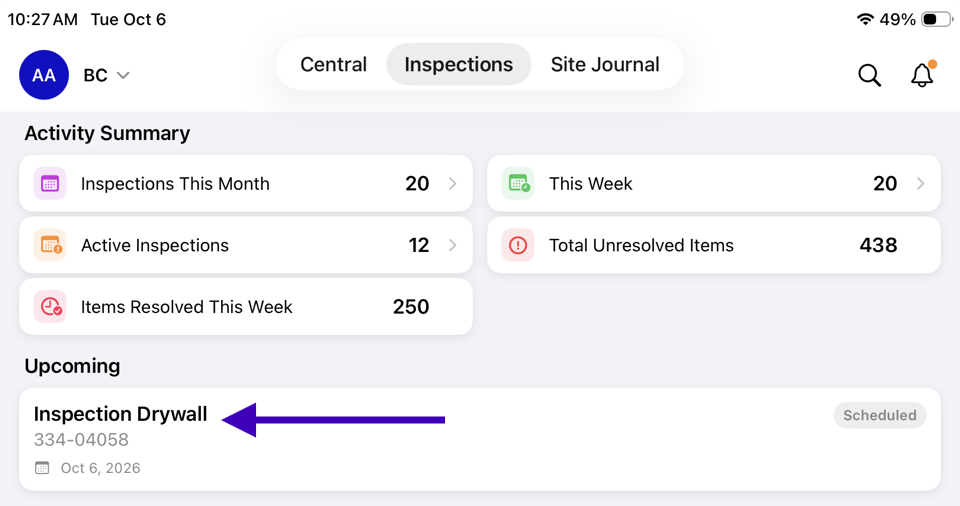
Tap the Inspections tab at the bottom of the app. The dashboard opens with an Activity Summary that shows Inspections This Month, This Week, Active Inspections, Total Unresolved Items, and Items Resolved This Week.
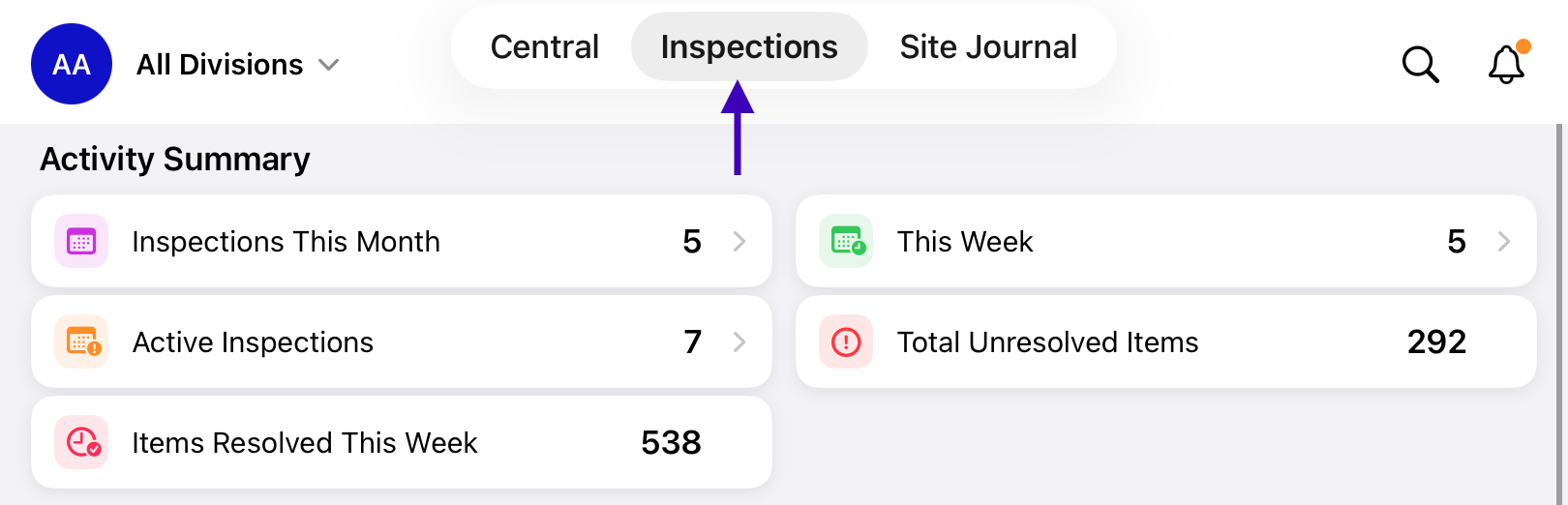
2. Review upcoming and active work
Scroll down to see the Upcoming, Overdue, Recently Started, and Recently Closed sections. Tap View All on any section to see the full list. You can filter the list by Status and Type.
Kicking Off an Inspection
You can start an inspection from scratch, start one from a scheduled milestone, or open one that already exists. To open an existing inspection, just tap it on the dashboard or in a list, then skip ahead to Walking the Site.
1. Tap Start Inspection
On the Inspections dashboard, tap Start Inspection. To start from the schedule instead, tap a scheduled milestone card. The app then fills in the type and location from that milestone.
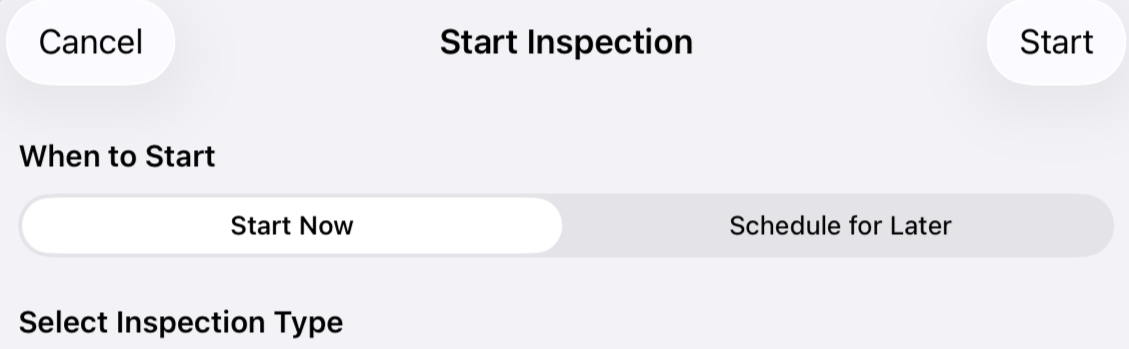
2. Choose when to start
Under When to Start, pick Start Now to begin the walkthrough right away. To add the inspection to the calendar instead, pick Schedule for Later and choose a Start Date.
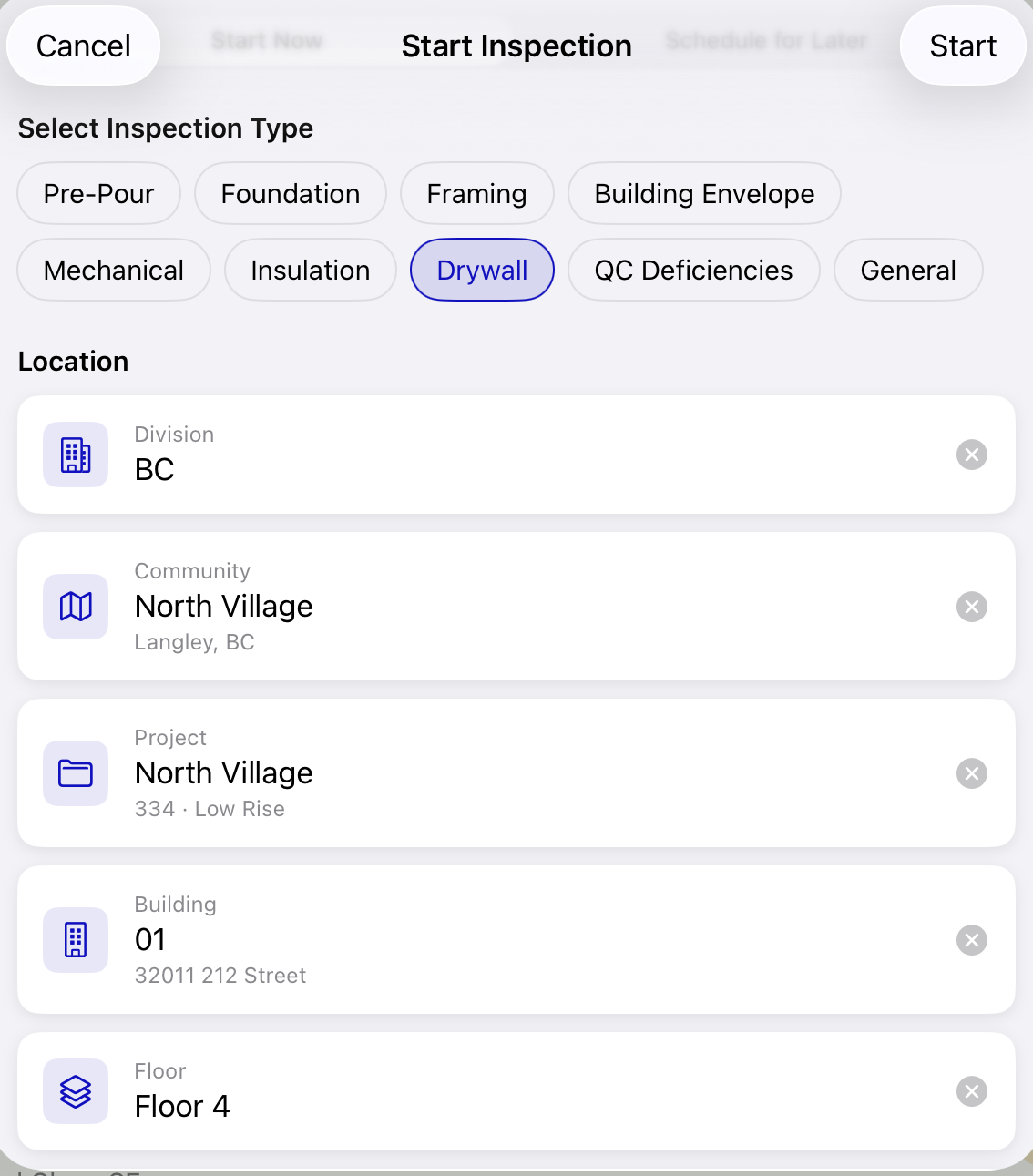
3. Select the inspection type and location
Under Select Inspection Type, tap the type you're inspecting, such as Framing or Drywall. Then pick a Location. A building is required. You can also pick a specific Unit within that building.
4. Pick a template
Under From Template, the app picks a template automatically. It chooses a project template if one exists, and otherwise uses the master template. You can pick a different Template or choose No template to start with an empty inspection.
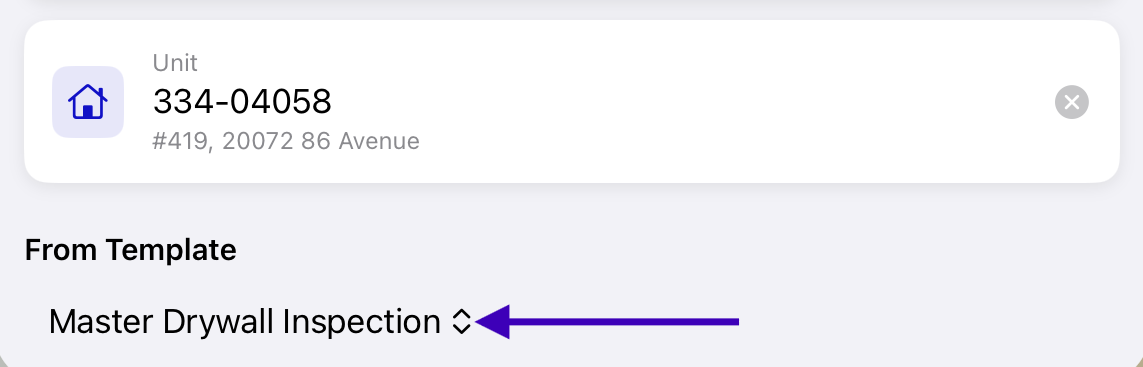
General inspections don't use templates. When you choose General, enter an Inspection Title so the inspection is easy to find later.
Walking the Site
1. Start the inspection if it's unstarted
If you chose Start Now when you created the inspection, it's already started and set to In Progress, so you can skip this step.
If you open a scheduled or unstarted inspection, tap Inspection in the dashboard and confirm the template you would like to use. Starting also happens automatically when you set the status of the first item. The app will ask "Would you like to start this inspection?" first.
2. Move between location tabs
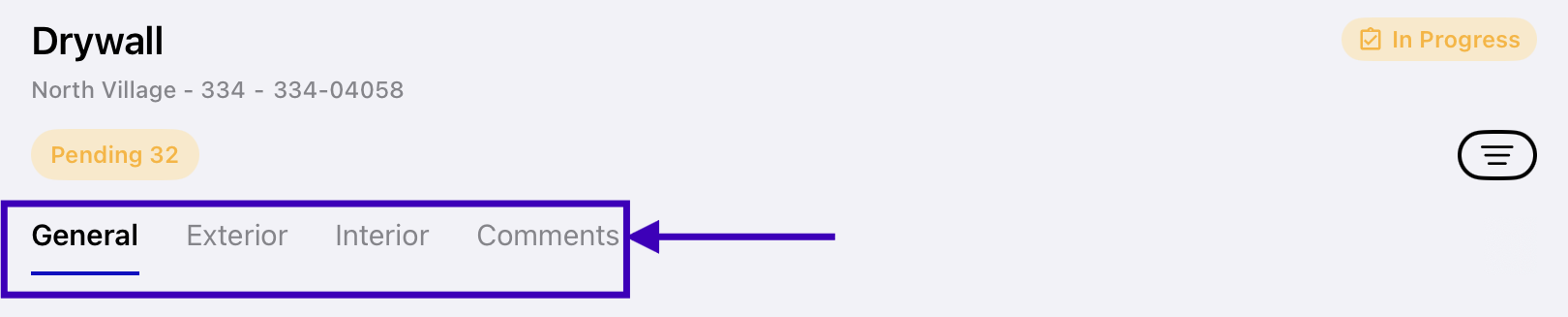
The walkthrough is organized into tabs across the top of the screen. The first tab is General. Next comes one tab for each main property location, such as a floor or an area of the Unit. The last tab is Comments. Tap a tab to open it. If there are more tabs than fit on screen, scroll the tab bar sideways. Nested locations appear as section headings inside each tab, with their items listed underneath.
3. Check progress with the status pills
Count pills at the top of the walkthrough show how many items have each status, for example how many are Pending or Failed. Tap a pill to show only the items with that status. This makes it easy to find anything you haven't inspected yet.

Recording Your Findings
1. Mark items as Passed or Failed
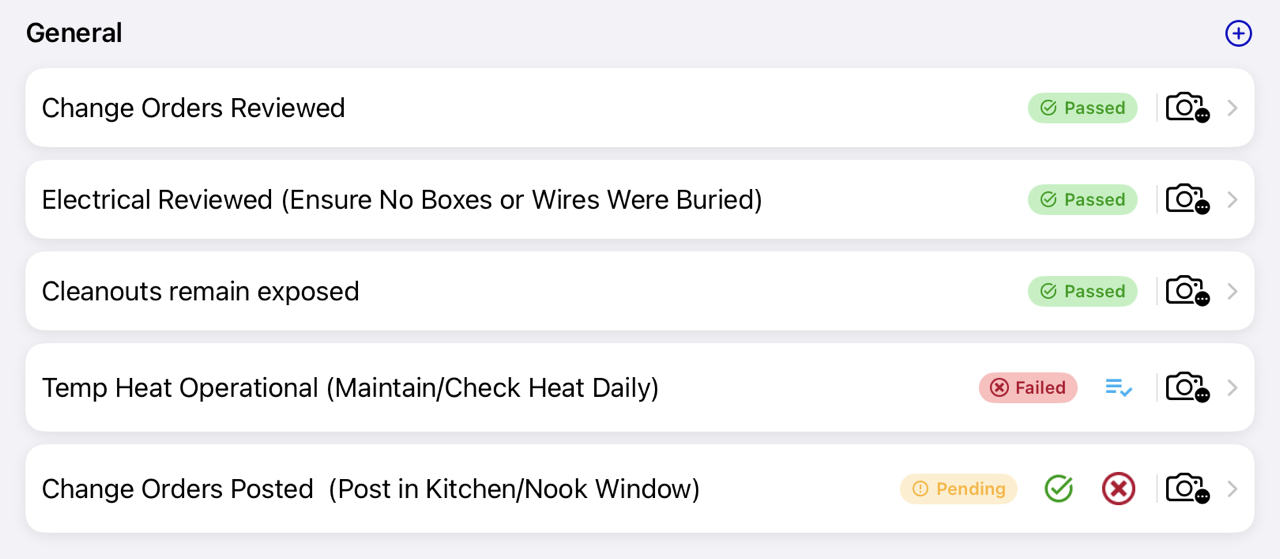
Each item card has quick-action icons. On a Pending item, tap the Passed or Failed icon. On a Failed item, tap the Resolved icon once it has been fixed. The status label on the card updates to show the new status.
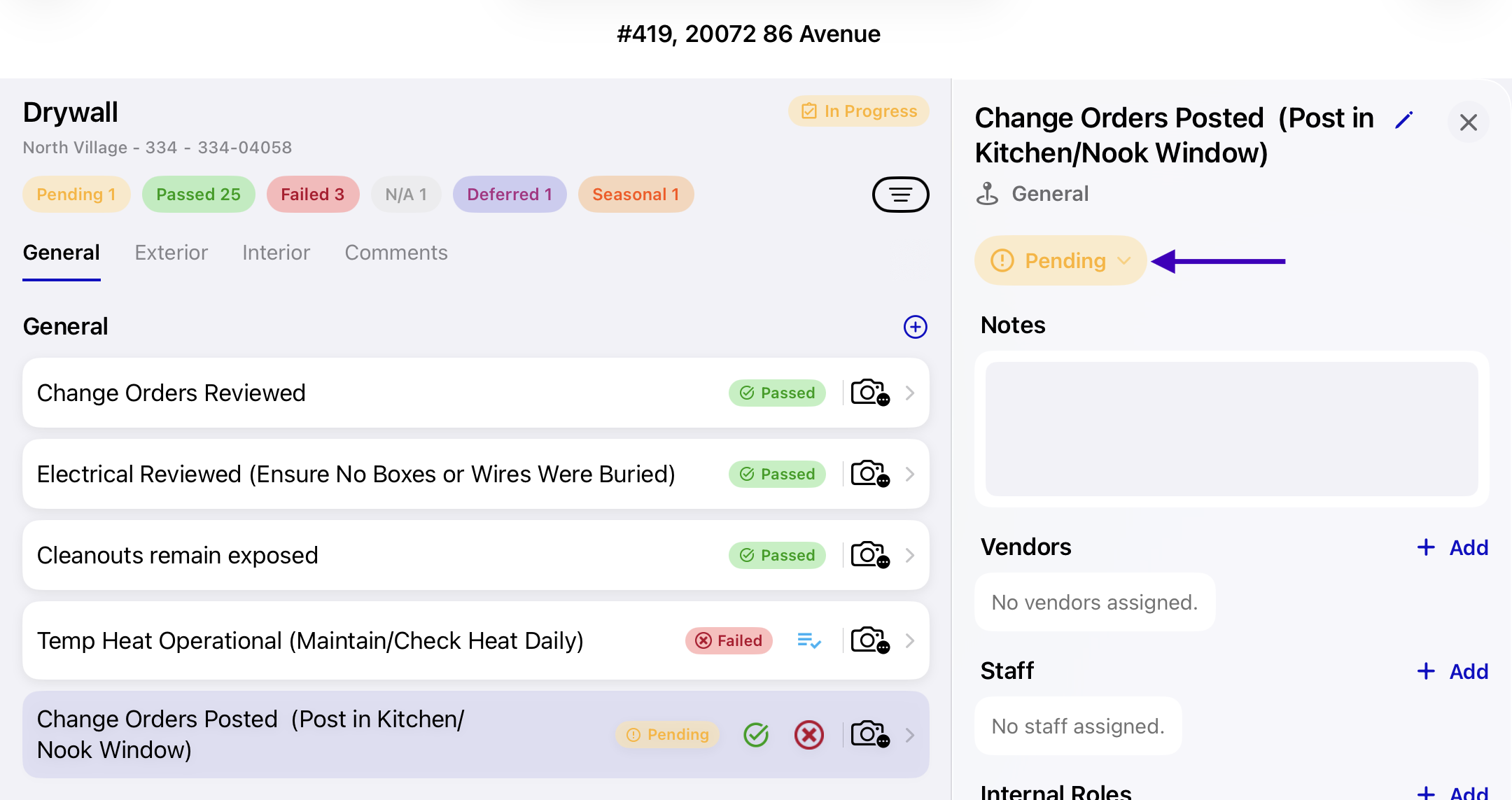
2. Open an item for more options
Tap an item to open its details. From the status menu, you can choose another status, such as N/A, Deferred, or Seasonal. To rename the item, tap the pencil icon to open Edit Title. To remove an item, tap Delete Item and confirm.
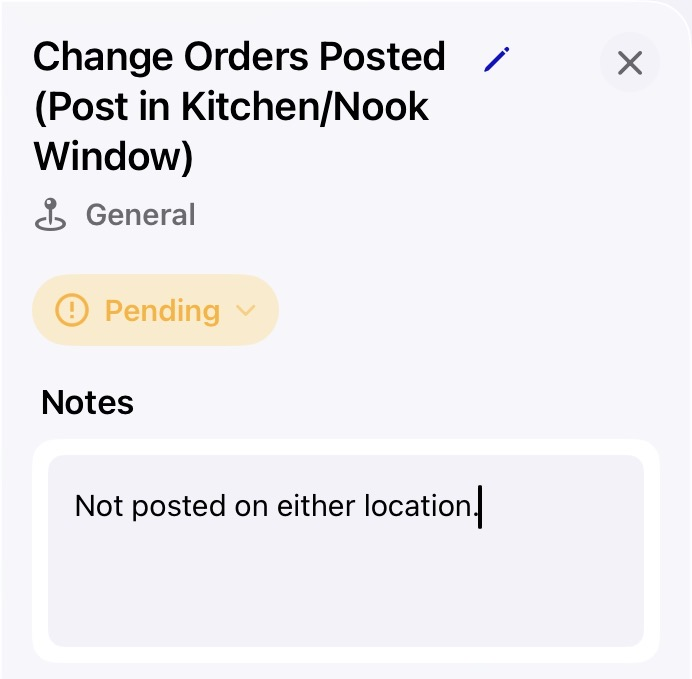
3. Add notes
Type details about what you found in the Notes field. Notes save automatically a few seconds after you stop typing. You'll see Saving… and then Saved below the field. If you see Save failed, check your connection and try again.
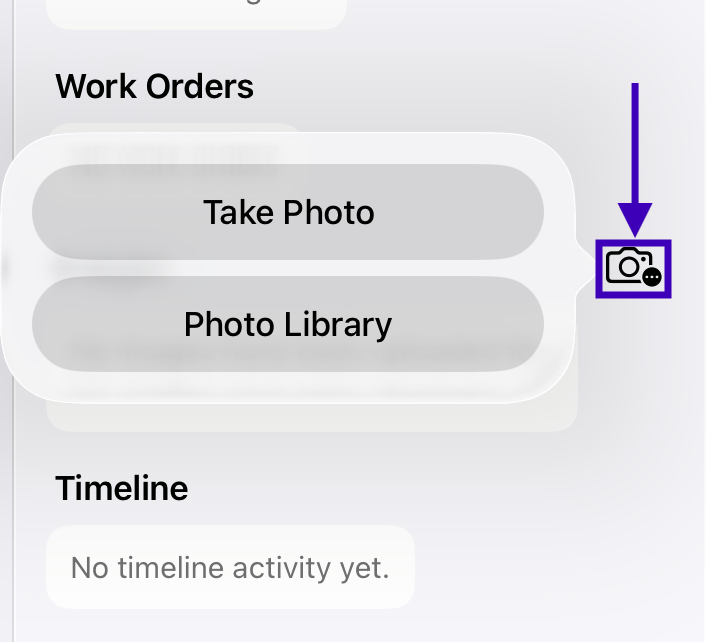
4. Attach photos
Under Images, tap the add image icon. Choose Take Photo to use the camera, or Photo Library to pick one or more existing photos. When the upload finishes, a confirmation such as "Photo added" or "3 photos added" appears.
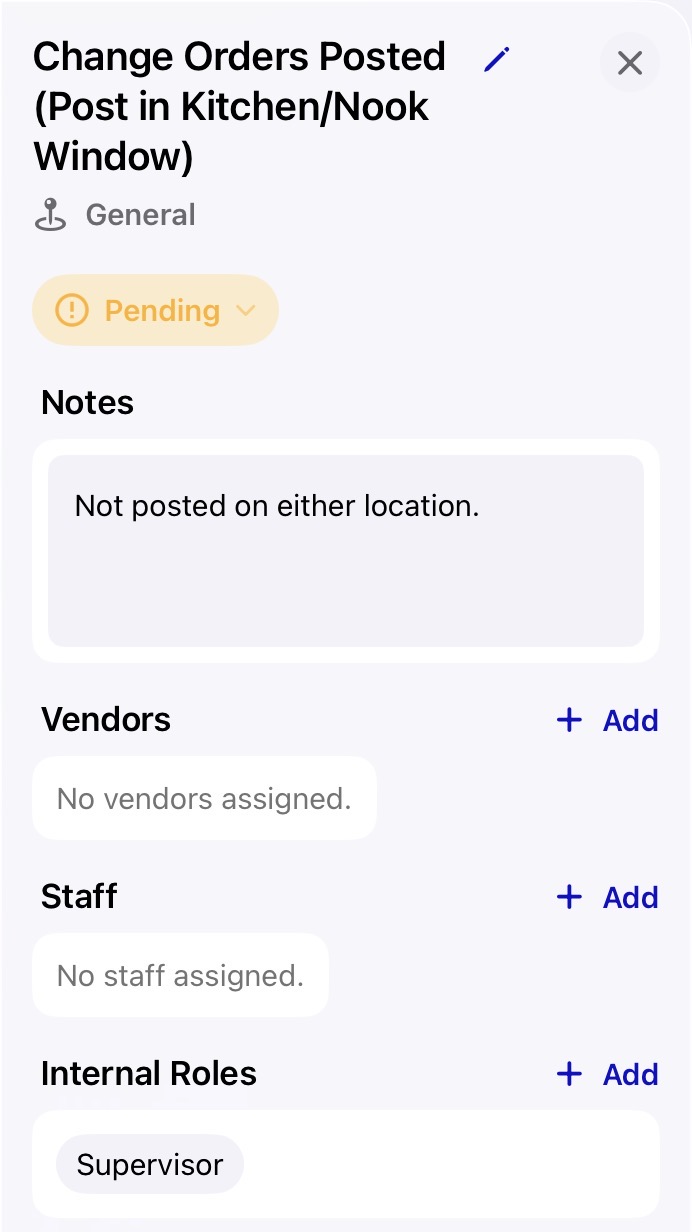
5. Assign responsibility
In the Vendors, Staff, or Internal Roles section, tap Add and use the search field to find the right company, person, or role. Failed items that have a vendor or staff member assigned can be included in a work order later.
6. Check automatic vendor assignments
In an Inspection Template, each line item can have a trade category. Pluto automatically assigns the item to every vendor that has the same trade category and is assigned to the same project. These vendors already appear under Vendors on the item, so you don't need to add them.
If no vendor matches, the section shows No vendors assigned. Tap Add to assign one manually. Vendors assigned to the inspection's project are listed first.
The Timeline section on each item shows its status changes and any work orders sent for it, along with who made each change.
Customizing the Walkthrough On Site
1. Show or hide locations
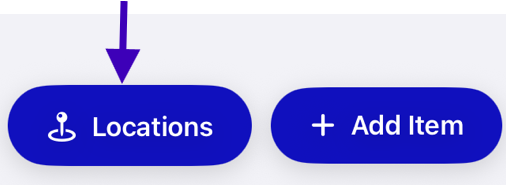
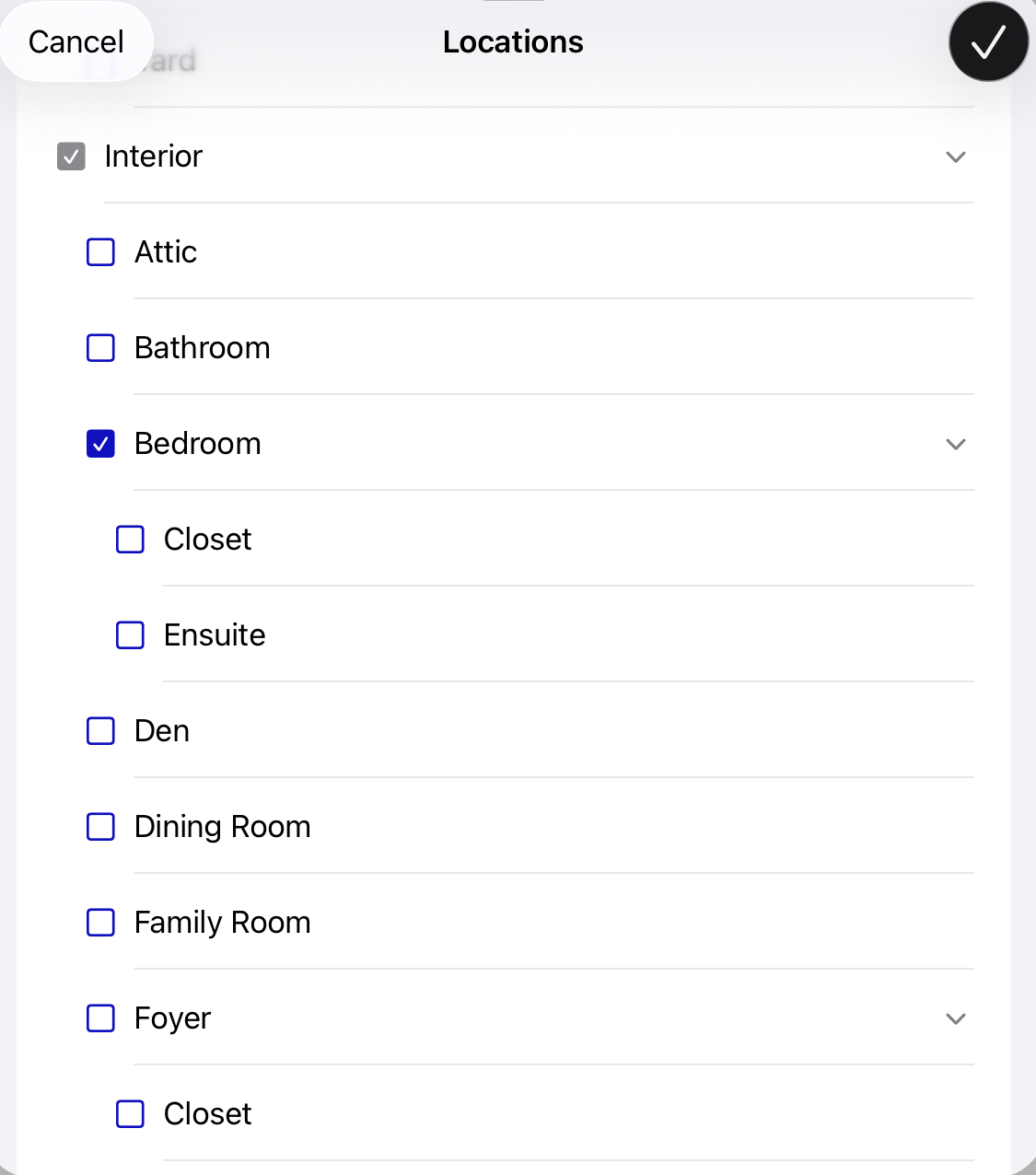
Tap Locations to open the location checklist. Turn on any locations you need that the template left out, or turn off ones that don't apply, then tap Save. You can't remove General, a location that already has items, or a parent location while any of its child locations are still included.
2. Add a custom location or another instance
If a location isn't on the list, tap Add Custom Location in the Locations checklist, enter a name, and tap Add. Custom locations appear under the General tab.
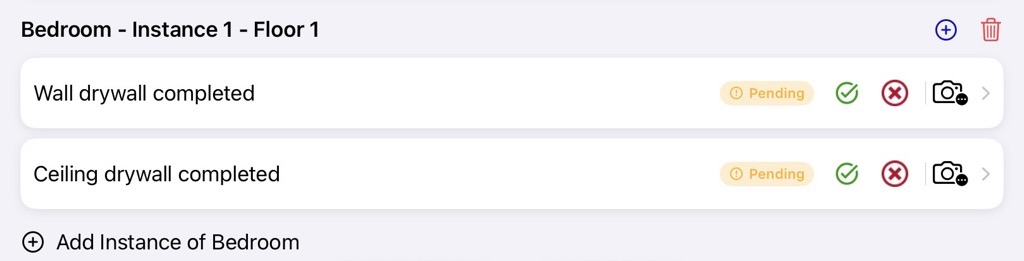
For locations that can repeat, such as bedrooms, tap Add Instance of [location] to add another copy of it, for example "Bedroom - Instance 2". The new instance gets a copy of the previous instance's items, all set to Pending. If the location has floor options, choose its Floor.
3. Add an item
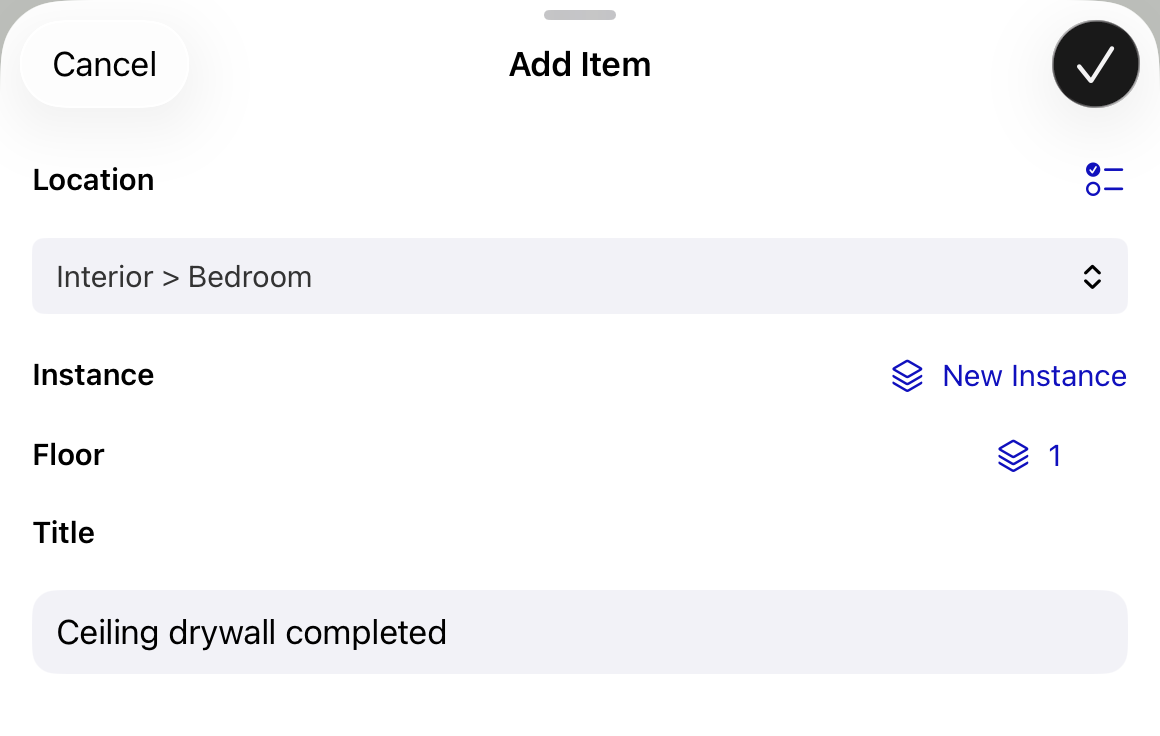
To record something the template doesn't cover, tap Add Item. Choose the Location, plus a Zone or Instance and Floor if the location needs them. Enter a Title and tap Save.
4. Leave inspection comments
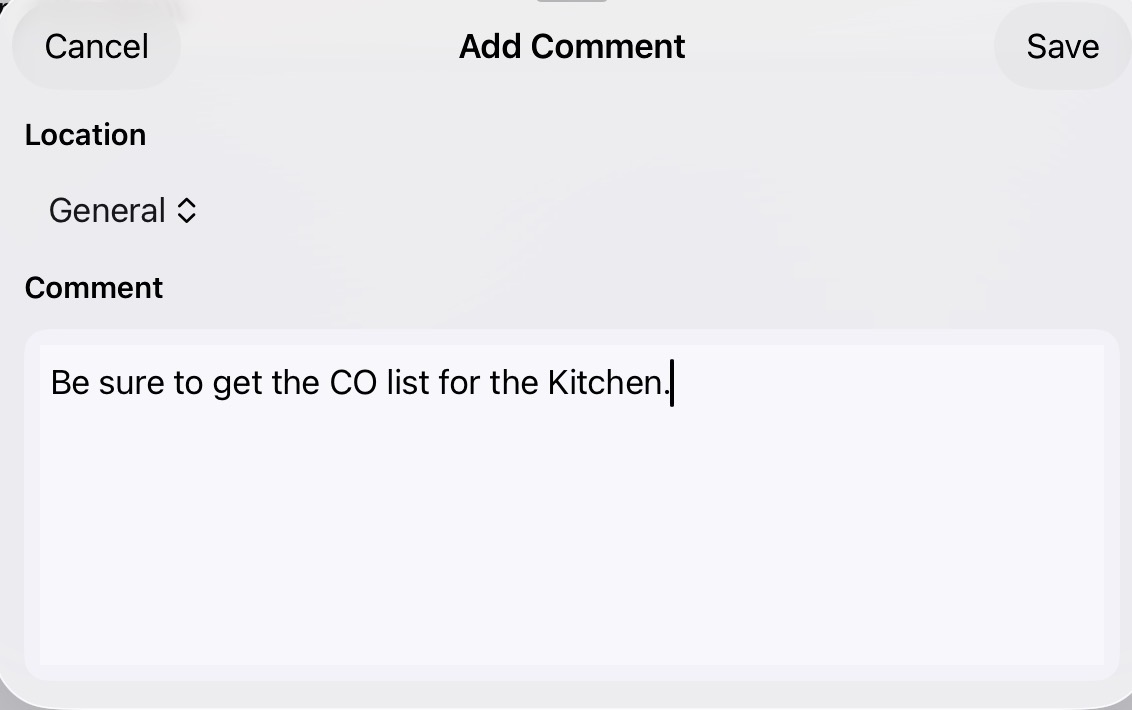
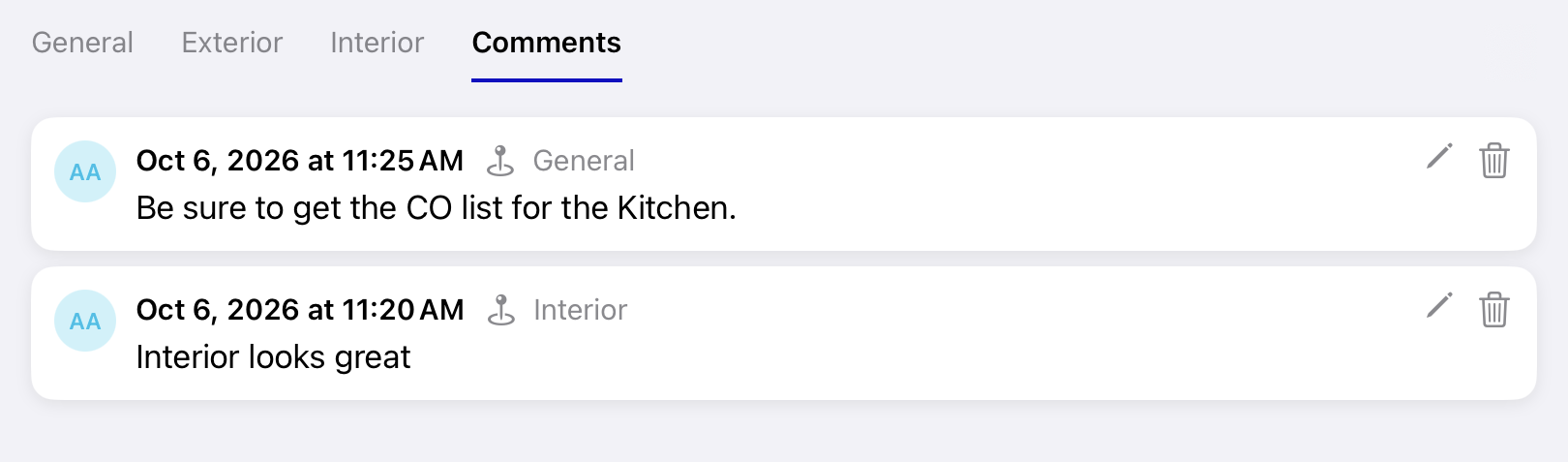
Open the Comments tab and tap Add Comment to record general notes about the inspection. You can link a comment to a specific location, or leave it for the inspection as a whole.
Dispatching Work Orders
1. Open Send Work Order
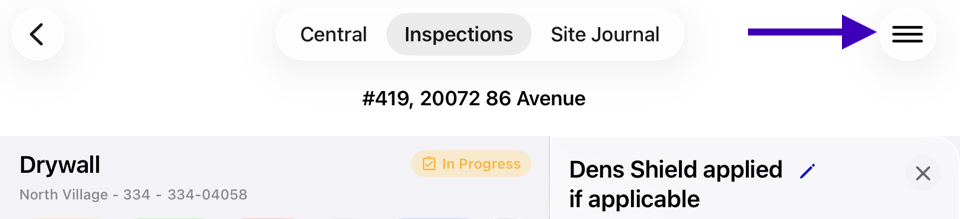
From the inspection menu, tap Send Work Order. Only vendors and staff who are assigned to at least one Failed item can receive a work order.

2. Choose the recipient and items
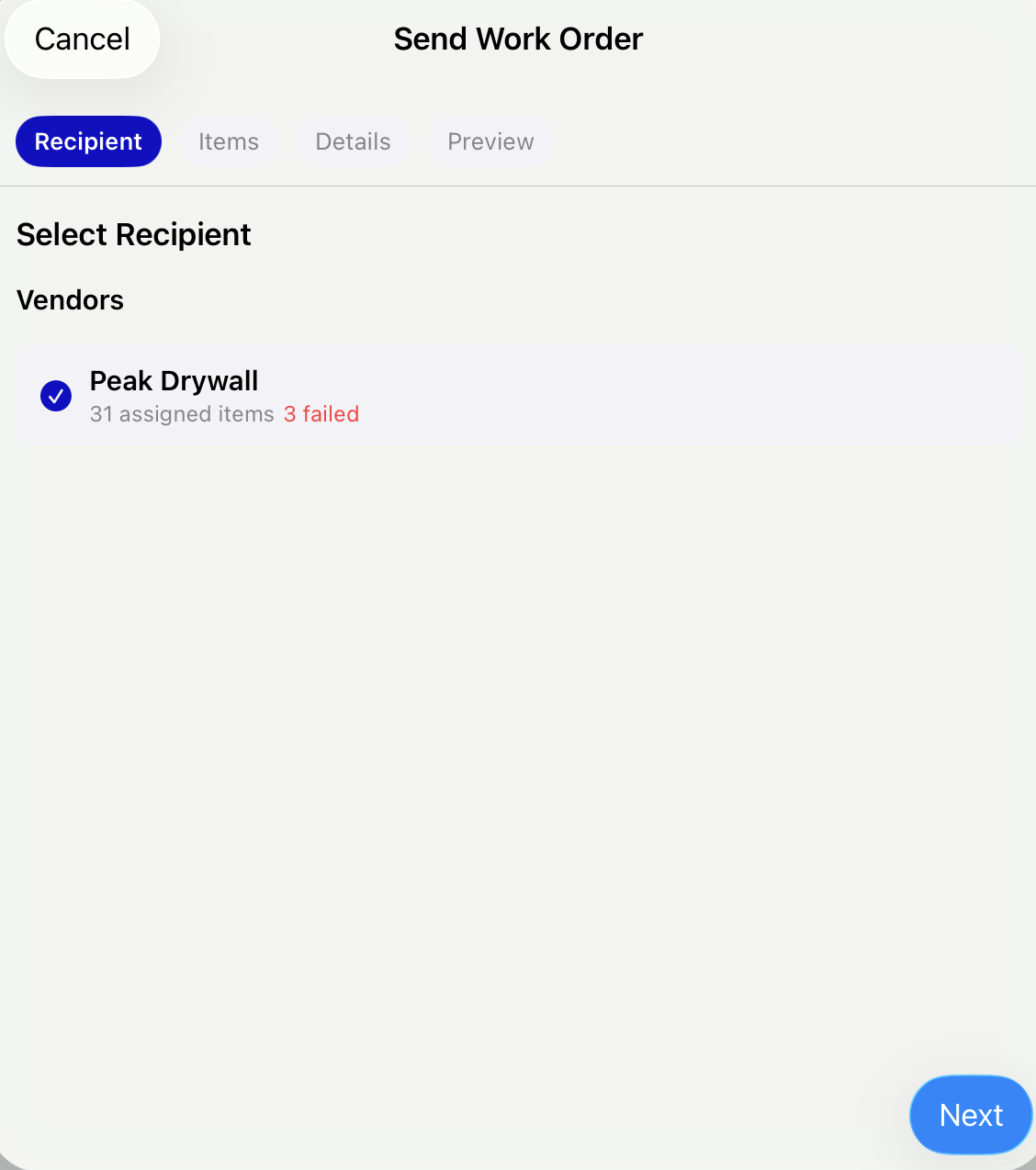
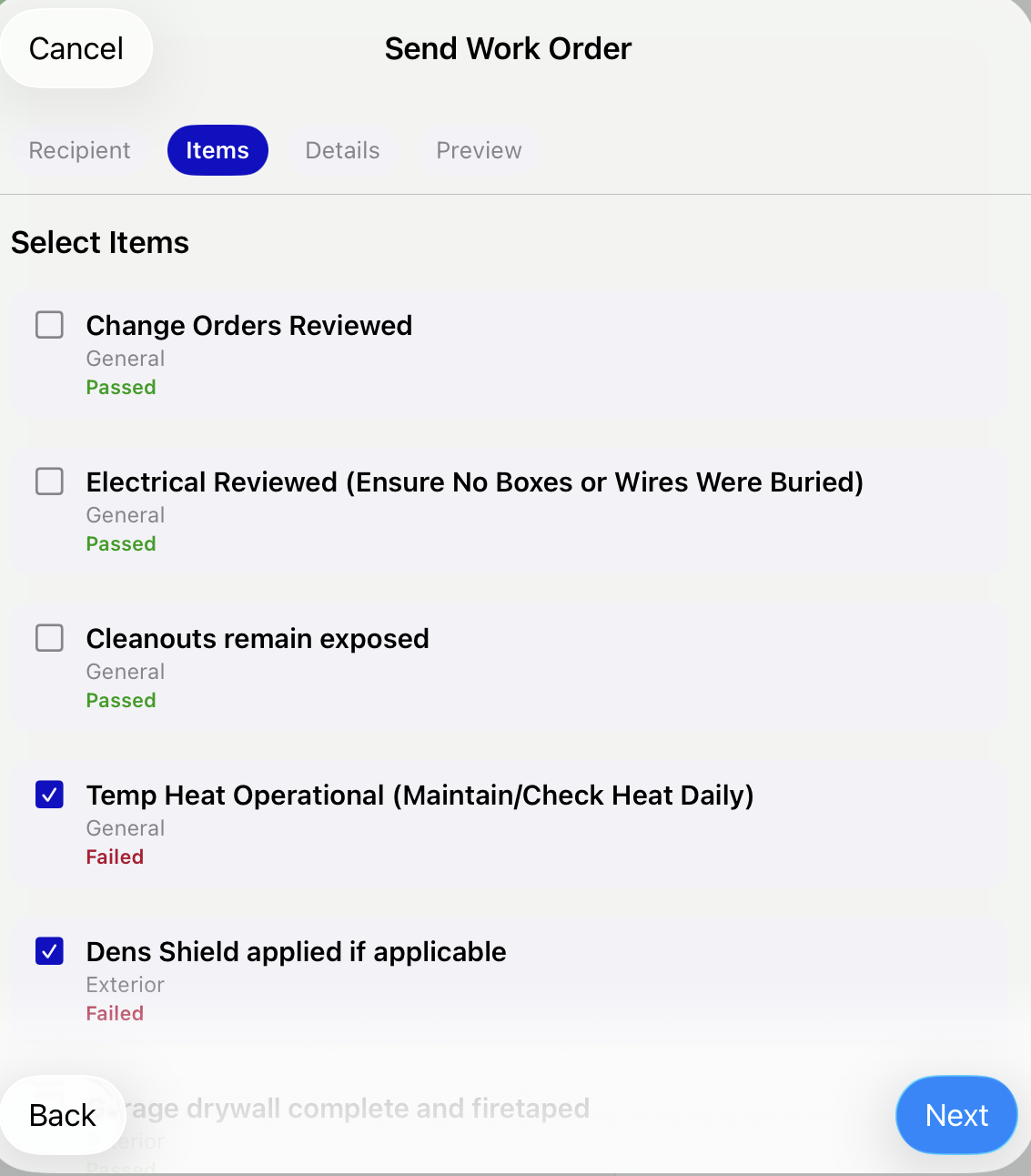
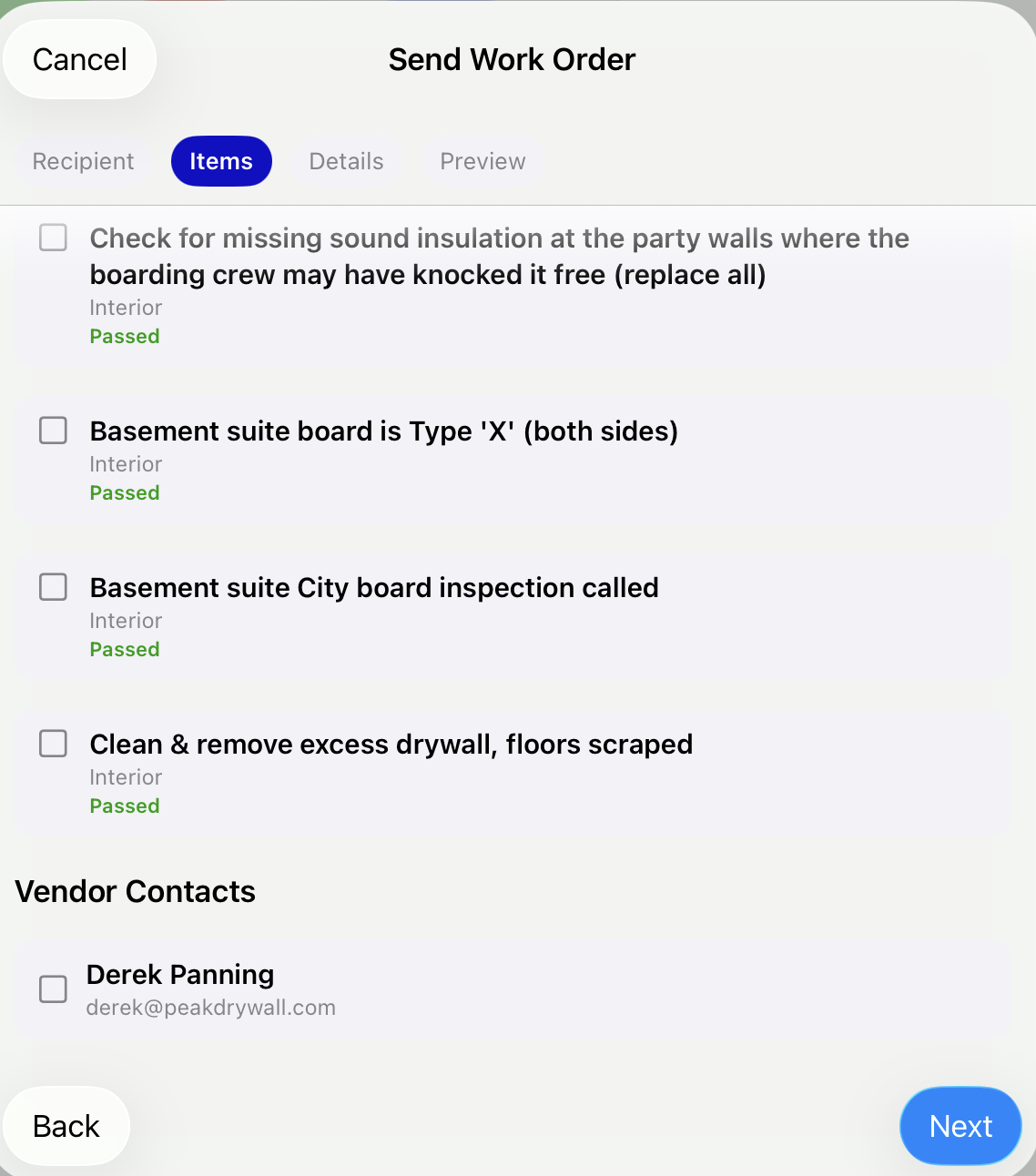
On the Recipient step, pick the vendor or staff member. On the Items step, every item assigned to that recipient is listed, and the Failed ones are already selected. Deselect any you don't want to include. For a vendor, also choose which contacts should receive the email. Next stays disabled until you've picked a recipient and at least one item.
3. Add work order details
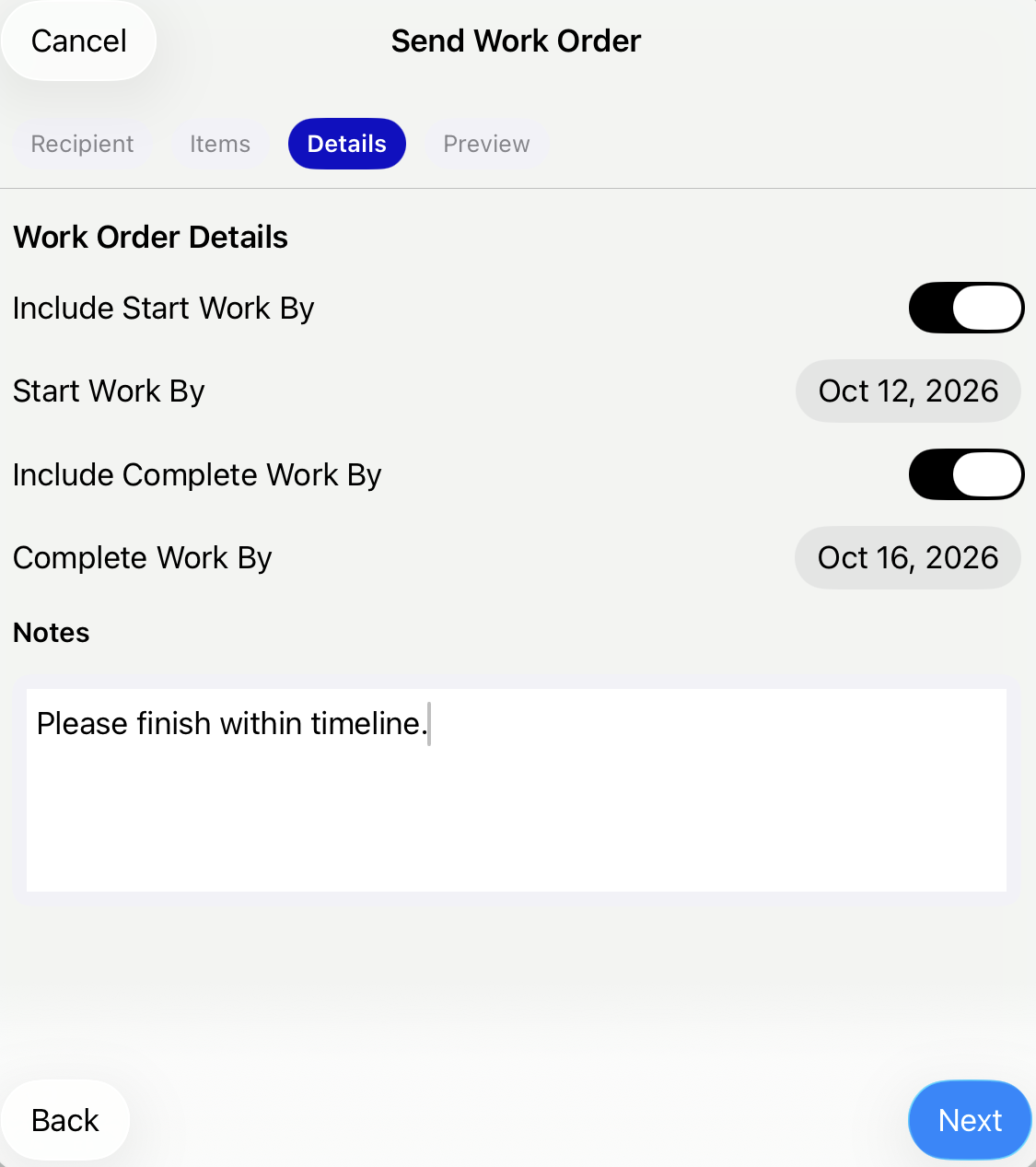
On the Details step, you can turn on Include Start Work By or Include Complete Work By to set those dates, and add notes. All of these are optional.
4. Preview and send
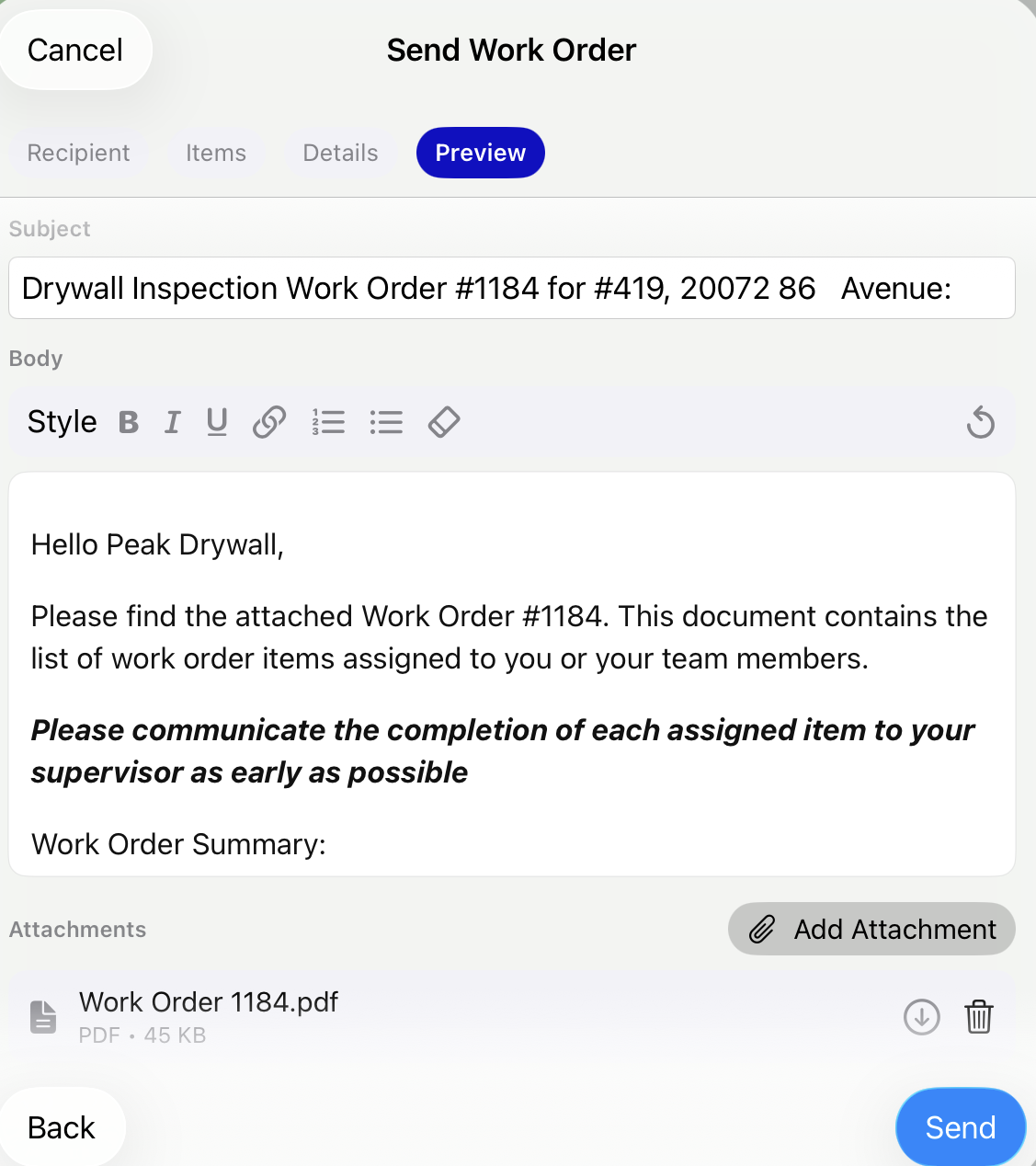
On the Preview & Send step, check the email and edit it if needed. Then tap Send. The recipient gets a PDF work order by email. On each included item, you can open the sent work order with View Email or View PDF.
Wrapping Up the Inspection
1. Post the inspection
When the walkthrough is complete, tap Post Inspection from the hamburger button dropdown and confirm. If any items are still Pending, the confirmation message tells you how many are left. You can still post, but review them first. Posting changes the status to Submitted and makes the first results final.
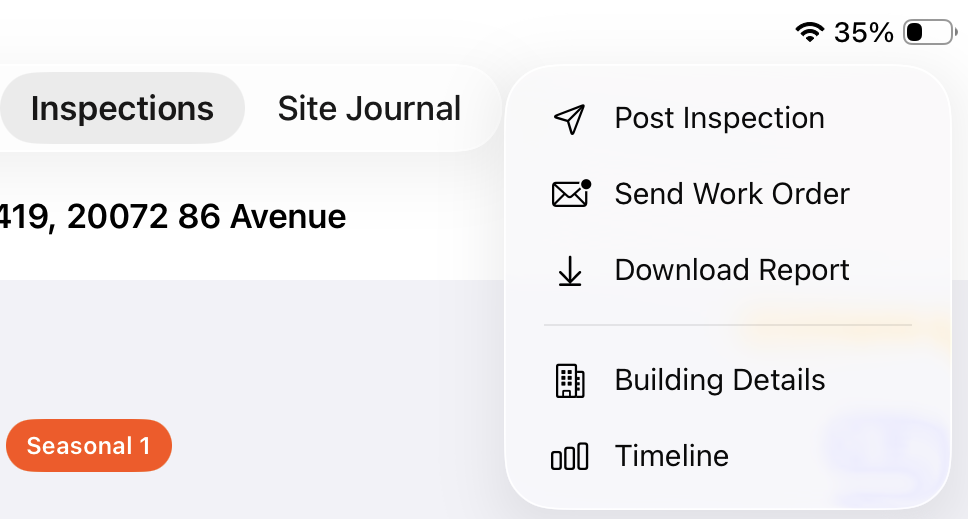
Pluto creates an inspection report PDF and emails it to the internal staff set up to receive submitted-inspection notifications. You're BCC'd on the email. You can open the report any time with Report or Download Report.
2. Resolve or defer outstanding failures
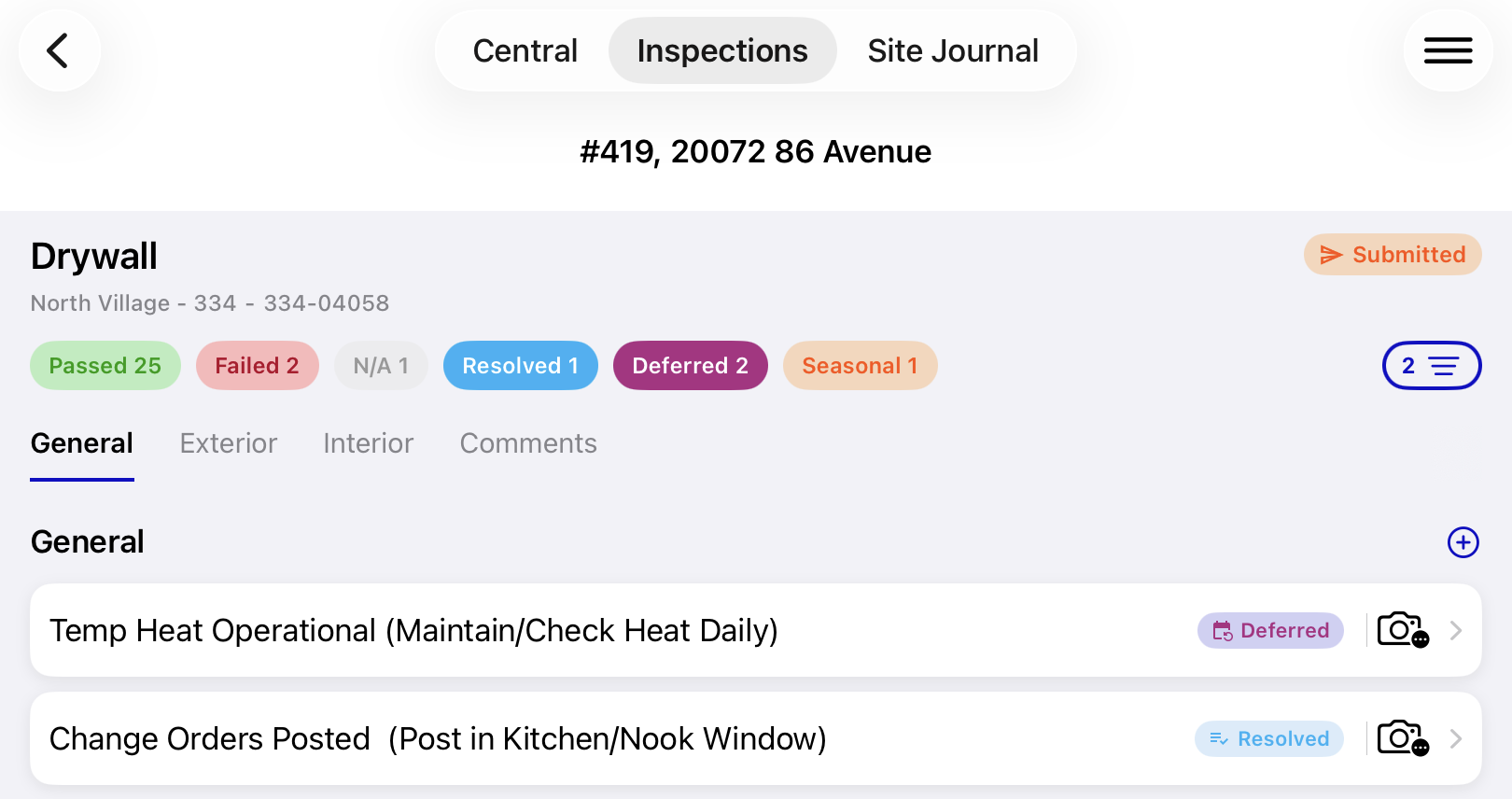
Once vendors finish their work, return to the inspection. Change each Failed item to Resolved, or to Deferred or Seasonal if the work will happen later. Use the Failed status pill to find anything that's still outstanding.
3. Close the inspection
Once all failures are resolved or deferred, tap Close Inspection and confirm. The inspection moves to Closed and appears under Recently Closed on the dashboard.
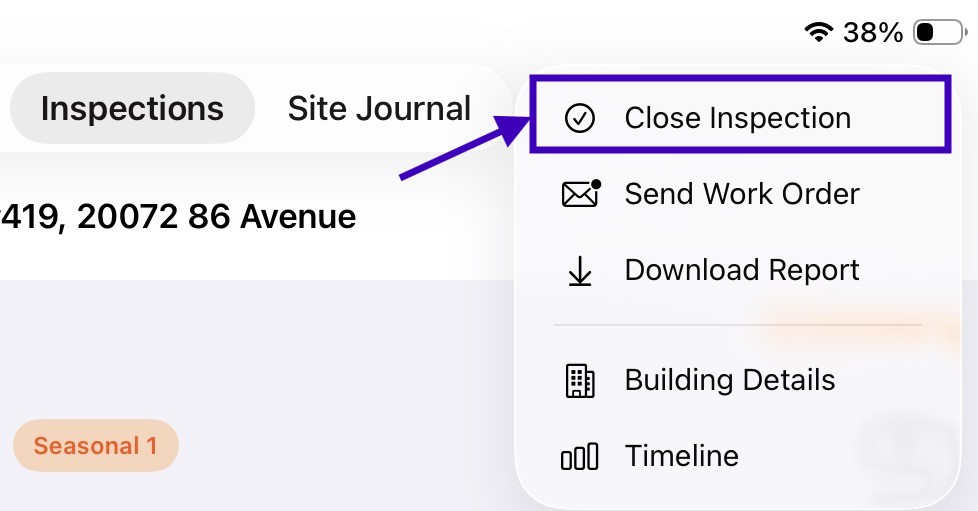
The app doesn't check for open failures before it closes an inspection. Use the status pills to make sure there are no Failed items left before you close.
Congratulations! You've completed a full inspection on iOS. You started or scheduled the inspection, walked each location, and recorded your findings with statuses, notes, and photos. You also assigned responsibility, sent work orders to vendors, and posted a report to your team. Finally, you closed the inspection once every deficiency was dealt with. Every Unit you inspect this way is checked against the same standard, with a full record of what was found and how it was fixed.