Inspection Type Overrides: Rename Inspection Types
Workbench comes with a fixed set of inspection types, such as Pre Pour, Framing, and QC Deficiencies. Your team might use different names for these stages. For example, you might call "Building Envelope" a "Exterior Walkthrough". With Inspection Type Overrides, you can give any built-in type a new display name. Workbench then shows your name wherever that inspection type appears. The underlying type doesn't change, so your existing inspections, templates, and schedules keep working as before.
In this guide, we will cover:
- What an inspection type override is and what it changes
- Opening the Inspection Type Overrides page
- Adding or editing an override name
- Restoring a type's original name
- Where the new names appear
How We Got Here
Every inspection and inspection template belongs to one of the built-in inspection types. These types used to appear under their fixed names everywhere. That meant teams whose terms were different from the defaults saw unfamiliar names on screen, in reports, and in emails.
What an Override Changes
An override changes only the name that is displayed for an inspection type. It does not create a new type or remove an existing one, and it doesn't change your data.
| Changes | Stays the Same | |
|---|---|---|
| Display name | Your override name appears wherever the type is shown | — |
| Underlying type | — | The built-in type and its links to inspections, templates, and schedules |
| Scope | Applies to every division and project | — |
| Existing data | — | Existing inspections, templates, and work orders are not modified |
Types you can override
You can set an override for each of these built-in inspection types:
| Built-in Type |
|---|
| Pre Pour |
| Foundation |
| Framing |
| Building Envelope |
| Mechanical |
| Insulation |
| Drywall |
| QC Deficiencies |
| General |
You can't add new inspection types or delete the built-in ones. You can only rename them.
Renaming an Inspection Type
1. Open the Admin area
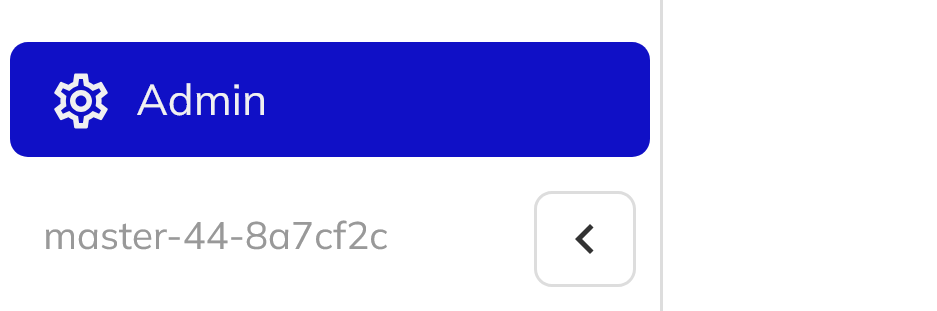
In the Workbench side navigation, click Admin. You need the Workbench Admin permission to see this menu.
2. Go to the Inspection Type Overrides tab
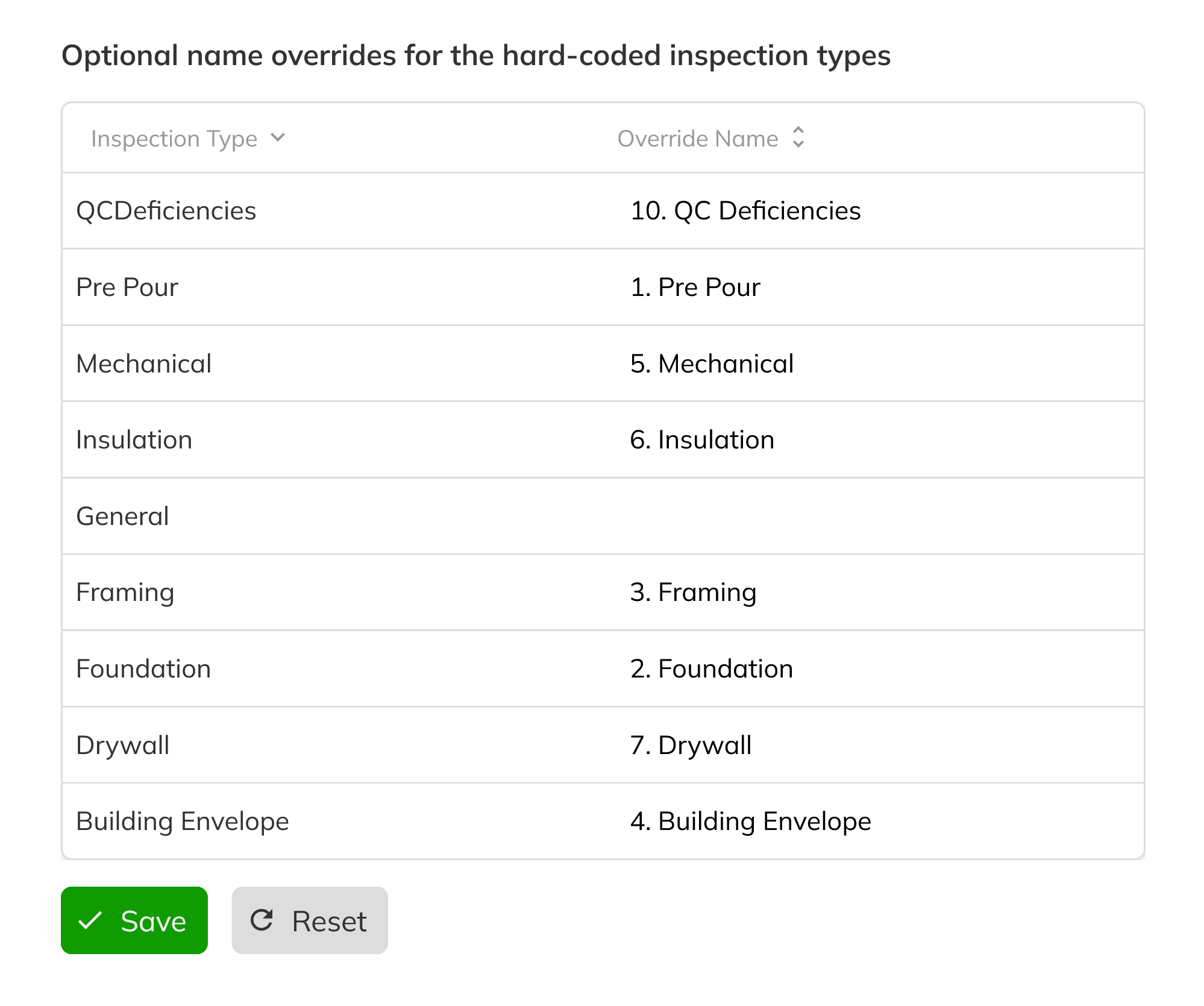
Click the Domain Lists tab, then click the Inspection Type Overrides sub-tab. The page opens under the heading "Optional name overrides for the hard-coded inspection types".

3. Find the type you want to rename
The grid has one row for each built-in type. The Inspection Type column shows the built-in name and can't be edited. The Override Name column shows your custom name. If no override is set, this column is blank.
4. Enter the new name
Click the Override Name cell for the type and type the name you want to show, for example "Rain Screen Walkthrough" for Building Envelope. You can edit more than one row before you save.
- Names must be at least 2 characters and no longer than 100 characters.
- Each name must be unique. Two inspection types can't share the same override name, and capitalization doesn't make names different. If a name is already in use, you'll see a message like "Inspection type name 'Rain Screen' is already used by type 'Mechanical'".
- Spaces at the start or end of a name are removed automatically.
5. Save your changes
Click Save at the bottom of the grid. The button is only available when you have unsaved changes and no validation errors. After you save, the new names appear right away across Workbench.
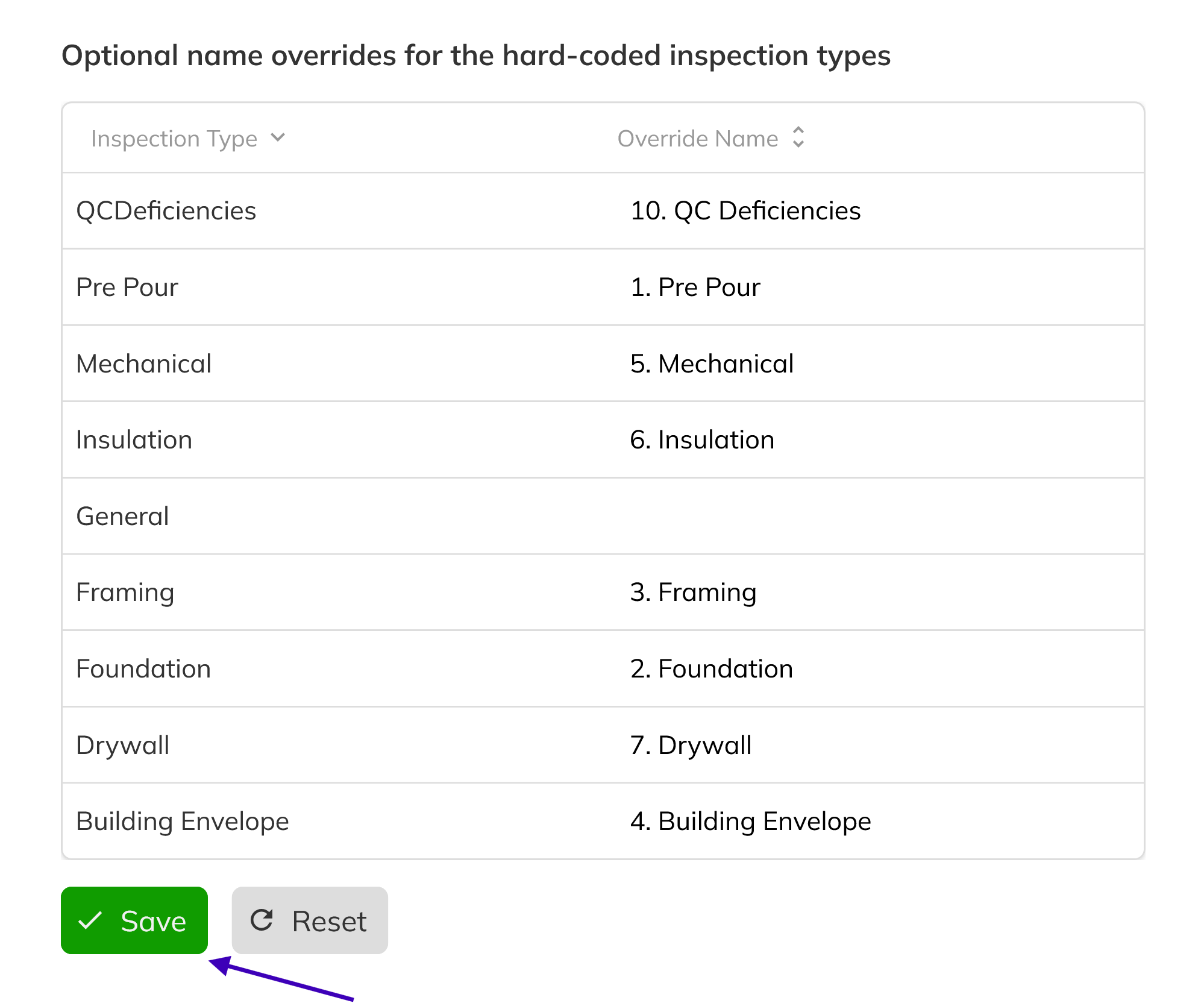
If you haven't saved yet and want to undo your edits, click Reset. This returns the grid to its last saved state.
Restoring an Original Name
1. Clear the override name
On the Inspection Type Overrides page, click the Override Name cell for the type and delete all of its text so the cell is blank.
2. Save to revert
Click Save. The override is removed, and Workbench shows the built-in name again, for example Building Envelope. No inspections or templates are affected.
Where the New Names Appear
After you save an override, Workbench uses the new name in these places:
| Area | Where you'll see it |
|---|---|
| Creating inspections | The Select Inspection Type list, duplicate-inspection warnings, and template choices |
| Starting scheduled inspections | Inspection schedule items and the Start Inspection panel |
| Inspections list and calendar | Inspection cards, the calendar, and the Showing Inspection Types filter |
| Inspection details | The inspection title bar and inspection panel |
| Inspection templates | The Inspection Type list when you create a template, the auto-generated template title, the template list, type filters, and the template title bar |
| PDF Reports and emails | The inspection report PDF title and Inspection Type field, the work order PDF, and the file name of the report attached to the submitted-inspection email |
Dropdowns and filters sort inspection types alphabetically by the name that's displayed, so a renamed type may move to a new place in the list.
If an inspection or template has its own Title, Workbench shows that title instead of the type name. Titles are saved when a template is created, so older templates keep their original auto-generated titles, such as "Master Pre Pour Inspection". To use the new name in those titles, edit each template's title.
Congratulations! You've renamed Workbench's built-in inspection types to match the terms your team uses. Your custom names now show up when you create inspections, in the inspection list, filters, and templates, and in the reports and work orders you send to vendors. Your existing inspection data hasn't changed. If you ever want a built-in name back, clear its override and save.