Sharing a Report With Your Team
Once a report is ready, you can share it with the people who need it. This guide shows you how to share a report with a person or a role, choose an access level, and change or remove someone's access.
In this guide, we will cover:
- Sharing a report with a person or role
- Choosing an access level
- Changing or removing access
How We Got Here
In What Happens When You Modify a Preset Report, you learned how saving works for presets and shared reports. Sharing is how reports end up in someone else's report list. You'll need the Report Access permission. To share an official preset, you'll also need Report Preset Management.
Sharing reports is only available on desktop-sized screens.
Share With Your Team
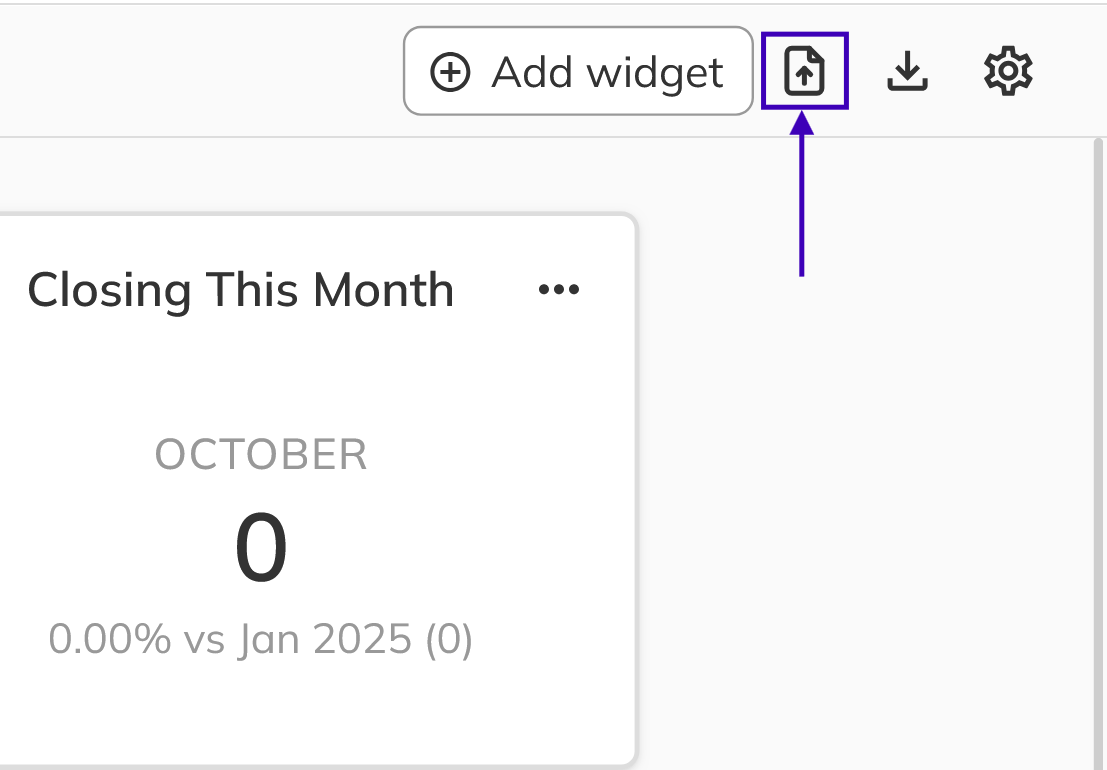
- Open the report and click the Share report icon at the top right. The Share Report dialog opens. This icon is available for reports you own or can edit. Admins can share any personal report.
- To share with one person, search for them by name or email under Share with a person. To share with a group, choose a role under Share with a role, such as All Sales Managers or All Salespersons.
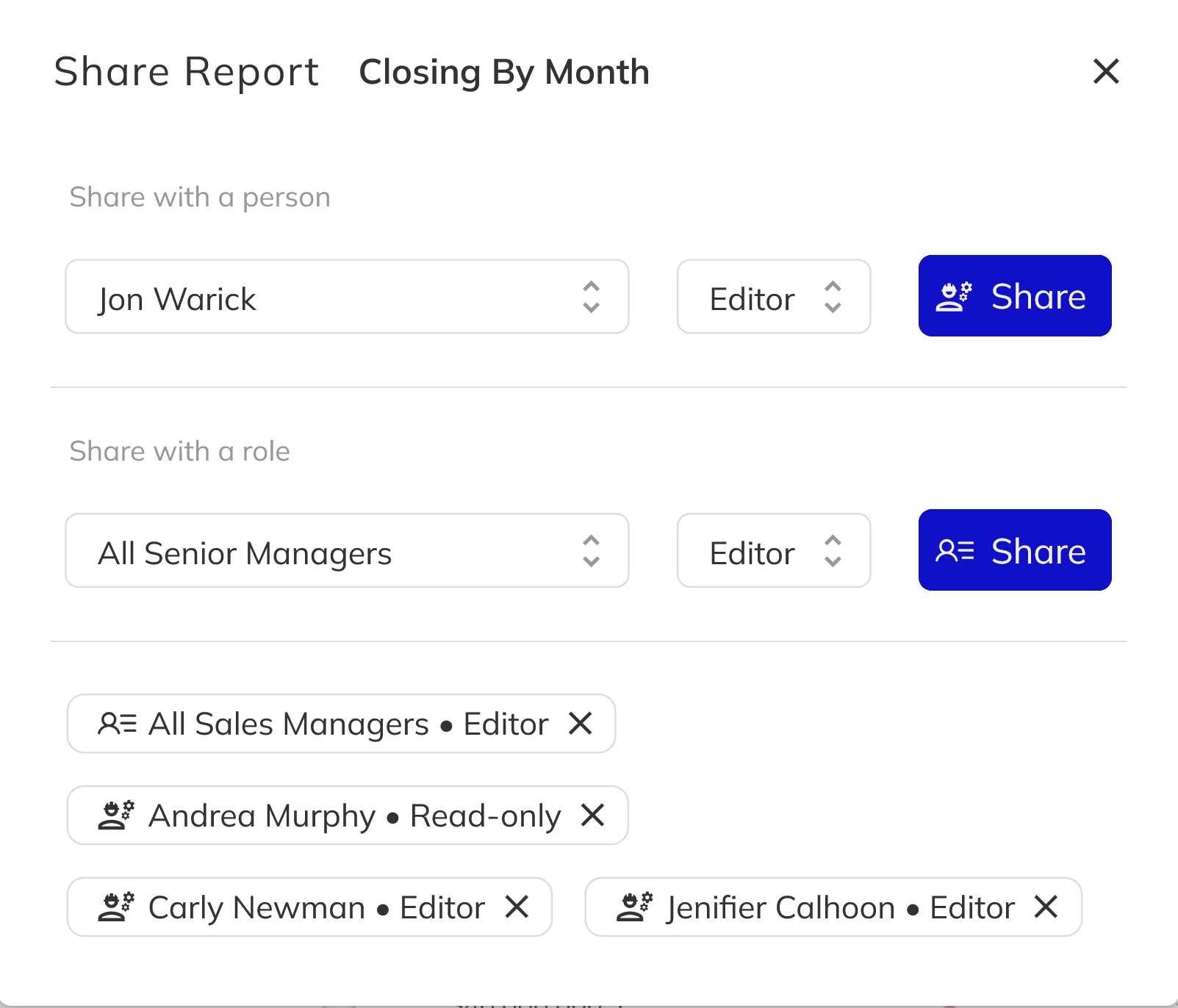
- Choose an access level, then click Share. The access level is Editor by default.
- Editor: can change and save the report, and can share it with others.
- Read-only: can view and explore the report. If they save changes, Pluto creates a personal copy for them.
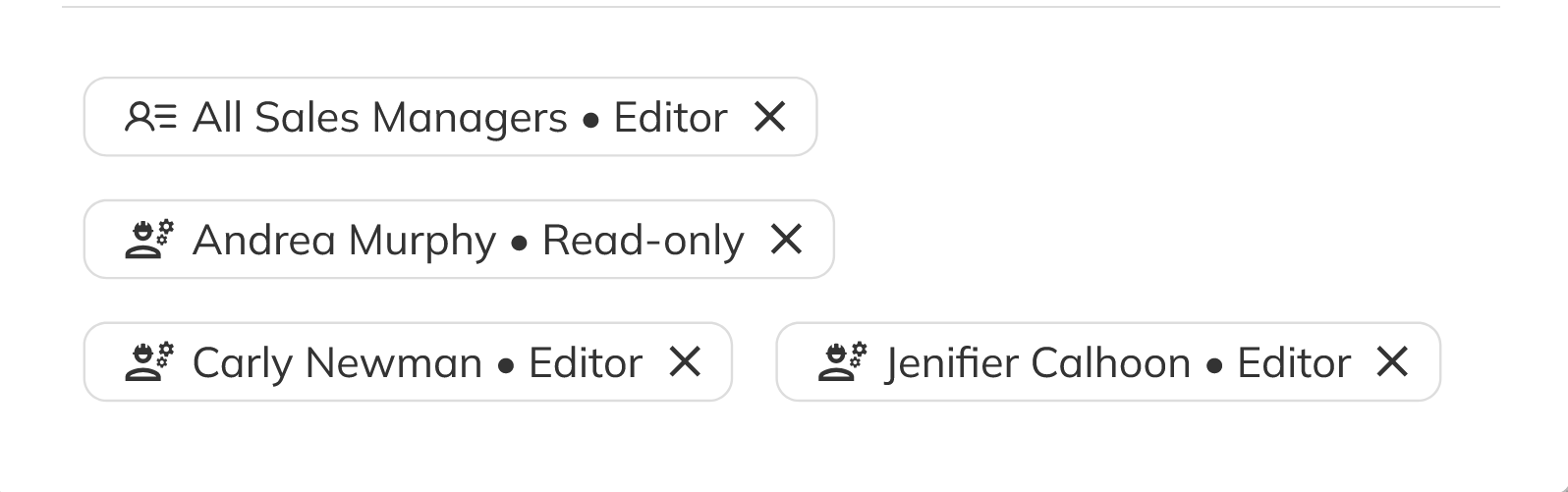
- The person or role is added to the access list, for example Andrea Murphy • Read-only. The report now appears in their report list. Pluto doesn't send them an email or notification, so let them know it's there.
Change or Remove Access
-
In the Share Report dialog, click the close icon on a person's or role's access to remove it. Access is removed right away, without a confirmation.
-
To change someone's access level, remove their access, then share the report with them again using the new level.
Sharing gives people access to the same report, not a copy. When you or an Editor saves changes, everyone with access sees them the next time they load the report. If someone has access through both a person and a role, Editor access takes priority. Sharing never overrides data permissions. For example, a person without Report View Customer PII still can't see customer data in a shared report.
Congratulations! You now know how to share a report with a person or a role, choose between Editor and Read-only access, and change or remove access. Your team can now work from the same live reports. Next, see what's available for exporting reports.