Getting Started with Reports: What They're For and How to Open Them
Reports in the Pluto Systems sales app turn your sales data into live dashboards. Each report is made up of widgets, such as insights, grids, and charts. Use them to track Unit inventory and availability, follow deposits and collapsed sales, review realtor commissions and sales options, and analyze your customer base. Reports always use your latest Pluto data, so there's nothing to export or refresh by hand.
Reports currently focus on sales data. Construction and accounting data are on the way, so you'll be able to report on your construction and accounting activity alongside your sales.
In this guide, we will cover:
- What Reports are used for and the data behind them
- Who can see Reports and which data they can access
- Opening the Reports page
- Finding and opening a report
- Choosing the scope and filters for a report
How We Got Here
Every reservation, deposit, contract, and sales option you record in the sales app is saved in Pluto. Reports read that same data, grouped into a set of datasets. To see the Reports link in the sidebar, an Admin must first give you the Report Access permission (see Creating & Managing Staff). Your organization may also have official reports already set up, ready for you to open.
What Reports Are Used For
The datasets behind every report
Each report pulls from one or more of the following datasets:
| Dataset | What It Contains | Common Uses |
|---|---|---|
| Units | One combined Unit inventory with physical details and sales data | Inventory counts, availability, sales pipeline, and revenue |
| Deposits | Deposit records for sales, including amount, due and received status, days overdue, and payment type | Tracking deposits that are upcoming, received, or overdue |
| Collapsed Sales | History of collapsed and cancelled sales, including the reason, contract dates, pricing, and time to collapse | Understanding why and when deals fall through |
| Realtor Commissions | Commission records for realtors linked to sales, including amounts, bonuses, and realtor role | Reviewing commissions owed or paid to realtors |
| Sales Options | Individual sales option records with pricing, quantities, and the approval workflow | Following sales options from request through approval and finalization |
| Customers | Customer records linked to sales, with contact details, demographics, and address information | Analyzing who is buying and where they come from |
How reports present your data
A report is a page of widgets laid out in a grid. Each widget shows data from a dataset in one of these formats:
- Insight: a single headline number, such as total Units sold
- Grid: a table of records you can scan row by row
- Pie Chart, Bar Chart, and Line Chart: visual breakdowns and trends
Official, personal, and shared reports
Your report list can include three kinds of reports:
| Type | Description |
|---|---|
| Official | Preset reports set up by Pluto. Only users with the Report Preset Management permission can change them. |
| Personal | Reports you created for your own use |
| Shared | Reports another staff member has shared with you |
Who Can See Reports
The Reports permissions control both access to the Reports page and access to sensitive data:
| Permission | What It Allows |
|---|---|
| Report Access | Access the reports section of the app |
| Report Preset Management | Create, edit, and delete preset (official) reports for all users |
| Report View Commission Data | View commission data in reports, including the Realtor Commissions dataset |
| Report View Customer PII | View customer personally identifiable information in reports, including the Customers dataset |
| Report View Financial Data | View financial data in reports, such as cost, total cost, and profit on Sales Options |
If a report is missing a dataset or field you expect, your account probably doesn't have the matching permission. Contact your Admin to have it granted.
Opening Your First Report
1. Open the Reports page
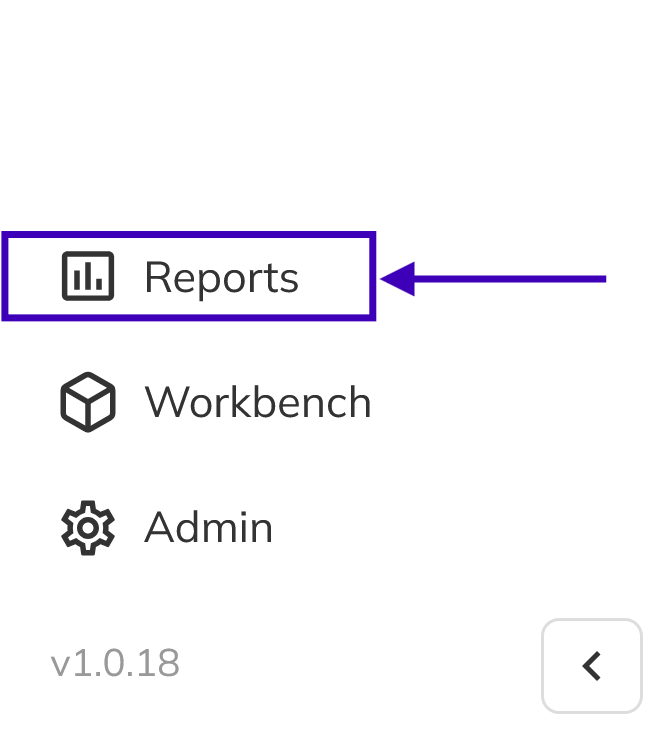
In the sales app sidebar, click Reports. It's at the bottom of the sidebar, next to Workbench and Admin. The Reports page opens.
2. Find the report in the sidebar
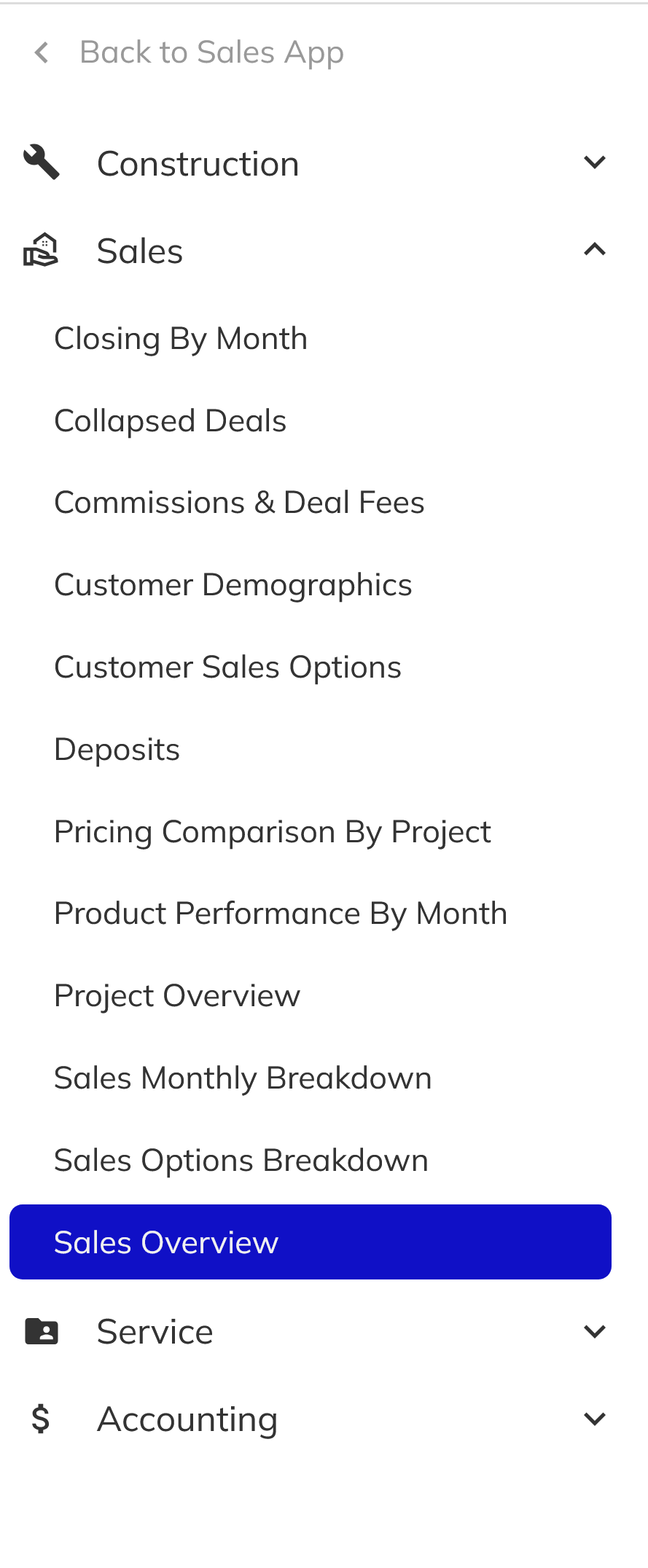
The left sidebar of the Reports page lists every report you have access to. Official reports are listed first, followed by your personal and shared reports in alphabetical order. Some reports are grouped under department headings, such as Sales or Construction. Click a heading to expand it. If the sidebar is collapsed, click a department icon to expand the sidebar and open that department.
3. Select a report
Click a report's title in the sidebar to open it. The report loads, and its title appears at the top of the page.
Setting the Report's Scope and Filters
1. Make the required scope selection
Some reports are scoped to a Division, Community, or Project, and they won't show data until you make that selection.
- For a Division report, choose a division from the division dropdown in the top navigation bar.
- For a Community or Project report, the page shows "A Community filter selection is required to view this report" (or Project). Click the highlighted filter to choose one.
Reports with a Global scope load right away.
2. Narrow the results with filters
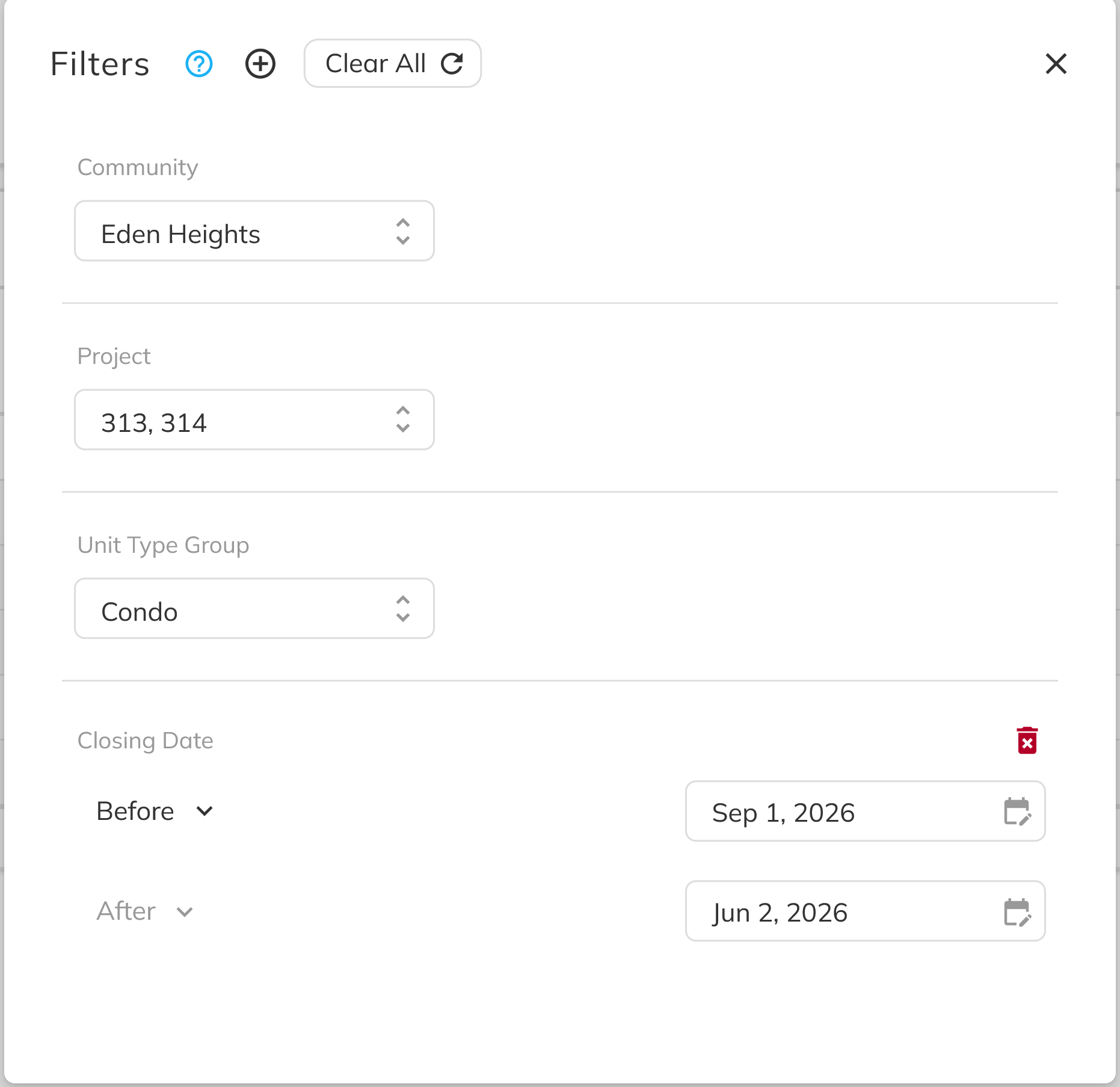
Use the filters above the report, such as Community, Project, and Unit Type, to focus on the data you need. To filter on any other field in the report's datasets, click Manage Filters. Date filters can be set to On, After, Before, or Time Window. Every widget updates as soon as you change a filter, so there's no need to run the report.

Changing an official or shared report that you can only read won't affect the original. If you save your changes, Pluto creates a personal copy of the report for you.
Congratulations! You now know what Reports are for and which datasets they use. You also know how permissions control what you can see, and how to open a report, find it in the list, and set its scope and filters. With these basics, you can turn your sales app activity into clear, up-to-date insight across your Units, deposits, sales options, commissions, and customers.