Viewing and Exploring a Report
Once you can open a report, the next step is to explore it. This guide explains what each widget shows and how to drill into your data by clicking a chart, grid row, or Insight. It also shows you how to sort, pin, resize, and page through grids.
In this guide, we will cover:
- What each widget shows
- Drilling into your data
- Working with grids
How We Got Here
In Getting Started with Reports, you opened the Reports page, found a report in the report list, and set its scope and filters. Everything in this guide builds on that. You'll need the Report Access permission to view reports.
On smaller screens, such as phones, reports are view-only and widgets are stacked automatically.
What Each Widget Shows
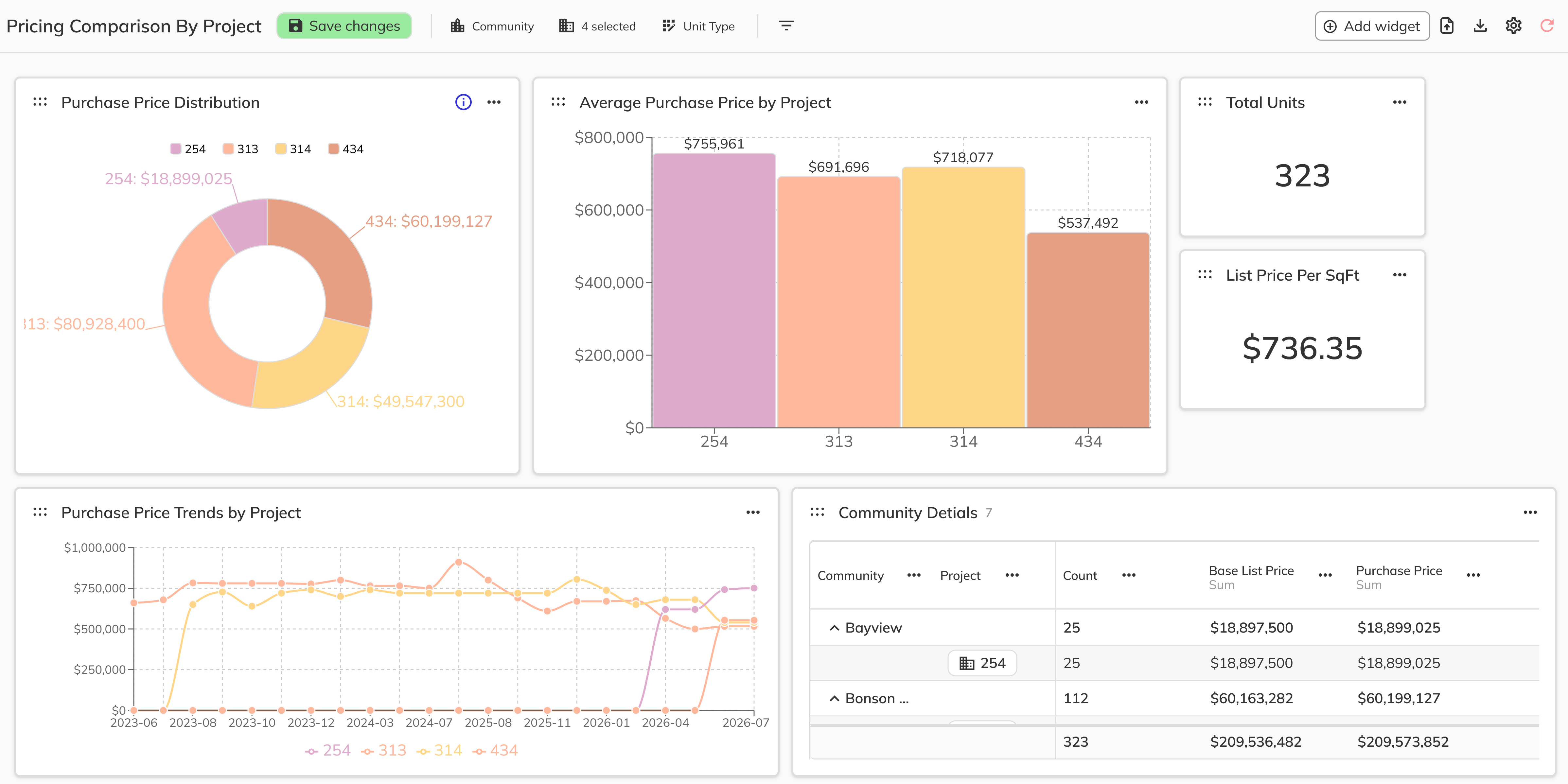
Every report is a page of widgets. Hover over the info icon at the top right of a widget to read its description.
| Widget | What You See | How You Interact |
|---|---|---|
| Insight | A single headline number, with an optional comparison to a previous period and footer text | If the Insight is grouped by a date period, click it to filter the rest of the report to that period. Click again to clear it. |
| Grid | A table of records, either flat or grouped | Sort, pin, resize, and reorder columns. Expand or collapse groups. |
| Pie Chart | Slices showing each category's share of the total | Hover to see the value and percentage. Click a slice to drill down. |
| Bar Chart | Bars comparing categories or time periods | Hover to see each series value. Click a bar to drill down. |
| Line Chart | Trends over time | Hover to see each series value. Click a point to drill down. |
Drill Into Your Data
- Click a pie slice, bar, line point, grouped grid row, or date-based Insight. The category you clicked is highlighted, and the other categories are dimmed.
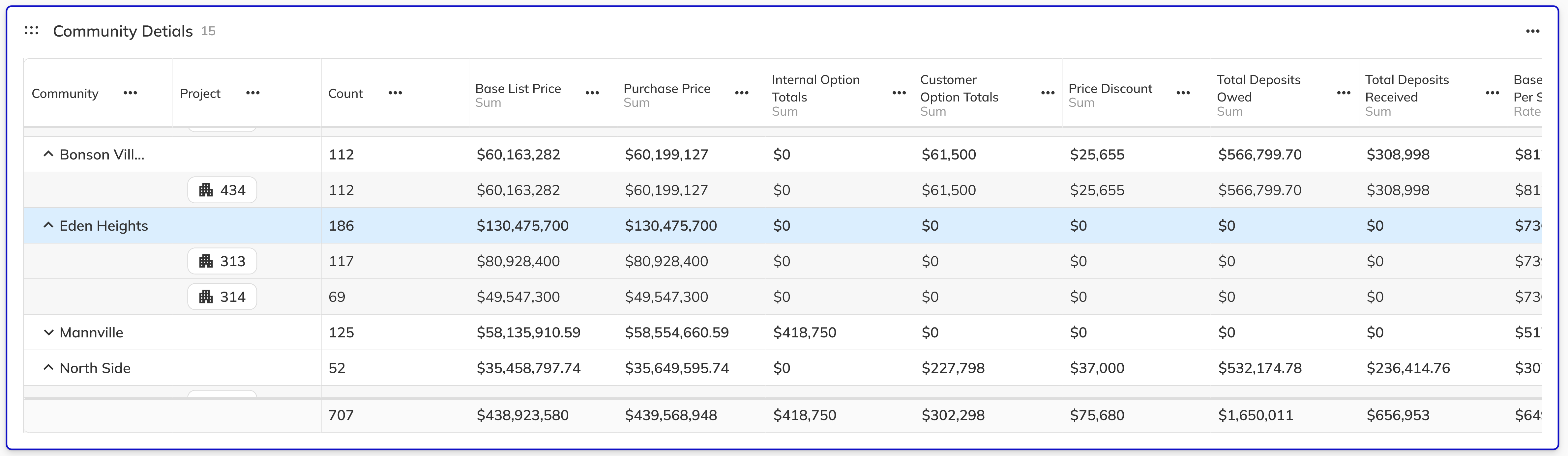
- The other widgets on the report update to show only data for that selection. A widget only updates if its dataset contains the field you drilled into, so some widgets may stay the same.
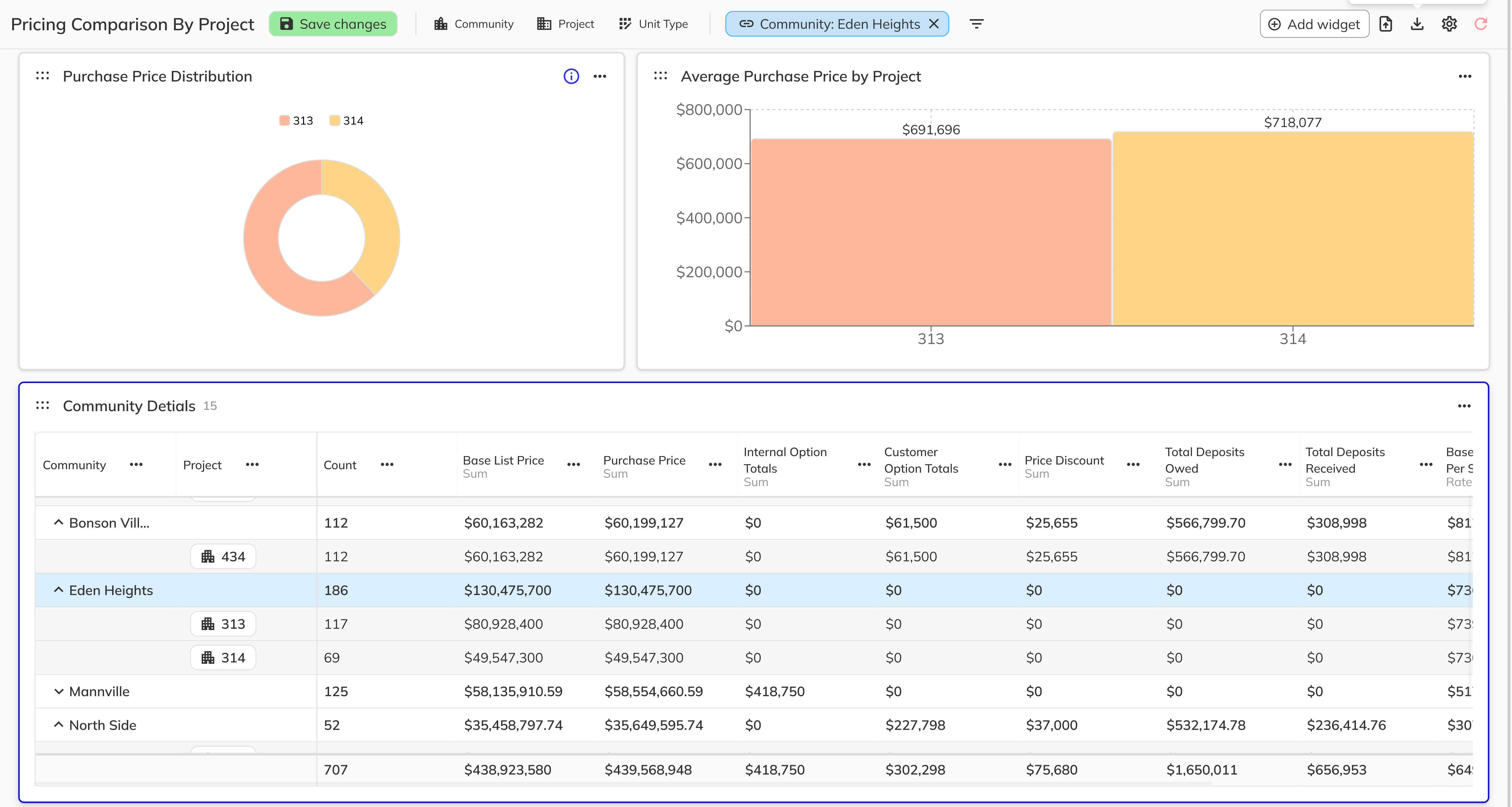
- Each drill-down appears as a breadcrumb beside the report filters. Hover over a breadcrumb to see Click to remove, then click it to clear that drill-down. Drill-downs are temporary, so they clear when you open a different report.

Work With Grids
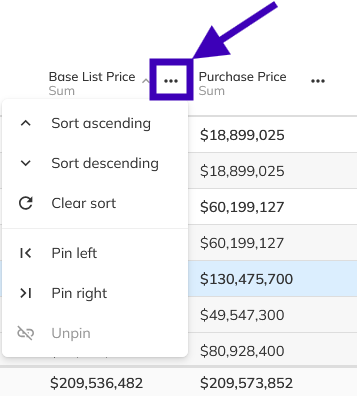
- Click a column heading to sort by that column. For more options, open the Column options menu on the heading. From there, choose Sort ascending, Sort descending, Clear sort, Pin left, Pin right, or Unpin.
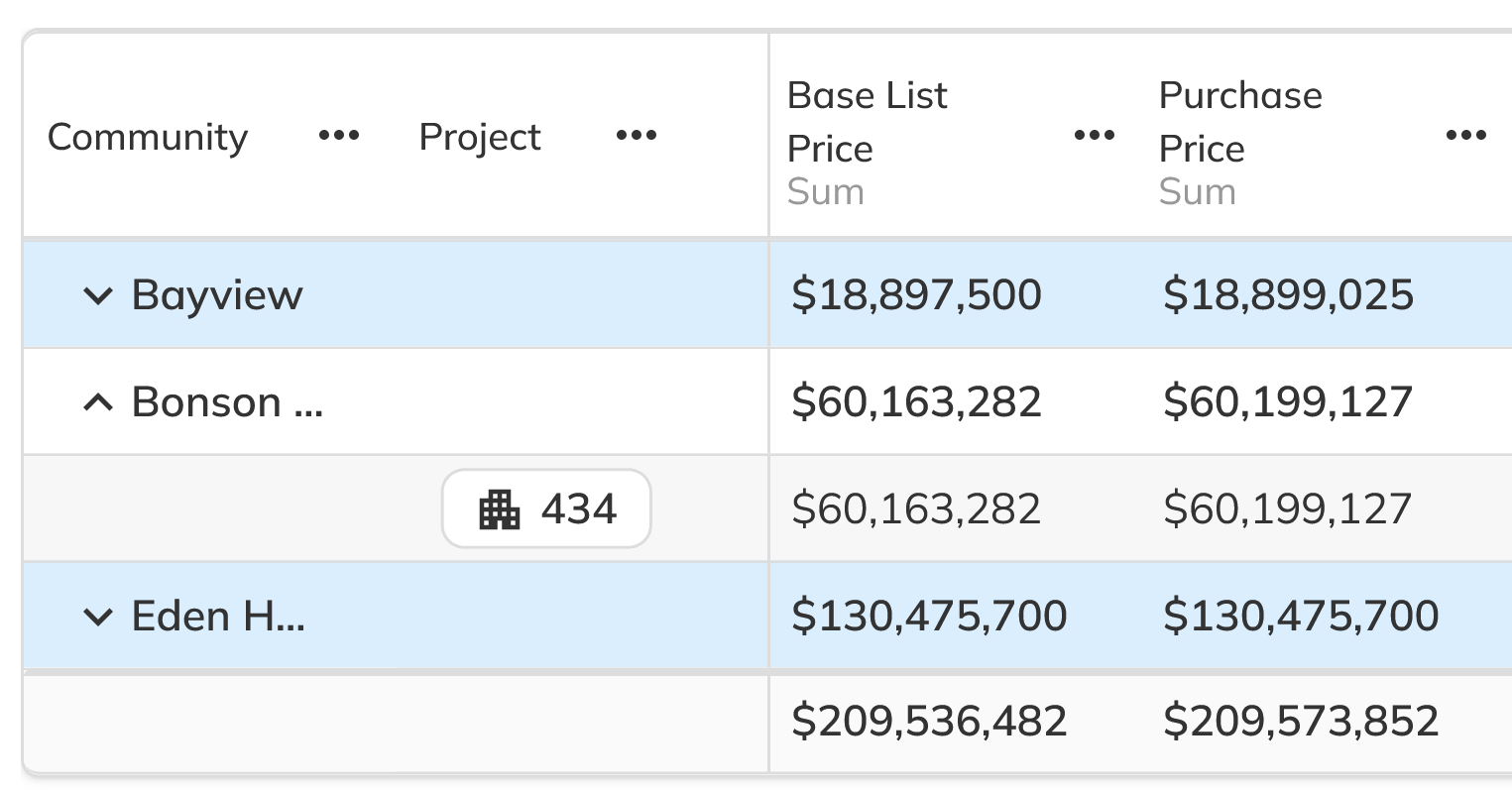
- Drag the edge of a column heading to resize it, or drag the heading to move the column. On a grouped grid, use Expand all and Collapse all on the grouping heading to show or hide the grouped rows.
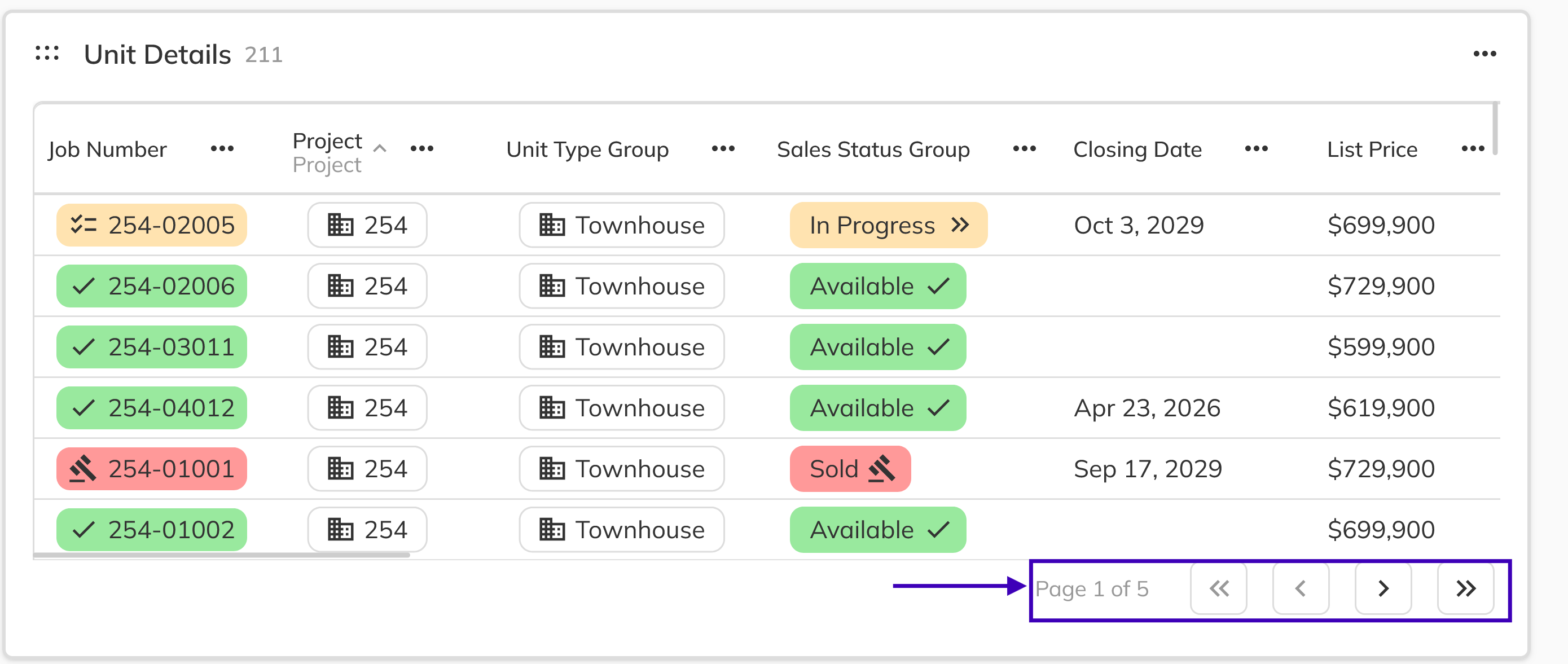
- On a flat grid, use the page controls at the bottom to move between pages. The current position appears as Page 1 of 5, for example.
Clicking a linked project, contact, or Unit in a grid opens its details panel. This doesn't drill down into the report.
Congratulations! You now know what each widget shows, how to drill into your data and clear drill-downs, and how to sort, pin, resize, and page through grids. Next, learn how to build and manage your own reports.