Building and Managing Your Own Reports
When the preset reports don't show exactly what you need, you can build your own. This guide shows you how to create a new report, add and configure widgets, and arrange them on the page. It also covers saving or discarding your changes, and renaming or deleting a report.
In this guide, we will cover:
- Creating a new report
- Adding and configuring widgets
- Arranging your layout
- Saving or discarding your changes
- Renaming or deleting a report
How We Got Here
In Viewing and Exploring a Report, you learned what each widget shows and how to drill into your data. Now you'll put those widgets together into a report of your own. You'll need the Report Access permission.
Building, rearranging, and saving reports is only available on desktop-sized screens. On smaller screens, such as phones, reports are view-only.
Create the Report
- Click New Report at the bottom of the report sidebar. The New Report dialog opens.
- Enter a Title and an optional Description. Then choose a Scope:
- Global (No Scope): the report loads right away. It still follows the division selected in the top navigation bar.
- Division, Community, or Project: viewers must choose a division, community, or project before the report shows data.
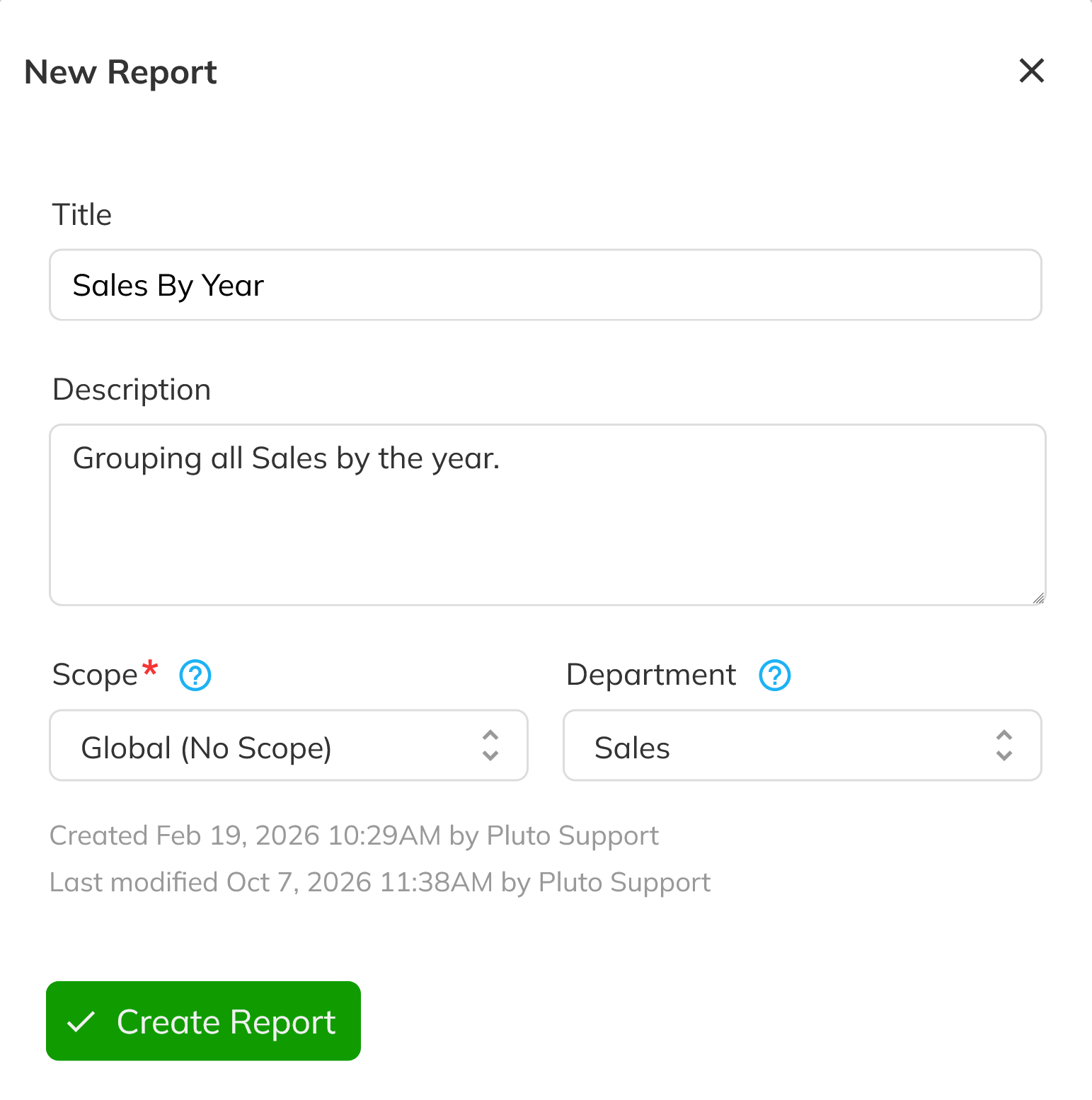
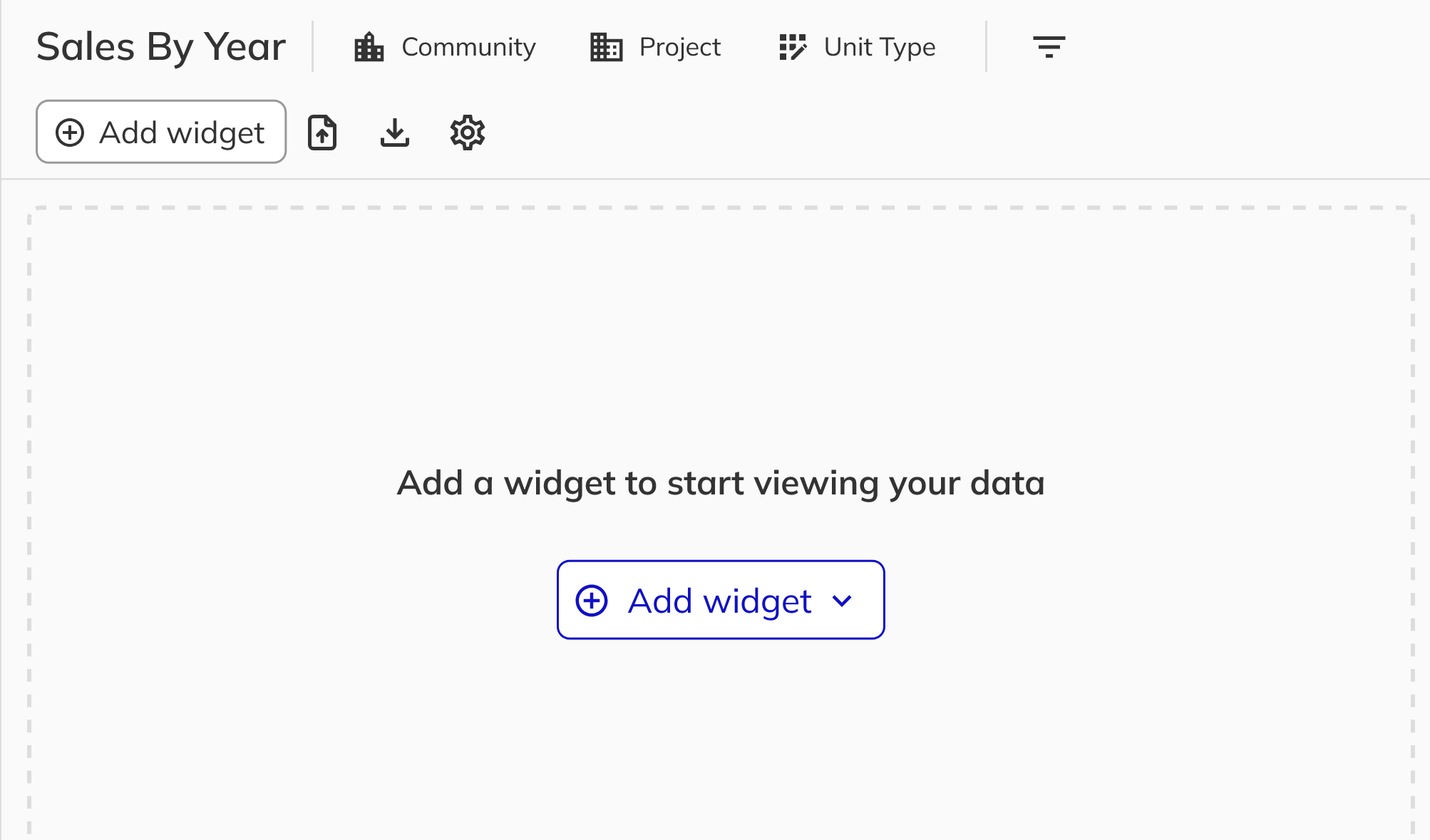
- Click Create Report. Your new, empty personal report opens with the message "Add a widget to start viewing your data".
Add and Configure Widgets
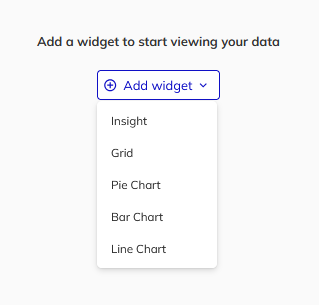
- Click Add widget in the top right of the report and choose Insight, Grid, Pie Chart, Bar Chart, or Line Chart. If the report is new and has no widgets yet, you can also click the Add widget button in the middle of the page. A blank widget, such as New Bar Chart, is added to the report.
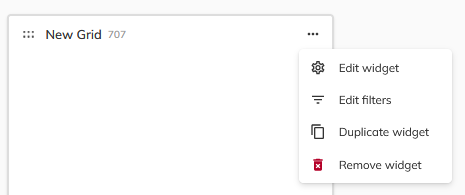
- Open the widget's three-dot menu and select Edit widget. The Widget Settings panel opens with a live preview of your changes.
- Enter the widget's title and description. Under Report On, choose the dataset to use, such as Units, Deposits, or Sales Options. Each widget has its own dataset, so one report can combine several datasets. You can also change the widget type under Display Type.
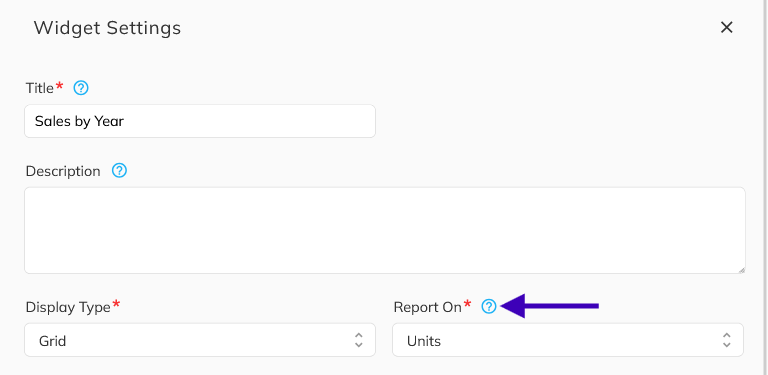
Changing Report On or Display Type resets the widget's other settings, so choose these first.
- Configure the settings for your widget type:
- Insight: choose a Calculation (Count, Sum, Average, or Rate). Optionally, turn on Group By Date with a Time Interval. Under Compare Options, select Enable Comparison and choose Show Change As to compare against a previous period.
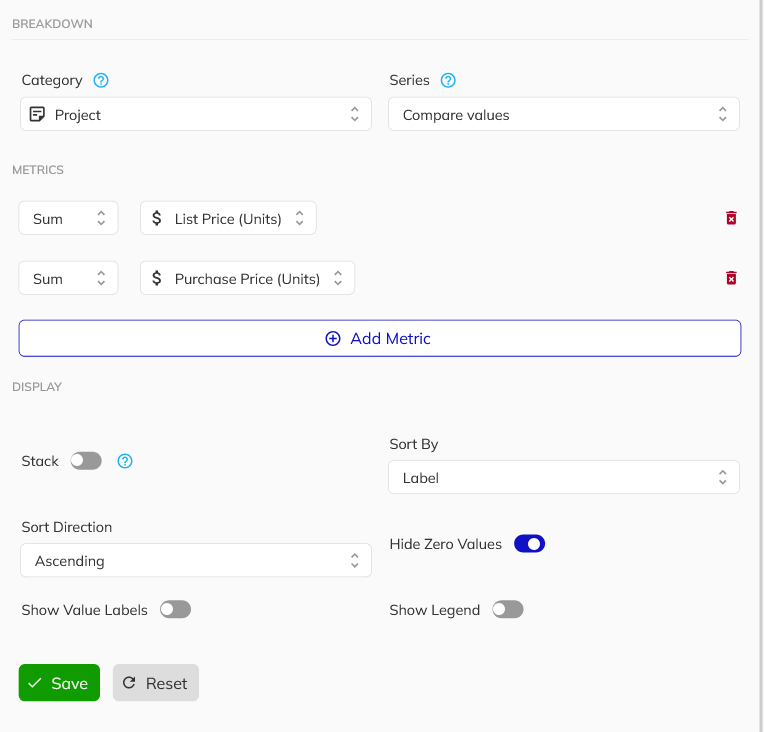
- Charts: under Breakdown, choose a Category and, if you want, a Series to split the data. Under Metrics, choose a calculation (Count, Sum, Average, Rate, Min, or Max), and click Add Metric to add more. Pie charts allow only one metric. Under Display, set the sort order, Show Value Labels, Show Legend, and, for bar charts, Stack.
- Grid: click Add Column to choose the fields to show. Click Add Grouping to group rows, or turn on Pivot Table. Under Options, set the Page Size and Show Totals Row.
On a grid, adding the first grouping, removing all groupings, or turning on Pivot Table clears your current columns. Pluto asks you to confirm before it clears them.
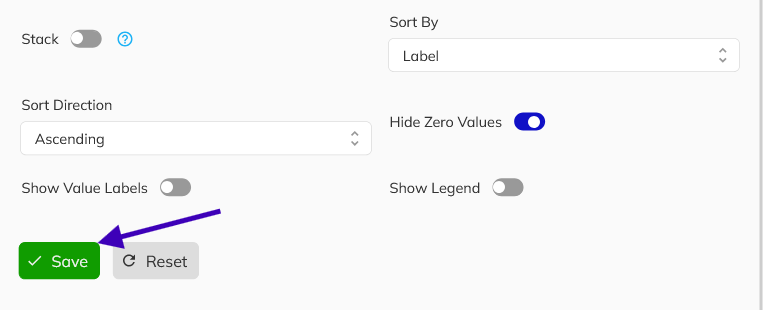
- Save your widget settings to apply them to the report.
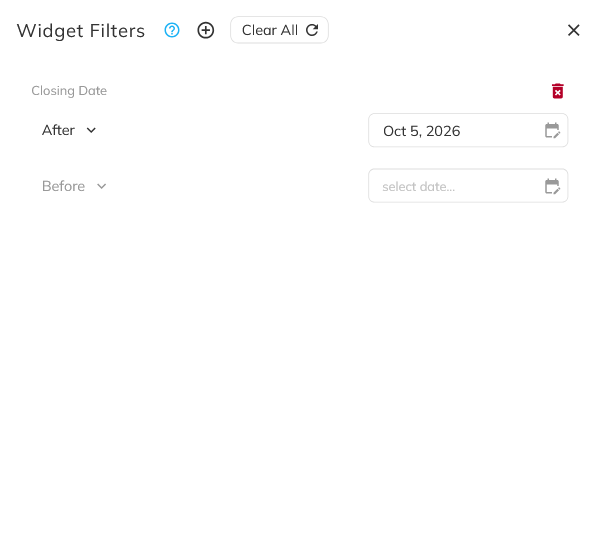
- To limit a single widget's data, open the widget's three-dot menu, select Edit filters, and click Add Widget Filter. These filters only apply to this widget and work alongside the report's main filters.
Arrange Your Layout
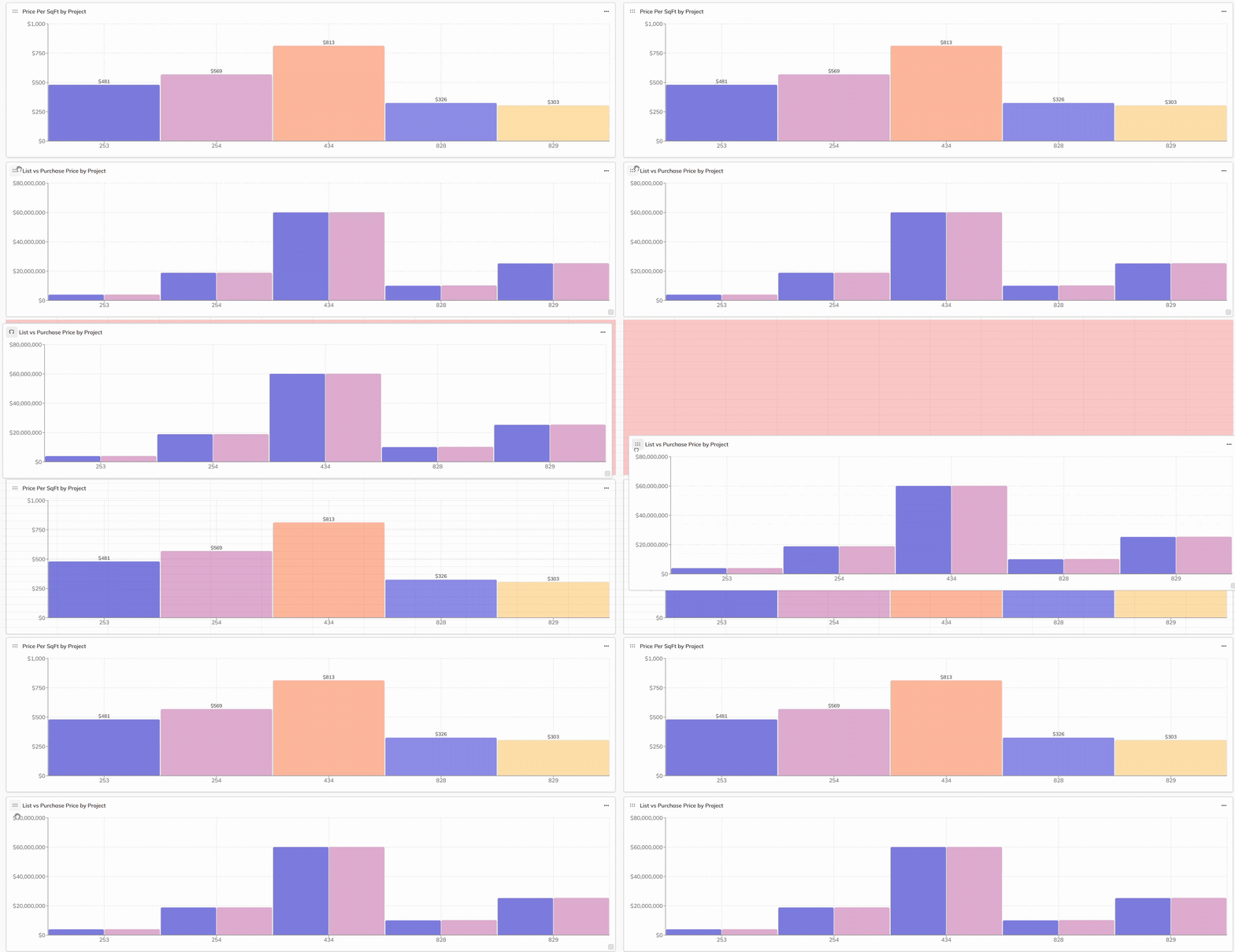
- Drag a widget by its header to move it. Drag a widget's edge or corner to resize it. Widgets snap to a 12-column grid.
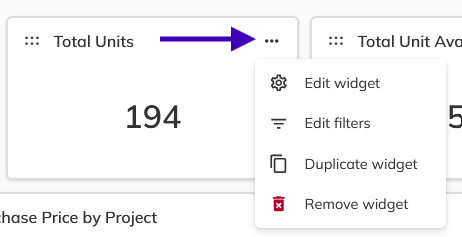
- To copy or remove a widget, open its three-dot menu and select Duplicate widget or Remove widget. Remove widget takes effect right away, but nothing is permanent until you save the report.
Save or Discard Your Changes
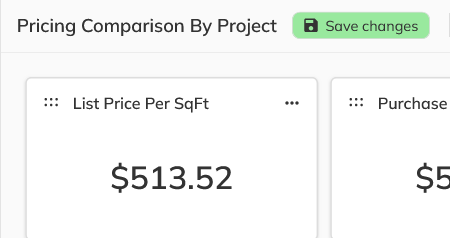
- When a report has unsaved changes, a green Save changes button appears next to the report title. Click it to save. For your own reports, and reports shared with you as an Editor, a "Your changes have been saved" message confirms the save.
- To undo everything since your last save, click the Discard changes icon and confirm. This can't be undone.

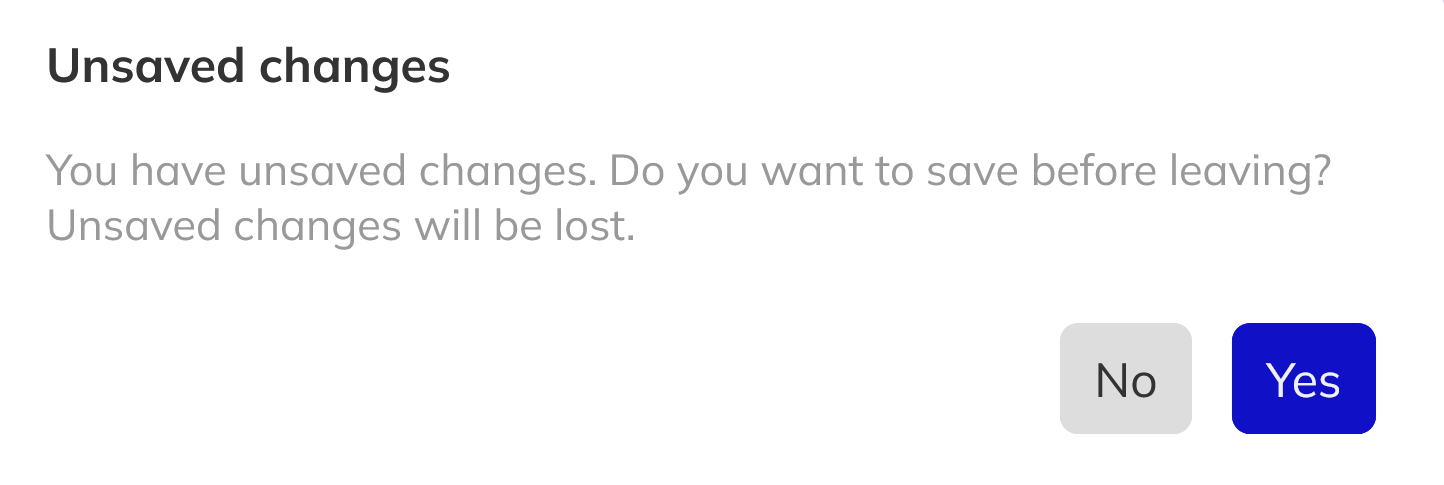
- If you open another report while you have unsaved changes, Pluto asks if you want to save before leaving.
The report saves its widgets, widget filters, and layout. Your selections in the main filter bar, such as Community, Project, and Unit Type, are remembered only in your own browser. They aren't saved with the report or shared with other people.
Rename or Delete a Report
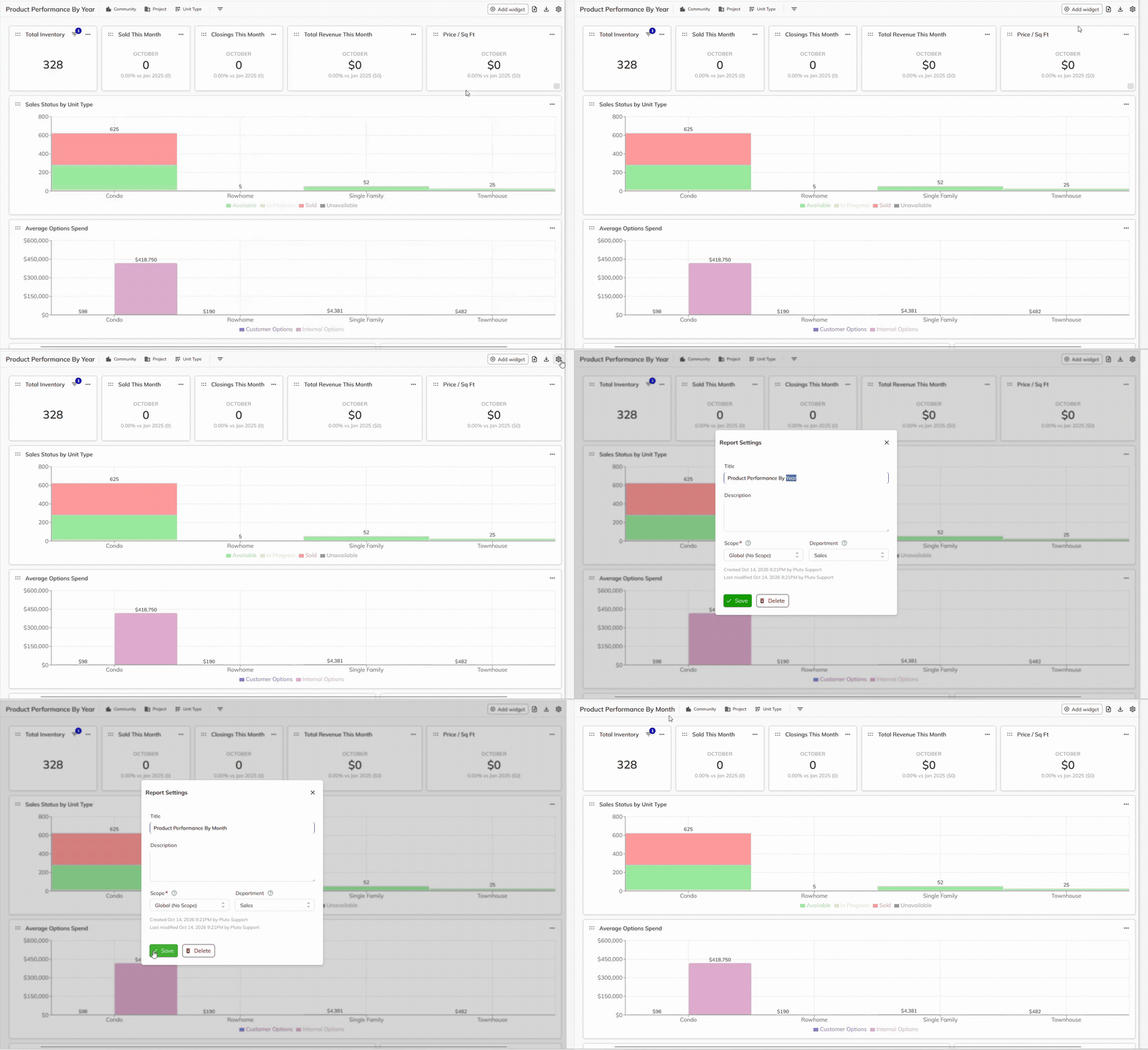
- Click the Gear icon to open Report Settings. To rename the report, change the Title and click Save. You can also update the description and scope here.
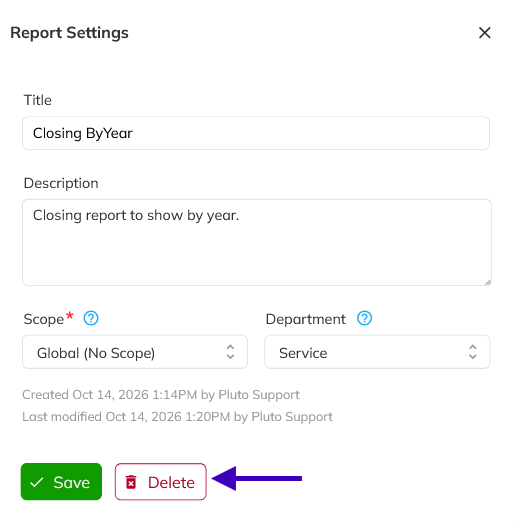
- To delete the report, click Delete in Report Settings and confirm. Only the report's owner or an Admin can delete it. Official preset reports can't be deleted here.
Congratulations! You now know how to create a report from scratch, add and configure widgets, filter individual widgets, and arrange your layout. You can also save or discard your changes, and rename or delete your reports. Next, learn what happens when you modify a preset report.