What Happens When You Modify a Preset Report
You can make changes to any report you can open, including official Pluto preset reports and reports shared with you as Read-only. This guide explains what saving does for each type of report, and walks you through saving your changes to a preset as a personal copy.
In this guide, we will cover:
- How saving works for each type of report
- Saving changes to a preset as a personal copy
- Updating a preset for all users
How We Got Here
In Building and Managing Your Own Reports, you learned how to add widgets, arrange your layout, and save your changes. Saving works differently when the report isn't yours. You'll need the Report Access permission. To change official preset reports for everyone, you'll also need Report Preset Management.
Changing and saving reports is only available on desktop-sized screens.
How Saving Works
What happens when you save depends on the report and your access:
| Report | Your Access | What Saving Does |
|---|---|---|
| Official preset | Standard | Creates a personal copy. The preset is unchanged. |
| Official preset | Report Preset Management | You choose to create a personal copy or update the preset for all users. |
| Shared with you | Read-only | Creates a personal copy. The original is unchanged. |
| Shared with you | Editor | Updates the original report for everyone it's shared with. |
| Your own report | Owner | Updates your report. |
Save Your Changes to a Preset
- Make your changes to the preset report. If your access is read-only, an "Editing a read-only view" message reminds you that saving will create a personal copy.

- Click Save changes. The Preset Report Settings dialog opens with the notice "This is an official Pluto preset. Saving will create a personal copy based on this preset". Update the Title so you can tell your copy apart from the preset. Pluto doesn't rename it for you.
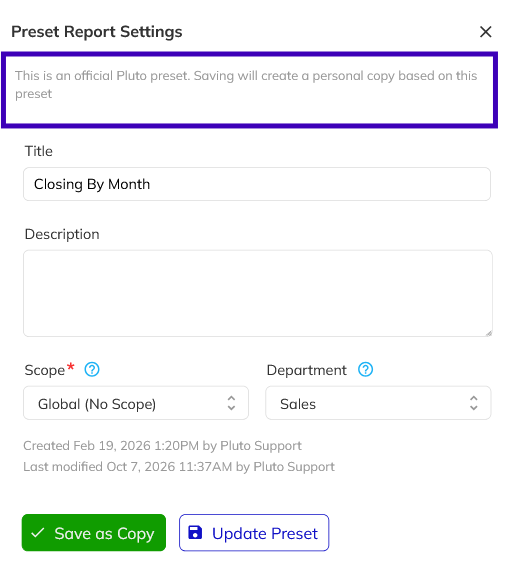
- Click Save as Copy. Your copy is saved as a new personal report and opens. The original preset stays the same for everyone.
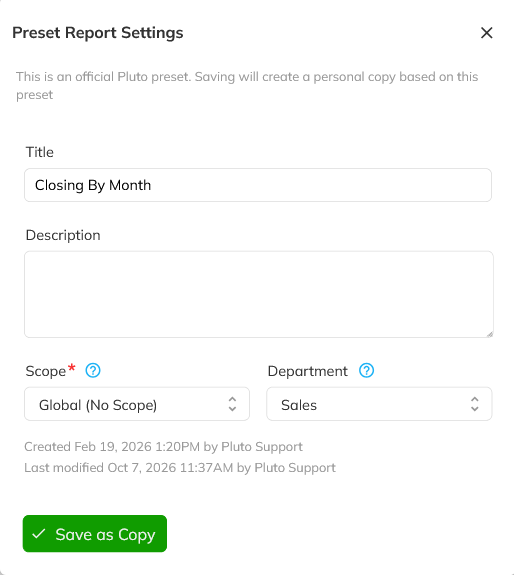
For a report shared with you as Read-only, saving opens Save as New Report. Click Save as Copy to keep your changes in a personal copy.
Update a Preset for All Users
If you have Report Preset Management, the Preset Report Settings dialog also shows Update Preset.
Update Preset changes the official preset directly for all users, so Pluto asks you to confirm first. Use Save as Copy if you only want the changes for yourself.
Congratulations! You now know what saving does for official presets, shared reports, and your own reports. You can save your changes to a preset as a personal copy without affecting anyone else, and you know when Update Preset changes a preset for all users. Next, learn how to share a report with your team.