Signing Process
This guide will walk you through the simple steps of using the Client Portal to review and sign your contracts and addendums.
The Client Portal provides a safe and easy way to sign contracts and addendums electronically. It is designed for purchasers to securely sign all necessary paperwork, making the entire process smooth and quick. In this guide, we will cover:
- Accessing the Client Portal with your email and verification code.
- Reviewing pending documents awaiting your signature.
- Applying your signatures and initials to all required documents.
How We Got Here
Before you can sign your documents, your sales representative creates your contract and any necessary addendums in the Pluto Systems sales app. Once these documents are ready, they share them directly with you.
Signing Your Documents
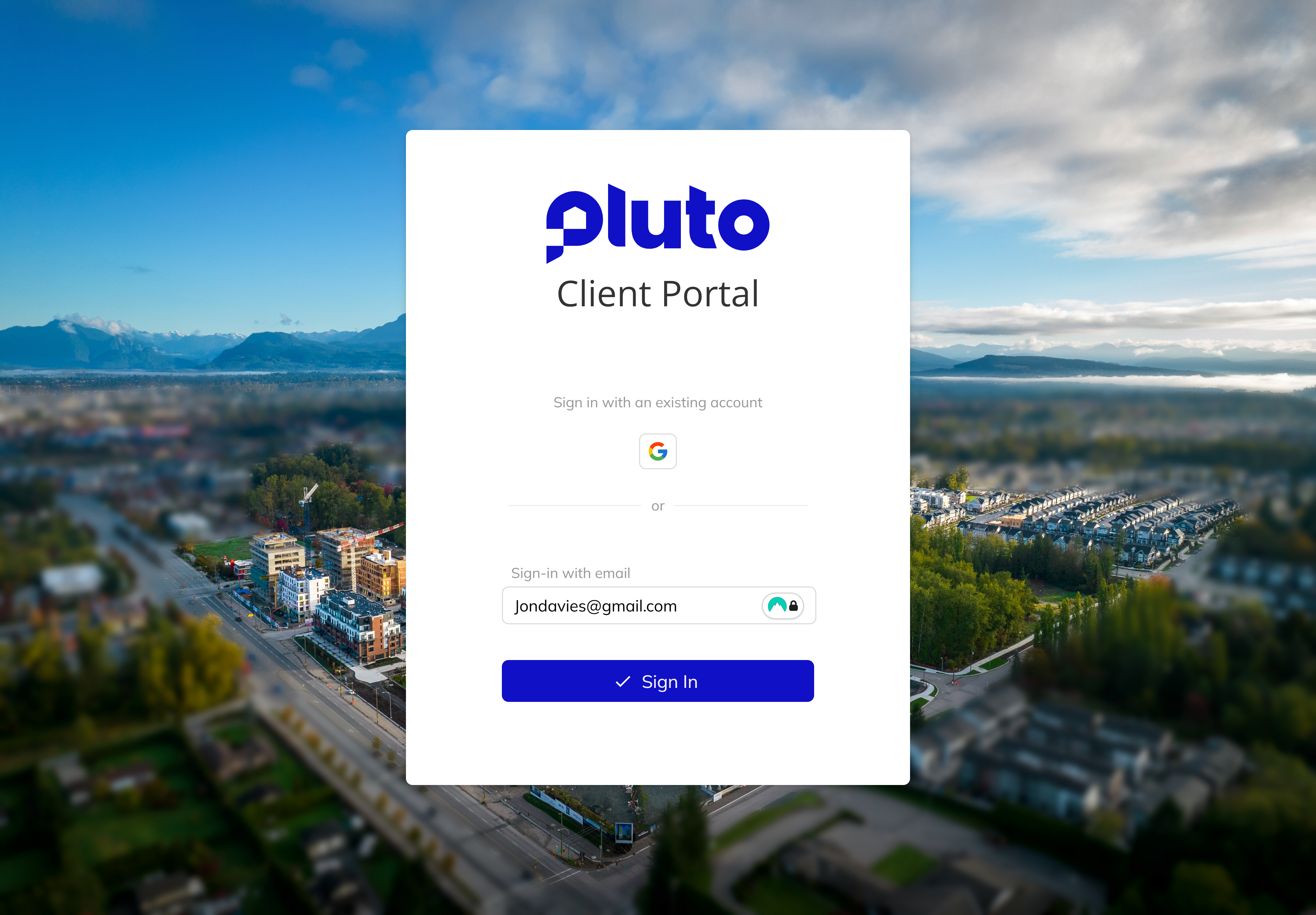
1. Access the Client Portal and sign in
Open a web browser and navigate to the client portal. Enter your registered email address and click Submit. Select your preferred verification method (email or SMS), and click Submit.
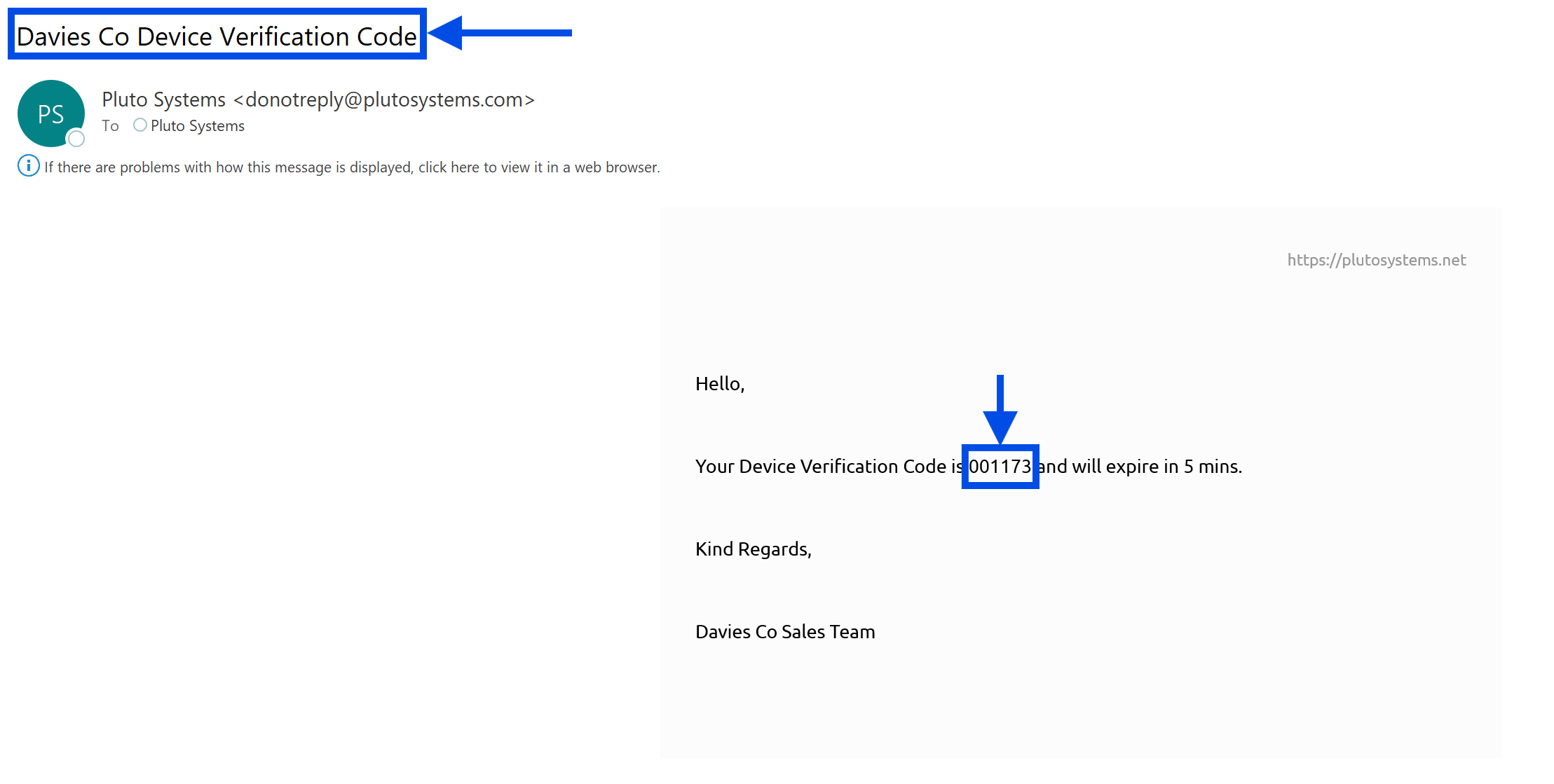
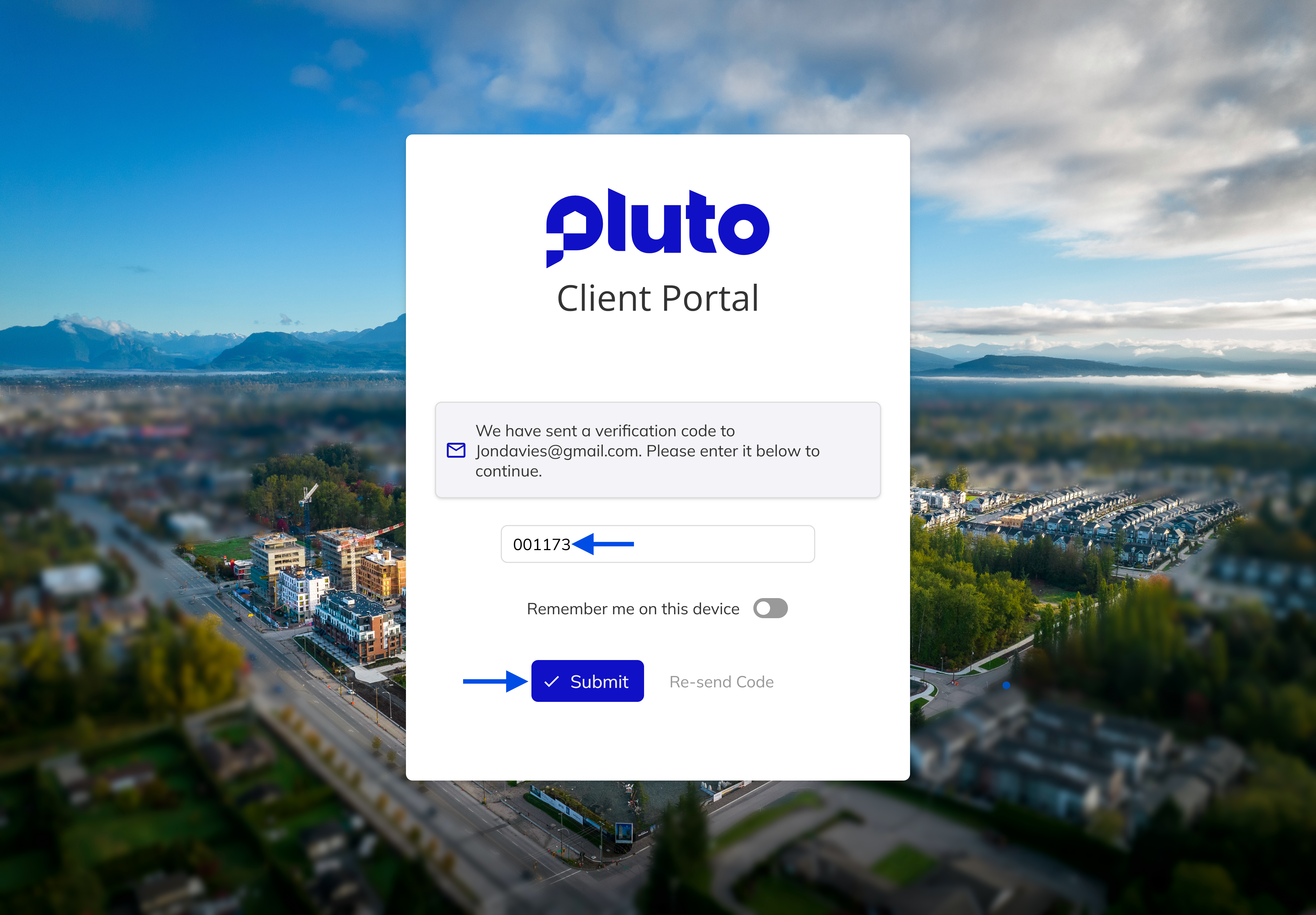
2. Enter your verification code
Find the 7-digit verification code in the email or text message you receive. Return to the portal, enter the code into the verification field, and click Submit to sign in.
Keep your verification code confidential. If you did not request this code, contact your sales representative immediately.
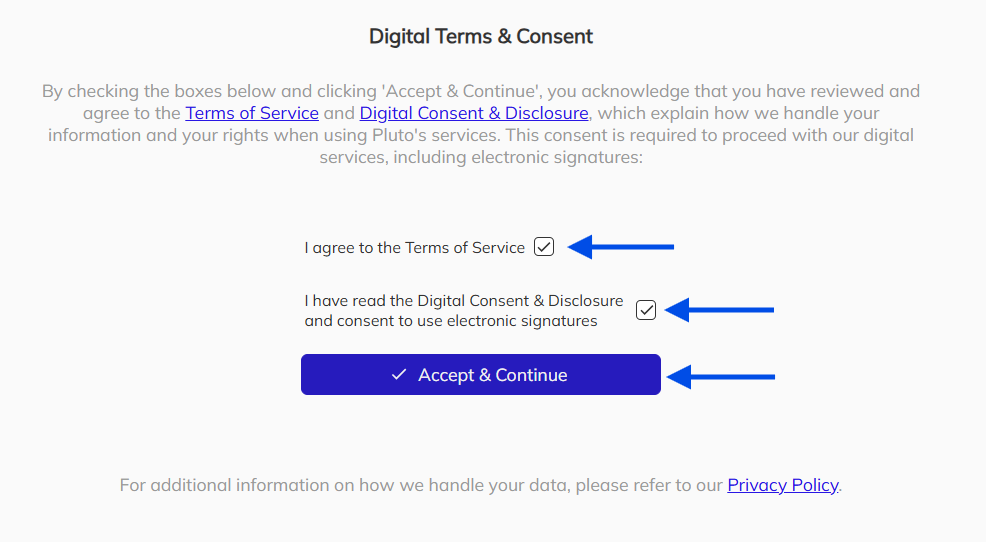
3. Accepting the Digital Terms and Consent
By accepting the terms and providing your consent, you confirm your agreement with the Terms of Service, Digital Consent & Disclosure, and Privacy Policy. Once you accept these terms, you will be directed to the contract or addendum to sign.
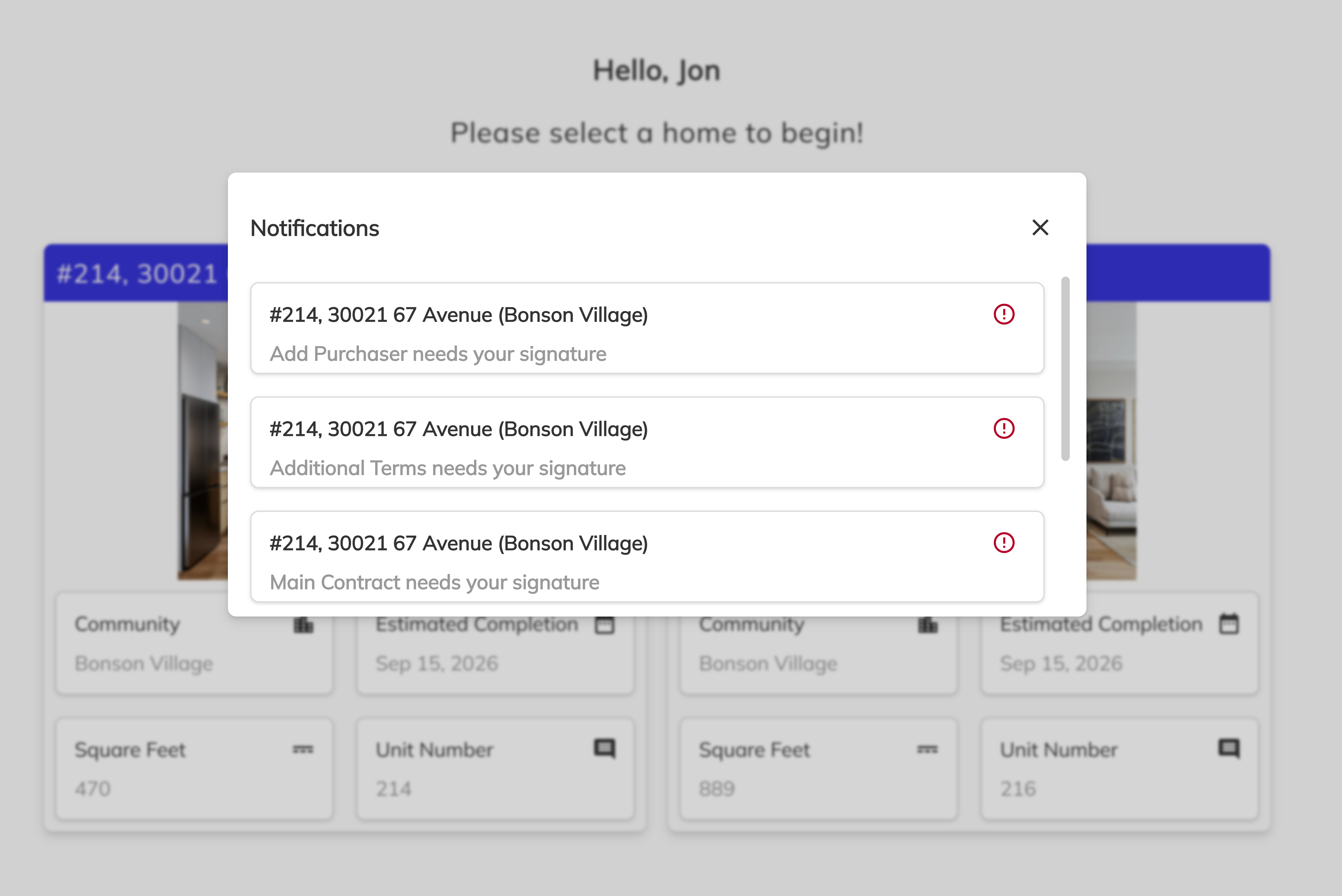
4. Notification - Review your pending documents
Once signed in, you will see a notification panel displaying any documents awaiting your signature. Click on the notification row for the contract or addendum you wish to sign.
5. Open and review the document
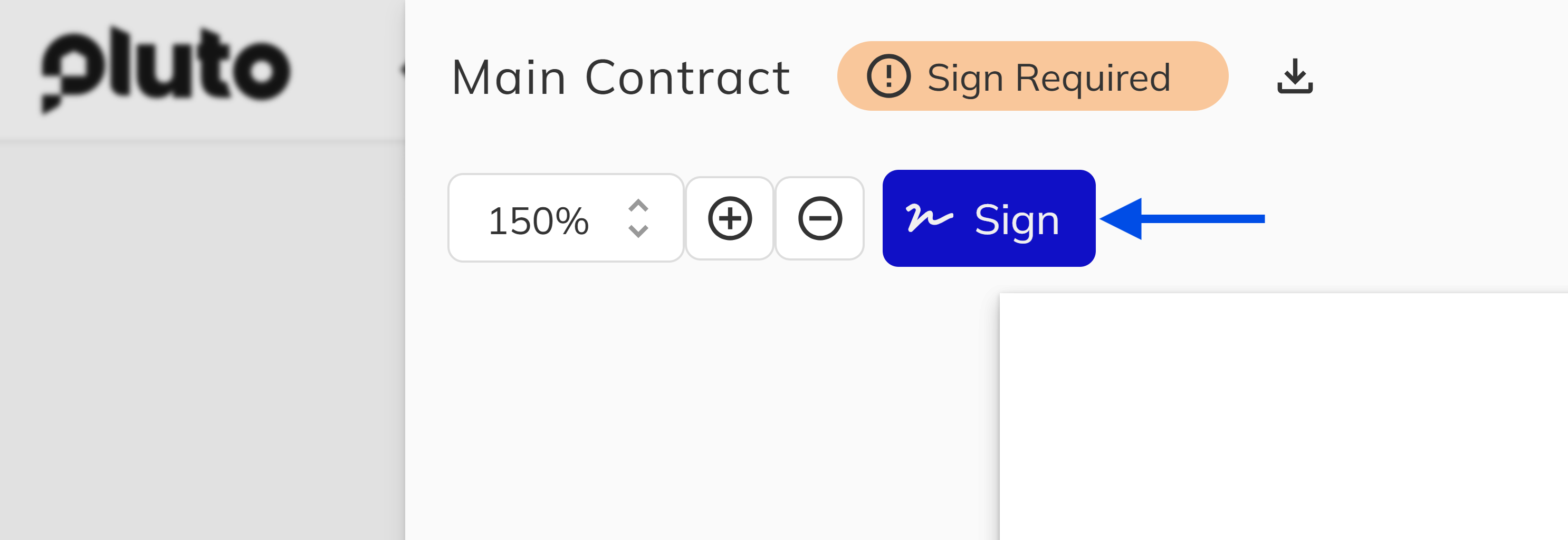
You will be directed to the Contract Page within the Client portal. A side panel will appear with the contract or addendum details. Review the document content and click the Sign button to begin the signing process.
6. Apply your signature and initials
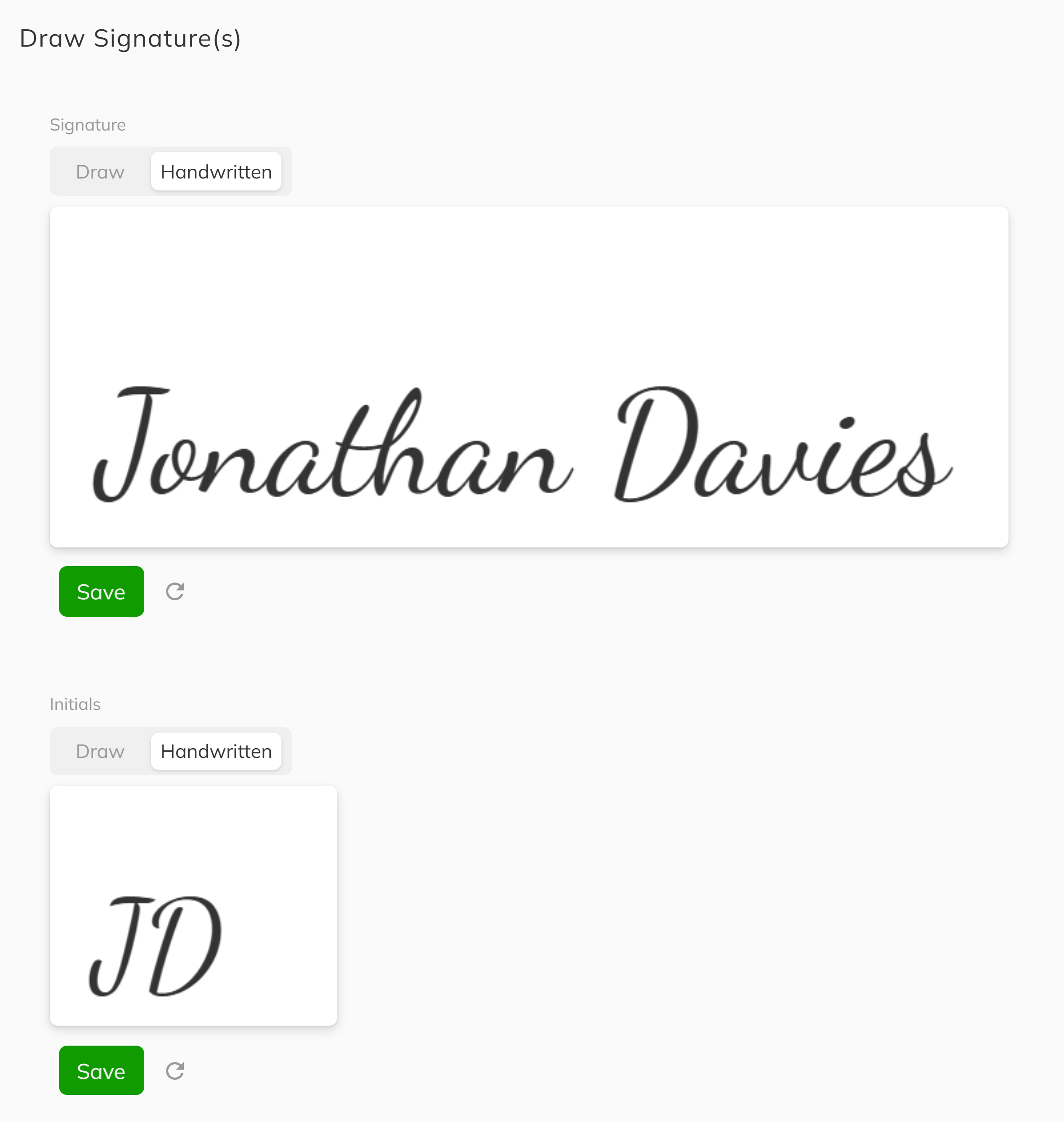
Use the on-screen pads or handwritten text to draw your signature and initials. Click Save to confirm each one, or click Clear to start over.
Depending on the contract or addendum, you may only see a signature block or an initials block that requires your action.
Signatures are retained during your session, allowing you to sign multiple documents without re-entering your signature. Once you close your browser or log out of the Client Portal, your signatures will be removed.
7. Complete all required signatures on the document.
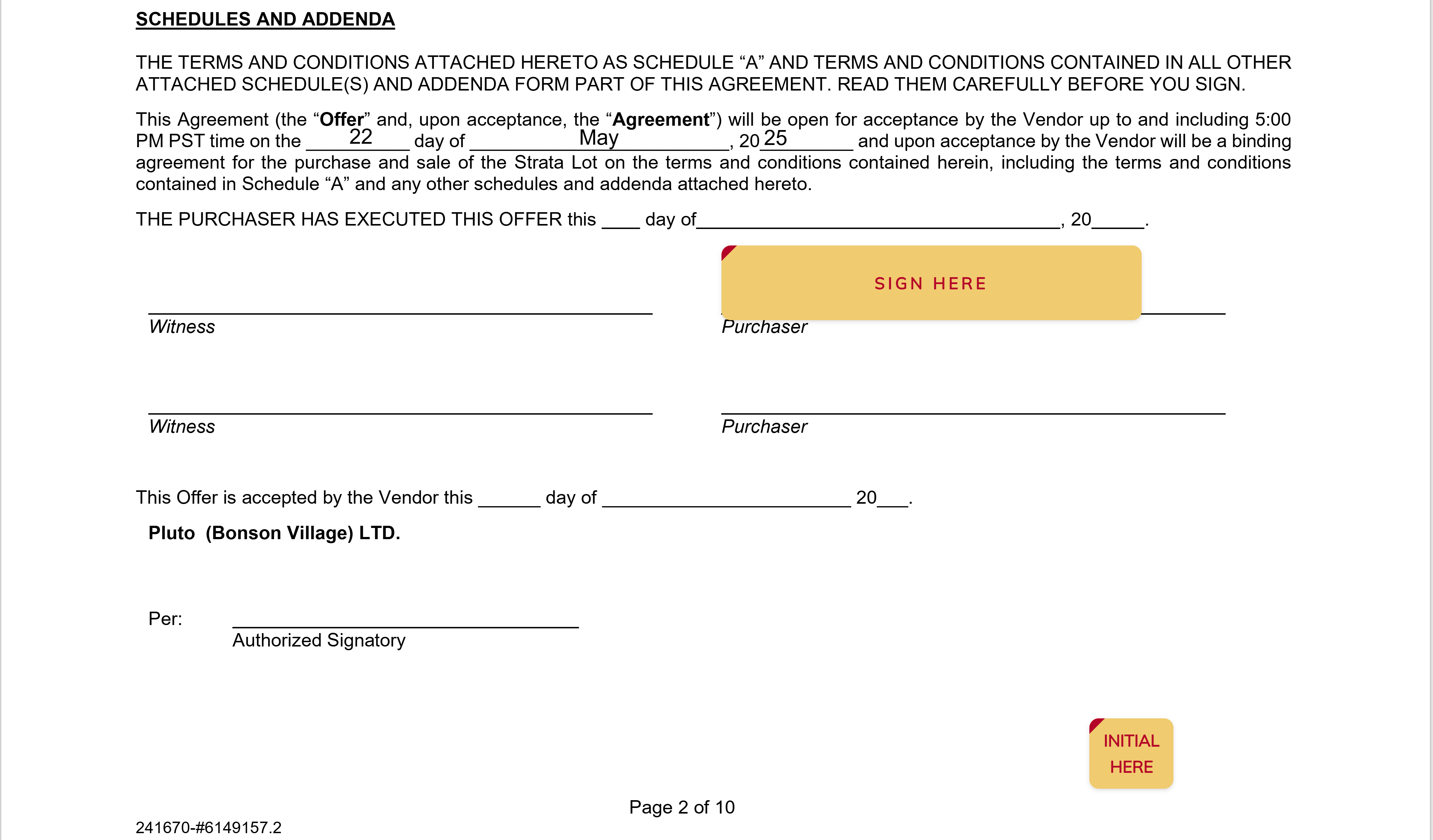
Click on each of the required signature and/or initial blocks to place your signature or intials. Continue this step until all signatures and intials are signed for the document. Once all blocks are signed, the document status will change from "Signing Required" to "Purchaser Signed" or "Signed Status. Close the document panel by clicking the X button and move on to any remaining documents.
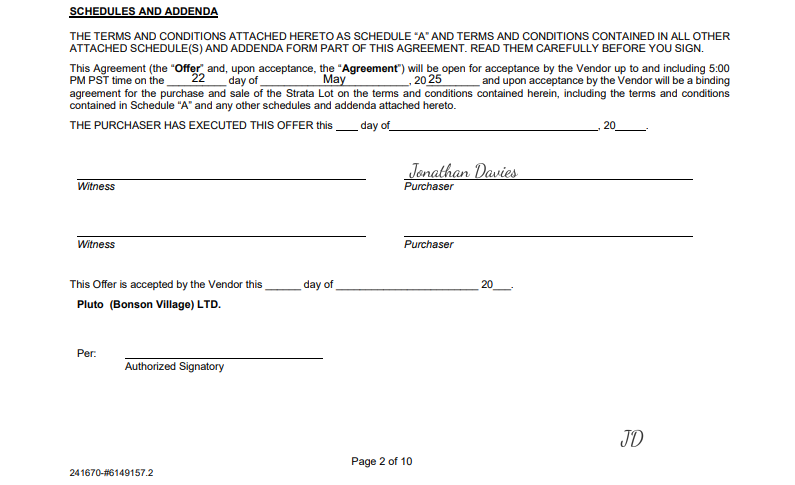
8. Verify all documents are signed.
You will be brought to the Contract grid, where you can confirm that all contracts and addendums show a status of 'Purchaser Signing' or 'Signed'. If any documents remain with 'Signing Required' status, a notification will appear and you should repeat steps 4–7.
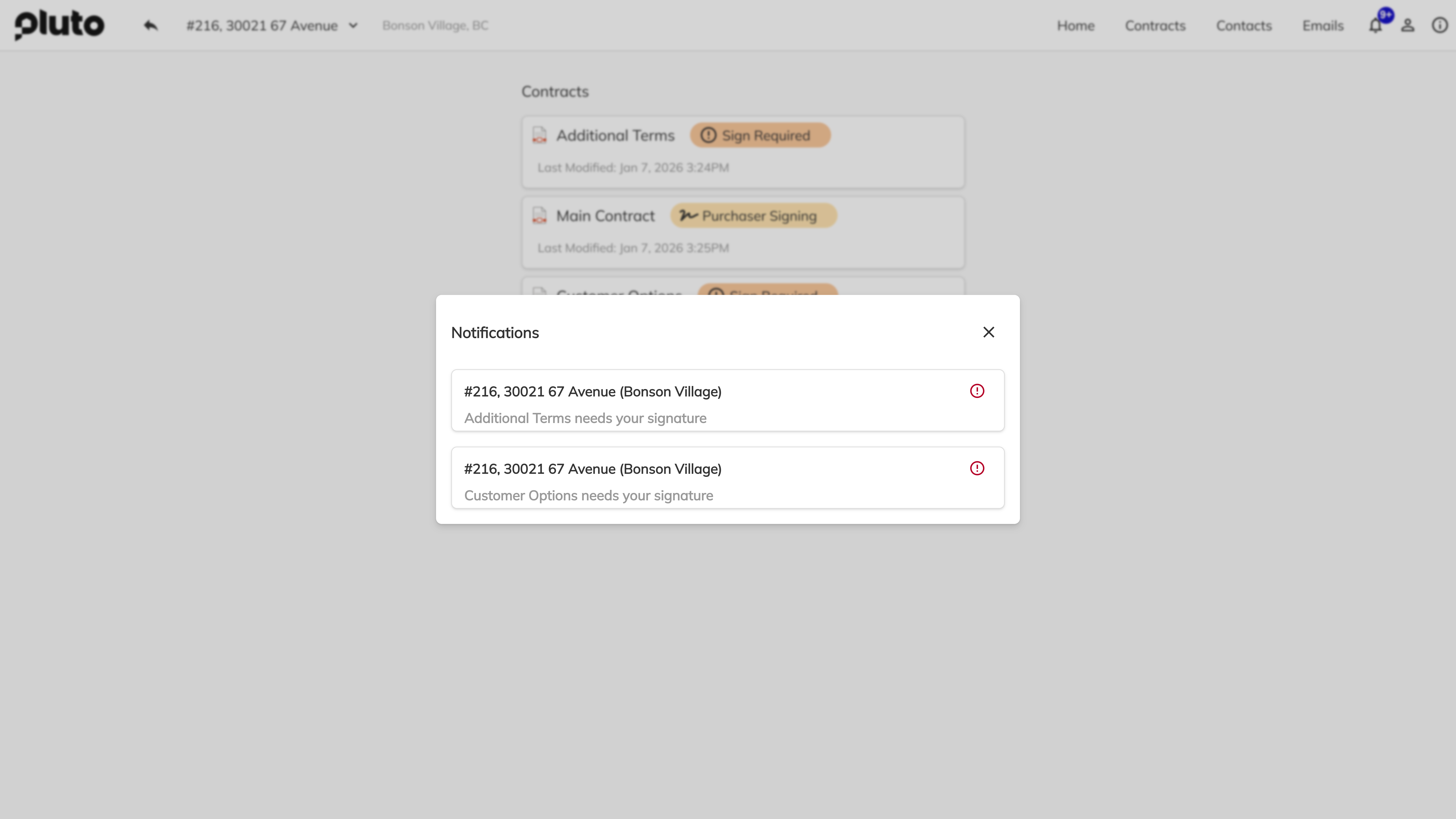
Congratulations! You have successfully completed the Client Portal signing process. All your documents have been securely signed and are now available for your reference in the Client Portal. If you require any further assistance, please contact your sales representative.
Legal Considerations
By signing electronically through this portal, you are consenting to conduct this transaction by electronic means where permitted by applicable law. The signatures you apply create legally binding records with the same effect as handwritten signatures. An audit trail recording timestamps, verification method, and signing actions is retained for compliance and dispute resolution purposes.