Client Portal Overview
The Pluto Systems Client Portal is a secure, self-service platform designed for home purchasers to access their purchase information, sign contracts, and stay informed throughout the buying process. This overview provides a walkthrough of each screen purchasers encounter when using the portal.
Purpose of the Client Portal
The Client Portal serves as a centralized hub where purchasers can:
- Sign contracts and addendums electronically
- View and download purchase documents and resource documents
- Track deal progress and document status
- Review contact information for their purchase
- Access details about their unit
Screen Summaries
Login Screen
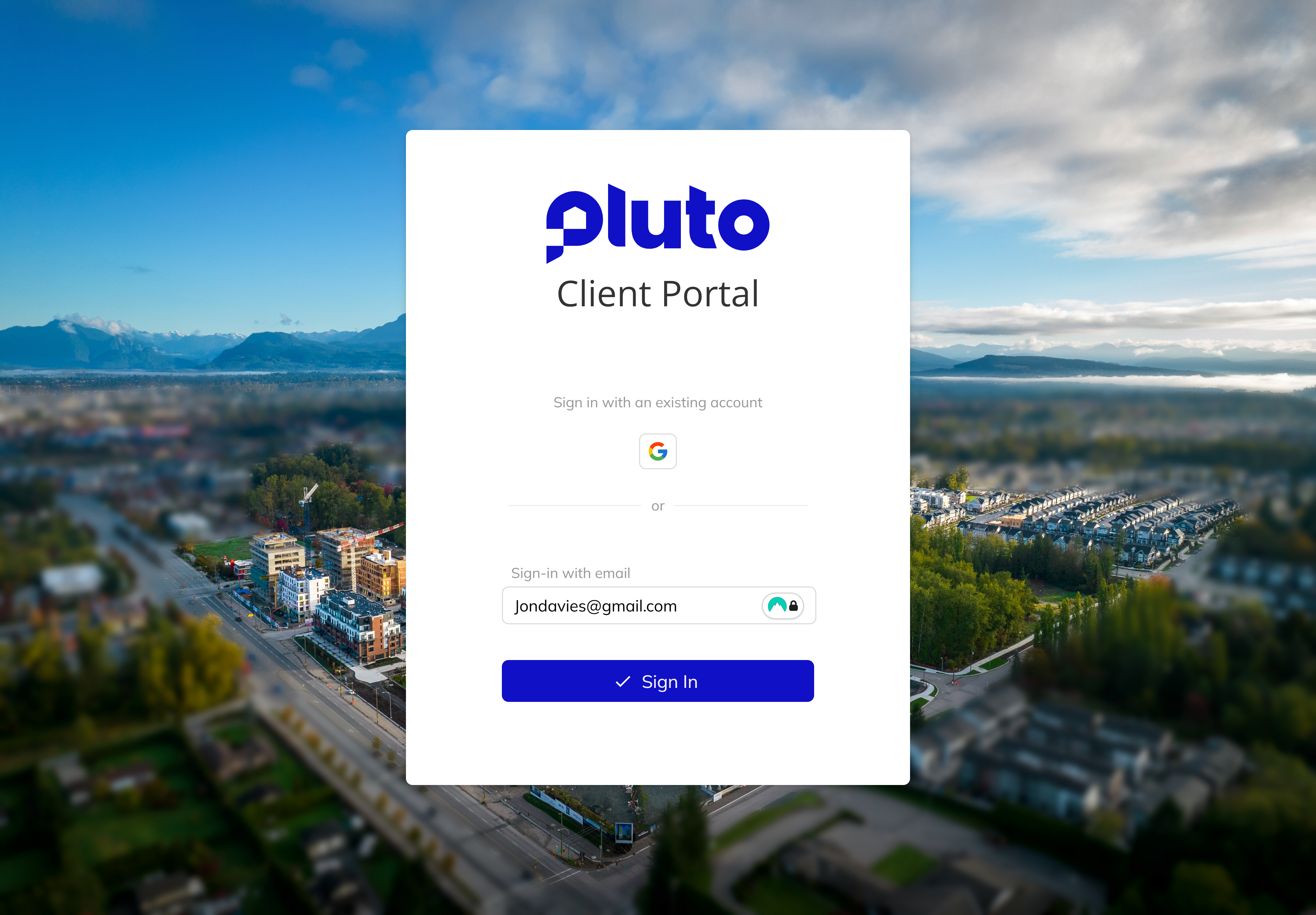
The Login Screen is the entry point for purchasers to access their portal account. Users enter their registered email address associated with their home purchase. After entering their email and clicking Submit, the system sends a secure verification code to authenticate their identity.
Verification Screen
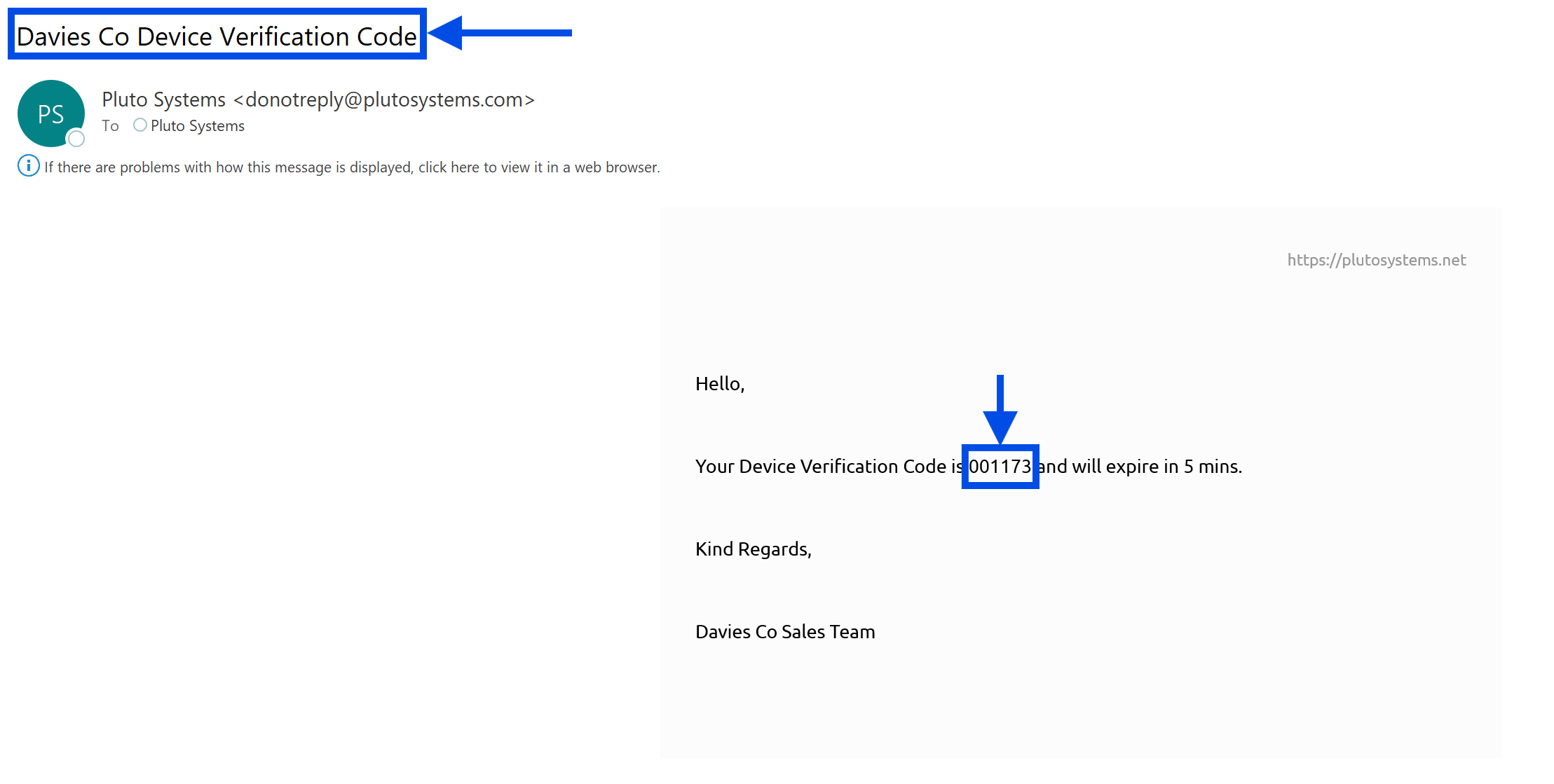
The Verification Screen provides secure, passwordless authentication. After requesting access, purchasers receive a 7-digit verification code via their chosen method (email or SMS). Users enter this code to verify their identity and gain access to their portal account. This approach eliminates the need for passwords while maintaining strong security.
Digital Consent Forms Screen
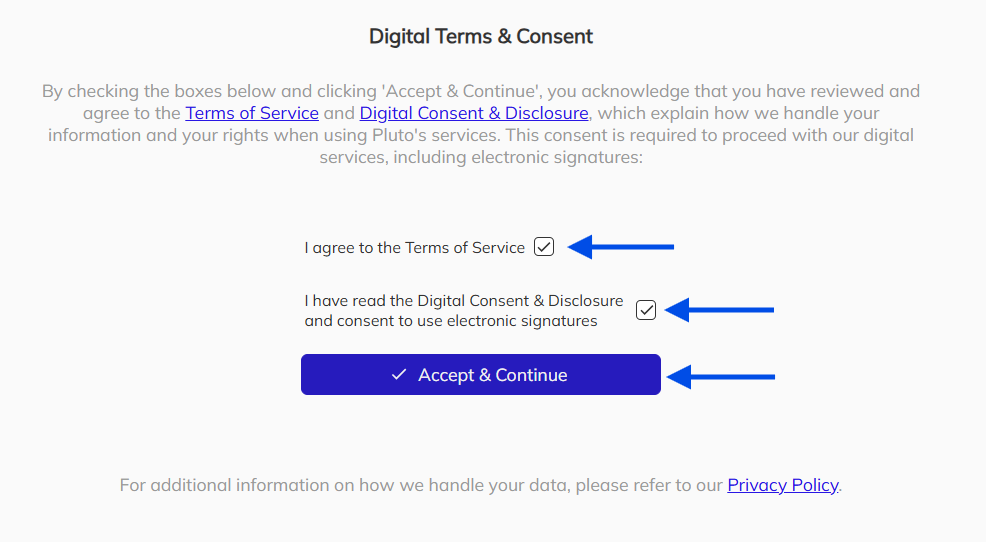
The Digital Consent Forms Screen presents purchasers with required legal agreements that must be accepted before accessing portal features. Purchasers are asked to review and accept three key documents:
- Terms of Service — The legal agreement governing use of the Pluto Systems platform
- Electronic Records and Signatures Disclosure and Consent (ERSDC) — Consent to conduct transactions electronically and use digital signatures
- Privacy Policy — Information about how personal data is collected, used, and protected
Each acceptance is recorded with a timestamp, the document version accepted, and device information for compliance and audit purposes. Purchasers must accept these documents to proceed with signing contracts and accessing their portal account.
Once a purchaser has agreed to a document version, this screen will not appear again until a new version of any consent document is published. At that time, purchasers will be prompted to review and accept the updated terms.
Unit Selector Screen
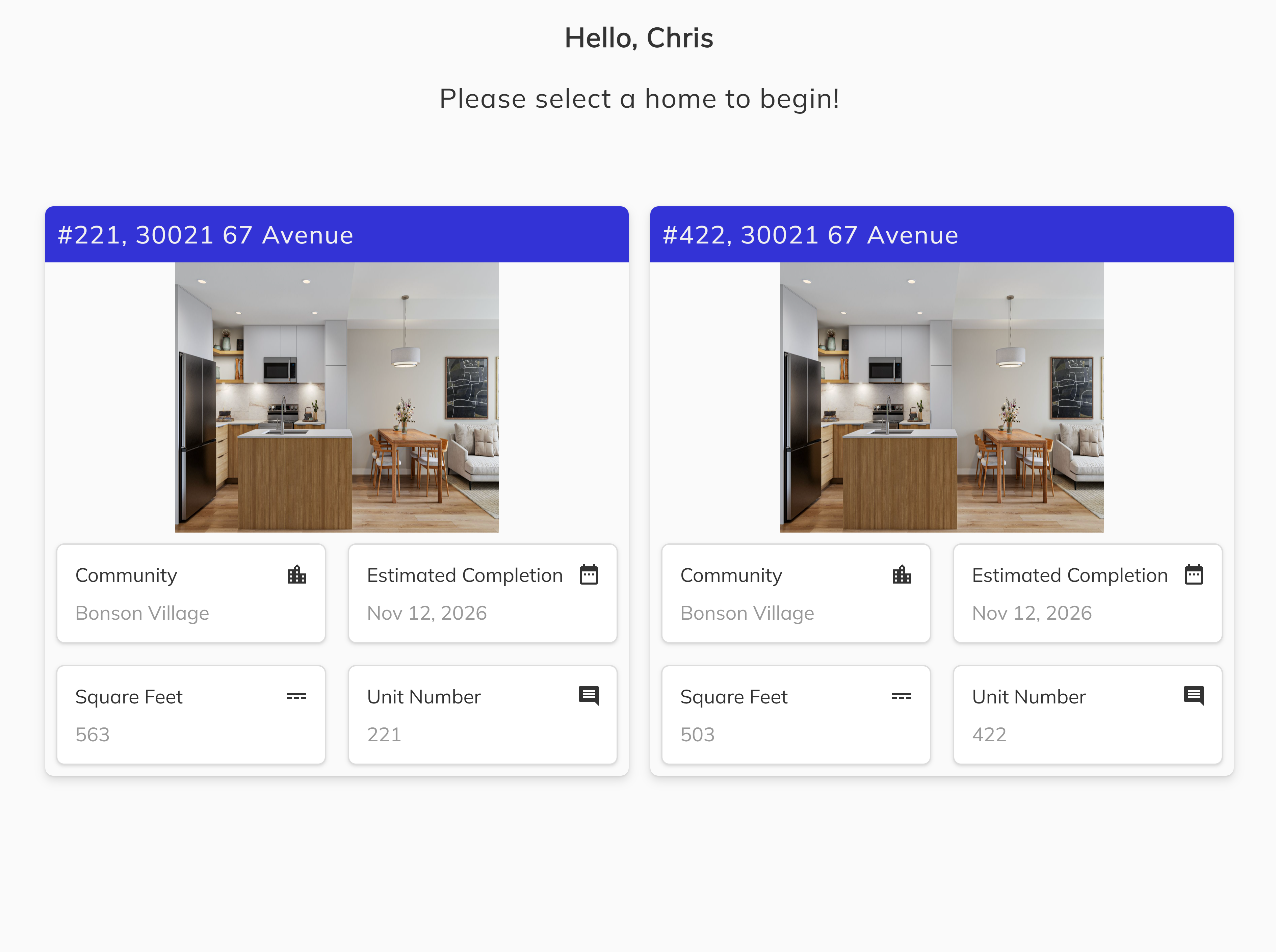
The Unit Selector Screen appears when a purchaser is associated with multiple properties. This screen displays a list of all units linked to the purchaser's account, allowing them to select which property they wish to view. Each unit card shows key identifying information such as the project name, unit number, and address to help purchasers quickly find the correct property.
If a purchaser is associated with only one unit, this screen is skipped, and they are taken directly to the Unit Screen.
Once logged in, purchasers can switch between units at any time using the unit selector in the navigation menu.
Unit Home Screen
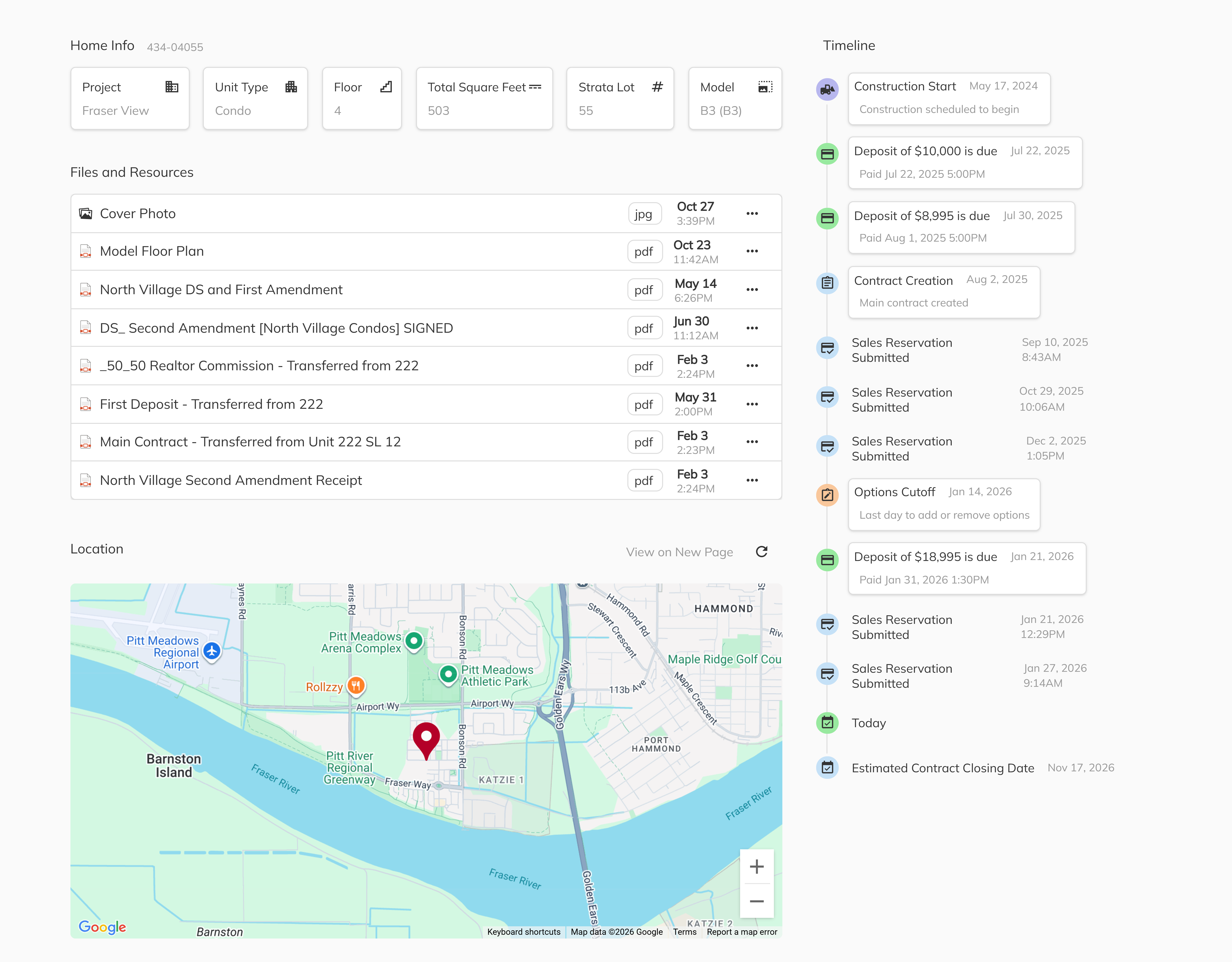
The Unit Home Screen serves as the main dashboard for a selected property. This screen displays essential information about the purchaser's unit, including the unit number, model type, address, documents, location, and key dates. The Unit Screen provides navigation to other sections such as Contracts and Contacts, giving purchasers a central location to manage all aspects of their home purchase.
Contract Screen
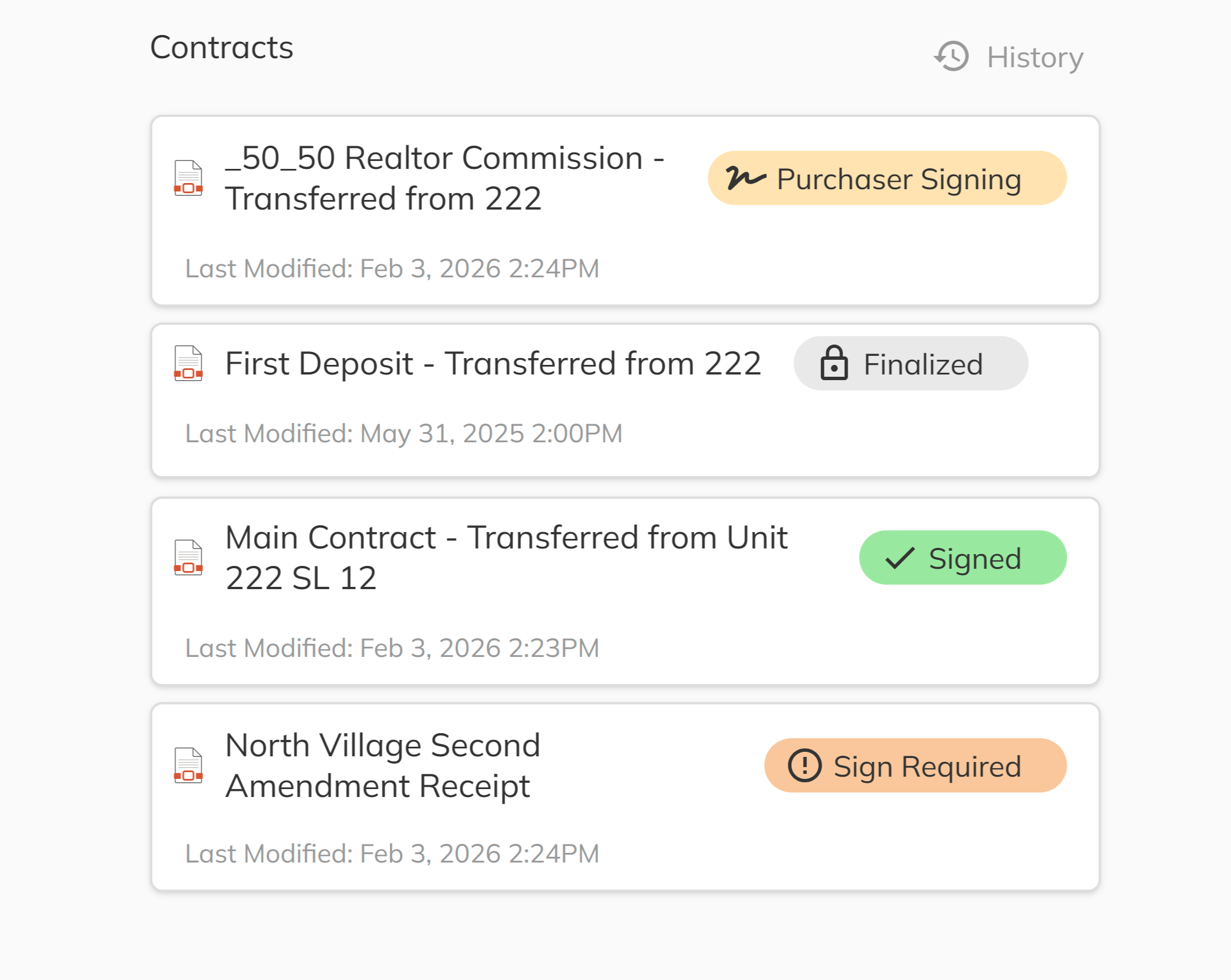
The Contract Screen displays all contracts and addendums associated with the purchaser's deal. Each document shows its current status (such as Signing Required, Purchaser Signed, or Finalized), allowing purchasers to quickly identify which documents need attention. From this screen, purchasers can open documents to review content and complete electronic signatures when required.
Contacts Screen
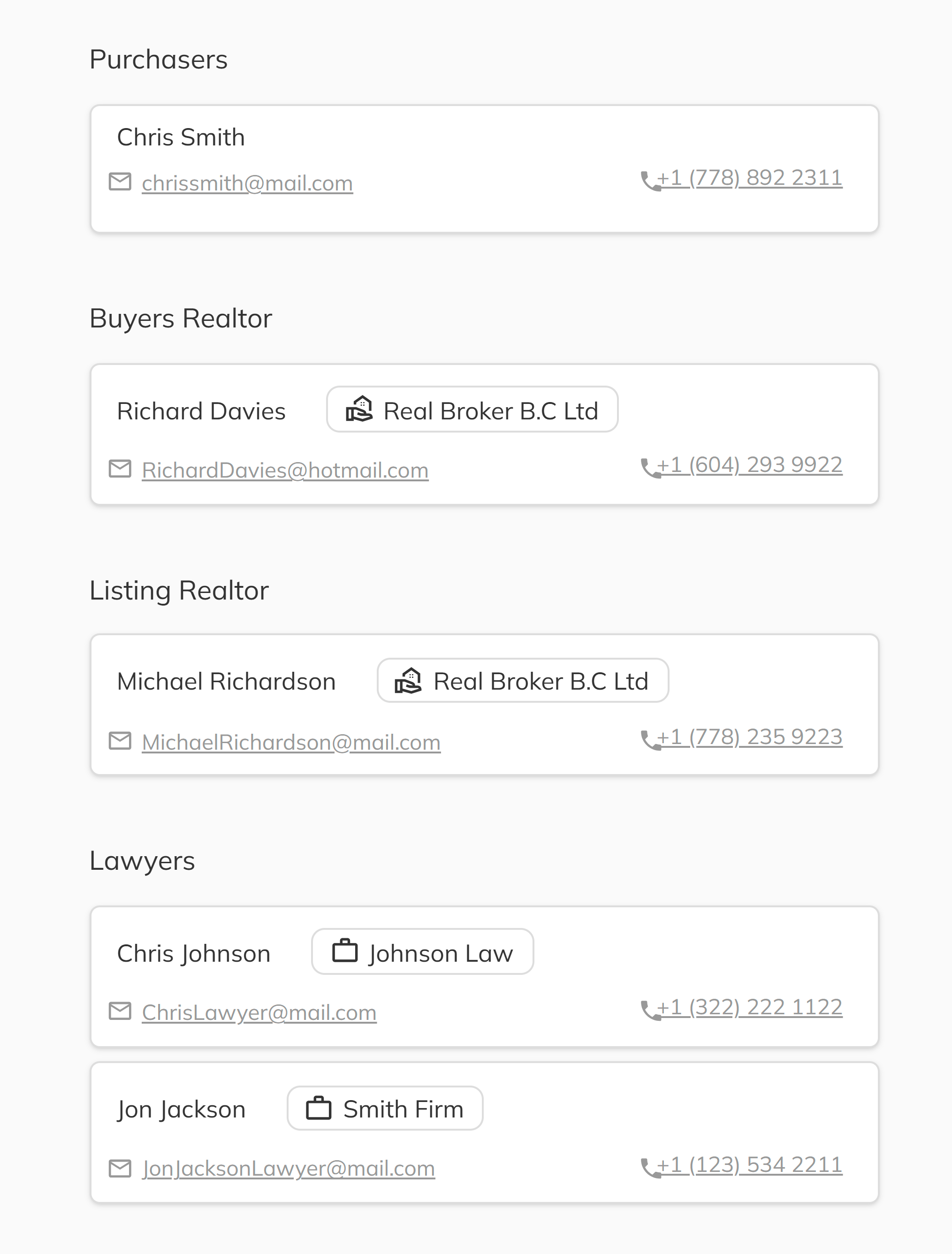
The Contacts Screen provides purchasers with information about the key people involved in their transaction. This includes contact details for their sales representative, the developer, projects contacts and any other relevant parties. Having this information readily available helps purchasers know who to reach out to with questions or concerns about their purchase.
Email Log Screen
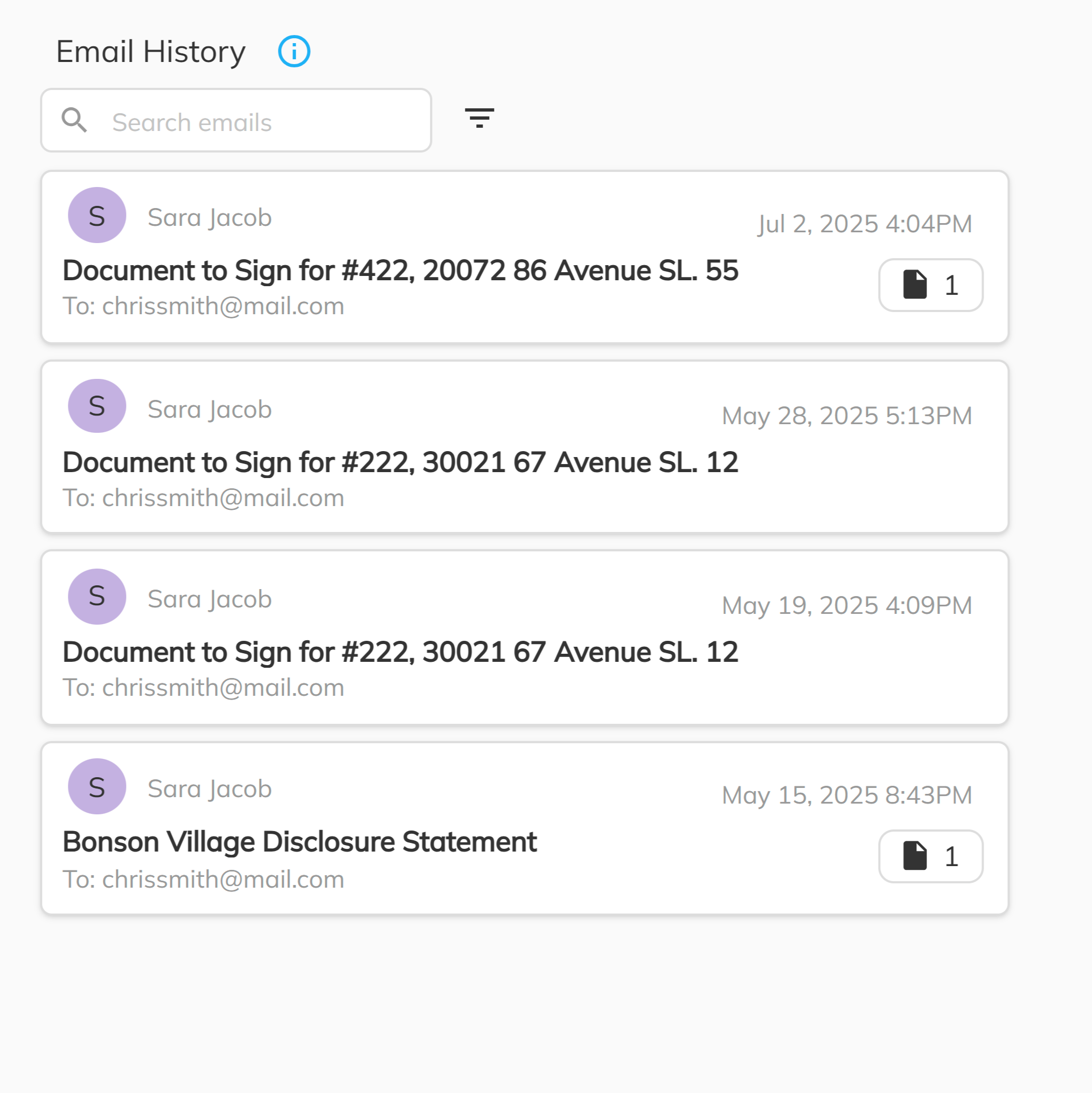
The Email Log Screen provides purchasers with a complete history of all email communications sent by the system. This includes contract notifications, verification codes, and other important correspondence. Each entry displays the email subject, date sent, and delivery status, allowing purchasers to verify receipt of all necessary communications and track the timeline of their transaction.
To view an email, simply click on the card. A side panel will appear displaying the full email content.
Profile Settings Side panel
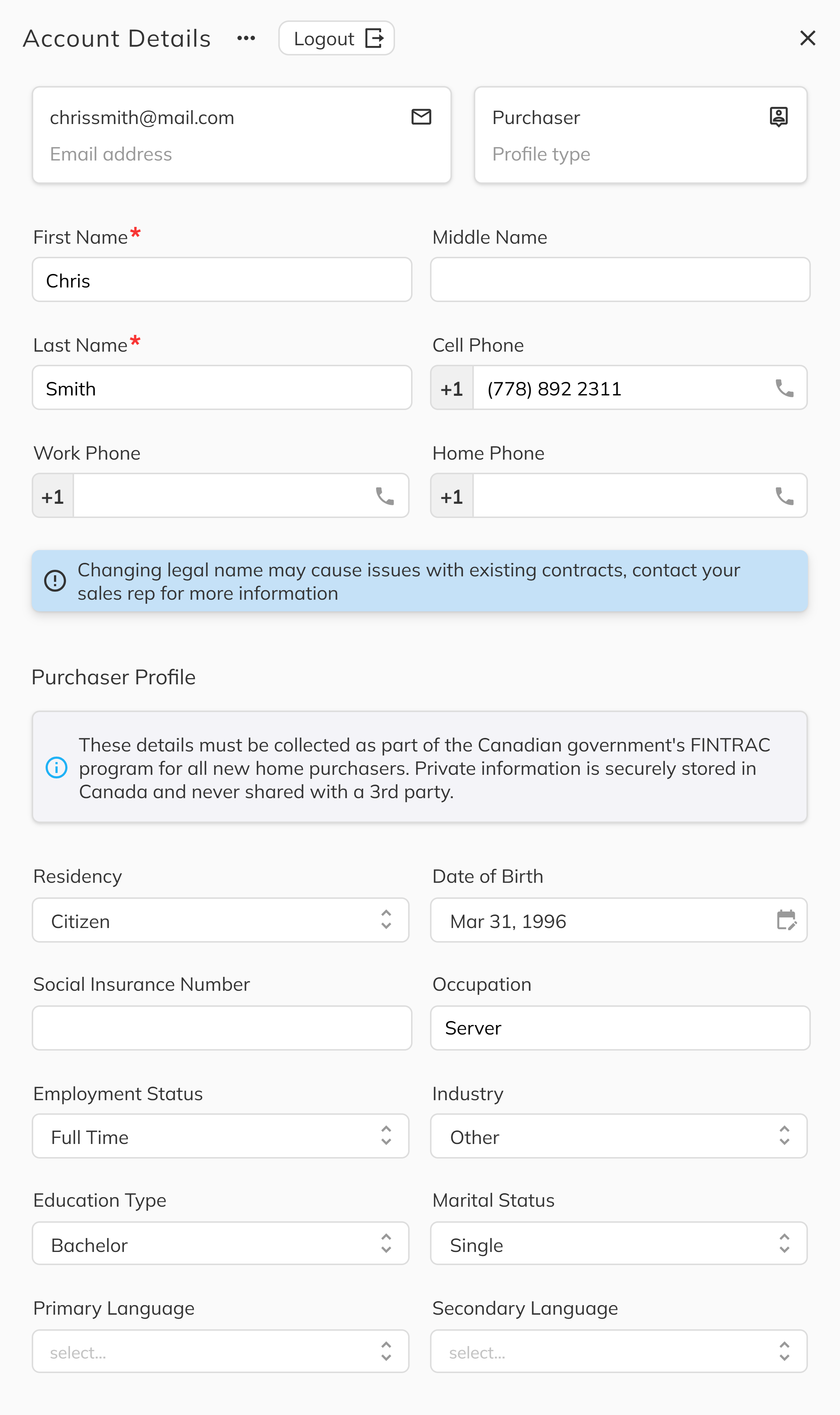
The Profile Settings Side panel allows purchasers to view and manage their personal information. Accessible via the person icon in the top-right navigation area, this side panel displays the purchaser's current profile details, including their name, email address, and contact information.
A Log Out button is prominently displayed on this side panel, allowing purchasers to securely sign out of their account at any time.
By clicking the three-dot menu (...) next to the Account Details header:
- Change Email — Request an email address change for their account (requires verification of the new email)
Email address changes will be reflected across all associated units and transactions. Changes to profile information may require re-verification to ensure account security.
Notifications
The Client Portal uses two types of notifications to keep purchasers informed about important updates and required actions:
Popup Notifications
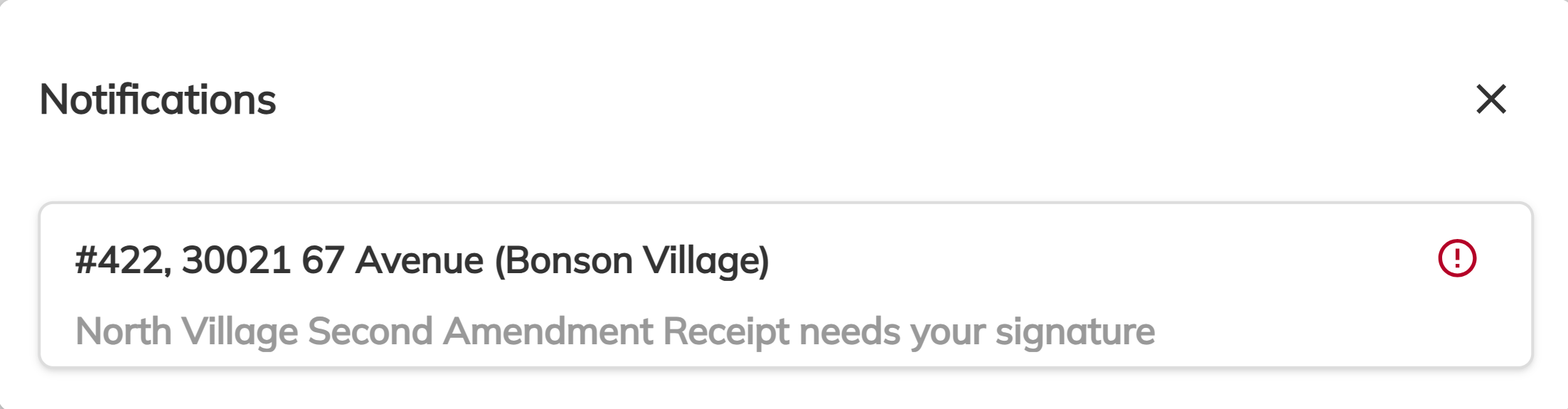
Popup notifications appear automatically when there are pending actions that require immediate attention, such as documents awaiting signature. These notifications display prominently on screen after logging in, ensuring purchasers are immediately aware of any outstanding tasks. Each popup notification includes a brief description of the action needed and can be clicked to navigate directly to the relevant screen.
Bell Notifications
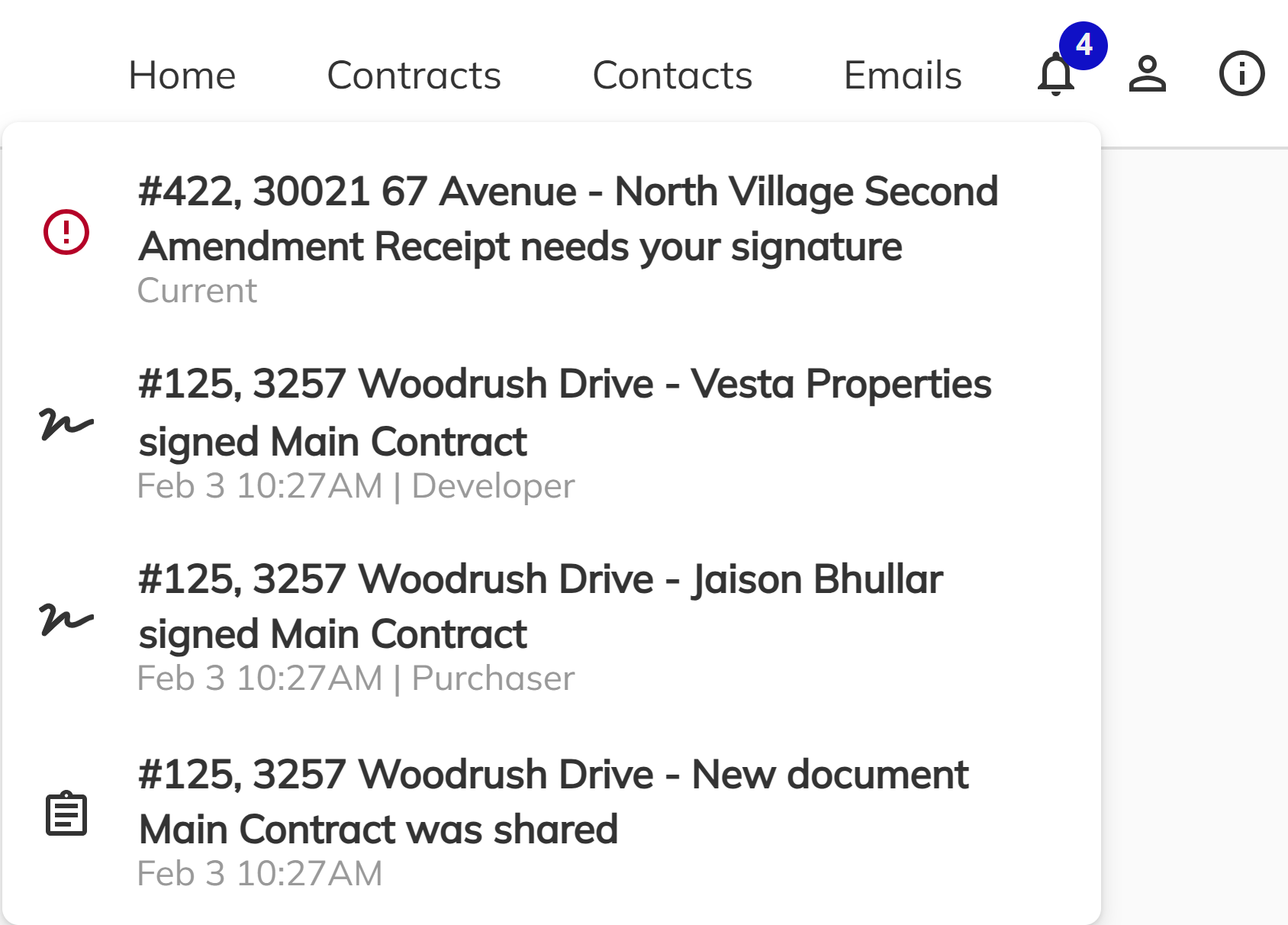
The bell icon, located in the top-right navigation bar, provides access to a notification center where purchasers can view all recent alerts and updates. A badge indicator on the bell icon shows the number of unread notifications. Clicking the bell icon opens a dropdown panel listing notifications such as:
- New documents available for review or signature
- Contract status updates (e.g., document finalized by developer)
- Important announcements related to the purchase
Purchasers can click on any notification in the list to navigate directly to the relevant content. This ensures that even if a popup notification is dismissed, purchasers can easily return to pending items through the bell notification center.
Conclusion
The Pluto Systems Client Portal provides purchasers with a modern, secure, and convenient way to manage their home purchase. By offering passwordless authentication, electronic signatures, and centralized access to documents and contacts, the portal streamlines the buying experience. Purchasers can complete their transactions from anywhere, at any time, using any device with an internet connection.
For a detailed guide on signing documents, see the Signing Process documentation.
For additional assistance, purchasers should contact their sales representative.