Signing Process
This guide will walk you through the simple steps of using our signing service, from receiving the signing email to the completion of all your contracts and addendums.
Our signing service is a safe and easy way to sign contracts and addendums electronically. It is designed for homeowners and realtors to securely sign all necessary paperwork, making the entire process smooth and quick. In this guide, we will cover:
- Confirming your identity with a verification code.
- Creating your electronic signature and initials.
- Applying your signatures and initials to all required documents.
How We Got Here
Before you can sign your documents, your sales representative creates your contract and any necessary addendums in the Pluto Systems sales app. Once these documents are ready, they share them directly with you.
Getting Started
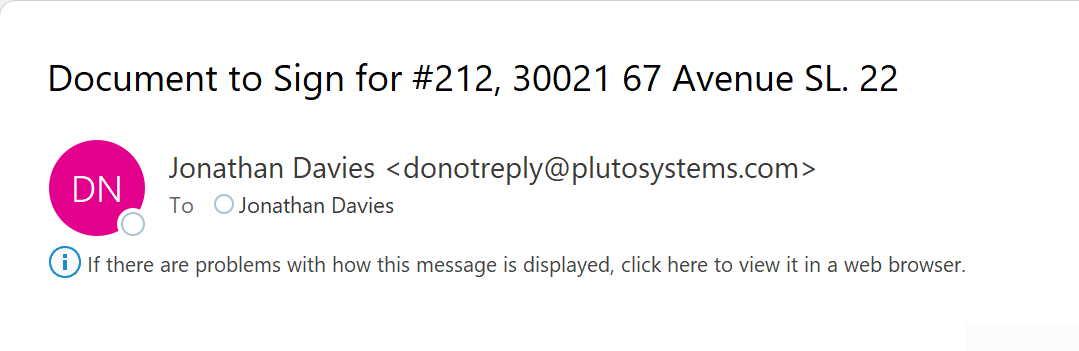
1. Open the "Document to Sign" email and click Sign Now.
Look for an email with the title "Document to Sign For Your New Home Address" in your inbox and click the Sign Now button in the body of the email to start.

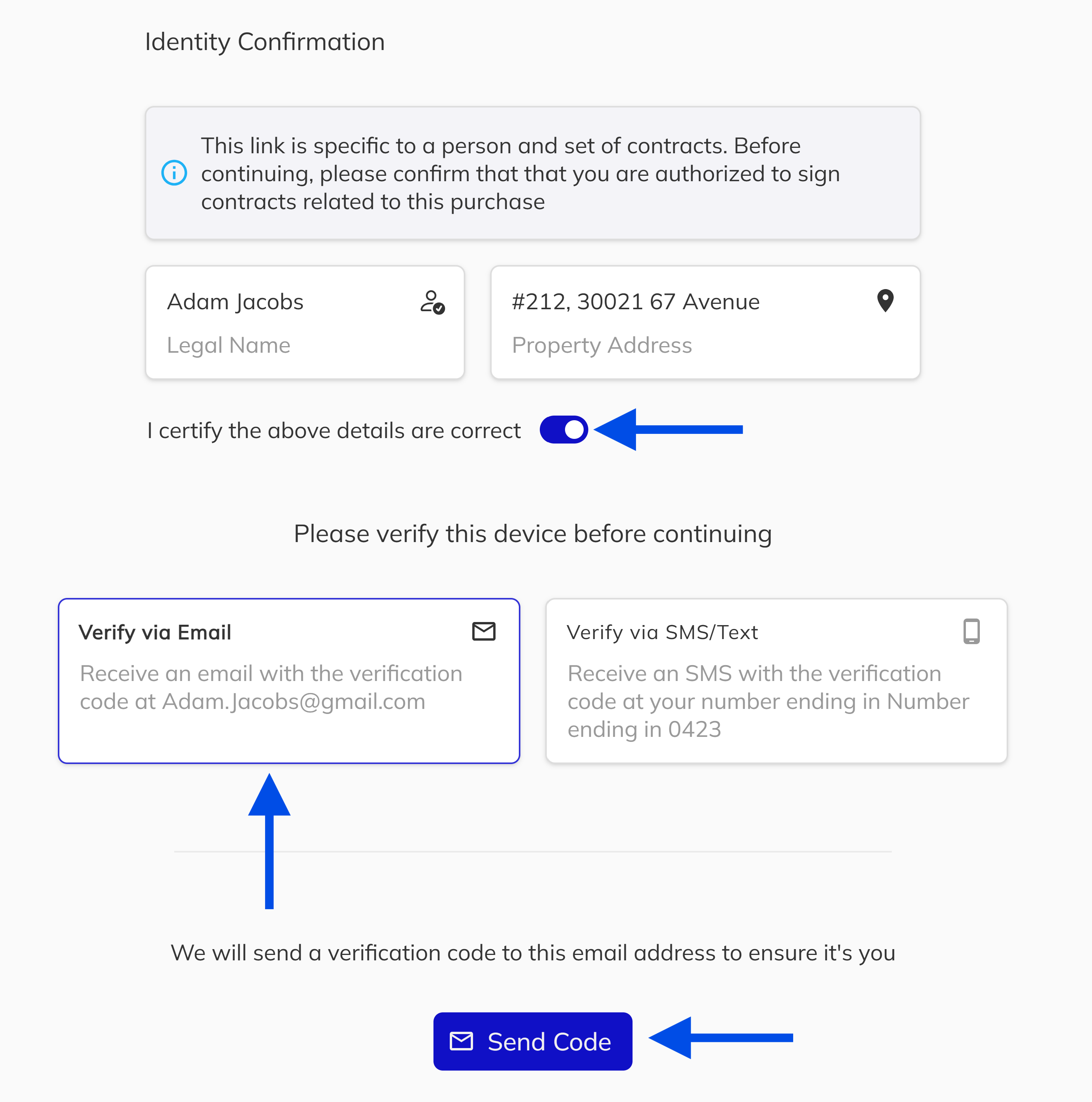
2. Confirm your details and get sent a verification code.
On the sign-in page, click the toggle to confirm that the full name and home address shown are correct. Then, choose how you want to receive a one-time verification code (email or phone) and click Submit.
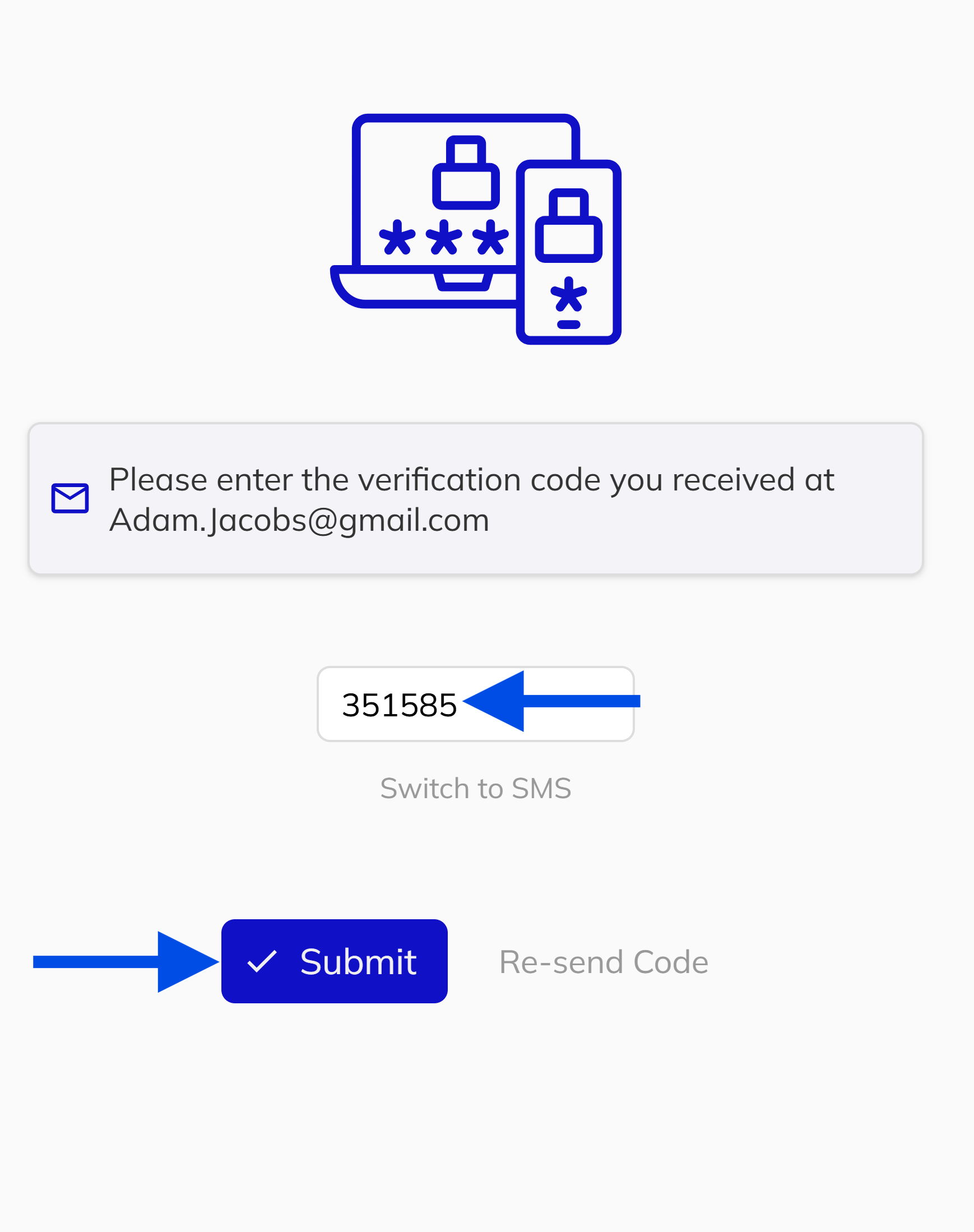
3.Enter the verification code to sign in.
Find the 7-digit code in the email with the subject "Developer Name Device Verification Code." Type this code into the box on the signing service web page and click Submit.

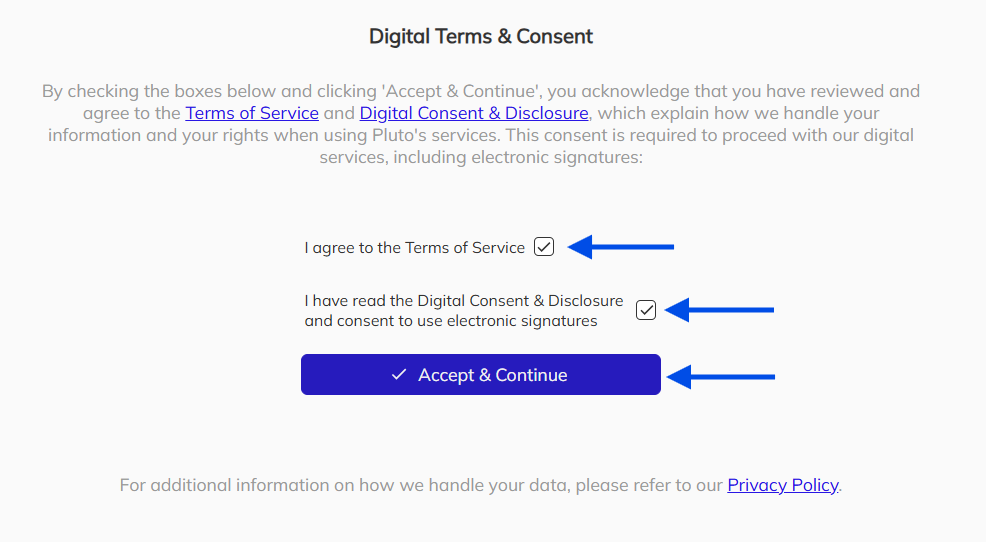
4. Accepting the Digital Terms and Consent
By accepting the terms and providing your consent, you confirm your agreement with the Terms of Service, Digital Consent & Disclosure, and Privacy Policy. Once you accept these terms, you will be directed to the contract or addendum to sign.
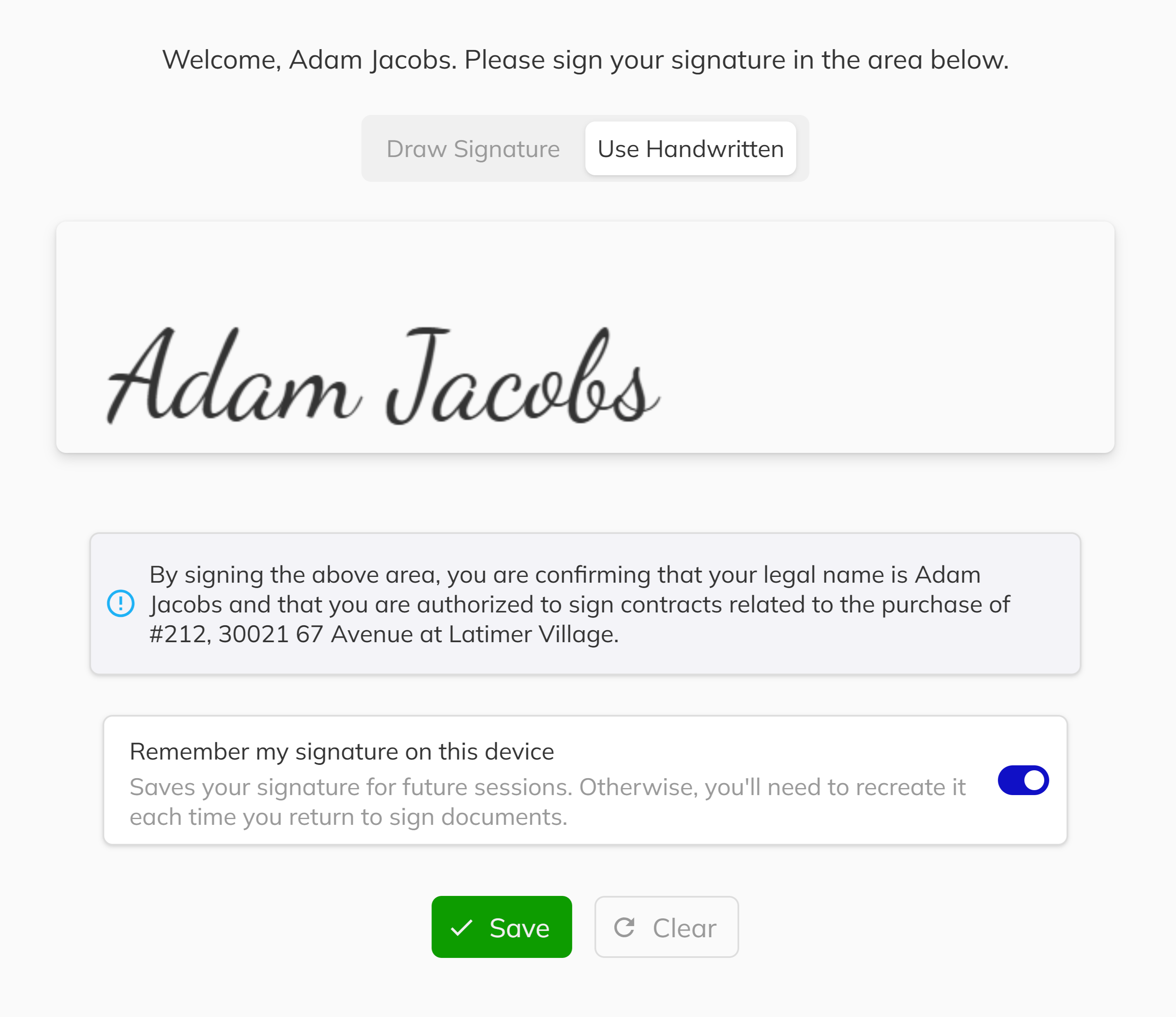
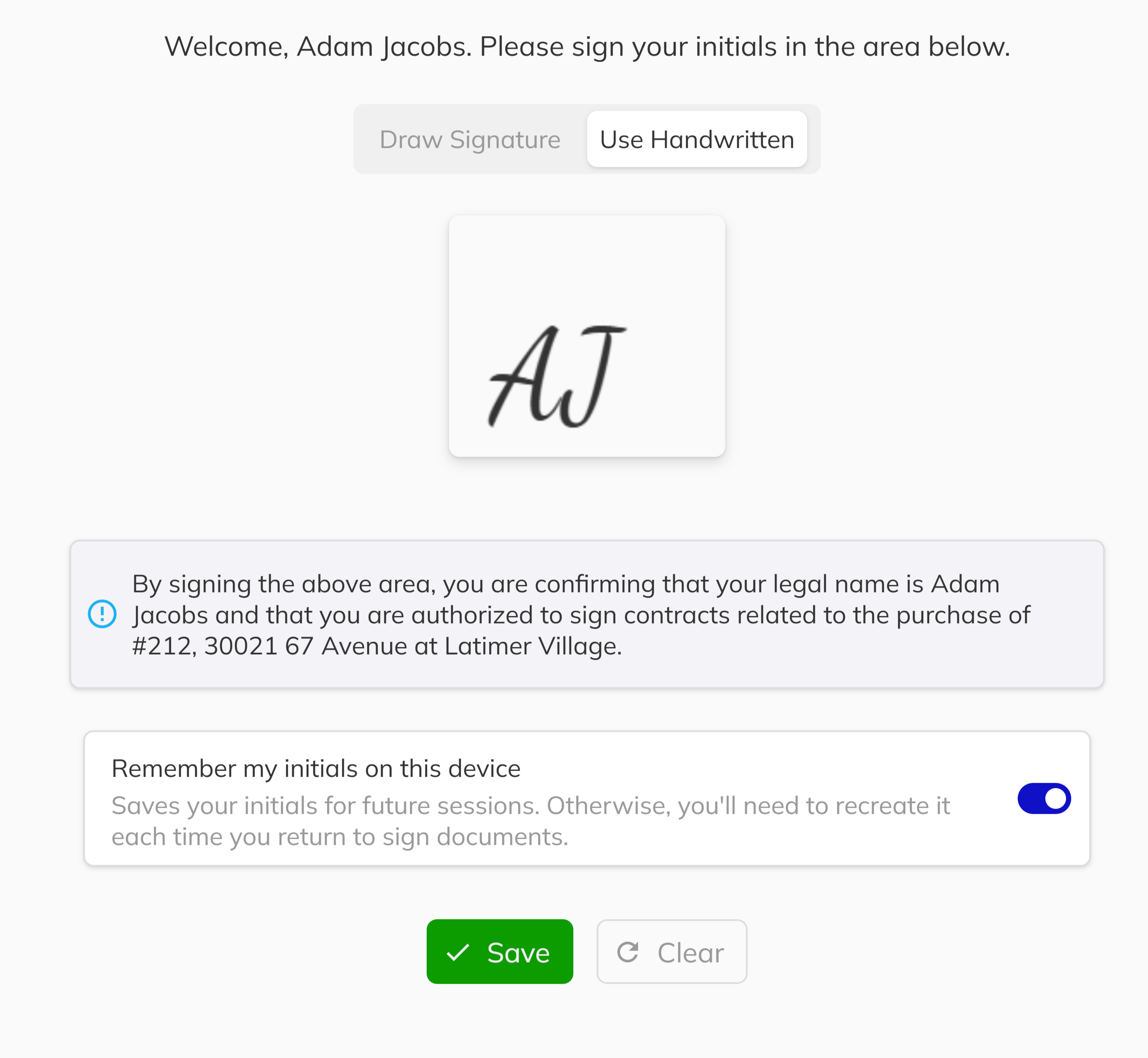
5. Create and save your signature and initials.
Use the on-screen pads or handwritten text to draw your signature and initials. Click Save to confirm each one, or click Clear to start over.
To reuse your signature and initials in future signing sessions, enable the Remember my signature on this device and/or Remember my initials on this device toggle. If you leave this option off, you will be prompted to redraw your signature and initials at the start of each session.
6. Add your initials and signature to the documents.
The system will guide you to the first document. Click on each "Initial here" and "Sign Here" spot to automatically add your saved initials and signature.
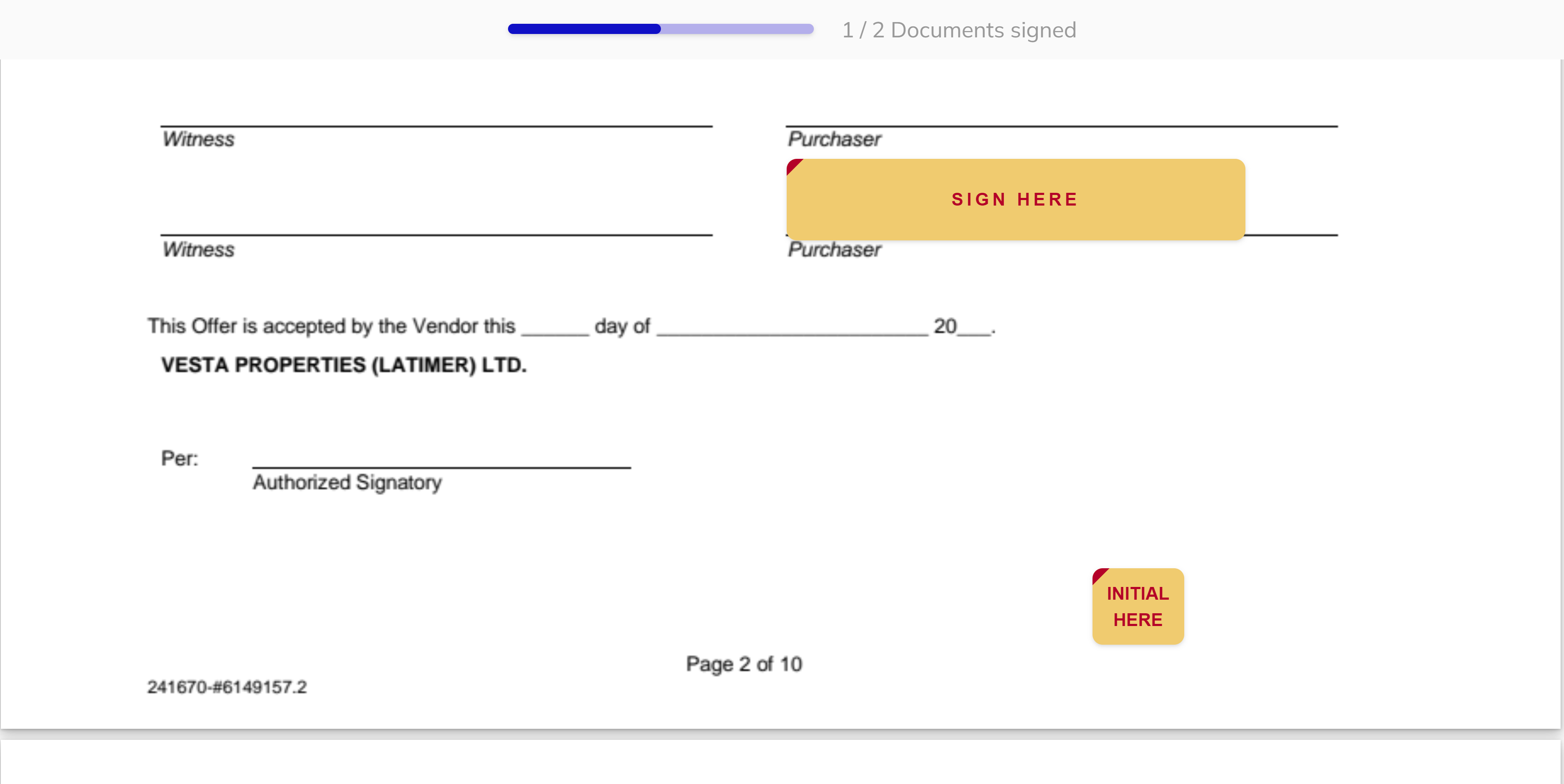
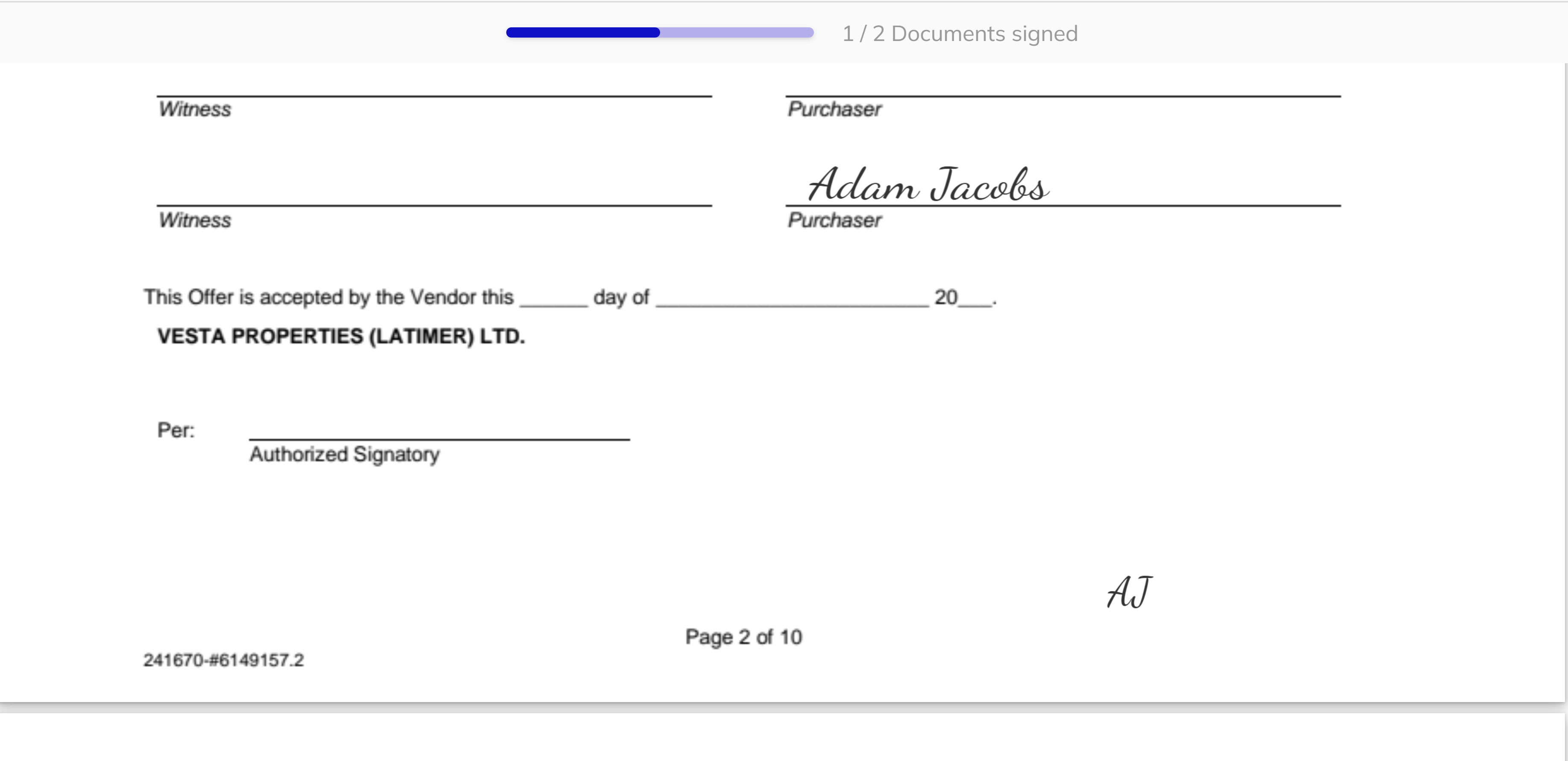
7. Clicking on a signature or initial blocks will automatically take you to the next required signature or initial block.
Continue this process until all required signature or initial blocks on all documents have been completed. A loading screen will pop up as you move between documents. Once all documents are signed, you will see a completion page. From here, you can go to the client portal to view your newly signed documents.
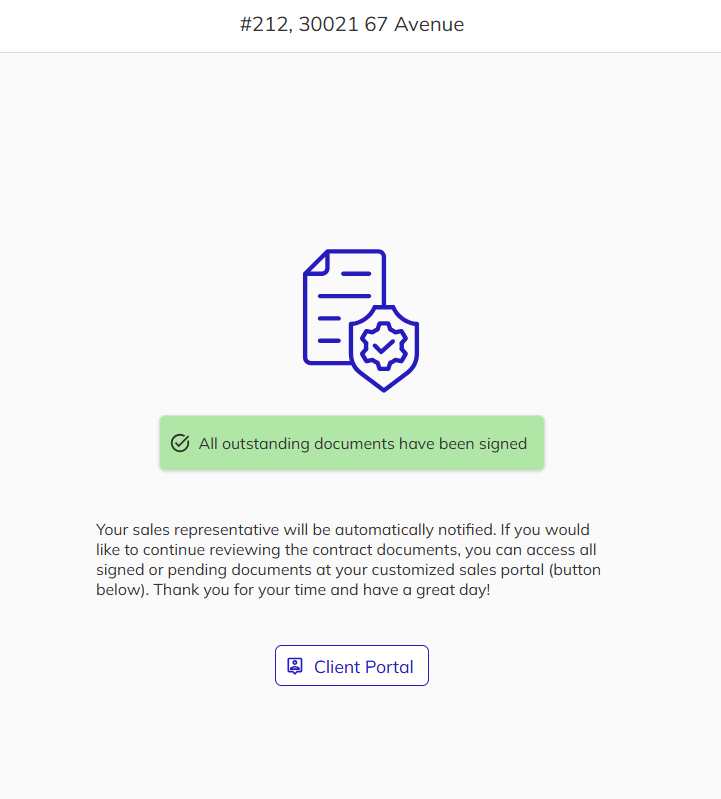
8. Options menu for accessing and viewing documents at any time in the signing service.
The Options icon provides additional tools and settings you can access at any time during or after the signing process.
| Options | Description |
|---|---|
| Download | Download a copy of your signed documents directly to your device. This allows you to keep a local copy of your contracts and addendums for your personal records. |
| Document History | View a complete history of all document activity, including when documents were Outstanding or Completed. |
| Adjust Signature | Update or redraw your saved signature and initials. If you need to change your signature, you can do so here and the updated signature will be used for any future signing sessions. |
| Terms and Agreement | Review the Terms of Service, Digital Consent & Disclosure, and Privacy Policy at any time. These are the same terms you accepted before signing your documents. |
| Logout | Sign out of the signing service. Logging out will end your current session. If you enabled Remember my signature on this device or Remember my initals on this device, your saved signature and/or inital will be cleared upon logout. |
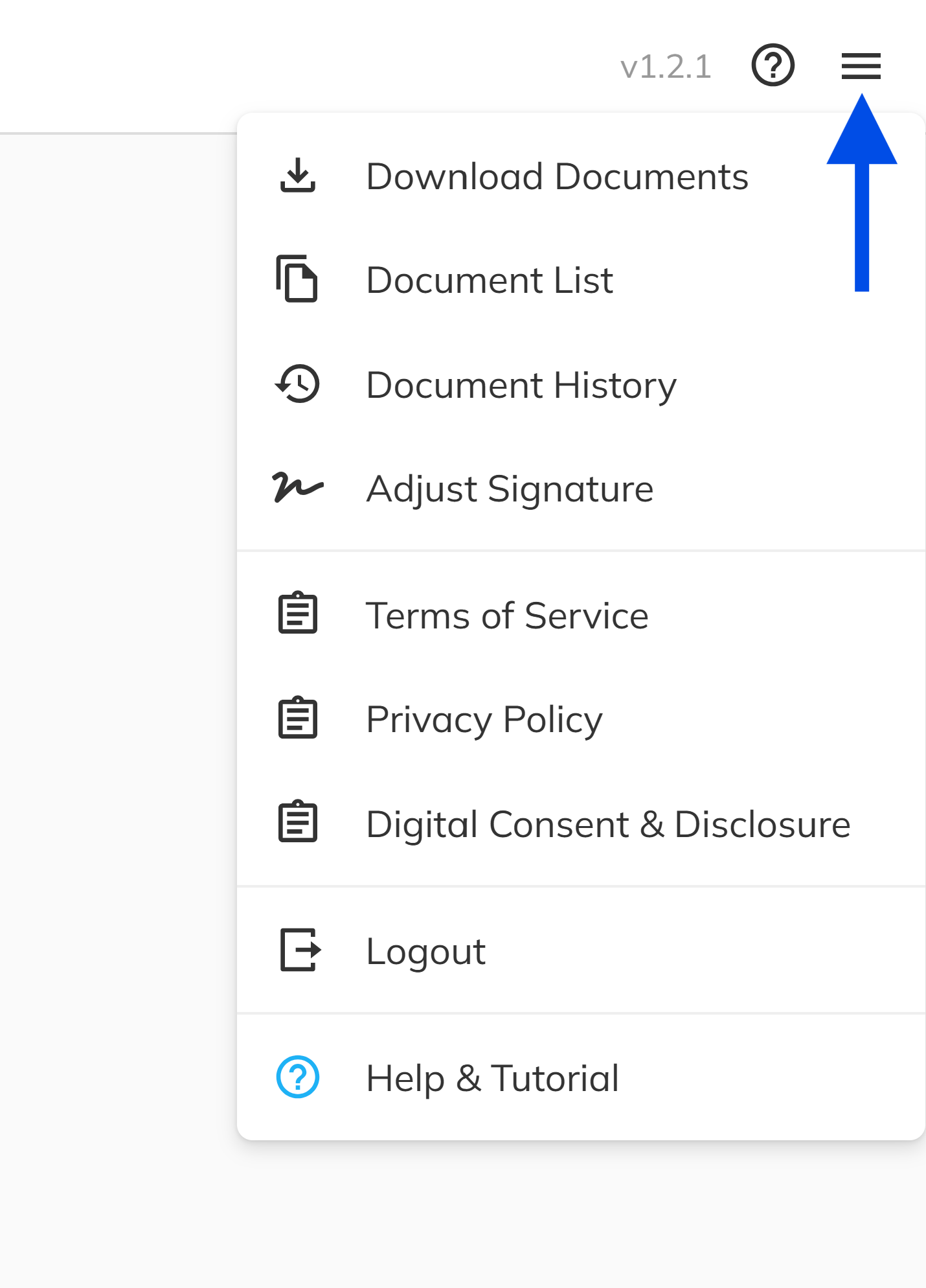
Congratulations! You have successfully completed the signing service process. All your documents have been securely signed and are now available for your reference in the client portal. If you require any further assistance, please contact your sales representative.
Legal Considerations
By signing electronically through this portal, you are consenting to conduct this transaction by electronic means where permitted by applicable law. The signatures you apply create legally binding records with the same effect as handwritten signatures. An audit trail recording timestamps, verification method, and signing actions is retained for compliance and dispute resolution purposes.